The gallery link is often the last thing a client receives from you and the first thing they share with everyone they know. It's what their family opens on their phones at the dinner table, what their friends see when they post about the shoot, and what future clients look at when they're deciding whether to book you.
Most photographers spend months refining their editing and minutes thinking about how the work is delivered. VSCO Galleries is a dedicated gallery app that makes delivery feel as considered as the photos themselves, with collaborative tools, clean presentation, and a workflow that connects directly to the rest of how you run your business.
This guide walks through everything: what VSCO Galleries is, how to create and share your first gallery, how collaborative uploads work, how to manage privacy and access, and how Galleries connects with VSCO Workspace and VSCO Sites.
What you'll learn in this guide:
- What VSCO Galleries Is and How It Works
- Download and Access VSCO Galleries
- Create Your First Gallery
- Customize the Gallery Experience
- Share Your Gallery With Clients
- Collect Guest and Collaborator Photos
- Client Proofing and Download Control
- Privacy and Access Control
- Deliver Photos and Videos Together
- Add Galleries to Your Portfolio Site
- Connect Galleries With VSCO Workspace
- Plans and Storage
- FAQ: VSCO Galleries
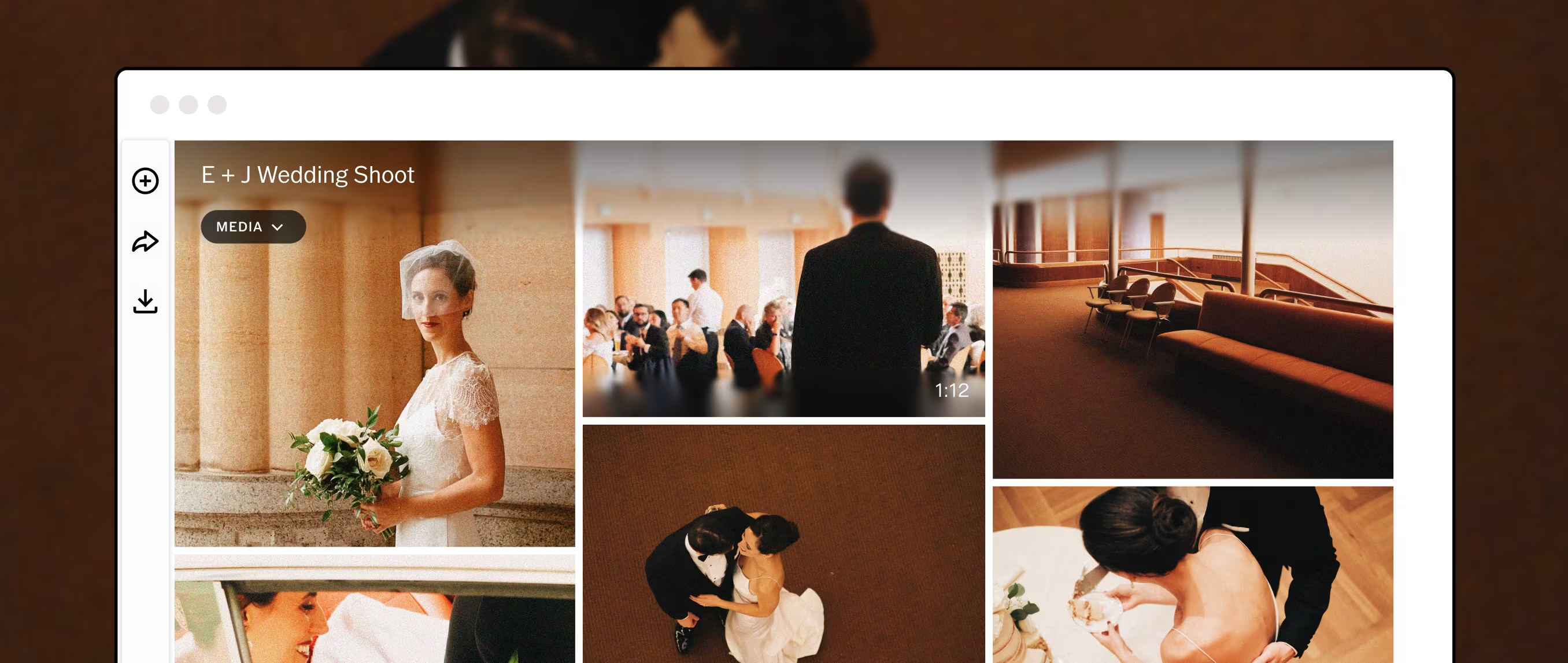
VSCO Galleries is a dedicated photo and video gallery app built for professional client delivery. It gives photographers a clean, distraction-free way to present finished work, share it with clients and their networks, and collect contributions from guests and collaborators, all without clients needing an account or additional software.
The core idea is simple: you create a gallery, upload your selects, set a cover image, and share a link. The client opens it on any device, sees their photos in a polished, photo-first layout, and can download and share from there.
What makes VSCO Galleries distinct from cloud folder sharing is the presentation layer and the collaborative tools. Each client gallery is designed to feel clean, distraction-free, and professional across desktop and mobile. And for events, weddings, and multi-photographer photoshoots, guests and collaborators can upload images using a simple QR code. Contributors can upload from their browser on desktop or mobile without downloading an app or creating an account.
Core features:
- Unlimited galleries over 10GB (Pro and VSCO One)
- Unlimited photo storage (Pro and VSCO One)
- 65GB video storage (Pro and VSCO One)
- QR code collaborative uploads (no app or account required for contributors)
- Password protection for private delivery (Pro and VSCO One)
- Custom cover images
- Photos and video in one gallery
- Download control
- Public galleries displayable on VSCO Sites
- Workspace integration: link any gallery to a job record
- Available on iOS and Mac desktop. Clients view galleries on the web.
Available on iOS and Mac desktop. Clients view galleries on the web.
VSCO Galleries is available in three places:
VSCO Galleries iOS app. A standalone app separate from the main VSCO app. Download it from the App Store. This is the primary place to create, manage, and share galleries from your phone.
VSCO Desktop (Mac). Download the Mac desktop app from vsco.co/downloads. Create and manage galleries from your computer, useful for uploading large batches directly from your editing workflow.
VSCO App (Studio section). Galleries can also be created and managed from within the main VSCO app on iOS, under the Studio tab.
Web. Clients access their galleries via a browser on any device. No app download required for viewing or for guest uploads.
Download VSCO Galleries for iOS →
Download for Mac →
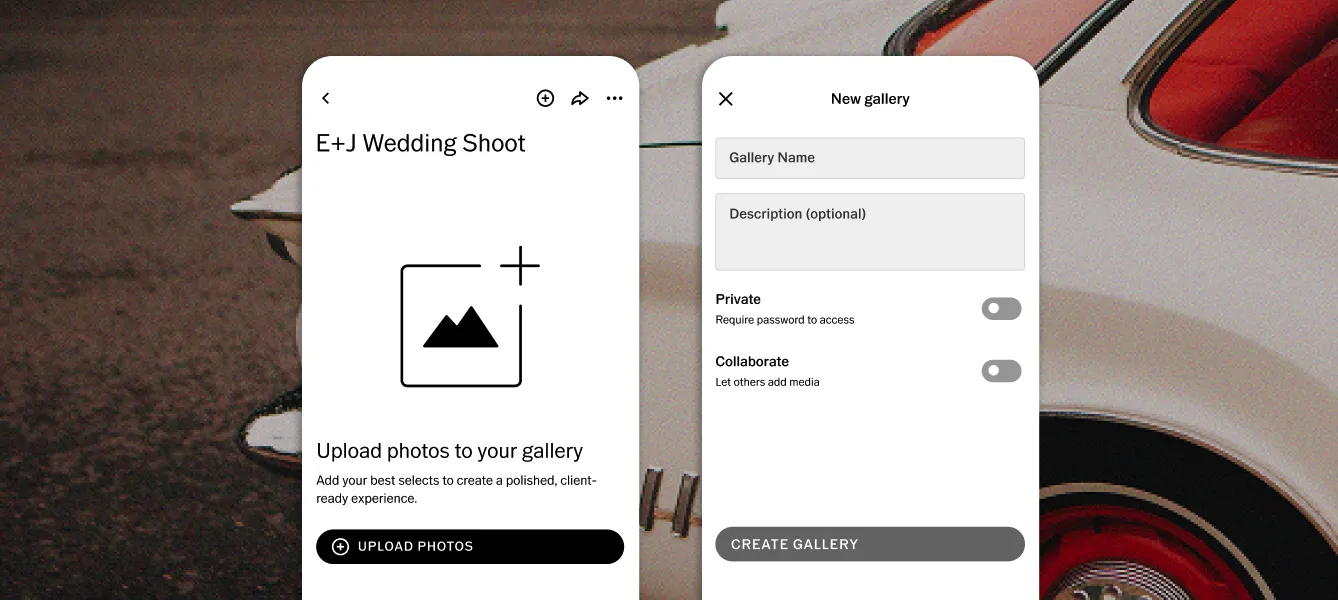
Creating a gallery takes under a minute once your selects are ready.
In the VSCO Galleries app (iOS, Mac):
- Open the app and tap the + button to create a new gallery
- Give the gallery a name and description, then set your password, collaboration, and download options
- Select photos to upload. You can add images in batches. You don't need to add everything at once
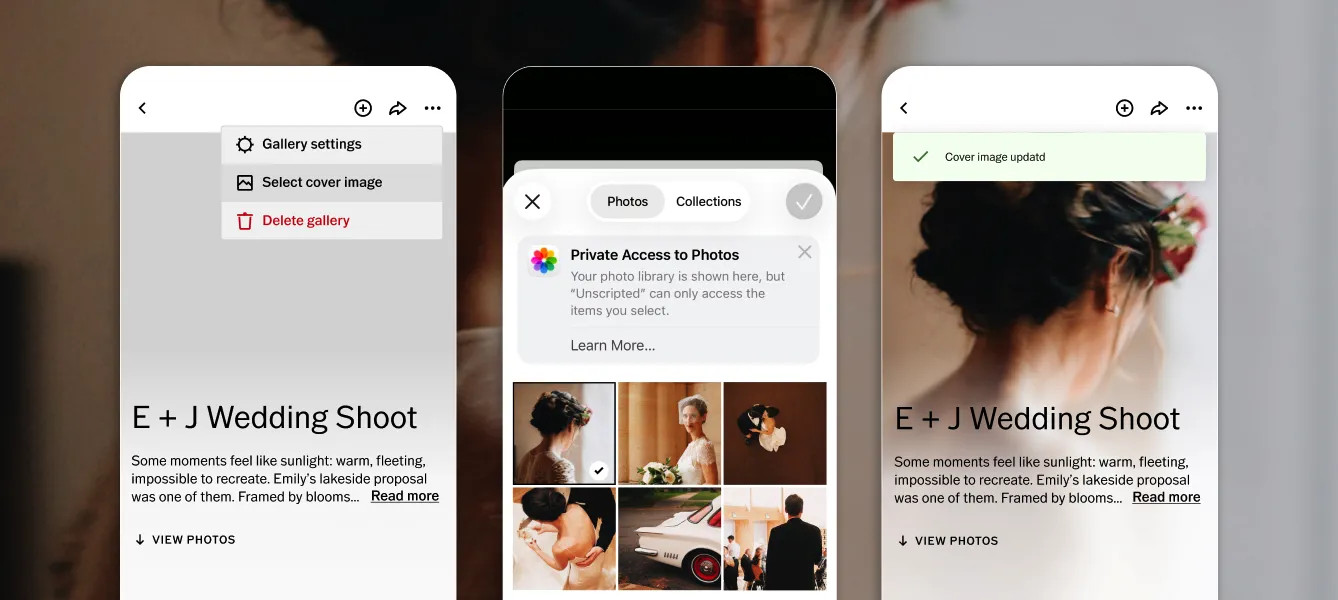
- Use the settings menu to select a cover image and update your gallery settings
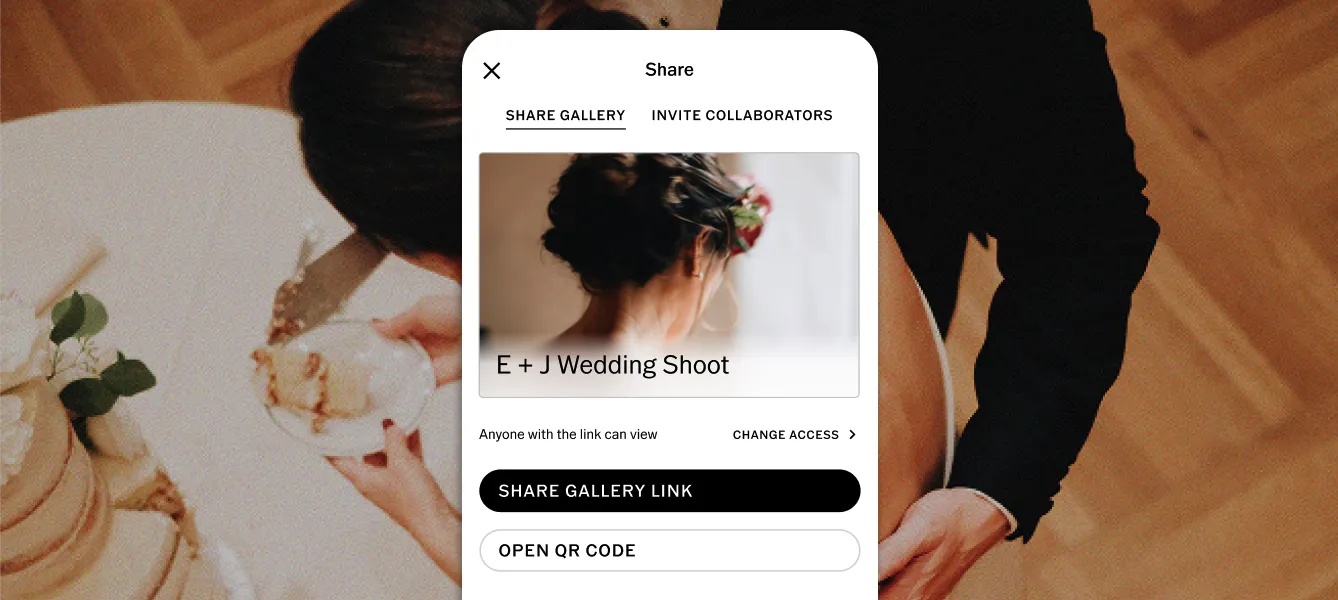
- Tap Share gallery to get your gallery link and QR code
Once published, the gallery is live and accessible to anyone with the link. Only people you share the link with can see it.
How Many Photos to Include
Curation matters more than quantity. A gallery of 60 images where every frame earns its place does more work than 120 with filler. Remove near-duplicates, remove technical misfires, and remove anything that doesn't contribute something distinct to the story of the session.
Portrait sessions typically deliver 25–80 final images. Weddings run 300–500 depending on scope. For events and mini sessions, scale the count to the session length. The useful question isn't "how many." It's "does every image here earn its place?"
Set a Strong Cover Image
The cover image is the first thing clients see when they open the link. It sets the emotional register for everything that follows. Don't lead with the chronologically first image or the technically safest shot. Lead with the one that makes them feel something.
Sequence the Gallery Intentionally
Images appear in the order you upload them, so plan the sequence before you add them, not after. For a wedding: arrivals, ceremony, portraits, reception details, candid emotion. For a portrait session: the establishing frame, a mix of expressions, the strongest close, a closing image with breathing room.
Upload in that order and the gallery guides clients through it. They find the images that matter because the structure puts those images in front of them.
Add More Images Over Time
You don't have to publish a complete gallery at once. Many photographers publish a sneak peek of 10–20 images within 48 hours of the photoshoot, then add the full edit when it's ready. The gallery link stays the same. Clients who bookmarked it see the updated gallery automatically.
Once your gallery is published, sharing it takes one step.
Share via link. Copy the gallery link from the app or desktop and send it via email, text, or any messaging platform. The link opens directly in a browser. No app download, no account creation required for clients.
Share via QR code. Generate a QR code for the gallery to use in print materials, event signage, or anywhere a scannable code makes access easier than a typed link.
What Clients Experience
When a client opens the gallery link, they see a clean, full-screen photo-first layout optimized for their device. Images load quickly. Navigation is minimal. Downloading is straightforward. Clients can download individual images or the full gallery depending on your settings.
The gallery looks as good on a phone as it does on a desktop, which matters because most clients open it on their phone first, often while they're still with people who want to see the photos immediately.
The most distinctive feature of VSCO Galleries for event and wedding photographers is collaborative uploads. Guests, second photographers, and behind-the-scenes crew can contribute photos directly to your gallery using a QR code.
This turns a standard gallery delivery into a comprehensive archive of the event from every perspective. Your professional images anchor the gallery. Guest contributions fill the candid moments, table reactions, and behind-the-scenes frames that no single camera could capture alone.
Wedding and event photographers charge $300+ for this one add-on. VSCO Galleries includes it at no additional cost on free and paid plans.
How to Enable Guest Uploads
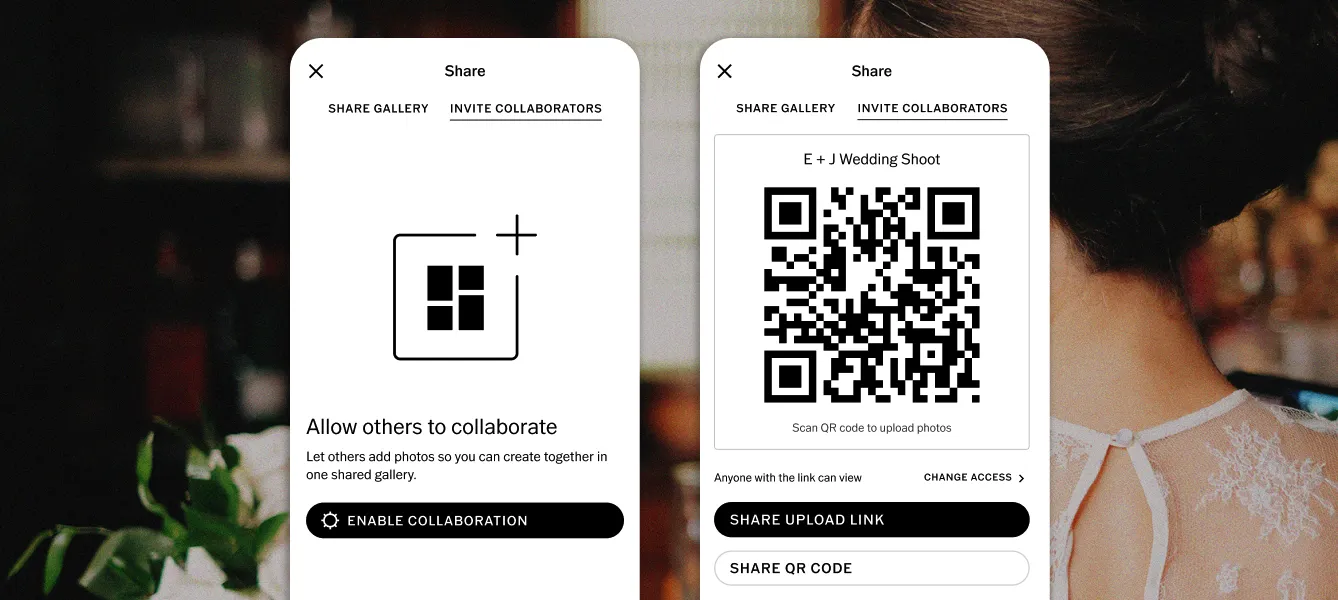
- Open the gallery in the VSCO Galleries app
- Navigate to gallery settings and enable the Collaborate toggle
- If wanted, update the section name, for example "Behind the Scenes"
- Use the Share gallery button to get the QR code and link
Contributors scan the code with any phone camera and upload directly from their browser. Uploads appear in the gallery in real time.
Curating Guest Uploads Before Final Delivery
You stay in full editorial control. You control access with shareable links, and you stay in control with the ability to remove submissions as soon as they're added, so the final gallery feels intentional and fully aligned with your work.
Before finalizing delivery, review all uploads and remove anything that doesn't belong. Blurry phone shots, duplicates, anything off-brand or off-topic.
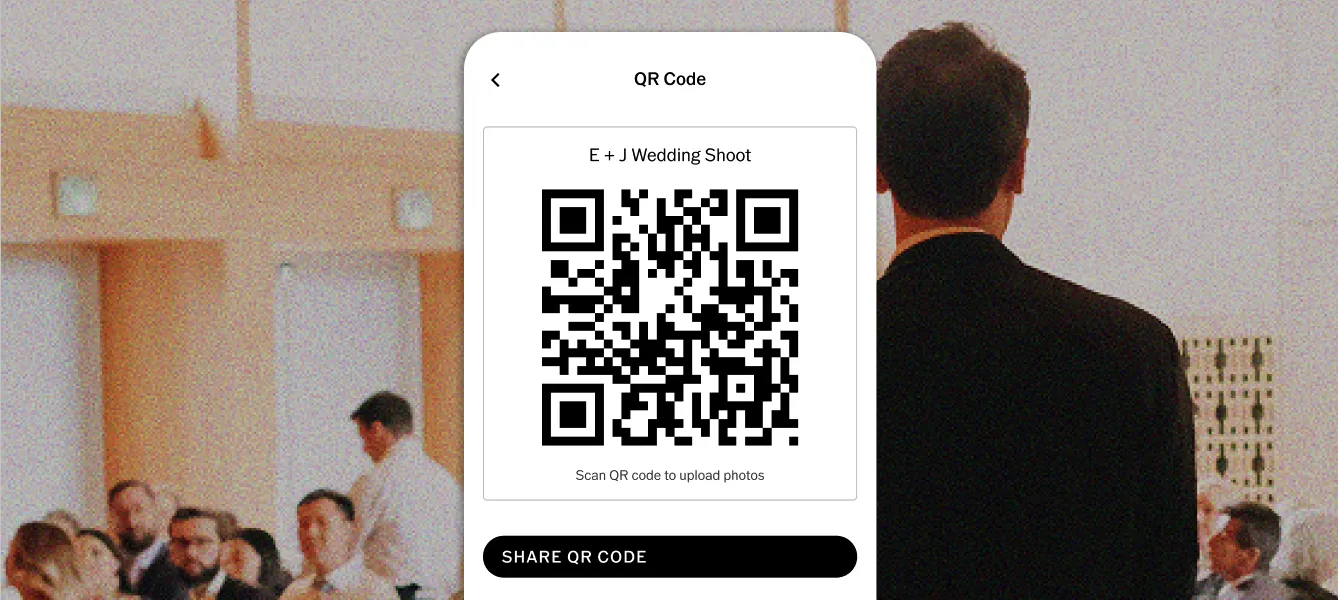
When to share the QR code:
- In your pre-event communication to clients (so they can share it with guests ahead of time)
- On signage at the venue during the event
- In the DJ or emcee's announcement script
- On table cards or in the event program
The more visible the QR code, the higher the participation. A mention from the front of the room during the reception reaches every guest at once.
VSCO Galleries includes a proofing workflow that lets you control whether clients can download images before you're ready to finalize delivery.
Disable downloads during proofing. When you publish a gallery for client review, turn off downloads in gallery settings.
Enable downloads for final delivery. Once the gallery is approved and ready for full delivery, enable downloads. Clients can then save individual images, select entire sections to download, or download the full gallery in one action.
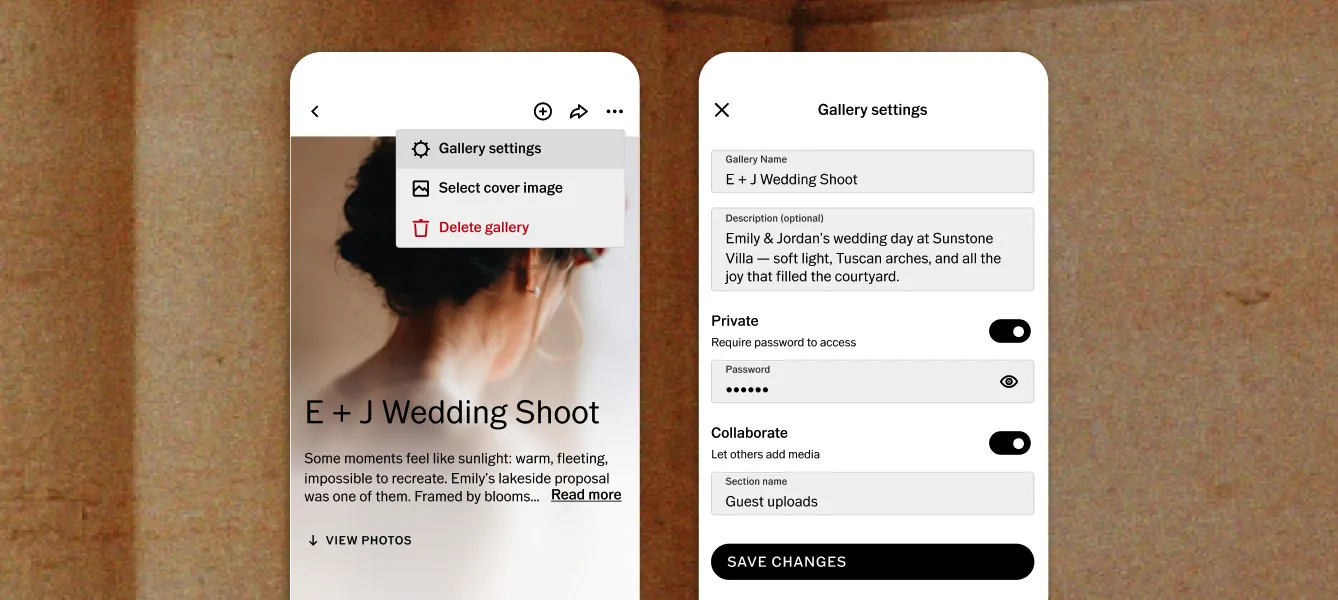
Galleries aren't publicly searchable. Only people with the direct link can view them, they won't show up in search engines, VSCO's own search, or anywhere else on the platform. For access control beyond that, set a password.
- Unique link sharing. The default for most deliveries. Share the unique gallery link with your client and anyone they want to share it with. Secure enough for most portrait, family, and event sessions.
- Password protection. Add an optional password for an extra layer of access control. Required for brand campaigns before launch, sessions with sensitive content, or any situation where you need to limit access more tightly. Available on Pro and VSCO One.
- Revoke access anytime. Change the gallery password to lock out anyone with the old link, or delete the gallery to remove it entirely. Useful if a client relationship changes, images need to be pulled back, or a project is cancelled after previews have been shared.
VSCO Galleries supports both photos and video, so you can deliver behind-the-scenes footage, highlight reels, ceremony films, and full edits alongside your photos in one gallery.
For wedding and event photographers delivering video alongside stills, this means one link for the complete project. No separate Vimeo link, no second delivery email. The couple receives everything in one beautifully presented place.
Video storage:
- Free members: video counts against the 10GB total storage limit
- Pro and VSCO One: 65GB dedicated video storage, separate from unlimited photo storage
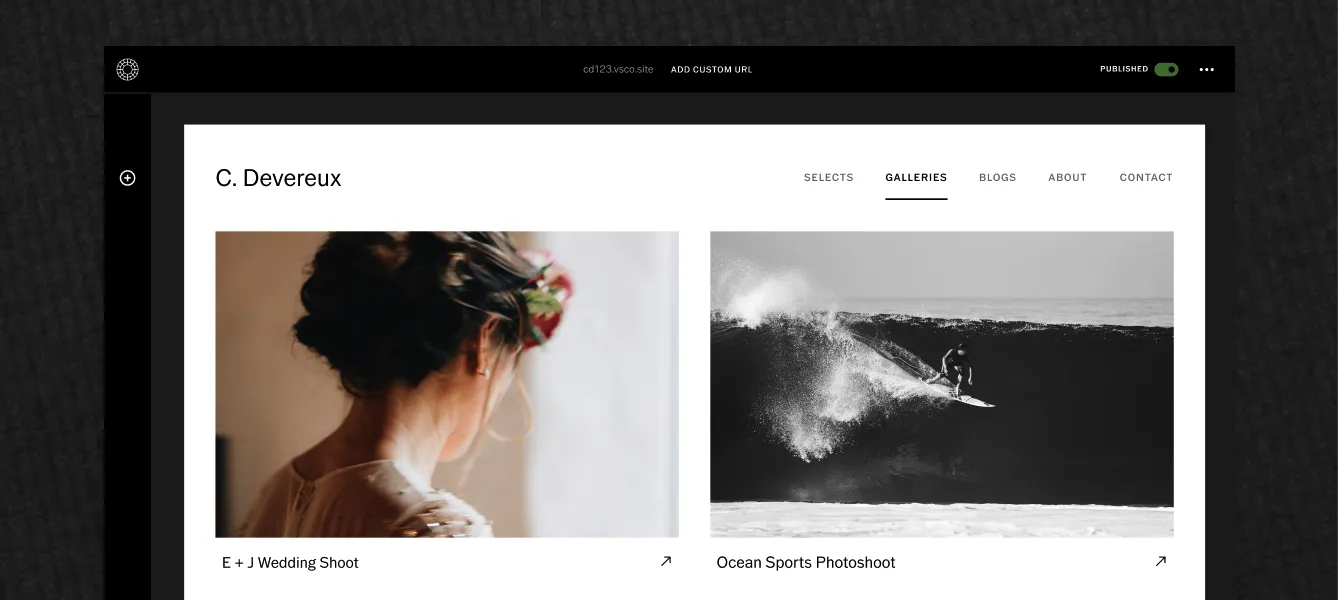
Any public VSCO Gallery (one that isn't password-protected) can be added directly to your VSCO Site. Visitors can open the full gallery in a new tab, so your complete client projects, not just single images, become part of your portfolio.
This is one of the most practical integrations for photographers building their business. Instead of rebuilding your portfolio separately, the same galleries you deliver to clients can work as case studies and portfolio examples for future clients.
Public galleries are visible to anyone with the link. If you want to feature a gallery on your site without giving unlimited access, consider creating a curated highlights version of the session as a public gallery, while keeping the full client delivery gallery private or password-protected.
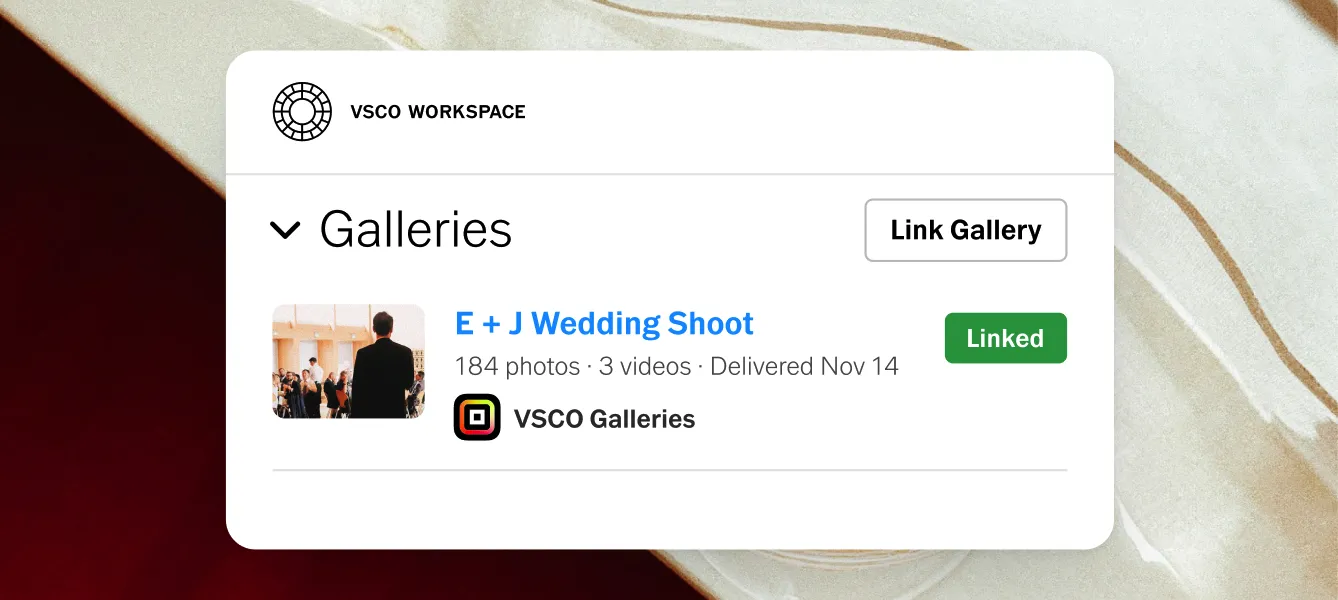
VSCO Galleries and Workspace connect directly when you link a gallery to a job record. Reference your gallery name, link, and delivery details directly inside Workspace email templates. Communication around delivery lives alongside the booking, the contract, and the invoice in one client record. Every gallery you create can be referenced from within the same job.
How to link a gallery to a Workspace job:
- Open the job in VSCO Workspace
- Navigate to the gallery section of the job record
- Select the VSCO Gallery you want to attach
- The gallery link and name are now available as tokens in your Workspace email templates
From this point, your delivery email goes out from within Workspace (the same place as the contract and invoice) and the gallery is permanently associated with that client's record for future reference.
Automated follow-up. Once the gallery is linked and delivery is sent, Workspace automations can trigger the post-delivery sequence: a thank-you message, a review request a few days later, and a rebooking invitation timed to the anniversary of the shoot.
Free:
- Create and share unlimited galleries
- Guest uploads via QR code
- 10GB total storage (photos and video combined)
VSCO Pro:
- Unlimited photo storage
- 65GB dedicated video storage
- Password protection
- Everything included in VSCO One (200+ presets, AI Lab, VSCO Sites, VSCO Workspace, VSCO Canvas, VSCO Studio Pro, VSCO Film Presets)
VSCO One:
- Same gallery features as Pro
- Includes Workspace for full studio management
VSCO Galleries is free to download and free to start. The free plan is a genuine starting point for photographers building their first client base. The upgrade to Pro is most valuable once you're managing multiple active clients and need unlimited storage across a full season of photoshoots.
Download VSCO Galleries Free →
Compare Plans →
Do clients need an app or account to view their gallery?
No. Clients open their gallery through a browser link on any device: phone, tablet, or desktop. No app download, no account creation, no login required. The gallery opens immediately when they tap the link.
Do guests need an app to upload photos?
No. Guest and collaborator uploads happen entirely in a browser. They scan the QR code with their phone camera, which opens a browser-based upload page. They select photos from their camera roll and upload. No app, no account, no friction.
How many photos can I include in a gallery?
As many as you need. There's no per-gallery image limit. Storage caps apply at the account level: free members have 10GB total, Pro and One members have unlimited photo storage. For most photographers, the practical limit is curation, not storage.
Can I add images to a gallery after I've shared it?
Yes. You can add images, remove images, and change the cover photo at any time after publishing. The gallery link stays the same. Clients who open it will see the updated version automatically. This makes it straightforward to publish a sneak peek gallery and then add the full edit when it's ready.
Can I password-protect individual galleries?
Yes. Password protection is set per gallery, so you can have some galleries open to anyone with the link and others locked behind a password. This is useful when delivering to a commercial client whose campaign hasn't launched yet, or for personal or sensitive sessions.
How does the Workspace integration work?
Link any VSCO Gallery to a job in Workspace and the gallery name and link become available inside your Workspace email templates. Your delivery email goes out from within Workspace, the same place the contract and invoice live, keeping the entire client record in one place. Automated post-delivery follow-ups can be triggered from the same job record.
Can guests upload videos, not just photos?
Yes. Guest and collaborator uploads support both photos and video. Contributors scan the QR code, open the upload page in their browser, and can submit either.
Deliver Work That Reflects the Quality Behind It
When the work is strong and the experience around it is just as considered, clients remember. They may not be able to name every detail, but they notice when the process feels professional, thoughtful, and easy to navigate. That experience shapes how they talk about you and whether they recommend you to someone else.
VSCO Galleries gives you the tools to deliver that experience: polished presentation, collaborative uploads that open up new ways to work with clients and guests, privacy controls for sensitive projects, and a direct connection to Workspace that keeps delivery tied to the rest of the client relationship.