Grain Filter
Recreate the look of real film with VSCO’s Grain filter. Our lab-developed film grain effect perfectly complements our film-inspired filters and overlay effects.

Add film-like grain and dynamically control texture with Strength, Size, and Color sliders. Create the perfect vintage effect, from overstated to subtle.
VSCO Members can create with unmatched authenticity by combining the Grain texture tool with 40+ Film X preset filters that are inspired by iconic films that defined decades of photography. Invest in your creativity with a VSCO Membership.
Control grain texture
Find the perfect balance when adding grain to photos. Create a subdued look or use the Strength, Size, and Color sliders to add more noise and create an authentic film grain effect.



Fade +5.0

Edit with film filters
Combine a Film X filter and the Grain overlay to achieve the grainy look of real film. Customize classic film stocks inspired by Kodak, Fuji, and Agfa, then save your personalized look as a film Recipe.

Just like film grain
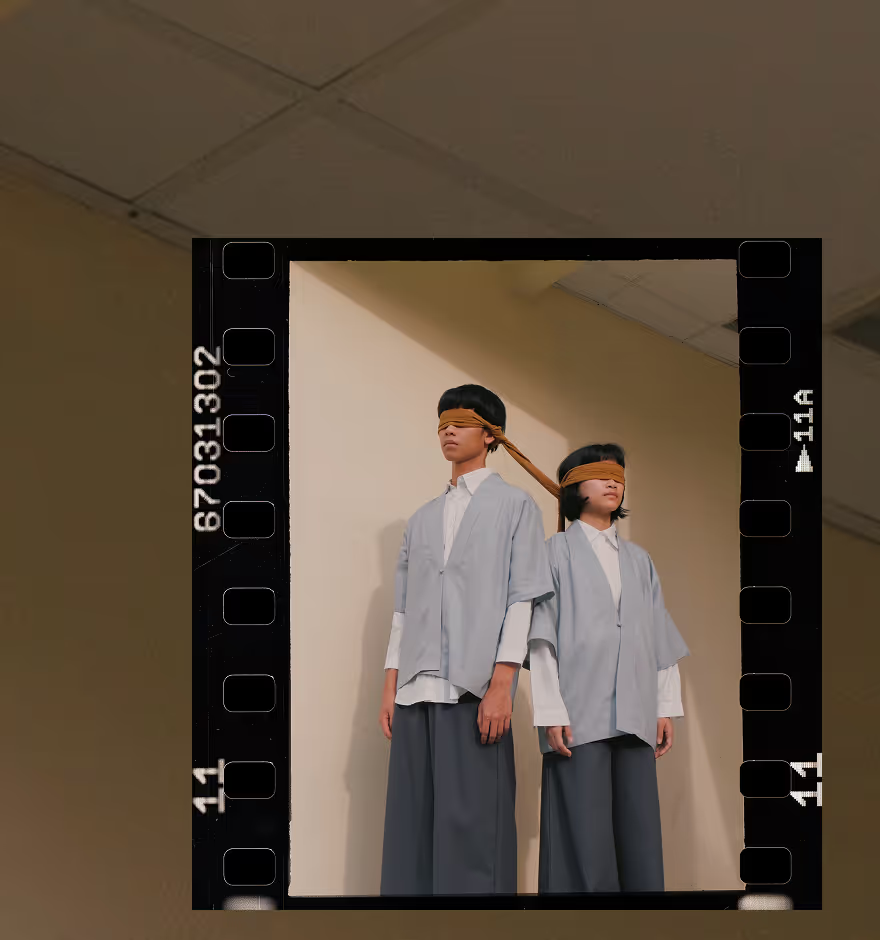
Combine the Grain filter with film frame overlays to flawlessly mimic the look of real scanned film – light leaks and sprocket holes included.

Monochrome looks
Try adding a Grain overlay to a black and white image to recreate the look and feel of high sensitivity film – be sure to turn up the Strength and Size for a more authentic film grain.

How to add grain to a photo
Open the VSCO mobile app or use the desktop photo editor to import your image or video. Select your photo and tap ‘Edit.’ Swipe to find the Grain tool in the tools tray, then tap to open the Grain editor.
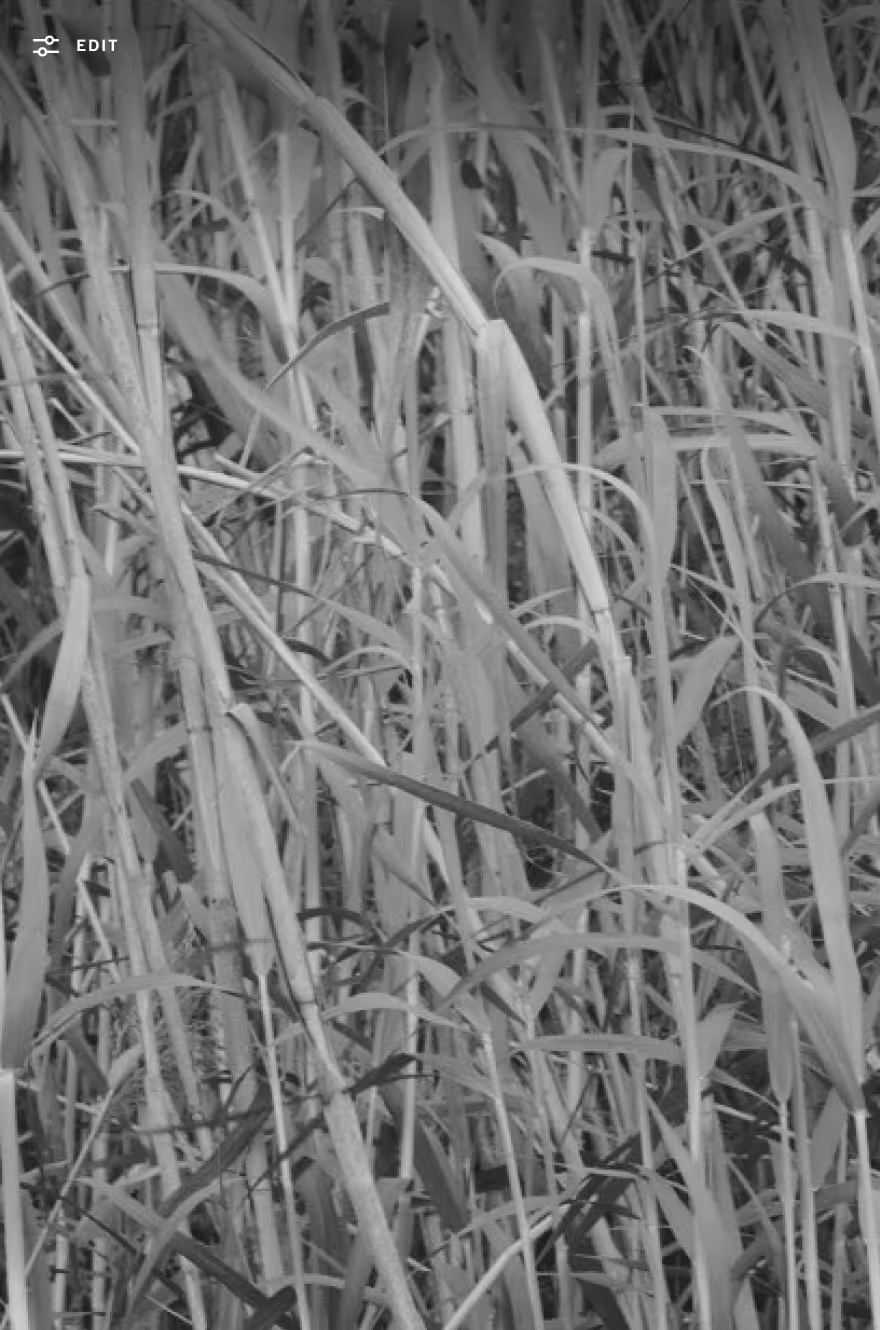
Adjust the grain effect
Move the Strength slider to adjust the intensity of the grain effect. Make the film grain texture fine or coarse with the Size slider. Introduce color to the film grain with the Color slider.

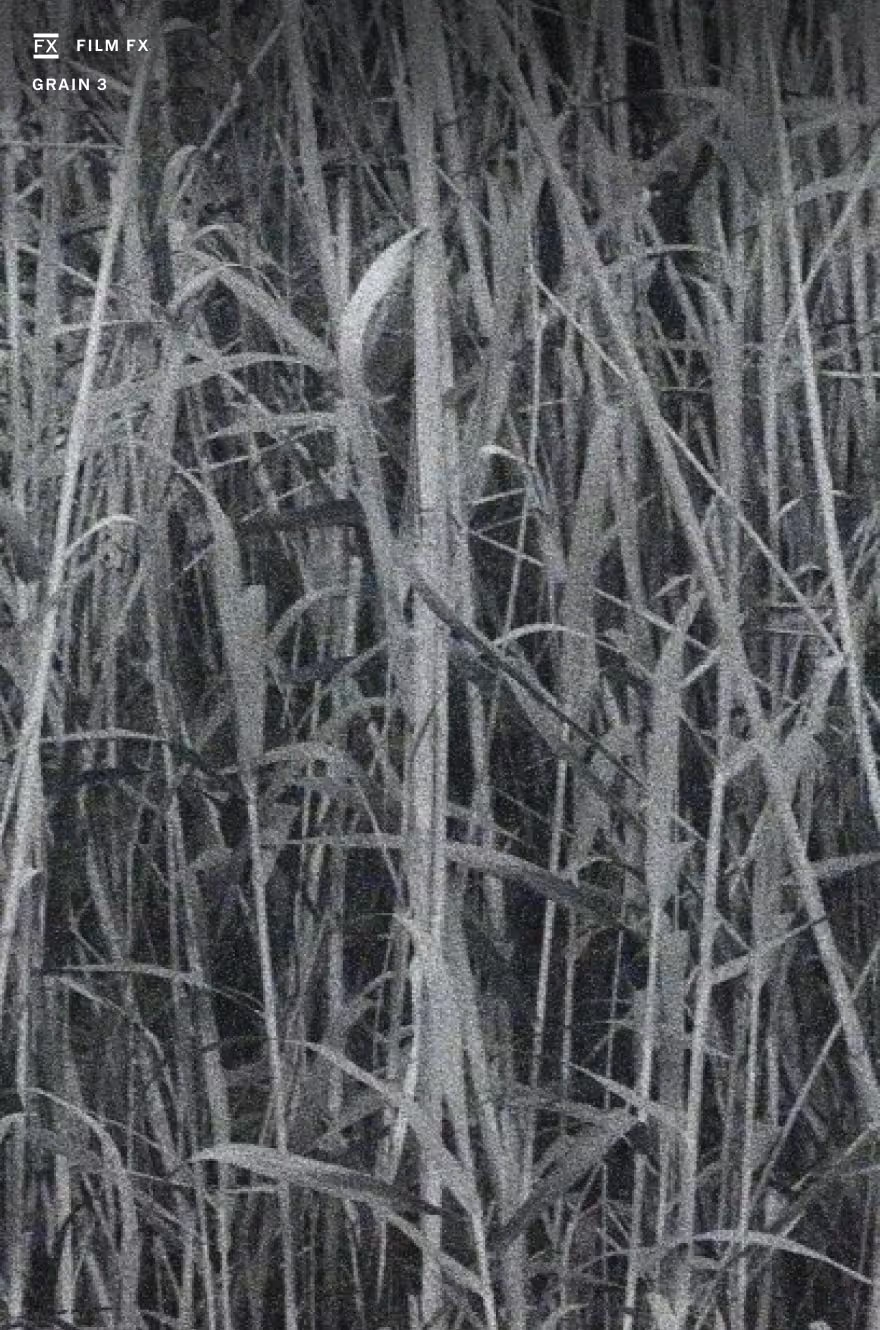
Film grain overlays
Alternatively, you can use Film FX to select pre-made film grain filters and other film-inspired overlays to apply to your photo. Post to your profile or save your photo when you’re done.
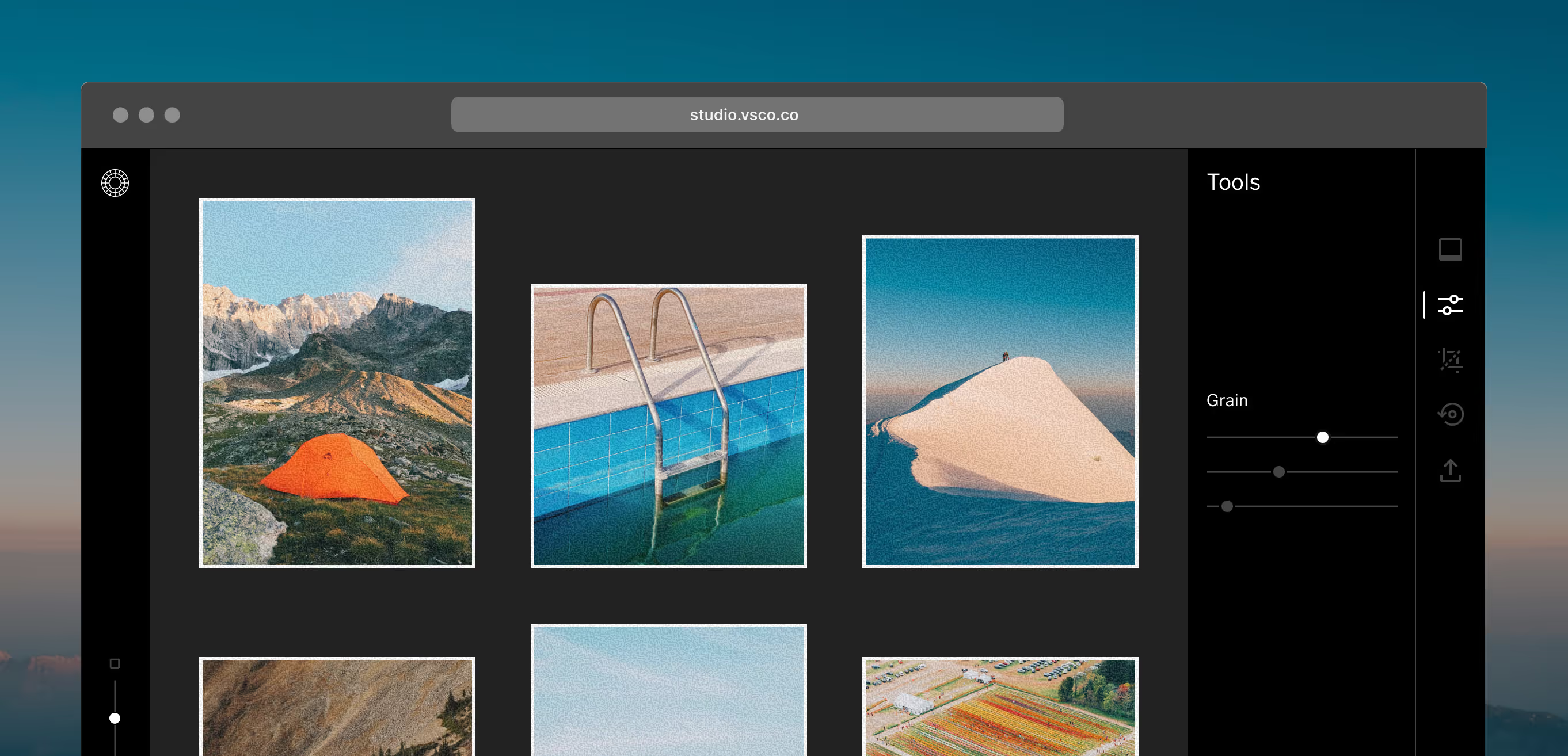
Bulk edit images with VSCO Desktop Studio
Add grain to multiple images at once in VSCO Desktop Studio. Our online photo editor on desktop for Mac and Windows PC allows you to edit photos in bulk with the Grain texture tool without leaving your computer.
Add grain in VSCO Capture
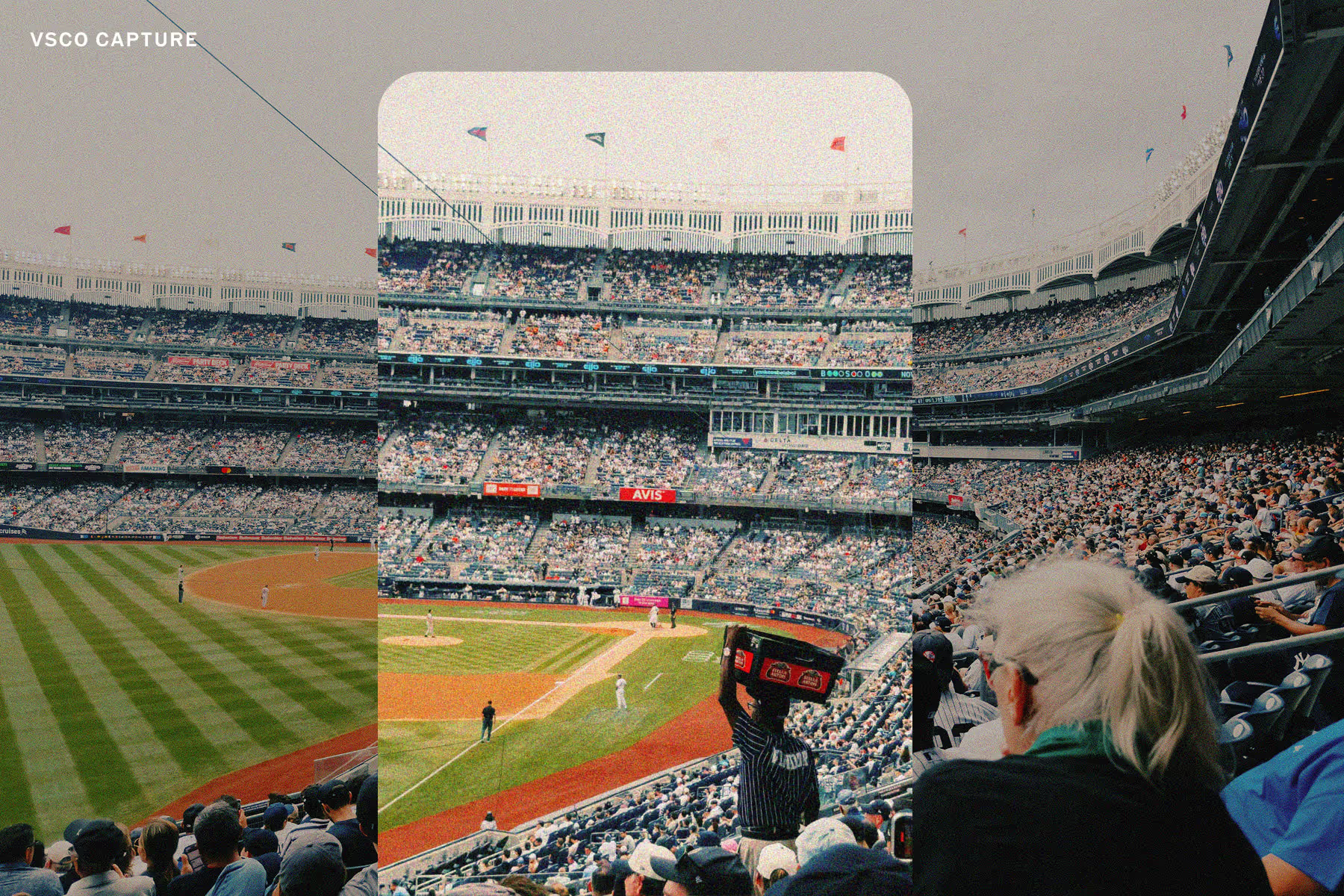
Apply grain as you shoot with the same control and precision. See your adjustments in real time, combine seamlessly with live presets, and effortlessly capture an authentic film aesthetic. Download VSCO Capture for free on iOS.

Frequently asked questions
What is film grain?
Film grain refers to the fine, textured speckles found in analog film, created by metallic silver or dye clouds. It gives photos a natural film texture and a timeless, grainy effect. This real film look is simulated with VSCO’s grain filter.
How can I get a grainy film effect on my digital photos?
VSCO offers a film grain editor that lets you add grain to photos on iPhone, Android, or with our online photo editor — perfect for achieving a grainy film look with control over color, grain size, and grain strength.
Can I add film grain to a video?
You can add film grain overlays to videos with VSCO’s texture film effects, creating a vintage grainy film effect on videos. In the VSCO video editor, click on FX and choose between 5 different levels of grain texture to apply the effect to your video.
Can I adjust the strength of the grain texture?
Yes, VSCO’s grain editor lets you control the strength of your grain texture so you can go from subtle film grain to a bold, gritty effect.
Can I increase or reduce the grain size?
Yes, VSCO offers a size control for film grain so you can fine-tune the look — from smooth, fine grain to rougher, larger grain overlays.
Can I edit grain color?
VSCO’s grain filter includes a color slider optimized for color images, helping simulate the look of real color film grain without shifting the overall tone of your images.
What’s the difference between film grain and digital noise?
Film grain is organic and adds character to photos, while digital noise is more random and often unwanted. VSCO’s grain effect mimics film textures — many creators reduce noise but add grain for a gritty, artistic effect.
What’s the best amount of grain to use?
The best amount of film grain depends on your desired look — VSCO’s grain editor lets you dial in subtle texture at lower strength levels (around +3.0 or lower), create a strong grain effect with medium settings (+3.0–6.0), or go bold and artistic with higher values (+6.0 and up), all with adjustable strength, size, and color controls.
Does film grain reduce image quality?
Not really — grain adds texture without lowering resolution. In fact, it can improve your photo’s look by softening the look of blurry images and overly sharp details, while creating a more cinematic, film-like feel.
Is grain better in black and white or color photos?
VSCO’s grainy filter works great for both. Black and white photos gain a classic, gritty documentary look, while color photos get a subtle, nostalgic grain texture. Try combining a grain overlay with a black and white filter or color grading photo filter.
LEARN MORE
The noise and texture of film grain is just one way to achieve a vintage grainy film aesthetic in your pictures. Explore our photography guides, including our tutorial on editing images to emulate film.



COMPLETE THE FILM LOOK
Layer grain with intention. Add a Kodak and Fuji-inspired film filters, fade your photos, or overlay a film frame to give any image texture, depth, and mood.
FILM FILTERS
Give your photos timeless character in a one tap. Explore film presets inspired by Kodak, Fuji, and other classic stocks.

IMAGE FADER
Bring a soft, washed look to your photos. Fade tones, mute highlights, and create a subtle, film-like atmosphere.

FILM FRAME OVERLAYS
Apply a 35mm or 16mm film overlay to replicate classic film framing and capture the subtle imperfections of analog scans.