Pre-production usually involves a lot of explaining.
You describe the mood to a client in words. They imagine something different.
You arrive on set and spend the first hour of a session clarifying what you meant. A mood board doesn't eliminate that gap entirely, but it collapses it significantly.
The faster you can build one that reflects exactly what you're going for, the faster everyone gets aligned.
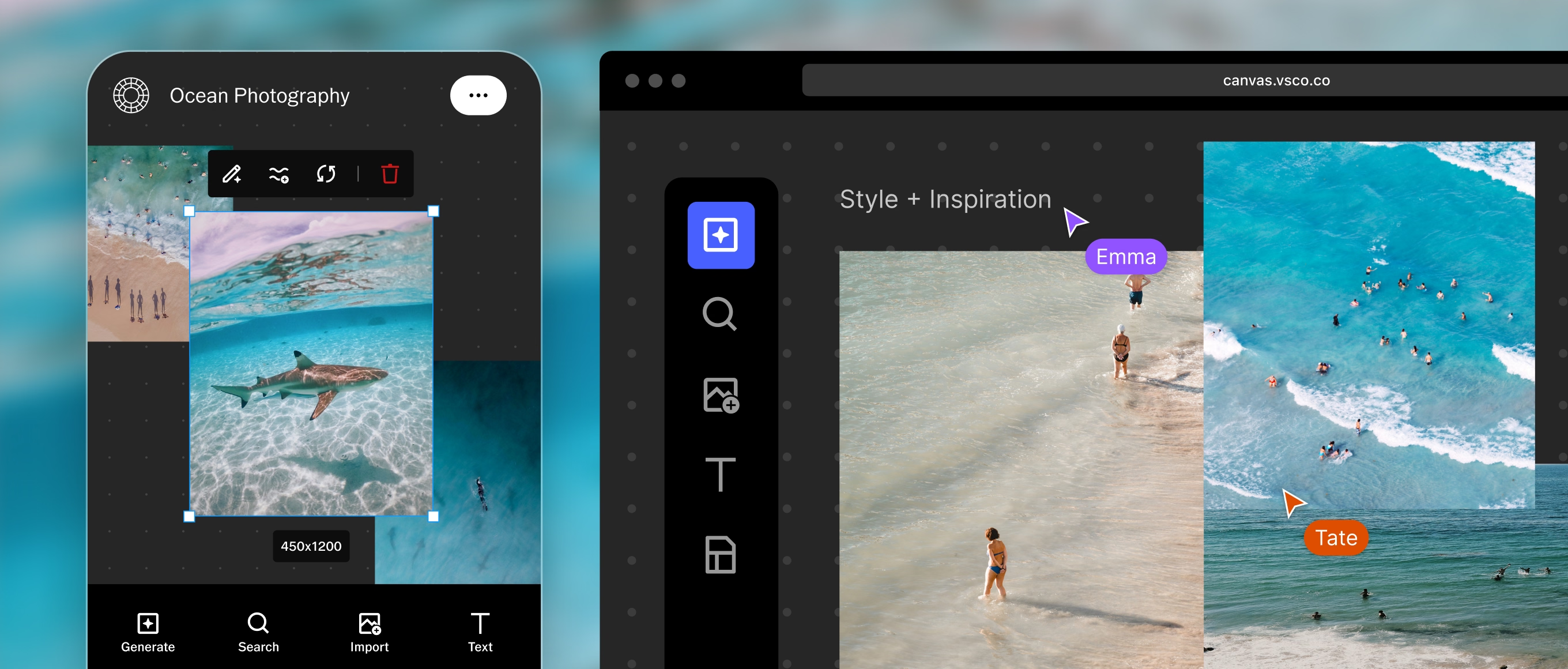
VSCO Canvas is a mood board and creative ideation tool built for photographers and visual creators. It combines your own imported references with AI image generation, real-time editing, text annotation, and collaborative review in one browser-based workspace.
You can build the visual direction for a project, invite a client or creative director to respond to it, and refine it together before a single image is captured.
This guide covers the complete Canvas workflow: creating a project, generating and editing images, using templates, collaborating and sharing, and managing your projects and generation credits.
What you'll learn:
- How to start a Canvas mood board project and navigate the interface
- How to generate images from text prompts and refine them with variations
- How to edit imported and generated images within Canvas
- How to use Templates for structured pre-production planning
- How to share Canvases with clients and collaborators with the right access controls
- How generation credits work and what each membership tier includes
In this guide:
- What Is VSCO Canvas?
- Canvas vs. Other Mood Board Tools
- Create Your First Canvas
- Add and Import Images
- Generate Images With AI
- Edit Images in Canvas
- Add Text to Your Canvas
- Use Templates
- Share and Collaborate
- Export Your Work
- Manage Your Projects
- Generation Credits and Membership
- FAQ
VSCO Canvas is a browser-based creative workspace for building mood boards, developing visual concepts, and aligning clients and collaborators on creative direction before a project begins.
You bring in your own reference images, generate new visuals using AI from text prompts, edit both, add annotations, and share the result with anyone who needs to respond to it.
The core workflow is flexible enough to handle a wide range of pre-production scenarios:
- A wedding photographer building an aesthetic direction to share with a couple for approval
- A commercial photographer creating a pitch moodboard for a brand client
- A creative team aligning a photographer, stylist, and art director on a consistent visual language before the session
- A solo photographer exploring a concept that doesn't fully exist as a reference yet, using AI generation to visualize it
Features:
- Gather inspiration from anywhere:
- Discover creative work from the VSCO community with VSCO Search
- Upload your own reference images
- Embed images, videos, websites, and map locations from across the web
- AI image generation from text prompts
- Full image editing: exposure, color, grain, blur, crop, and more
- Text boxes for annotations, labels, and notes
- Pre-built templates for structured pre-production workflows
- Real-time collaboration with Viewer and Editor access controls
- Public sharing with no VSCO account required for viewers
- Comment threads for focused feedback
- Export as PNG or JPEG
- Available on web (canvas.vsco.co) and mobile browser
- Best on Google Chrome
Access and Requirements:
Platform: Web browser (canvas.vsco.co) and mobile browser. Opens from the VSCO iOS app via the Create menu or Global Menu. Google Chrome is recommended for the best experience with the full suite of generation and editing tools.
VSCO account required: Yes. Collaborators also need a VSCO account to comment or edit, though anyone can view a public Canvas link without an account.
WebGL: Canvas requires WebGL to be enabled in your browser. If Canvas doesn't load, check your browser settings. See Enabling WebGL for VSCO Canvas for instructions.
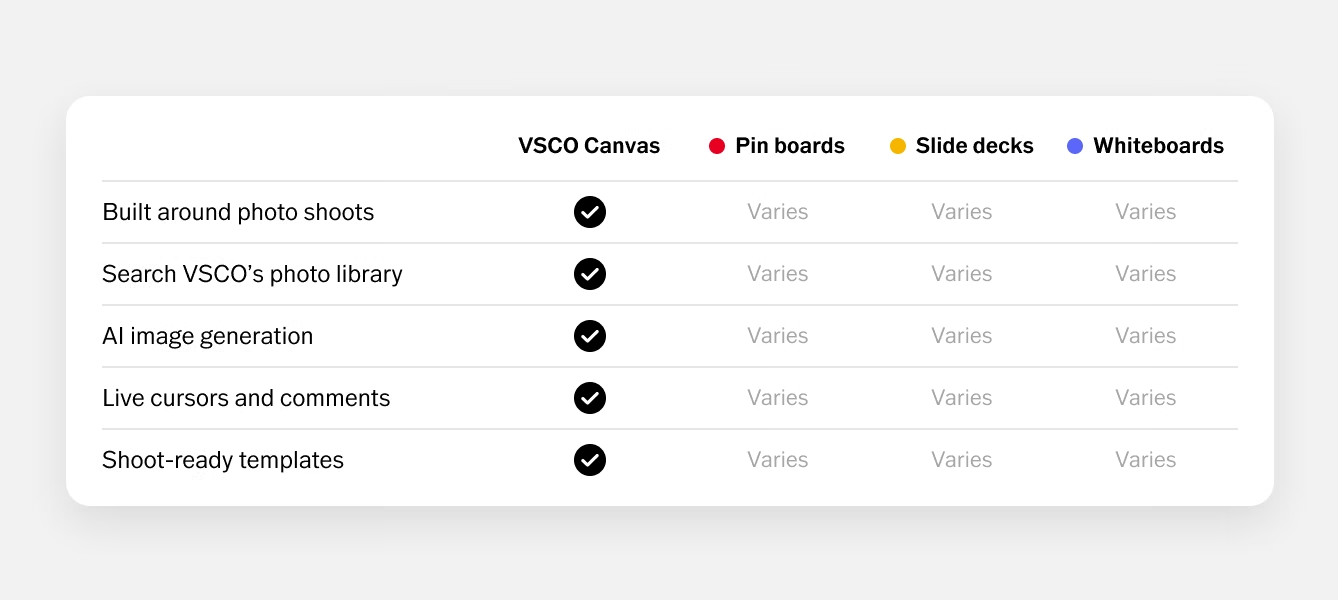
Pinterest and Google Slides are the default pre-production tools for most photographers, and both have obvious limitations.
Pinterest serves the platform's algorithm, not your creative brief. Slides wasn't designed for visual ideation and presentation.
Neither gives you the ability to generate a reference image that doesn't exist yet, edit the references you do have, or collect client feedback directly on specific images.
Canvas is built specifically for visual creators and pre-production workflows. You bring in reference images, arrange and annotate them, drop in pre-built templates for pitch decks, photoshoot plans, or client presentations, generate a visual you can't find anywhere else, and share the result for review.
Feedback lands directly on the board rather than in a separate email thread. Everyone leaves the pre-production conversation with the same picture in their head.
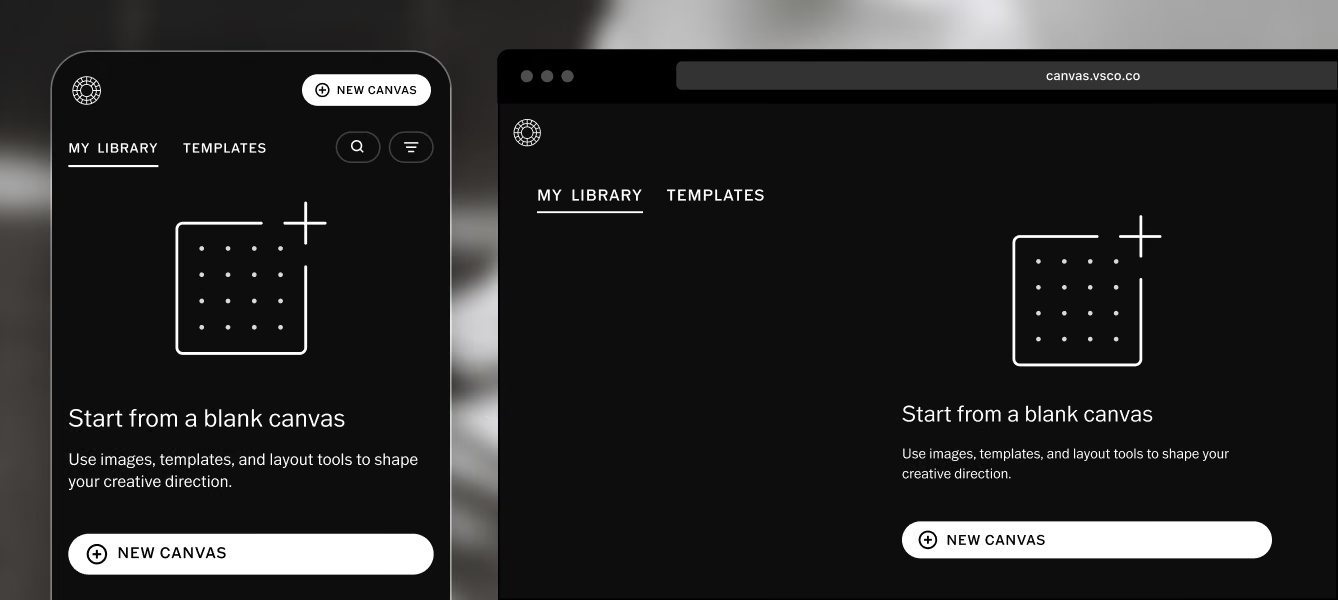
On web:
- Go to canvas.vsco.co or navigate to vsco.co and click Canvas in the left menu
- Click New Canvas in the top right corner
- Name your canvas in the top left. The name saves automatically
From the VSCO app:
- Open the VSCO iOS app
- Tap New moodboard in the Create menu, or select Canvas from the main menu in the top left of your Studio.
- Tap New Canvas, then name your project in the top left.
Once created, your canvas appears in My Library alongside any canvases that have been shared with you.
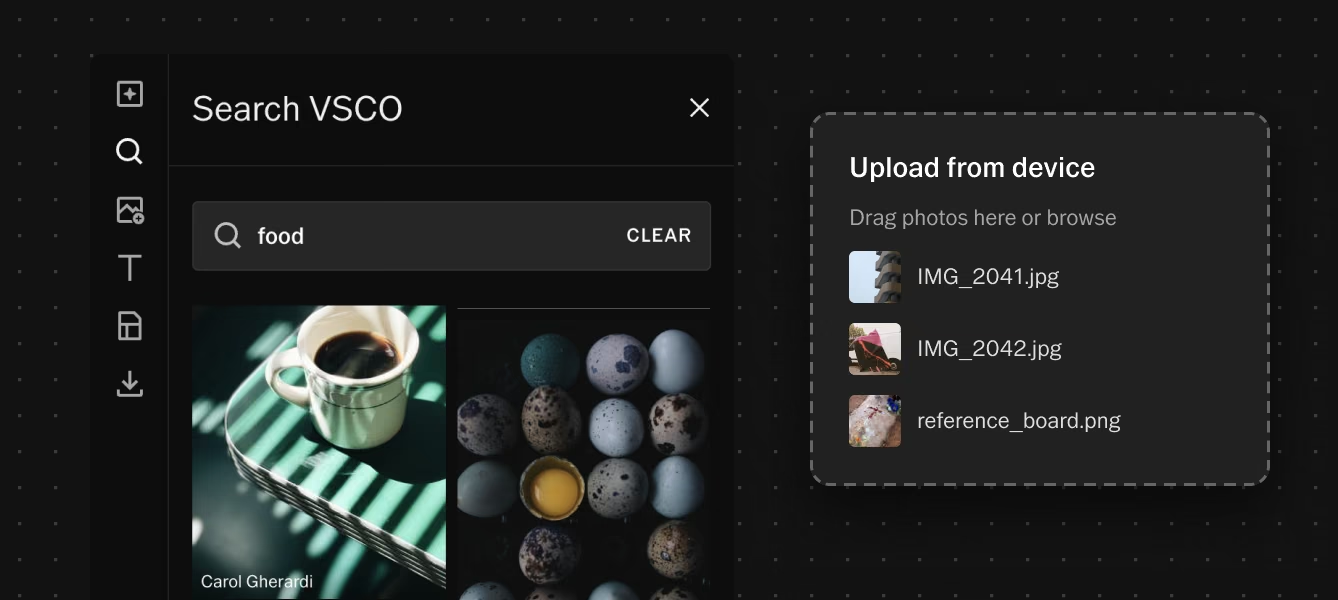
Add images to your canvas from your device or generate them with AI. Currently, importing directly from your VSCO Profile is not yet supported. That feature is in development.
To add an image from your device:
- Click the Import (image) icon in the left toolbar
- Select an image from your computer or device
- Position and resize it on the canvas
To add images from the VSCO community:
- Click the Search icon in the left toolbar
- Search by keyword, mood, subject, or visual theme
- Browse results from photographers across the VSCO community
- Select one or multiple images, then tap Add
This is one of the fastest ways to build a reference board. Search for lighting styles, color palettes, environments, or a specific aesthetic direction and pull in images from photographers whose work matches what you're building toward.
It's also useful for collaborative projects where contributors have shared work to VSCO that you want to incorporate into the brief.
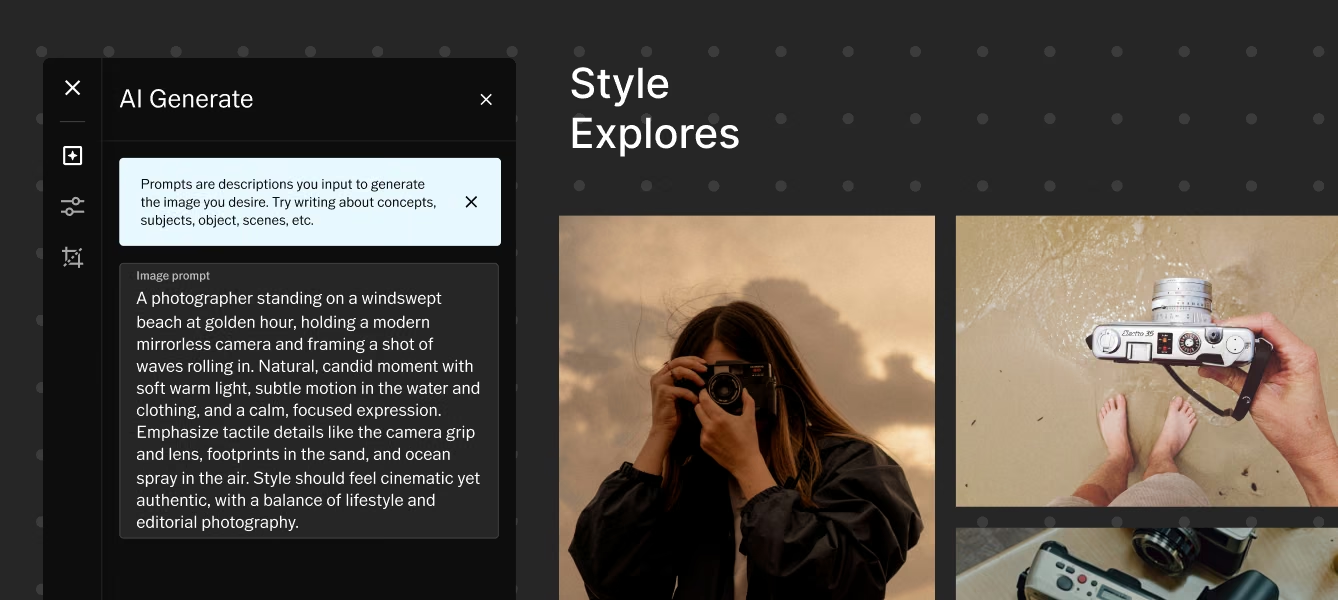
With VSCO Canvas, you can supply the creative direction through a text prompt, and AI can produce a visual reference.
The generation tool is designed to help you visualize concepts that don't have a perfect reference image yet, not to replace your own creative thinking.
To generate an image:
- Click the Generate image (+) icon in the left toolbar to add a generation frame
- Click anywhere on the canvas to place it
- When the prompt panel opens, type a description of the image you want. Include concepts, subjects, mood, lighting, color, or anything that helps define the visual direction
- Click Generate
Your remaining generation credits are visible at the bottom of the generation panel as you work.
Writing effective prompts:
- Be specific about what matters most: "warm backlit portrait, late afternoon window light, muted earth tones" produces more targeted results than "portrait"
- Include references to mood and color alongside subject matter
- Describe what the image should feel like, not just what it should contain
- If a first prompt doesn't land, adjust the most specific element and generate again
Variations and Rerolling
When a generated image is close to what you need but not quite there, or when you want to explore options before committing:
Reroll: Generates a completely new image using the same prompt. Use this when the composition or feel is wrong but the description is right.
Add Variations: Generates three similar versions of the current image on a similarity scale:
- Very Similar: Subtle differences, mostly maintains the original
- Middle: Moderate variation in composition and detail
- Very Different: More significant interpretation of the same prompt
Variations give you controlled exploration without losing the core concept.
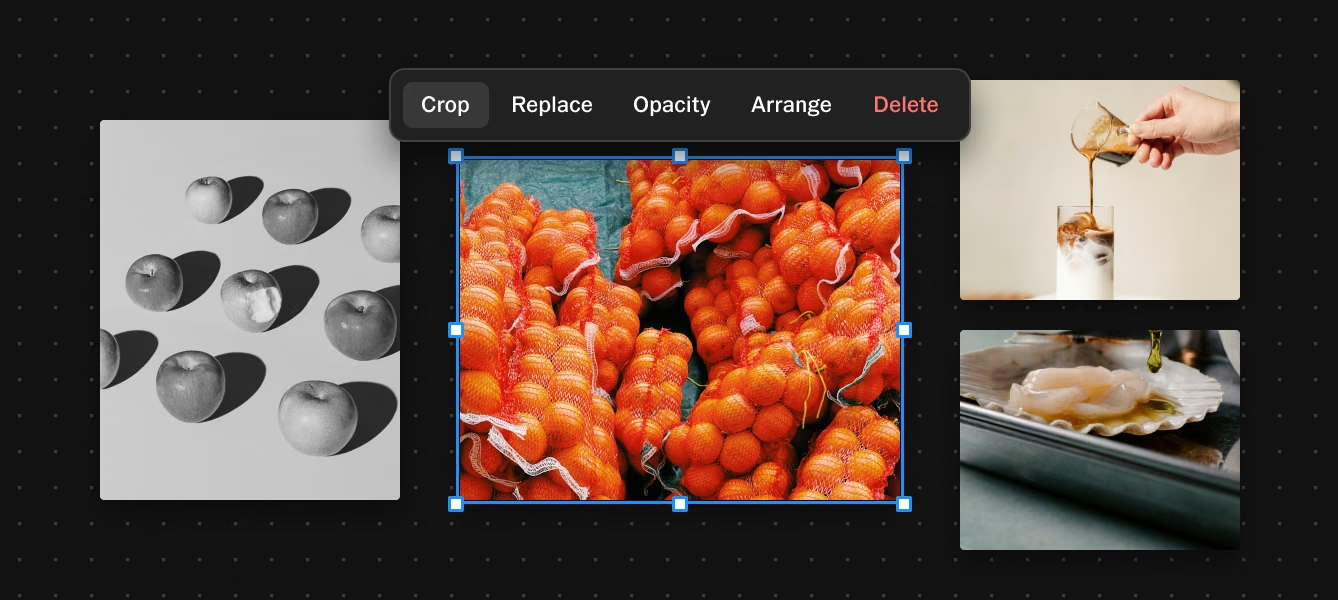
Both generated and imported images can be edited within Canvas using the same control categories available in VSCO's editing suite.
To edit an image:
- Select the image on the canvas
- Click the Edit icon if the editing panel does not appear (generated images)
- Adjust controls across four categories:
Light & Contrast: Brightness, Exposure, Contrast, Clarity
Color & White Balance: Temperature, Tint, Saturation, Vibrance, Hue
Highlights & Shadows: Highlights, Shadows, White Level, Black Level
Effects & Filters: Grain, Blur, Dilate
To crop an image:
- Select the image
- Click the Crop icon
- Choose a template ratio or use freeform cropping
Editing within Canvas is useful for aligning the tonal and color feel across different reference images on the same board: pulling warmer references cooler, or reducing contrast across the board to create a more cohesive visual direction before sharing with a client.
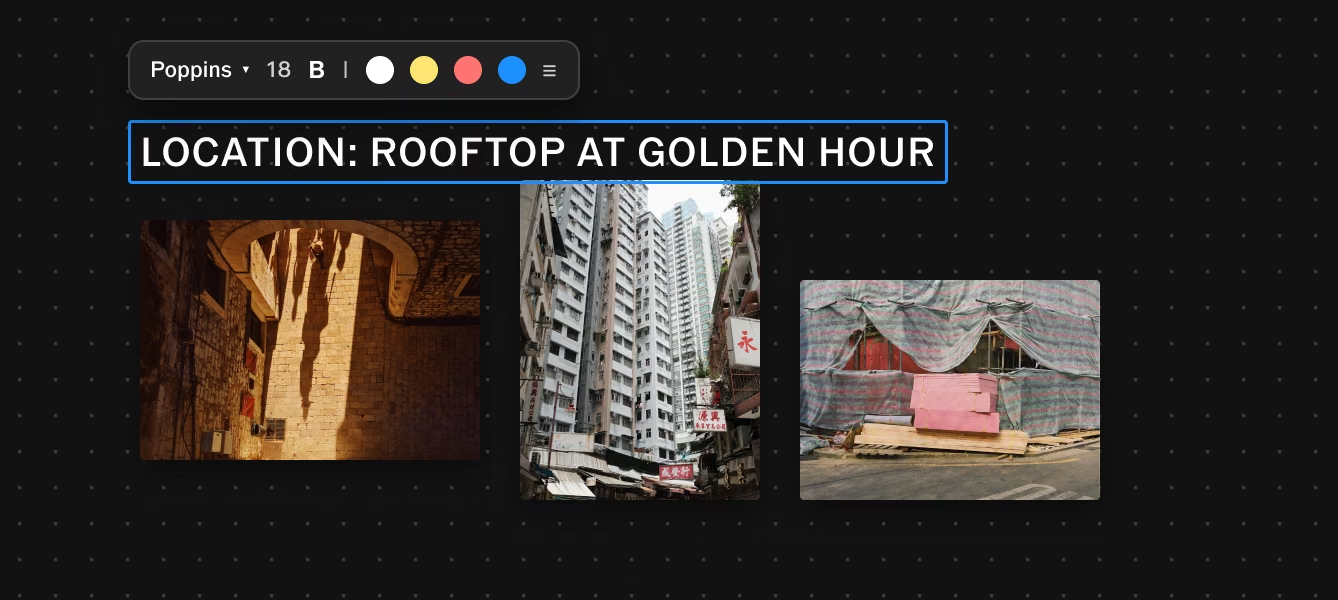
Text boxes let you annotate the mood board directly: label sections, describe the intent behind specific references, leave notes for collaborators, or outline the brief alongside the visuals.
To add a text box:
- Click the T (Add text) icon in the left toolbar
- Click on the canvas to place it
- Adjust font, size, and color using the text controls
- Move the text box to the desired position
Text is most useful in Canvas when it adds context that a reference image alone doesn't communicate: the specific quality of light you're after, the emotional register, the use case for a particular image.
The combination of visual references and written direction gives clients and collaborators the full picture.
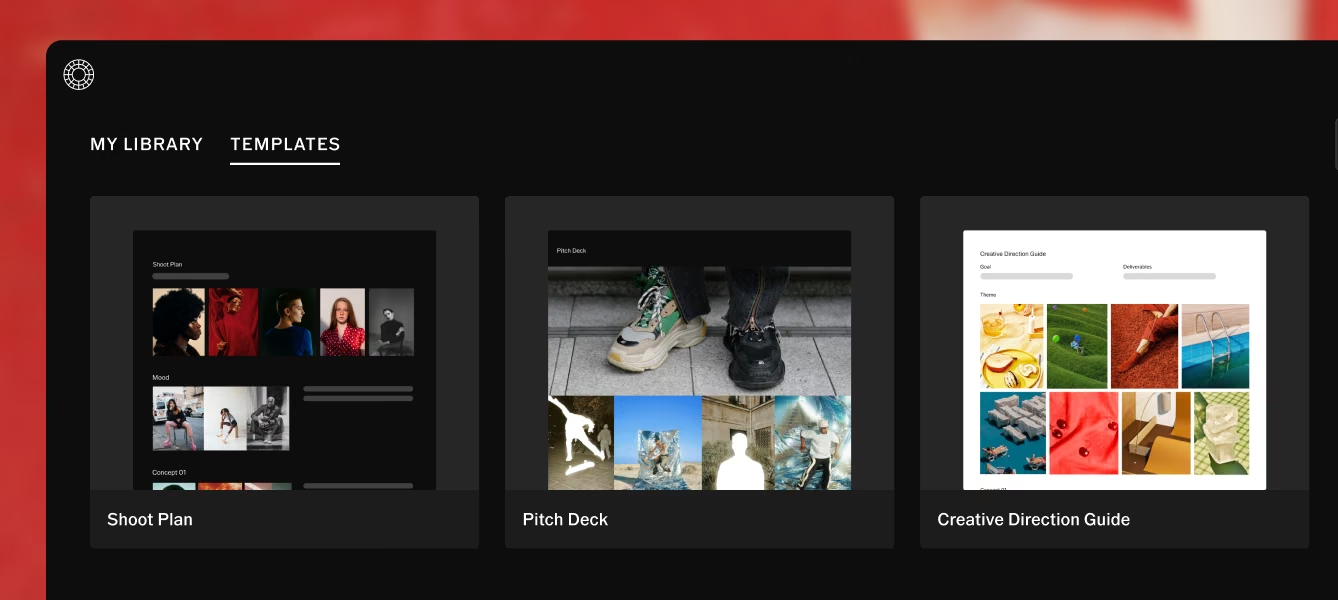
VSCO Canvas includes pre-built templates for structured pre-production workflows.
Templates give you a framework to fill in rather than a blank canvas to build from scratch, organized around the specific elements that define different types of photoshoots and projects.
To access Templates:
- Make a new canvas, then tap the Template icon in the left toolbar
- Browse available templates by project or session type
- Select a template and click Add to open it in your canvas
- Fill in each section with your references, images, and notes
Templates available include pre-production photoshoots, product photoshoots, pitch decks, video planning, and more.
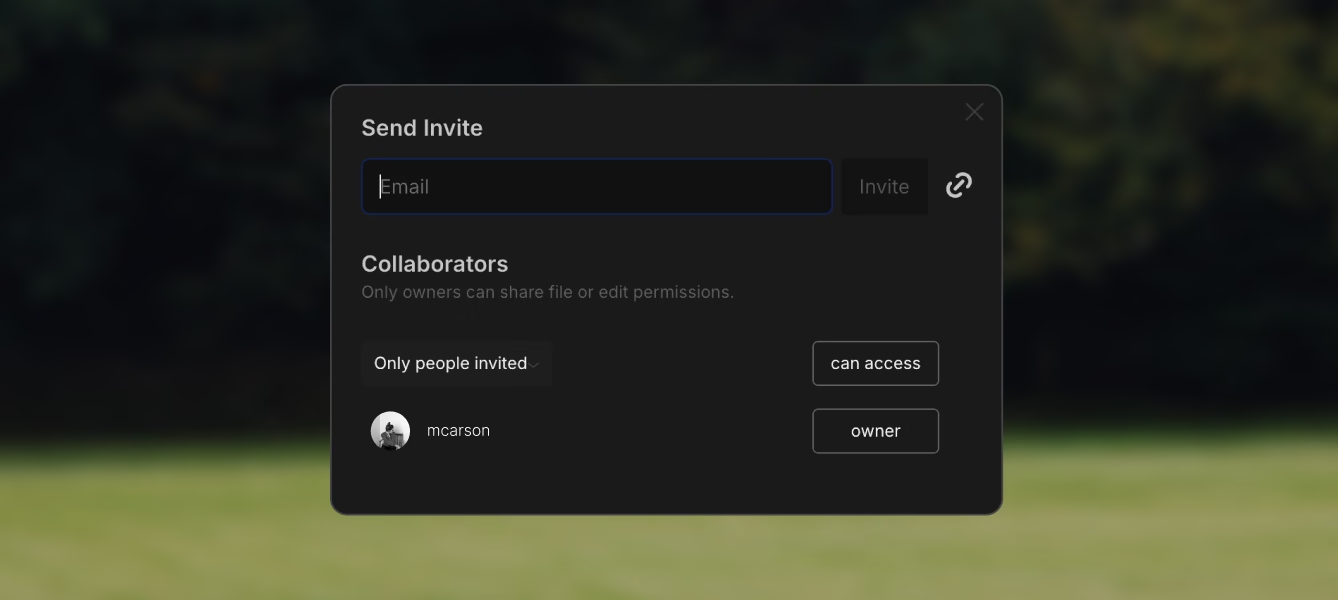
Sharing a Canvas is how you move from building a concept alone to aligning a team or getting client approval.
To share a canvas:
- Click the Share button in the top right corner of the canvas
- Choose your sharing method
Invite via email:
- Enter an email address and click Invite
- Set the access level: Viewer (can view only) or Editor (can make changes to the canvas)
- All collaborators need a VSCO account to access the canvas through an email invite, and to leave comments or edit
- You can remove access for any collaborator at any time from the Share panel
Share link: Under General Access at the bottom of the Share panel, choose between:
- Restricted Access: Only invited collaborators can view the link
- Anyone: Anyone with the link can view the canvas without needing a VSCO account
The public link option is useful for sharing a final concept direction with a client for review, or presenting a pitch to someone who doesn't have a VSCO account.
They can see everything on the canvas but cannot edit or comment.
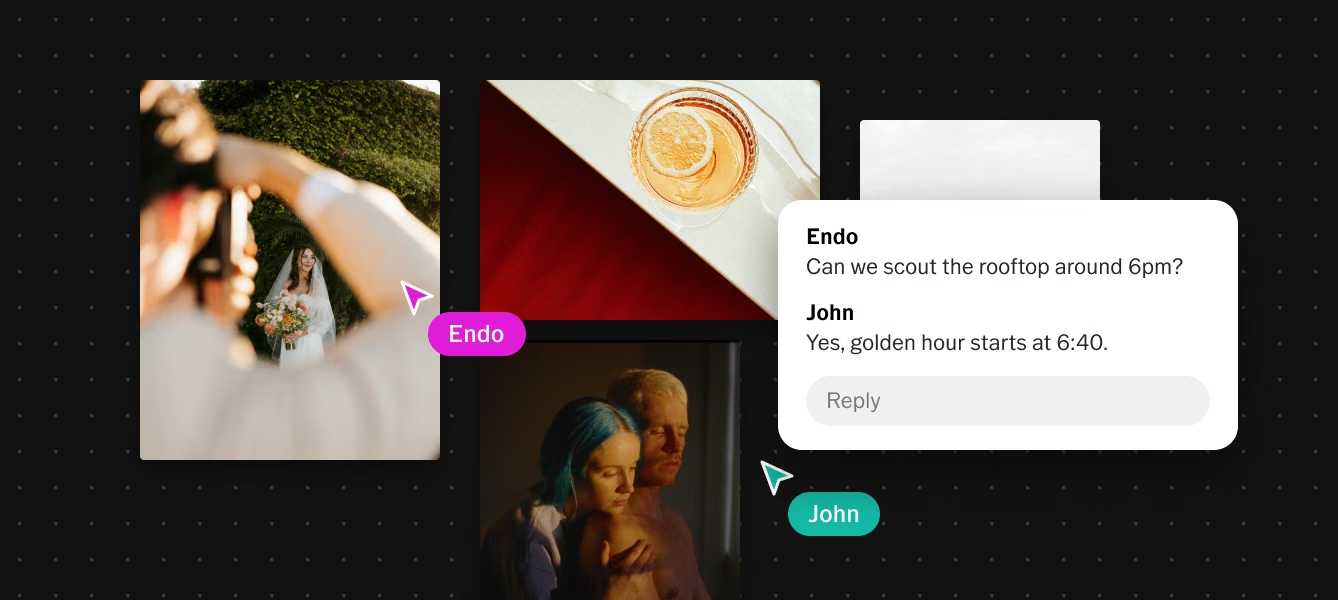
Collaborating With Comments
Comments in Canvas can be placed anywhere by all collaborators with access.
Add one from the bottom toolbar, drop it next to whatever you want to reference, and drag it wherever it makes the most sense. Feedback stays in context, visible alongside the work rather than buried in a separate email thread.
To add a comment:
- Click the Comment icon in the bottom toolbar
- Click anywhere on the canvas to start a comment thread
- Type your feedback and post
- Drag the comment to reposition it next to what it references
How comments work:
- Click on any existing comment to open its thread and reply
- Comments are visible to all collaborators. They cannot be hidden from specific users
- Canvas owners can resolve any comment to remove it from view
- Collaborators need a VSCO account to create, reply to, or react to comments
- Viewers with a public link cannot comment
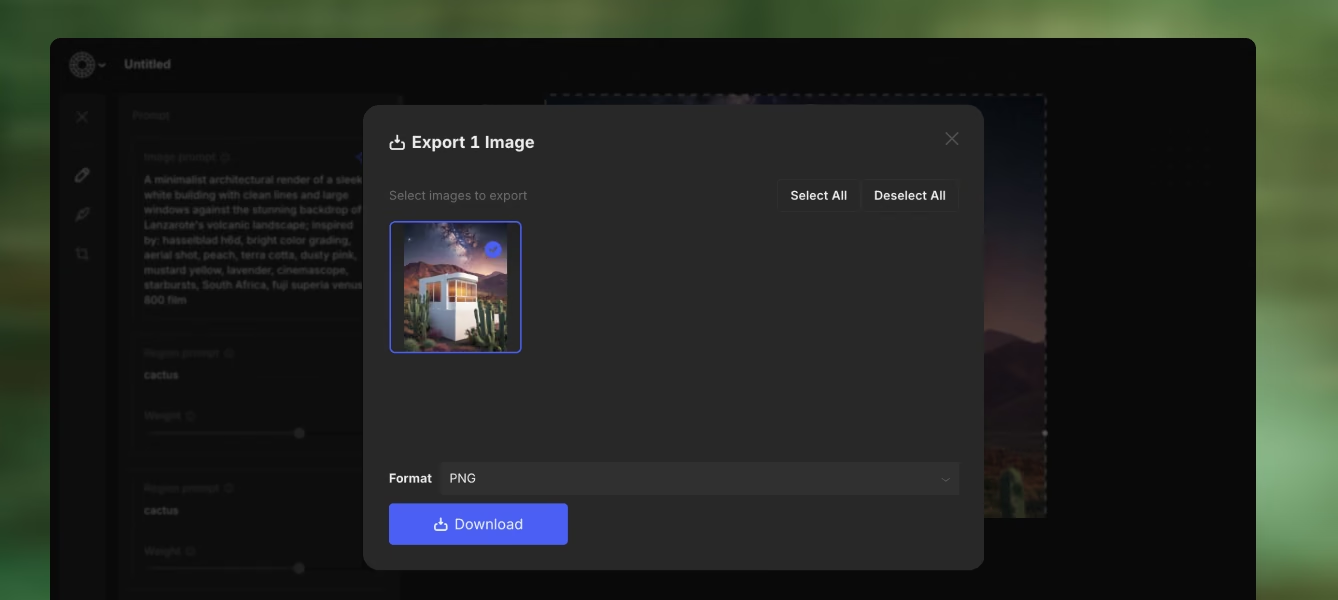
Export individual images or a selection of images from your canvas as PNG or JPEG files.
To export:
- Click the Export icon in the left toolbar
- Select one or multiple images to export
- Choose PNG or JPEG
- Download to your device
Exporting the full canvas as a single document is not currently supported. Export is per image or a selected set of images.
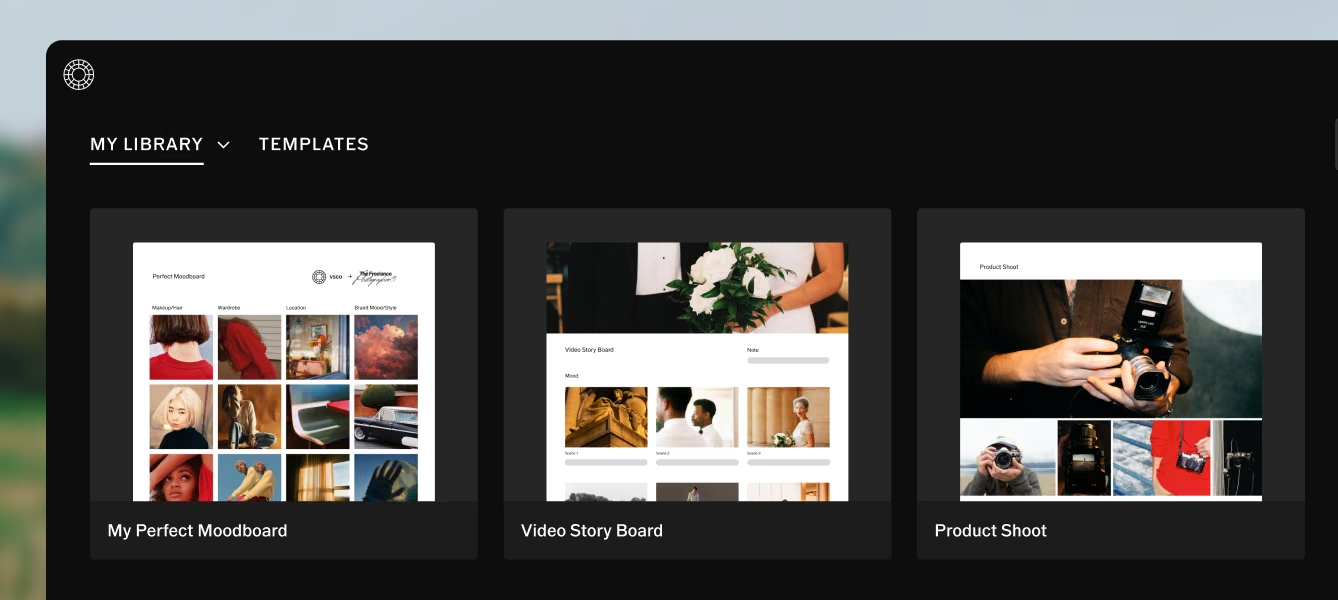
All your canvases live in My Library, which you access from the Canvas home screen.
My Library shows:
- Your canvases: Projects you created
- Shared with you: Canvases other people have invited you to collaborate on
Organization options:
- Search by canvas name
- Filter by canvases you own or those shared with you
- Sort by name, date created, or last modified
Canvases are listed by last modified by default, which keeps active projects at the top.
AI image generation uses credits. Each generation (including rerolls and variations) draws from your monthly credit allocation.
Credits reset monthly for Pro and One members. Unused credits do not carry over to the next month. Free members receive a one-time allocation that expires once used and does not reset.
What is VSCO Canvas?
VSCO Canvas is a browser-based mood board and creative ideation tool for photographers and visual creators. It combines reference image importing, AI image generation from text prompts, full image editing, text annotation, and real-time collaboration in one workspace.
Do I need a VSCO account to use Canvas?
Yes, a VSCO account is required to create and edit canvases. Collaborators also need an account to comment or edit. However, anyone can view a canvas shared via the "Anyone" public link without creating an account.
Is Canvas free?
Canvas is available on all VSCO memberships including the free Starter tier, which includes a one-time allocation of 100 generation credits and one personal project. Paid memberships include monthly credits that reset and more personal project slots.
What browser should I use?
Google Chrome is recommended for the best experience of Canvas's full suite of generation and editing tools. Canvas requires WebGL to be enabled.
Can I use AI generation on images I've imported?
No. AI generation currently works only on images generated within Canvas. Imported images can be edited using the standard editing tools but cannot be used as the base for AI generation. For AI photo editing tools, use AI Lab in the main VSCO app.
How do generation credits work?
Each AI generation (including rerolls and variations) uses one credit. Credits reset monthly for Pro and One members. Free members receive 100 one-time credits that do not reset. Unused credits do not carry over to the next month.
What's the difference between Viewer and Editor access?
Viewers can see the canvas but cannot make changes or add comments. Editors can modify the canvas and participate in comment threads. Both require a VSCO account. Public link viewers (via the "Anyone" setting) can see the canvas without an account but cannot comment or edit.
Can I export the full canvas as one file?
Not currently. Export is per image or a selected set of images, in PNG or JPEG format.
What types of projects is Canvas designed for?
Canvas is useful for any creative project that benefits from visual alignment before production begins: wedding aesthetic direction, commercial pitch decks, editorial pre-production, brand campaign planning, and personal creative projects where the concept needs to be visualized before it can be communicated.
Do collaborators need a paid VSCO membership?
No. Collaborators only need a free VSCO account to access, view, comment on, or edit a canvas they've been invited to. A paid membership is only required to create canvases and generate AI images.
Start Building Your First Canvas
The clearest mood board is the one that gets built before the conversation, not during it.
A canvas that shows the lighting direction, the color palette, and the mood of what you're trying to create gives clients and collaborators something real to respond to, not a description to interpret.
Open Canvas, start a new project, and bring the concept out of your head and onto a board. From there, sharing it and refining it takes minutes.