Some of your most meaningful family photographs might be tucked away in an old album, a shoebox, or a frame on a grandparent's shelf. Over time, fading, discoloration, scratches, and softened details can make those memories harder to see.
Restoring an old photograph gives those moments new life. With the right tools, you can digitize a print, improve its appearance, and create something worth sharing or giving as a gift.
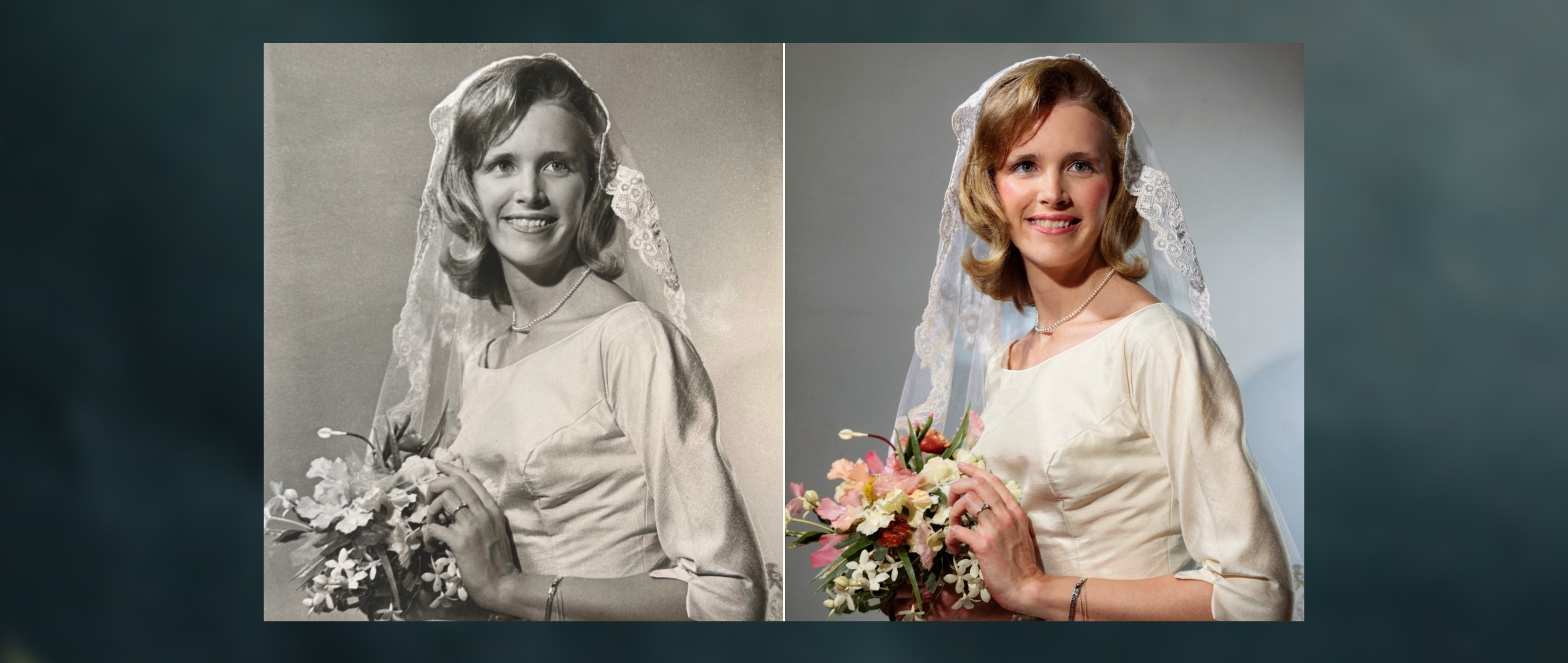
VSCO AI Lab includes Restore, a one-tap tool that brightens faded color, sharpens softened detail, and reduces visible damage. You can then refine the image with AI Prompt and prepare it for printing with AI Upscale.
This guide walks you through the entire process, including how to digitize old photographs, get better restoration results, and turn your finished images into holiday gifts.
In this guide, you'll learn how to:
- Understand what AI photo restoration can and can't do
- Gather what you need
- Choose and digitize an old photograph
- Restore a photo with VSCO AI Lab
- Refine the restoration with Prompt
- Prepare a restored photo for printing with Upscale
- Turn restored photos into holiday gifts
- Follow best practices for better results
- FAQs
Quick answer: To restore an old photo with AI, make a high-quality scan or phone photo, open it in VSCO on iPhone, and apply Restore in AI Lab. Compare the result with your original, refine it if needed, and keep the original scan safe.
AI photo restoration uses artificial intelligence to improve old, faded, blurry, or damaged photographs.
Traditional restoration means manually repairing scratches, correcting color, adjusting exposure, and retouching damaged areas, which takes skill and time, especially on a worn print. AI tools analyze the image and generate many of those corrections for you.
Depending on the condition of your photograph, AI restoration can help:
- Restore color and contrast in faded images
- Reduce the appearance of dust, scratches, and minor damage
- Improve clarity in photographs with softened details
- Correct discoloration from aging paper or film
- Improve the visibility of people, objects, and backgrounds
It works best when enough visual information remains, and Restore works best with clear, high-resolution images. A slightly faded family portrait may respond beautifully. A photograph with a missing face or a badly damaged section is a much harder problem.
Restoration Isn't the Same as Recovering the Original
When a photograph has faded, AI can improve its color, contrast, and apparent detail. When information is missing, it can generate details that look convincing without being accurate.
- A faded face may become clearer while its features change.
- A scratch across a face may disappear without revealing what was underneath.
- A blurred photograph may look sharper because detail was generated, not recovered.
- And a colorized black-and-white photograph shows interpreted colors, not verified ones.
This matters most with faces, clothing, and other identifying features. Think of AI restoration as an interpretation of the original, not a replacement for it.
Always preserve the original scan, compare the result, and decide how much enhancement suits the photograph's history.
- The original print or film: handled gently, especially if it's fragile
- A flatbed scanner or a phone: to make a high-quality digital copy
- The VSCO app on iPhone: AI Lab is available in the VSCO app for iPhone with a VSCO Pro or VSCO One membership. You can preview the tools in the free app or try VSCO Pro with a free trial.
Start with a photograph that matters to you: your grandparents on their wedding day, your parents holding you as a baby, or the only surviving image from a family gathering. You don't need the most damaged print. A simple restoration of a faded photograph can make the most meaningful result.
Good starting points include faded color photographs, old black-and-white portraits, scanned film, slightly scratched or dusty prints, yellowed photographs with reduced contrast, and older digital photographs that could use more clarity.
If this is your first restoration, choose an image with clearly visible subjects, recognizable faces, an intact composition, and moderate fading. That gives AI more original information to work with. Heavily damaged photographs may need several attempts or more specialized restoration techniques.
The quality of your digital copy sets the ceiling for what restoration can recover. If your photograph already exists as a scan or digital file, move straight to Step 3.
Scan the Print
A flatbed scanner is usually the best option for printed photographs. Scanning resolution isn't the same as the resolution of the finished image, so choose a setting based on how you plan to use the file:
- Use 600 DPI for most prints. It's a useful starting point for preserving detail, particularly when the print is small or you plan to enlarge it.
- Use 1,200 DPI for small prints you want to enlarge significantly. Higher resolution captures more information from the print, though it can't add detail that isn't there.
- Choose TIFF when possible. It avoids the compression of JPEG, though a high-quality JPEG works for most personal projects.
- Turn off automatic corrections. Avoid aggressive sharpening, color correction, and contrast adjustments during scanning, so you capture the cleanest representation of the original.
- Keep the original scan. Make a separate working copy for restoration.
Photograph the Print With Your Phone
No scanner? A phone camera works well in the right conditions:
- Clean the camera lens and, gently, the print.
- Place the print on a flat, neutral-colored surface near a window with indirect natural light, and turn off the flash.
- Hold your phone directly above the print, parallel to the surface.
- Use the main camera rather than digital zoom.
- Check that the photograph is evenly exposed and in focus, then crop away the surrounding surface.
Old prints can be glossy, curled, or fragile, so don't flatten or handle them aggressively. If a print is in a frame, remove it only if doing so won't damage the photograph. For cracked or historically valuable prints, consider consulting a professional conservator first.
Start with AI Restore. It's the first tool to use because it's built for old and damaged photographs and needs no manual adjustments or written prompts. AI Lab runs in the VSCO app for iPhone.
How to Restore Old Photos With VSCO AI Lab
- Import your photograph. Open the VSCO app on your iPhone and import your scanned print, phone photograph, or existing digital image. Start with the highest-quality version available.
- Open AI Lab and select Restore. Restore improves faded color, sharpens softened detail, and reduces visible scratches and dust.
- Review and refine the result. Compare the restored image with your original, paying particular attention to faces, clothing, and other identifying details. If you want another variation, use the Reroll option to run Restore again.
- Finish your edit. When you're happy with the result, select Done to exit Restore and Finish to save the AI edit and return to your draft. You can keep refining with VSCO presets and adjustment tools, then export at full resolution.
AI Lab always creates a new version of your photo and leaves your original file untouched.
How to Judge a Restoration
An image can look technically better while becoming less faithful to the original. Inspect each version for:
- Faces: have the eyes, teeth, skin texture, or facial proportions changed?
- Skin tones: are the colors plausible, or overly saturated or uniform?
- Clothing: have patterns, textures, or small details been invented?
- Backgrounds: have architectural details, objects, or scenery changed?
- Film character: has natural grain or the original tonal quality been removed?
- Overall consistency: does it still look like the same moment?
Choose the version that best preserves the people and details you want to remember.
If a small exposure, contrast, or white balance correction is all you need, try VSCO's standard editing adjustments first. Not every problem needs another generative edit. When you want something more specific, AI Prompt lets you describe the change in everyday language, such as warming a yellowed print or lifting dark shadows.
Prompt generates a new version of your image, so even a targeted correction can affect other parts of the photograph. The best prompts identify a specific issue, ask for one or two related changes, and say what to keep. Compare every result with your original before you choose.
AI Photo Restoration Prompts to Try
Treat these as starting points, not guaranteed outcomes:
- Faded color: "Restore the faded colors and natural contrast in this photograph. Preserve its original color palette and film texture."
- Yellow discoloration: "Reduce the yellow color cast and restore more neutral whites and natural-looking skin tones. Keep the photograph's original warmth."
- Dark photographs: "Brighten the shadows and improve visibility in darker areas while keeping the highlights and original lighting natural."
- Black-and-white photographs: "Improve the tonal range of this black-and-white photograph. Deepen the blacks, clarify the midtones, and preserve the original monochrome appearance."
- Colorizing black-and-white photographs: "Colorize this photo with natural colors. Preserve the original film texture and the appearance of the people." The colors are the AI's interpretation, so keep your black-and-white original.
- Over-processed results: "Reduce excessive sharpness and saturation. Bring back a more natural appearance while preserving the photograph's original texture."
Avoid stacking requests, such as "fix the whole photograph, make it sharper, change the lighting, and make everyone look younger." Start with one correction, review it, and rerun or revise the prompt if the result changes something it shouldn't.
A photograph that looks good on a phone screen may need more work before it's printed and framed. Old photographs are often small, especially wallet-sized prints and early digital snapshots, so the file may not have enough pixels for the print size you want.
Enlarge With AI Upscale
AI Upscale increases resolution at 2x, 3x, or 4x, rebuilding pixels rather than stretching them to preserve texture, tone, and detail. Use it after you're happy with the restoration. It adds pixels, not authentic detail that was never captured, so zoom in on faces and fine textures before you print.
Check Your Print Size
This example is illustrative, not a guarantee of print quality. A 1,200 by 1,800 pixel image printed at 300 pixels per inch makes a 4 by 6 inch print. At 2x, the 2,400 by 3,600 pixel file supports an 8 by 12 inch print at the same nominal resolution.
- 300 PPI is a useful target for close-viewed photographic prints.
- Larger wall prints can often work at lower resolutions, because they're viewed from farther away.
- Upscaling doesn't guarantee a sharp print. Check the final file at 100 percent, confirm your print provider's recommended dimensions, and order a test print before a large or expensive one.
For final touches, adjust exposure, contrast, white balance, and cropping with VSCO's standard tools, and pull back saturation to keep colors natural. Avoid heavy sharpening. A little original grain and softness is part of what makes an older photograph special.
Restoring a photograph gives someone access to a memory they may not have seen clearly in decades. A few ways to give it:
- Frame a photograph someone has always loved. A wedding portrait, a childhood photograph, or an image of a relative who has passed away works well. Add the approximate date and the story behind it on a small card.
- Create a then-and-now pairing. Revisit the location of an old photograph, and pair the restored original with a contemporary image in a double frame or small photo book.
- Build a family archive. Restore a collection, organize it by decade, event, or family branch, and include names, dates, locations, and stories. A digital collection lets relatives in different places share it, and you can include copies of the originals.
- Make a holiday card or album. Combine photographs from different generations, such as Christmas mornings and family dinners from different decades, with short captions from family members.
A Project for Photographers: Preserve a Family's Visual History
If you're already working with a family on portraits, consider offering to digitize and restore a small selection of their heirloom photographs. Be transparent about AI-generated details, and get permission before making or sharing alterations to historically significant images.
- Start with the best original available, because a clean, high-resolution scan gives AI more to work with than a compressed or blurry copy.
- Keep an untouched original scan, and name your versions so you can find them later.
- Prioritize authenticity over perfection. Grain, color palette, and imperfections are part of an old photograph's character.
- Inspect faces first, and try another version or a more restrained edit if someone looks different.
- Don't expect AI to reconstruct what's missing. Severely damaged areas are interpreted, not recovered.
- Zoom in on your export and order a test print before larger gifts.
How can I restore old photos using AI?
Scan or photograph the print, open the copy in the VSCO app on iPhone, and apply Restore in AI Lab. Compare the result with your original, rerun it if you want another version, and refine it with AI Prompt or standard editing tools before exporting.
Can AI restore blurry or damaged photographs?
AI can improve some blurry or damaged photographs, but results depend on the original. Severely blurred or missing areas may not be recoverable accurately, and AI-generated replacements may differ from the original scene.
What's the best way to digitize old printed photos?
A flatbed scanner at 600 DPI is a good starting point for most prints, and 1,200 DPI helps for small prints you want to enlarge. Without a scanner, photograph the print with your phone in soft, indirect light, parallel to the surface and without flash.
Can AI restore color in faded photographs?
Yes, AI can improve faded color and contrast when enough information remains in the photograph. Restore in AI Lab brightens faded color, and you can refine the result with Prompt.
Can AI colorize black-and-white family photos?
Yes. In AI Lab, you can use Prompt to colorize a black-and-white photo by describing what you want, such as "colorize this photo." The colors are interpretations, not verified historical information, so keep the original black-and-white version in your archive.
Can AI restoration change someone's face?
Yes, it can. Some AI tools generate details in blurry or damaged areas, which can alter facial features, so compare every result with the original and choose a more restrained version if someone's appearance changes.
How can I enlarge old photos for printing?
Use AI Upscale to increase resolution by 2x, 3x, or 4x, then check the file at 100 percent and your print provider's recommended dimensions. A test print confirms the result before you commit to a large one.
What is the best app for restoring old family photos?
The best choice depends on your photograph and workflow. Look for tools that keep your original untouched, let you compare versions, and help you prepare for printing. AI Lab offers Restore, Prompt, and Upscale in the VSCO app for iPhone.
Is VSCO AI Restore free?
AI Lab is available in the VSCO app for iPhone with a VSCO Pro or VSCO One membership. You can preview the tools in the free app or try VSCO Pro with a free trial.
Give Old Family Photos a New Life
The photographs tucked away in old albums and boxes hold memories worth preserving. With a little care, you can make them easier to see, share, and pass down.
VSCO AI Lab makes it easier to get started. Use Restore to improve faded photographs, Prompt to refine specific details, and Upscale to prepare images for larger prints. Keep your original scans, compare every edit, and let the history of the photograph guide how much you change.
Find a photograph worth bringing back and start restoring it with VSCO.