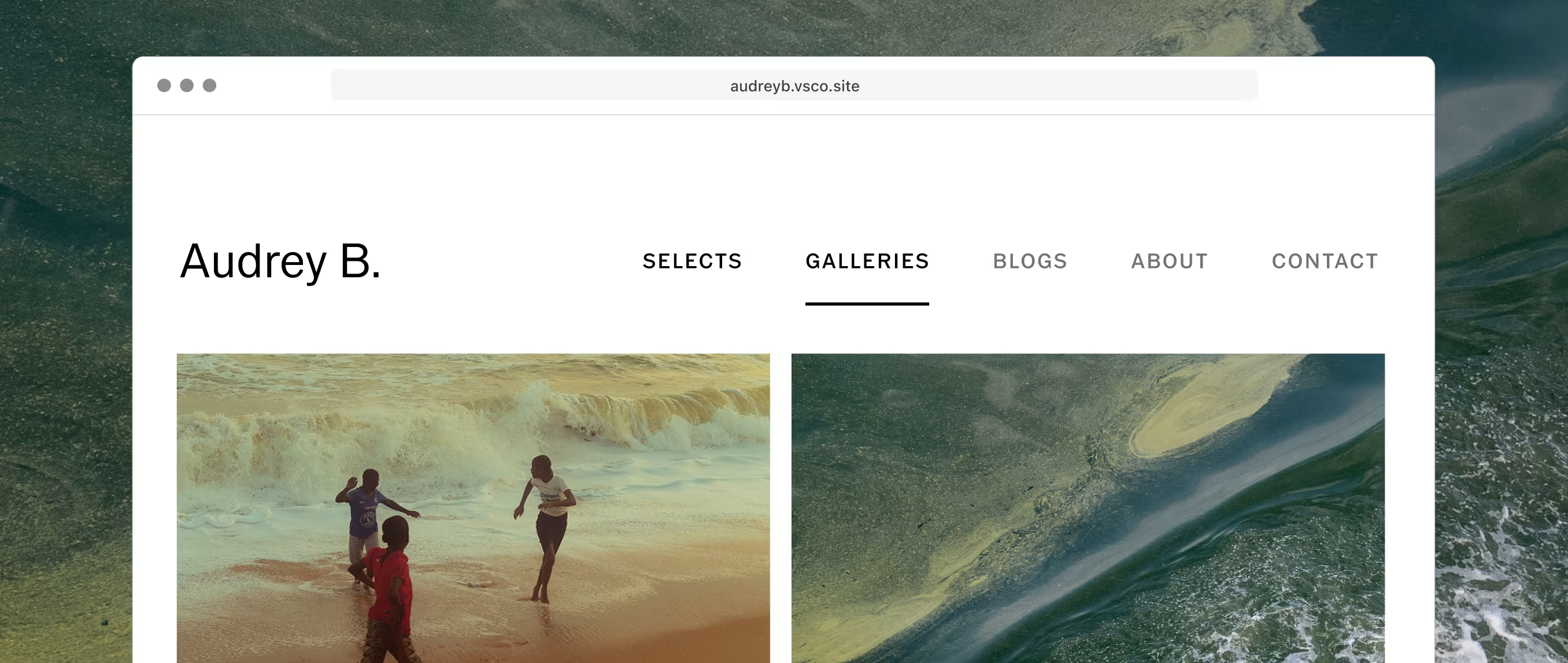
If you're already posting to VSCO, you're closer to a professional portfolio website than you probably realize.
VSCO Sites can pull directly from your existing VSCO content.
Select the photos, galleries, and blogs you want to feature and your site is live in minutes. No templates to configure, no separate uploads, no rebuilding from scratch.
This guide walks through the full setup: what VSCO Sites is, how to build and customize your site, how to write an About page that actually speaks to potential clients, how to connect a contact form that routes inquiries into Workspace, and how to make your portfolio work as a tool for getting hired.
What you'll learn in this guide:
- What Is VSCO Sites?
- VSCO Sites vs. Your VSCO Profile
- Why Photographers Need a Portfolio Website
- How to Create Your VSCO Site
- Choose What to Show in Your Portfolio
- Fill Out Your About Page
- Add a Contact Page
- Choose Your URL and Connect a Custom Domain
- Publish and Share Your Site
- How Your VSCO Site Stays Updated
- How to Build a Strong Photography Portfolio
- Using Your Site to Get Photography Clients
- FAQ: VSCO Sites
VSCO Sites is a no-code portfolio website builder that turns your photography into a professional portfolio site. Pull images directly from your existing VSCO posts, upload straight from your phone or computer, or both, all alongside your VSCO Galleries and Blogs.
Core features:
- Launch a new site in minutes using your existing VSCO content
- Selects page: up to 20 photos, curated from your posts or device
- Galleries page: up to 20 public VSCO Galleries
- Blogs page: up to 100 Blogs, displayed in chronological order
- Customizable About page with name, bio, location, email, social links, availability tags, and experience tags
- Built-in contact form with optional VSCO Workspace connection
- Free subdomain (yourname.vsco.site)
- Custom domain support on Pro and VSCO One
- Basic SEO tools: XML sitemap and robots.txt included
- Available on iOS app and vsco.co desktop (not Android)
- One site per VSCO account
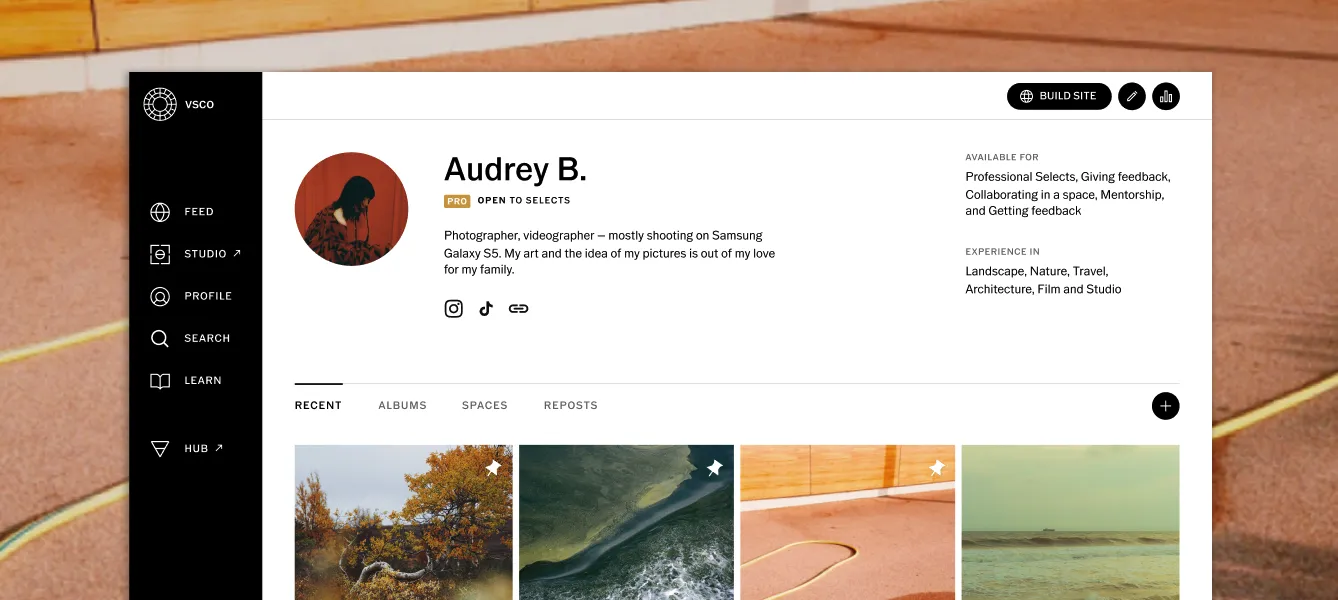
Your VSCO Profile is your presence within the VSCO community: a feed of your work, discoverable by other VSCO members, organized chronologically by what you post. It's designed for community, exploration, and sharing within the platform.
Your VSCO Site is a standalone professional website with its own URL, built for the people who find you outside of VSCO: clients searching Google, editors reviewing your link, brands evaluating your work for a campaign. It presents your best work as a curated portfolio, and visitors don't need a VSCO account to view it.
Build your Site from images already on your profile, or upload straight from your hard drive. Keep your profile active to be found within the VSCO community, and keep your Site current to be found everywhere else.
One important distinction: edits you make to your About page on your VSCO Site stay on your site only. They don't sync back to your VSCO profile. This is intentional. Your site bio can be written for potential clients while your profile bio speaks to the VSCO community.
A social profile and a portfolio website are two different things, even though both show your work.
- Your social profile is a chronological feed. New posts push older ones down, and visitors have to scroll to form a complete picture of what you do.
- A portfolio site is organized by you, showing exactly what you want potential clients to see first, with everything else supporting that impression.
When a potential client finds you through a referral, a Google search, or a tag on another photographer's post, they want to see a curated body of work organized around what you do best. They want to know who you are, where you're based, what you specialize in, and how to reach you.
Most social profiles make that harder to find than it should be.
A portfolio website also gives clients an obvious path to contact you. Someone who discovers your work at 11pm on a Saturday and wants to inquire about a photoshoot can fill out a contact form right there.
If that form connects to VSCO Workspace, their inquiry arrives as a managed lead with their details already filled in, and your automated response goes out immediately.
The relationship starts moving before you've even opened your laptop.
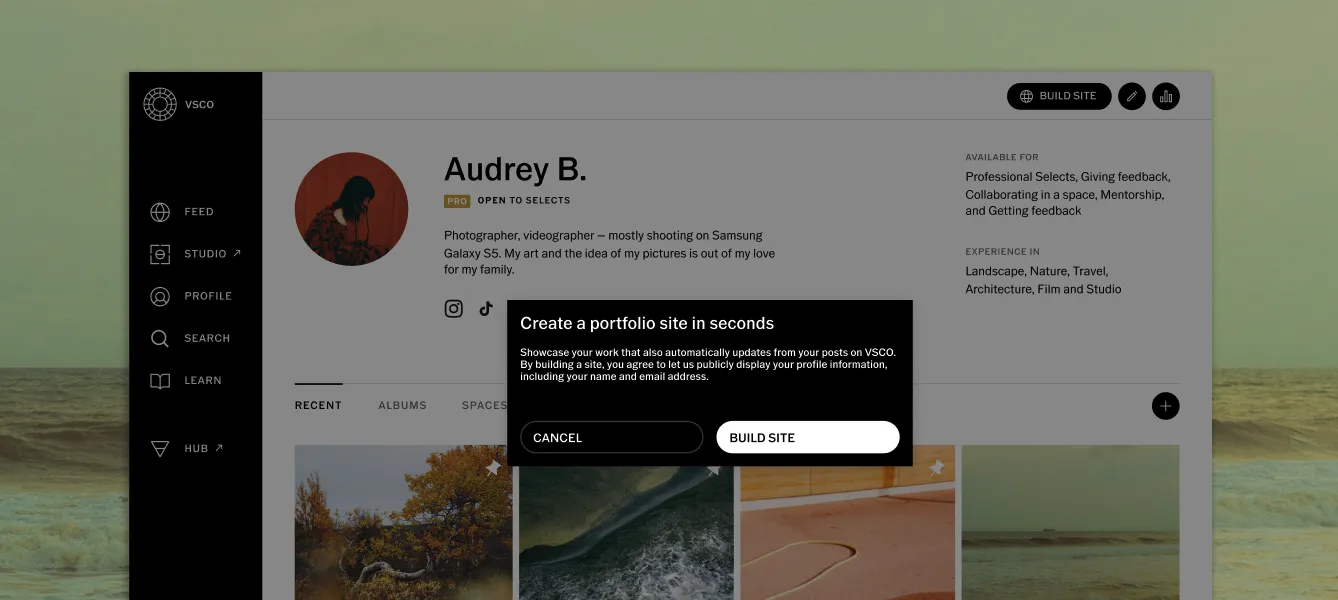
Creating your VSCO Site takes less than a minute. Your existing VSCO content is the starting point.
Choose what to feature, pick your URL, and publish.
On iOS and desktop (vsco.co):
- Sign in and navigate to your Profile
- Click or tap Build Site in the top right corner
- Review the confirmation screen and confirm your name and email can appear on your site
- Your site is ready to customize or publish
You can publish immediately or spend time customizing first by choosing Selects, Galleries, and Blogs to feature.
If you've already created a site, the button will say Manage Site instead of Build Site.
Your VSCO Site has five sections visible in the navigation: Selects, Galleries, Blogs, About, and Contact.
You control what appears in the first three content sections. The site auto-generates content by default, but the stronger approach is to review each section and curate deliberately before you publish.
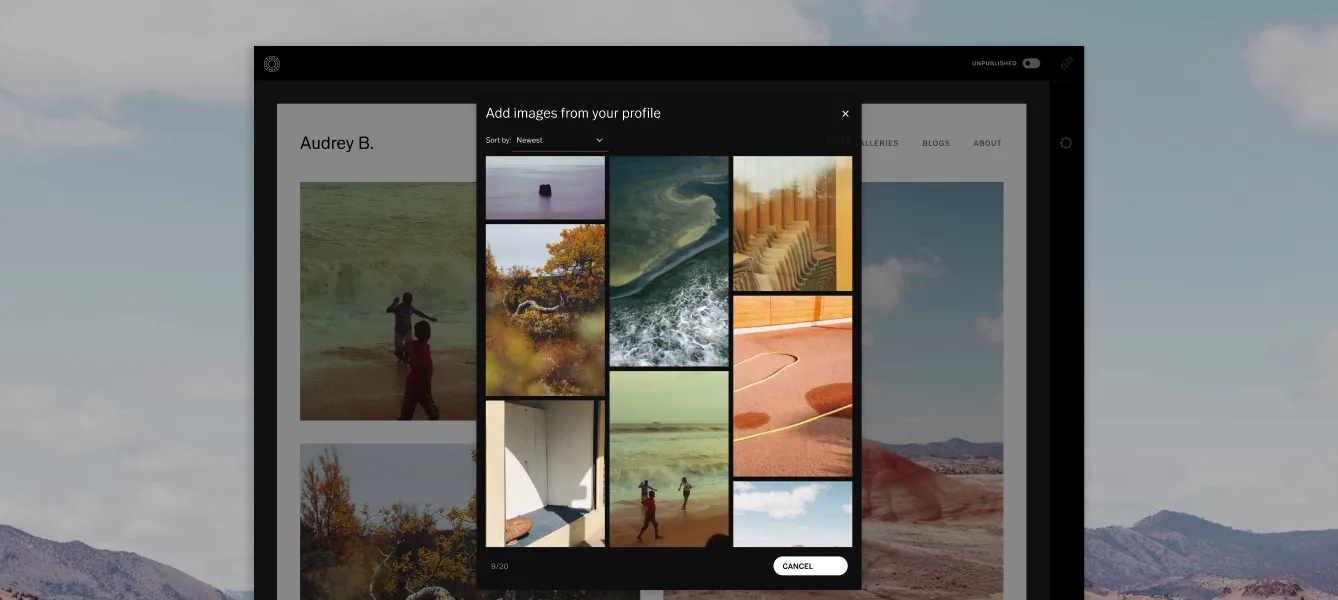
Selects
Selects is your featured photo gallery, the single most important section of your portfolio. This is the first thing most visitors see, and it carries the most weight in their first impression of your work.
You can add up to 20 images, sourced from your published VSCO posts or uploaded directly from your device. You can mix both.
To add images:
- In the site builder, tap the + icon or hover over an empty section until the + appears
- Choose Add from posts (your published VSCO content) or Add from device
- Select up to 20 images and tap Add or ✓
To remove images:
- Hover over any image and click the X icon that appears in the corner.
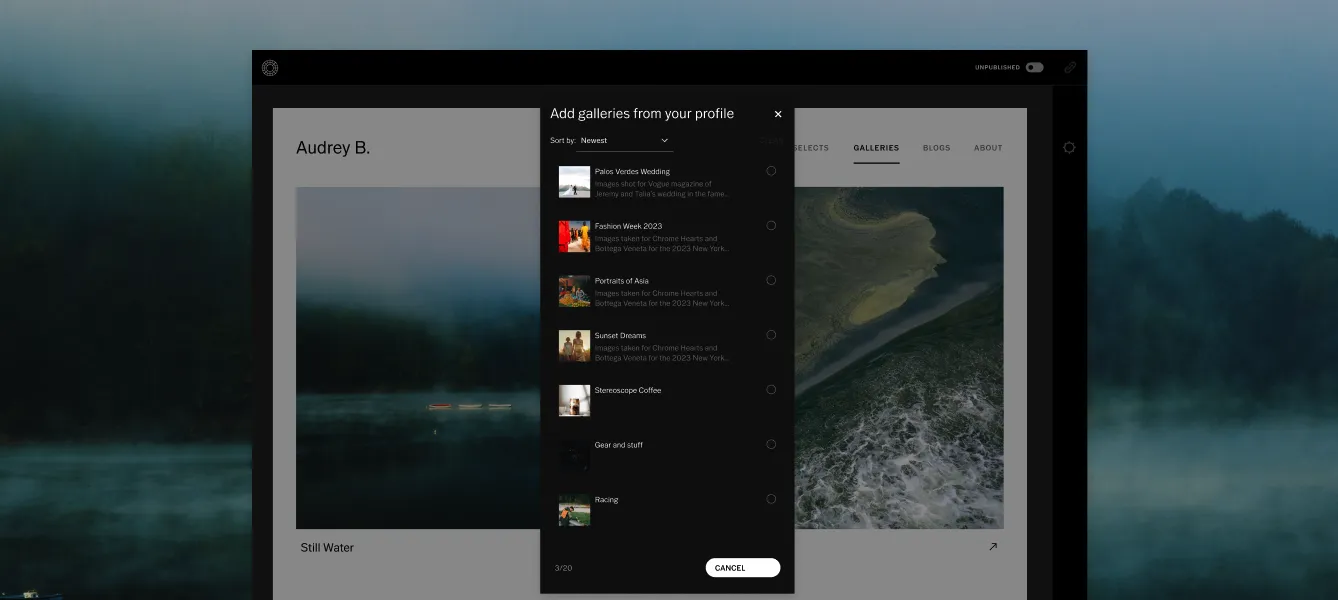
Galleries
The Galleries section connects your VSCO Galleries to your portfolio site. This is where potential clients can see complete sessions: not just highlight images, but the full arc of a shoot.
A wedding client who wants to see how you handle a full day can open a complete gallery.
A brand client can see every image from a campaign.
You can feature up to 20 Galleries.
Galleries shown on your VSCO Site must be public. Password-protected galleries cannot appear on your site.
Before adding a gallery, make sure its access settings are set to public.
To add Galleries:
- In the site builder, tap the Add Galleries icon or hover until the + appears
- Use the gallery picker to select up to 20 galleries from your VSCO Galleries account
- Click Add
If you haven't created any VSCO Galleries yet, you'll be prompted to create your first using the VSCO Galleries app.
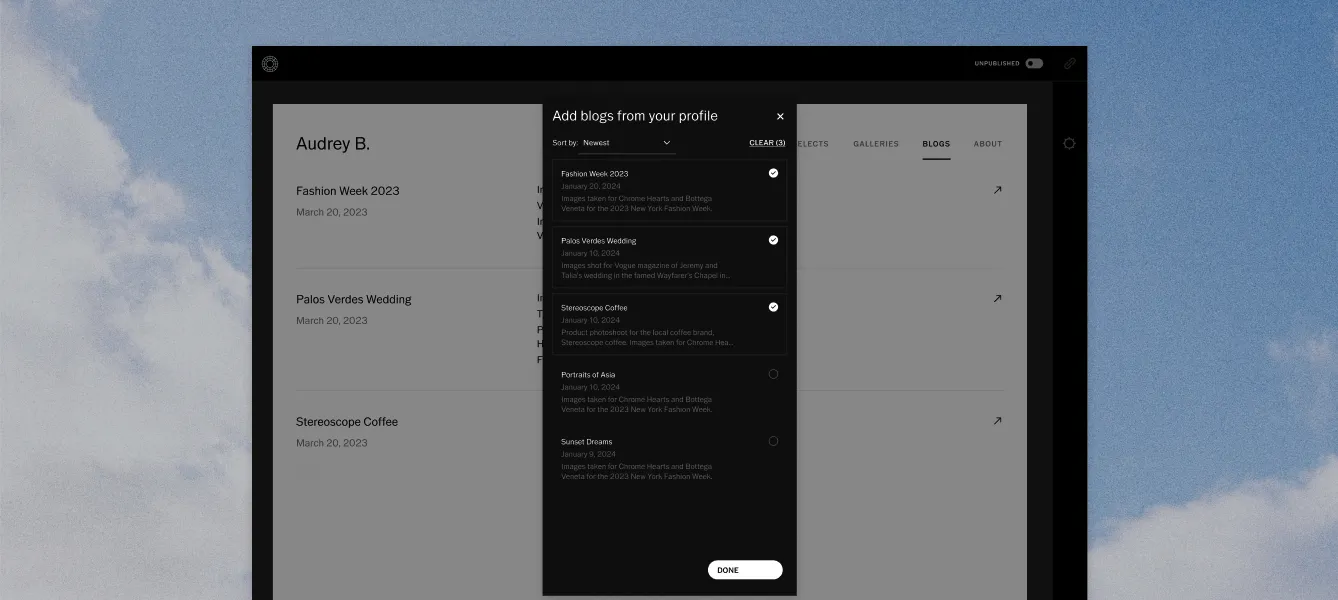
Blogs
Blogs are long-form written posts with images. You can feature up to 100 Blogs on your site, displayed in chronological order.
Blogs are created in the VSCO iOS app or on vsco.co.
They're especially valuable for SEO: a venue guide, a behind-the-scenes story, or a planning resource can appear in Google search results and bring potential clients to your site without any paid advertising.
To add Blogs:
- Tap the + icon in the Blogs section
- Select up to 100 blogs from your profile
- Click Update
Curating vs. Showing Everything
The default auto-generated site pulls in recent content from your profile.
That's a useful starting point, not a final portfolio.
Review every section before publishing and remove anything that doesn't belong to the body of work you want to be known for. Images from genres you no longer shoot, older work that doesn't represent your current skill level, galleries that are too similar to each other. These dilute the impression your portfolio makes.
A smaller portfolio that makes a consistent, coherent statement is more effective than a comprehensive one that covers everything you've ever made.
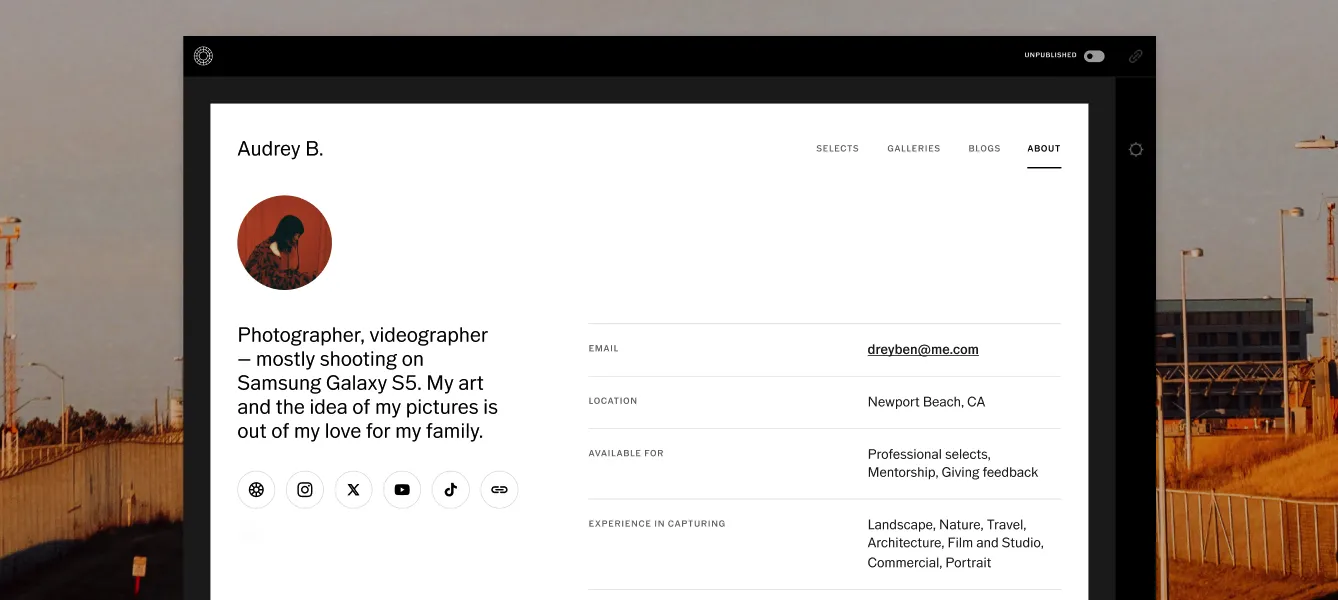
Your About page is where potential clients decide whether to get in touch.
A strong About page tells them who you are, what you specialize in, where you're based, and what it's like to work with you.
It's also one of the most SEO-relevant pages on your site.
What your About page displays:
- Name: pulled from your VSCO account settings; update it there to change it on your site
- Photo: add a portrait of yourself to make the page more personal and the connection more immediate
- Bio: write this specifically for potential clients, not for the VSCO community. Explain your background, your specialties, your location, and what working with you looks like. Include location-specific language if you're targeting a local market.
- Location: your city and region
- Email: shown by default so clients can reach you. You can hide it by deleting it from the email field in the site builder, or change it to show a different address than your VSCO account email
- Social Links: link to Instagram, LinkedIn, or other professional profiles
- Availability Tags: signal to clients when you're open to new work
- Experience Tags: indicate the types of photography you specialize in
To edit your About page:
- Tap the pencil icon or click directly on the section you want to update
- Edit, add, or remove any information
- Click the ✓ or tap Save and your site updates immediately
About page edits apply to your site only and won't change your VSCO profile.
Writing a Bio That Works for Business
Most photographer bios try to sound memorable. They lean on phrases like "capturing authentic moments" or "telling stories through imagery," but give a potential client very little to work with.
A stronger bio is specific enough that someone can quickly understand who you are, what you do, and whether you're the right photographer for them.
A useful structure is: who you are, what you specialize in, where you're based, who you work with, and what you bring to the process.
You don't need to answer every question in a single paragraph, but the more clearly you can connect your experience to a client's needs, the more useful your bio becomes.
For example:
"Brand photographer based in Brooklyn. I work with independent food and beverage businesses to create visual content for their websites, social channels, and campaigns. My approach combines natural light, lived-in environments, and thoughtful composition to create imagery that feels polished without losing the character of the brand."
That tells a potential client what kind of photographer you are, whether you work with businesses like theirs, what they can hire you for, and something about what it will feel like to work with you. Specificity gives clients something to recognize themselves in.
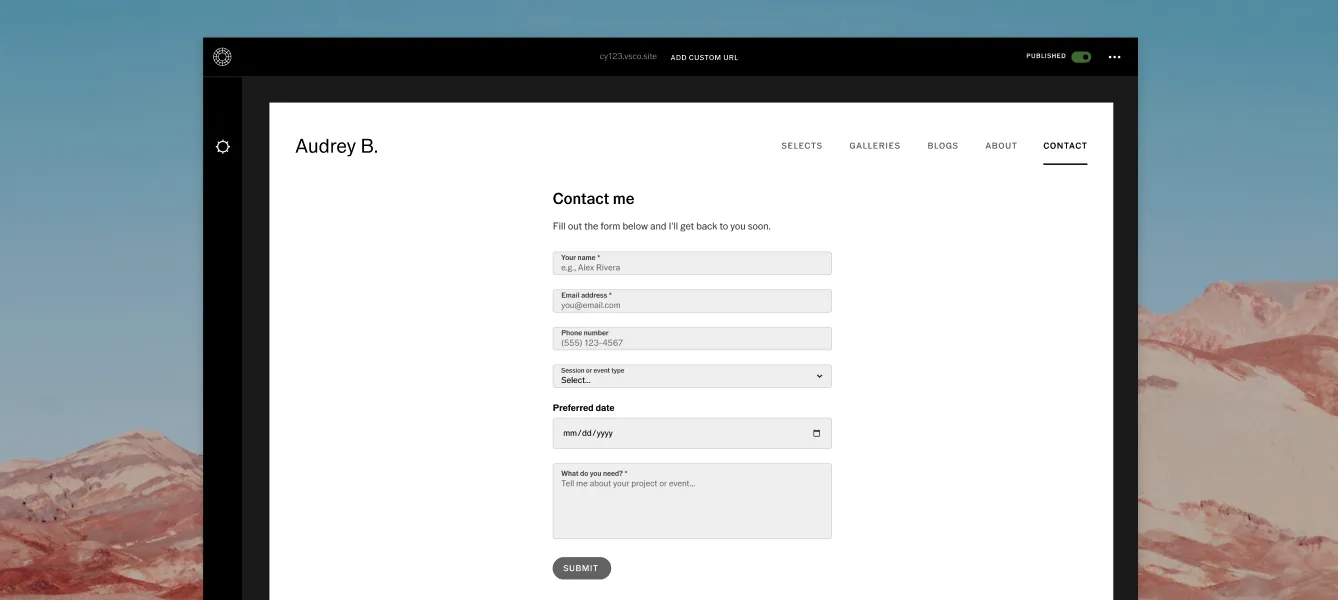
Your VSCO Site has a dedicated Contact page in the main navigation, the same level as Selects, Galleries, and Blogs.
This means potential clients don't have to hunt for a way to reach you. It's right there in the nav from the moment they land on your site.
The Contact page is powered by your VSCO Workspace contact form. Configure it in Settings › Forms in Workspace, and the form appears on your Contact page automatically.
The Workspace connection: Every submission from your Contact page creates a lead in Workspace automatically. The client's name, email, and message arrive as a managed lead with their details pre-populated. Your automated inquiry response fires immediately. You don't need to check a separate inbox or copy anything manually. The inquiry goes straight into your booking workflow.
To connect the form:
- Go to VSCO Workspace and navigate to Settings › Forms
- Customize your contact form fields, intro message, and confirmation text
- In site builder's Contact page settings, enable Contact page visibility
Once connected, the Contact page is live and every submission flows into Workspace as a managed lead.
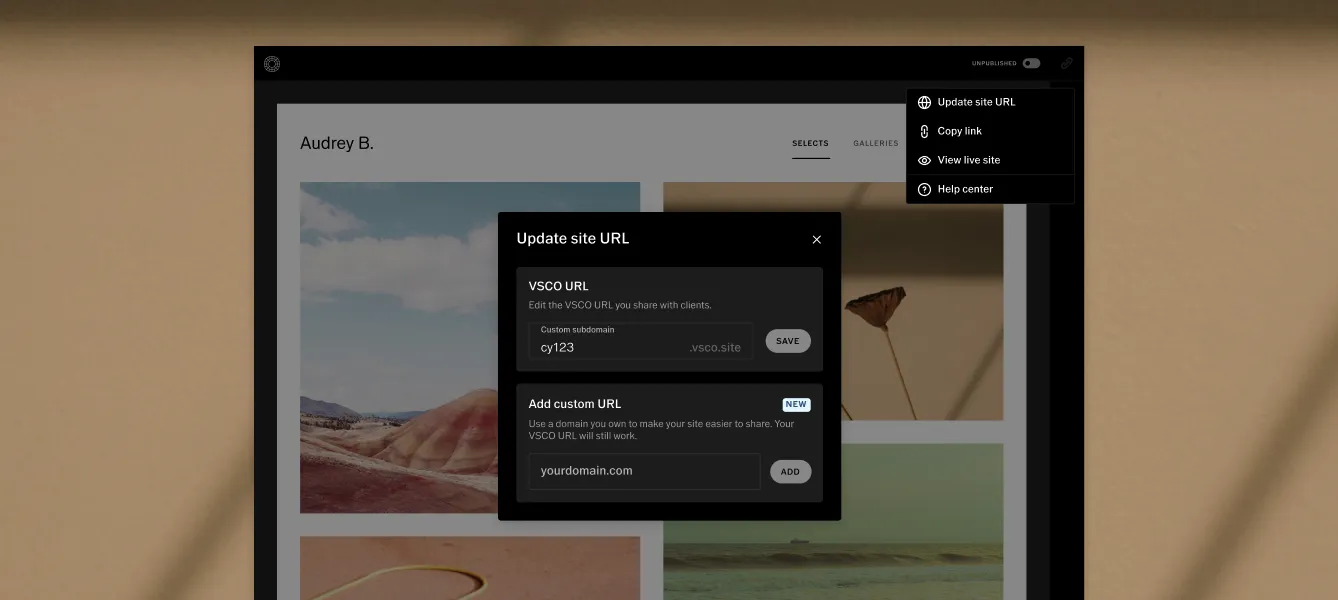
Your Free VSCO Site URL
When you publish your site, you choose a unique subdomain in the format yourname.vsco.site.
Rules for your subdomain:
- 3 to 30 characters
- Must start with a letter (A–Z)
- Can contain letters, numbers, and dashes
- No special characters (@, #, !, etc.) and no accented characters
- Cannot end with a dash
- Must be unique. If someone else has claimed it, choose another
Tips for choosing a name:
- Your own name is the most direct choice for most photographers: stevenmcpherson.vsco.site
- A business name or creative brand works if it's distinct and easy to spell
- Keep it short and easy to remember
- Claim it early. Subdomains are first-come, first-served
To change your subdomain after publishing:
- Tap the three dots (•••) in the top right of the site builder
- Select Update site URL
- Enter your new name and tap Update
Note: if your VSCO membership ends, your custom subdomain may become available for someone else to claim.
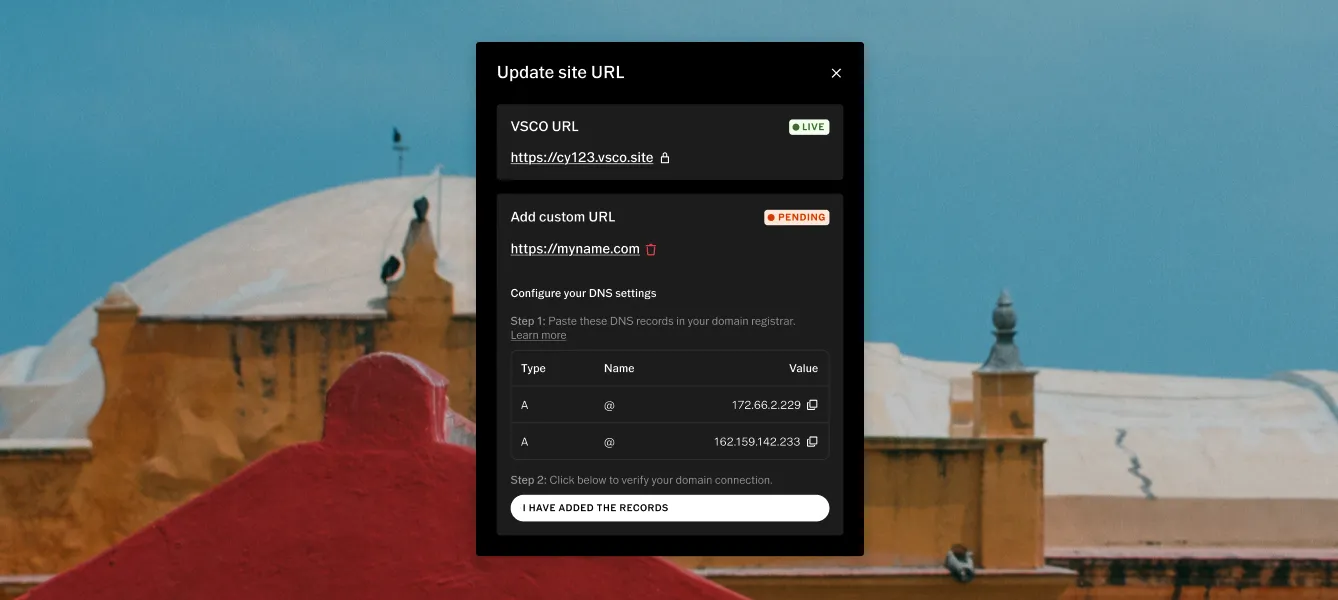
Connect a Custom Domain
A custom domain replaces the vsco.site subdomain with your own URL: yourname.com. It's the most important upgrade you can make to your portfolio site for professional credibility and SEO. Custom domain connection requires Pro or VSCO One membership.
Why a custom domain matters for SEO: with a free vsco.site subdomain, you can't verify your site with Google Search Console. That means Google decides when and how to index your content, without input from you. With a custom domain, you verify ownership via a DNS record, gain direct control over indexation, and can monitor how your site appears in search results.
For step-by-step instructions on connecting a custom domain, see How to Connect a Custom Domain to Your VSCO Site.
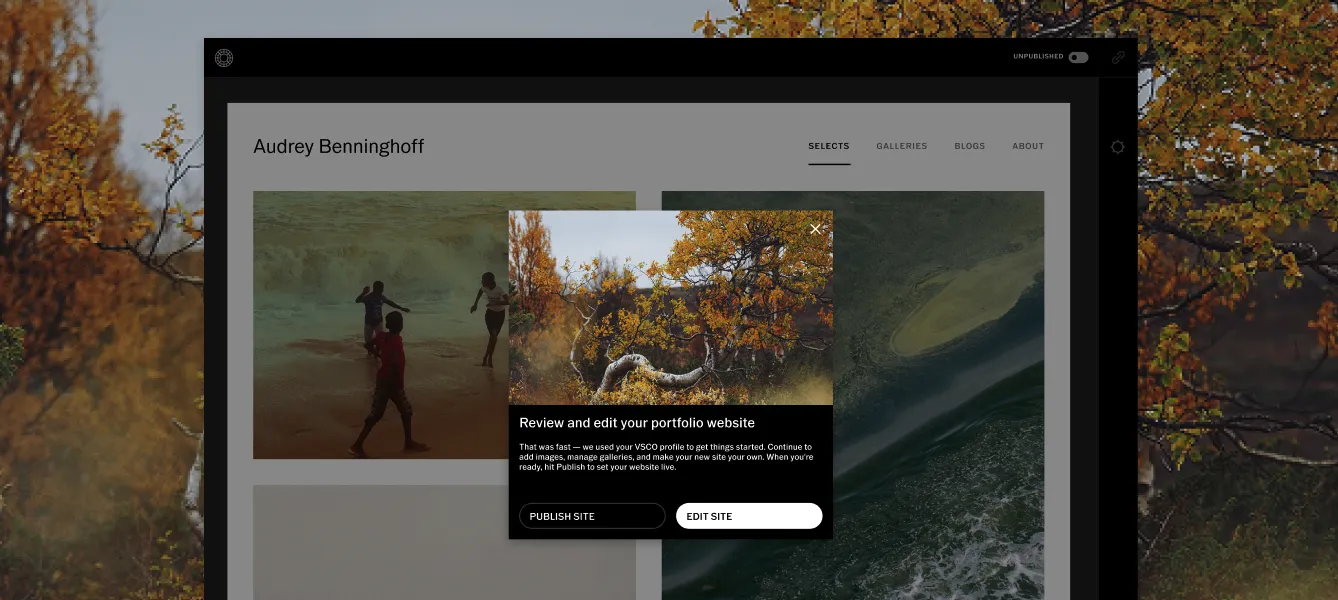
Publish
- Click Publish or tap the toggle in the top right corner of the site builder
- Choose your subdomain if you haven't already
- Tap Confirm
Your site is now live and accessible at your chosen URL.
Unpublish
Click the toggle in the top right corner to unpublish. Your site goes offline immediately but all your edits stay saved. You can republish at any time with everything intact.
Share Your Site
Once published:
- Tap the three dots (•••) in the top right
- Select Copy link
- Share the link wherever clients will find it
Where to share your site URL:
- Instagram bio
- LinkedIn profile URL field
- Email signature
- Business cards and printed materials
- Your VSCO profile
- Any social platform that accepts a link in bio
- In your proposal and quote emails when reaching out to prospective clients
When you add a photo to a Gallery you've featured on your site, your site updates automatically.
You don't need to log in, rebuild anything, or republish. The site pulls from your live VSCO content.
This is the most practical advantage of VSCO Sites over a traditional website builder. There's no separate CMS to maintain. The work you're already doing (posting to VSCO, adding images to galleries, publishing blogs) keeps your portfolio current in the background.
The exception is your Selects page. The 20 images you've chosen for Selects stay fixed until you manually update them.
If you want your Selects to reflect your newest work, go into the site builder and swap in updated images when your portfolio evolves.
The site builder takes care of the technical side. The curation is on you, and it matters more than the platform you use to present it.
Lead With Your Strongest Work
The first images in your Selects section set the entire tone of your portfolio. A potential client who sees three average images at the top will form their opinion before reaching the strong ones further down. The opposite is also true.
Lead with the images you'd want a dream client to see first. Not the most recent, not the technically safest: the most visually arresting, the most emotionally resonant, the ones that represent the work you want to attract.
Organize by Specialty
If you work across multiple genres, give each one its own space. Brand photography clients don't need to see your family portrait work unless it's directly relevant. Organize your Galleries by specialty so visitors can navigate to the category that's relevant to them without scrolling through everything.
Prioritize Cohesion
A portfolio where every image feels like it came from the same photographer, with consistent light, color, and point of view, makes a stronger impression than one that simply shows range. Range says "I can do many things" and cohesion says "I have a distinct perspective and I execute it consistently."
This doesn't mean every image needs to look identical. It means the editing, the tonal approach, and the visual sensibility should feel connected across the selection.
Keep It Current
Update your Selects at least once a season. If you've made stronger work recently, it belongs at the top of your portfolio. A site that hasn't changed in a year quietly signals to potential clients that you may not be actively booking, which is worth avoiding even if it isn't true.
A portfolio website only generates inquiries if people can find it and have an easy path to reaching you once they do.
Get found: search engines index your VSCO Site once it's published, but indexation takes time and the signals you send matter. The most impactful things you can do:
- Connect a custom domain so you can verify with Google Search Console and control how your site appears in search results
- Use your name and location in your site title and bio. "Portrait photographer in Austin" is how clients search, not "capturing the light"
- Add location tags and experience tags to your About page. These help surface your site in relevant searches
- Publish Blogs on topics clients search for: venue guides, session prep tips, behind-the-scenes content
- Link to your site from every platform you're on: Instagram bio, LinkedIn, email signature. Each link signals to search engines that your site is worth indexing
Convert visitors to inquiries:
- Make the contact form visible and easy to find, and login to your Workspace dashboard to see the connection
- Write a bio that clearly states what you do, where you're based, and who you work with
- Show complete sessions in Galleries, not just highlight images. Clients who can see a full wedding or brand photoshoot are more confident booking you
- Include availability tags on your About page so visitors know immediately whether you're open to new work
- State your availability clearly in your bio if you're fully booked or booking specific seasons
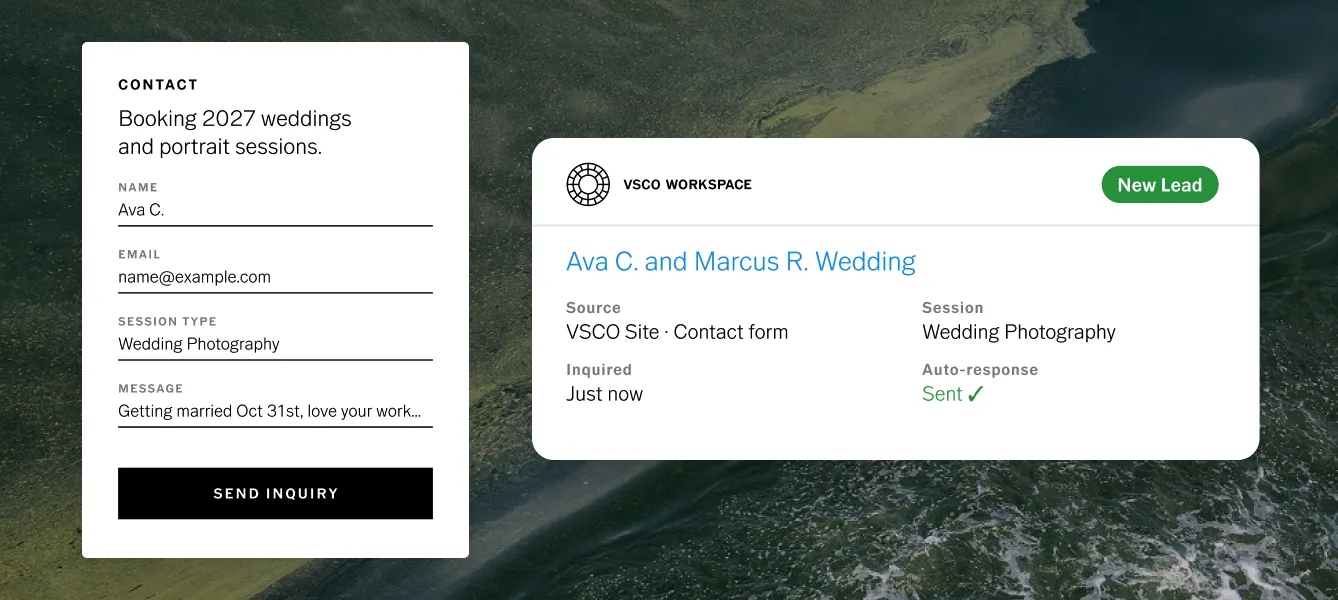
Close the inquiry loop with Workspace:
When you connect your VSCO Sites contact form to Workspace, every submission arrives as a managed lead with the client's details already populated. Your automated inquiry response goes out immediately, without you touching anything. By the time you see the notification, the client has already heard from you.
What is VSCO Sites?
VSCO Sites is a no-code portfolio website builder that generates a professional photography website from your existing VSCO content: photos, Galleries, and Blogs. Your site has its own URL, stays updated automatically as you add new work to VSCO, and includes a dedicated Contact page connected to VSCO Workspace.
Who is VSCO Sites for?
Any photographer who wants a professional portfolio website without the overhead of a traditional website builder. It's especially practical for photographers who are already active on VSCO, since the site generates from content they're already creating. It works for photographers at any experience level, from those publishing their portfolio for the first time to established professionals who want a low-maintenance site that keeps itself current.
Can I create a VSCO Site for free?
Yes. You can create and publish a VSCO Site on a free VSCO account with a vsco.site subdomain. Custom domain connection requires Pro or VSCO One membership.
How do I create a photography portfolio with VSCO Sites?
Go to your Profile on vsco.co or the VSCO iOS app and tap Build Site. Confirm your profile details and your site generates automatically. Customize the Selects, Galleries, and Blogs sections, fill out your About page, connect your Contact form, choose a subdomain, and publish. The full process takes 10–20 minutes.
Do I need coding or web design experience to use VSCO Sites?
No. VSCO Sites is fully no-code. The site builder uses a visual interface where you add, remove, and rearrange content by clicking and selecting. Nothing about the setup requires technical knowledge.
Can I use my own domain with VSCO Sites?
Yes, with a Pro or VSCO One membership. Connect a custom domain through the site builder settings. For step-by-step instructions, see How to Connect a Custom Domain to Your VSCO Site.
What can I add to my VSCO Site?
Selects (up to 20 photos, from your posts or device), Galleries (up to 20 public VSCO Galleries), Blogs (up to 100 blogs), an About page with your name, photo, bio, location, email, social links, availability tags, and experience tags, and a Contact page powered by your VSCO Workspace contact form.
Does my VSCO Site update when I add new work to VSCO?
Yes, automatically. When you add images to a featured Gallery, your site reflects the updates without requiring any action from you. Your Selects page is the exception. Those 20 images stay fixed until you manually update them in the site builder.
Can I use VSCO Sites as my professional photography website?
Yes. VSCO Sites is designed for professional use, with a clean photography-first layout, custom domain support, contact form with Workspace integration, and basic SEO tools. It's a practical, low-maintenance solution for photographers who want a professional presence without managing a separate website platform.
Can clients contact me through my VSCO Site?
Yes. Your VSCO Site has a dedicated Contact page in the main navigation, powered by your VSCO Workspace contact form. Every submission creates a managed lead in Workspace automatically, with the client's details pre-populated and your automated inquiry response going out immediately.
Will my VSCO Site show up on Google?
Once published, your site is indexable by search engines and includes a basic XML sitemap and robots.txt file. Appearing in search results takes time and depends on how strong your SEO signals are. Connecting a custom domain is the most important step. Without it, you can't verify your site with Google Search Console, which limits your ability to manage and monitor how Google indexes your content.
How many VSCO Sites can I have?
One per VSCO account.
Start Building Your Portfolio Site
Your VSCO content is already there. A few minutes in the site builder and it becomes a professional portfolio with its own URL, a contact form connected to your booking workflow, and a site that can be updated in seconds.
Go to your profile, tap Build Site, and see where it leads you. Most photographers are surprised how close they are to done.