
You finished editing. The photos are good, some of your best work yet. Now comes the part that quietly determines whether a client books you again, leaves a five-star review, or refers you to their friends: getting those images into their hands in a way that feels as considered as the work itself.
Most photographers spend months refining their craft and minutes thinking about delivery. A folder link with 400 files named DSC_0347 can undermine weeks of skilled work. A polished gallery that loads instantly and guides the client through a visual story does the opposite. It turns delivery into a final impression that reinforces everything you're worth.
This guide covers the complete picture:
- How to build a file organization system that scales.
- Naming conventions you can actually stick with.
- A culling process that protects your strongest work.
- How to present finished galleries to clients with professionalism.
Why Your Photo Organization System Matters More Than You Think
Disorganized archives have real costs. Lost files mean lost revenue when a client comes back a year later for prints. Poorly named folders create delays on tight turnarounds. A cluttered workspace slows down every stage of the edit.
The best organization system isn't the most elaborate one, it's the one that comes naturally every time a new shoot lands. Three things separate systems that stick from systems that fall apart:
Consistency. Every project follows the same structure, every time. This matters most when you're exhausted after a 10-hour wedding or managing six active clients at once.
Findability. You can locate any file. Find the original capture, working edit, or client export in under a minute without opening multiple drives or applications.
Scalability. The structure works just as well with 200 photoshoots in the archive as with 20.
There are two proven approaches, and the right one depends on what you shoot.
Chronological: Year → Month → Shoot Date + Client Name
Best for high-volume work — portrait sessions, mini sessions, events. Lightroom can create this structure automatically on import. The date-first format keeps your archive in order as it grows.
Client-based: Client → Project → Date
Better for long-term commercial clients or brand campaigns where a single client might have a dozen distinct projects spread across a year. You navigate by relationship, not calendar.
Many photographers land on a hybrid: date-stamped folder names inside a client-based hierarchy.
Example folder names:
2026-06-15_Harrison_WeddingReception
2026-08-03_BlueprintCo_Product
2026-09-20_Chen_FamilyPortraits
Pick one. Apply it to every project. Revisit it in a year and adjust if something isn't working, but don't reorganize in the middle of your busy season.

Separate Active Jobs From Archives
One of the highest-leverage changes you can make to your workflow is a hard separation between work in progress and completed deliverables.
Keep a single Active folder for projects that haven't been approved and archived. Inside each shoot folder, hold RAW files, working edits, and draft galleries. Once a project is delivered and signed off, move the entire folder to Archive.
Within active and archive, keep three categories distinct:
- Client work
- Personal projects
- Portfolio selects
Mixing them creates risk: accidentally sending a personal project to a client, or deleting portfolio work during a cleanup. Keeping them separate costs nothing and prevents real mistakes.
Default camera filenames like IMG_4521 or DSC_0003 are liabilities. They tell you nothing, they collide when you're working with a second photographer, and they force you to open images just to know what they are.
A reliable naming formula has three parts:
Date → Client or Photoshoot → Sequence number:
2026-06-15_Harrison_Wedding_0001.CR3
2026-06-15_Harrison_Wedding_0002.CR3
This format gives you instant context, sorts chronologically, and eliminates duplicate filenames when multiple cameras are involved. If you work with a second photographer regularly, add a photographer initial:
2026-06-15_Harrison_Wedding_KH_0001.CR3
Most editing software lets you create import presets that apply this naming automatically. Set it up once. After that, renaming is zero effort.
Keep naming consistent across the entire workflow. RAW files, working edits, and exported JPEGs should share the same base filename. That way, any version of any image is traceable. When a client asks for a re-export of a specific frame six months later, you find it in two keystrokes.
Culling is where your reputation gets protected. A gallery of 600 images with 12 near-identical shots of the same toast moment tells a client that either you can't edit or you didn't try. A gallery of 350 images that moves through the day with intention tells them you're a professional.
A four-pass rating system works well across most workflows:
Pass 1 — Remove obvious rejects. Eyes closed, test shots, focus misses, motion blur. These leave the library immediately.
Pass 2 — Mark potential keepers. One star. You're not committing yet, just flagging images worth a second look.
Pass 3 — Promote stronger selects. Two stars for images that work on their own. You're building the gallery now.
Pass 4 — Flag standout images. Three stars or higher for the best frames. These lead the gallery and anchor the story.
By the end of pass four, you have a refined selection ready for editing and delivery.
Add Keywords and Metadata During Import
Metadata applied at import scales into a searchable archive over years. Basic tagging like client name, photoshoot type, and location transforms a folder of files into a library you can query. When an editorial client asks if you have vertical lifestyle portraits from a coastal location, you find them in seconds instead of hours.
Even lightweight tagging compounds significantly. Start simple: client name, photoshoot type, subject matter, and year. Add more specificity as it becomes useful.
Create the Client Gallery Around Their Experience
The gallery your client opens is the last thing they'll associate with you before they write a review, tag you on Instagram, or refer a friend. It deserves the same attention as the edit.
Start with your strongest image. Not the chronologically first, not the technically correct—the one that immediately communicates the quality and emotional register of the shoot. This sets the tone for everything that follows.
Arrange images in a narrative sequence. For a wedding: ceremony arrivals, key ceremony moments, portraits, reception details, candid emotion. For a portrait session: the establishing frame, a variety of expressions, the strongest close, a closing image with breathing room. A client who moves through a gallery that tells a story downloads images and tells their friends. A client who scrolls through a flat chronological sequence picks a few favorites and closes the tab.
Mobile viewing is not optional. Most clients open their gallery on their phone first. Make sure thumbnails are clear, navigation is minimal, and downloads are easy to find on a small screen.
Before you share anything, run a final check: image order, download settings, any obvious sequencing problems. Two minutes of review prevents an awkward follow-up email.
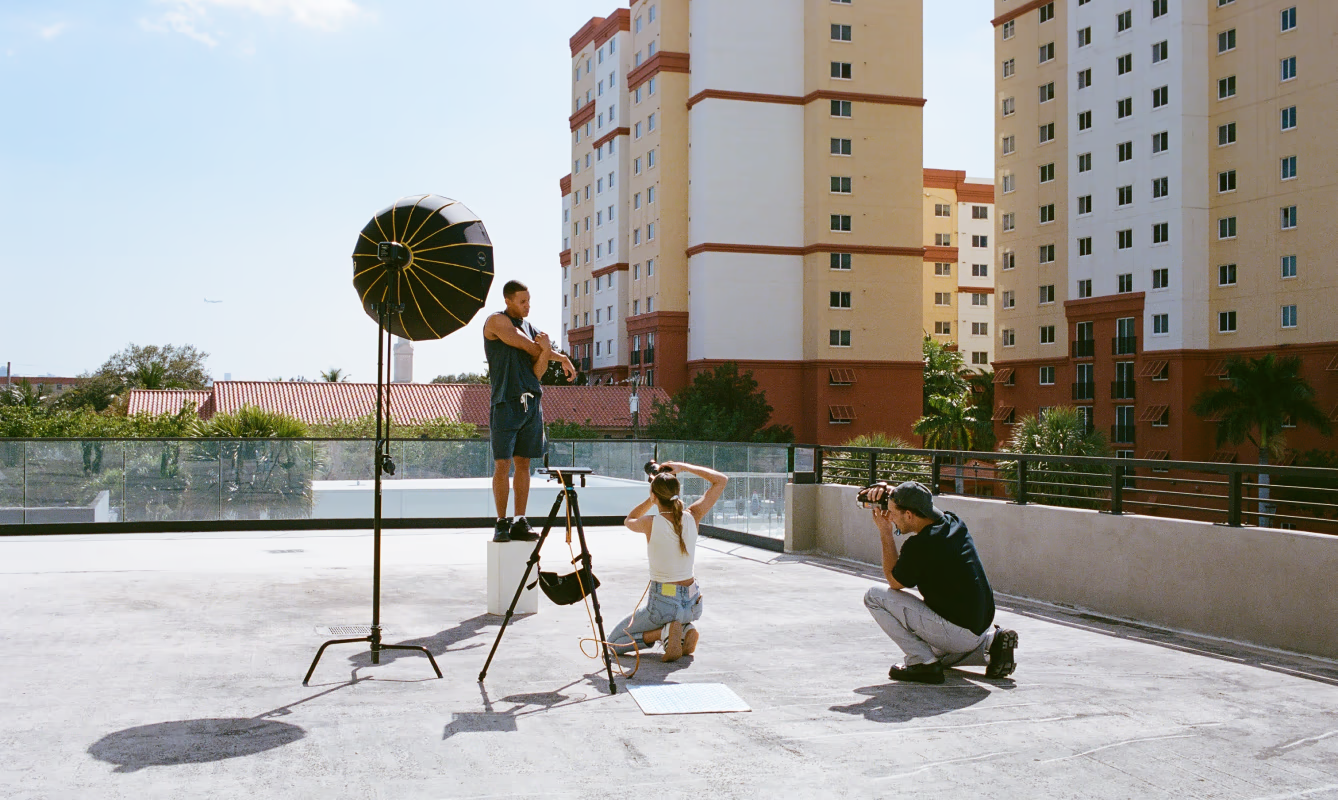
How you deliver photos says as much as what you deliver. A cloud-based folder link dumps your work into an interface better designed for spreadsheets. A ZIP file asks clients to manage their own file system. Neither presents your photography, they transfer it.
Professional client galleries solve this. Photos display in a clean, distraction-free layout designed to let the images lead. Clients access their gallery on any device, from any location, without creating an account or downloading software.
When evaluating any client gallery platform, the essentials are:
Privacy by default. Client images should never be publicly accessible without your explicit choice. Password protection adds another layer for brand work, intimate events, or anything where access control matters.
Mobile-ready presentation. Your clients live on their phones. The gallery experience has to work there first.
Clean design. Ads, visual noise, platform branding—any of these pull attention away from your photography. The gallery should disappear into the work.
Flexible sharing. A private link for one-to-one delivery. A QR code for events or collaborative shoots where you want guests to contribute their own images alongside yours.
Reliable storage. Storage limits that hit during peak season mean deleted files, unexpected costs, or both.
Deliver Images With VSCO Galleries
VSCO Galleries is built for exactly this. Upload your curated selects, set a cover image, and share a private link your client opens on any device. The interface stays out of the way. Clean design, no distractions, photography front and center.
For collaborative projects like weddings where guests have their own moments, multi-photographer events, or group photoshoots, VSCO Galleries supports QR code uploads. Guests contribute directly from their phone browser. No app required, no account needed. The result is a complete archive from every perspective, delivered in one place.
Sharing options:
- Private links for one-to-one delivery via email, text, or messaging
- QR codes for collaborative galleries and guest uploads
Privacy and control:
- Optional password protection for sensitive work (brand campaigns, personal milestones, private events)
- Unpublish any gallery at any time to revoke access
VSCO Galleries is free to start. VSCO Pro and VSCO One unlock unlimited photo storage and password protection, plus 200+ professional presets, AI editing tools, VSCO Sites for your portfolio, and more.

Your Repeatable Delivery Workflow
When the steps run naturally, you stop thinking about delivery and start focusing on the work. Here's the sequence:
1. Import and rename. Apply your date-client-sequence preset during import.
2. Cull. Four passes. Remove misfires, promote selects, flag standouts.
3. Tag. Client name, shoot type, location. Anything you'll search for later.
4. Edit. Work from your flagged selects.
5. Curate. Build the gallery sequence. Lead with your strongest image.
6. Share. Private link or QR code. Confirm the client can access and download.
7. Archive. Move to completed archive once approved. Project closed.
Every photoshoot gets the same process. Every client gets the same standard.
FAQ
What's the best turnaround time for delivering client photos?
It varies by project type, but consistency matters more than speed. Many photographers deliver a preview gallery within 24–72 hours and full delivery within one to three weeks. Whatever your timeline, set it clearly at booking. Clients who know what to expect don't follow up anxiously, they wait confidently.
How many images should I include in a client gallery?
Enough to tell the complete story of the session or project, no more. Portrait sessions typically land between 25–60 final images. Weddings can run 300–500 depending on the day's scope. The useful question isn't "how many"—it's "does every image here earn its place?" If the answer is yes, the number is right.
What's the best backup system for an active photo library?
The 3-2-1 rule: three copies of every file, on two different types of media, with one copy offsite. Practically: working drive, external backup drive, cloud storage. Back up immediately after import. The moment files transfer from card to computer, they need a second home.
How do I organize a shoot when I'm working with a second photographer or team?
Agree on the folder structure and naming convention before the photoshoot. On a wedding, that means both photographers use the same date-client-sequence format with their initials at the end. After the event, consolidate everything into a single master folder, deduplicate, and cull from a unified library. Clean imports make the edit faster and the final gallery more coherent.
My client can't find certain images in their gallery. What helps?
Sequence and curation. Lead the gallery with your strongest frames so the most important images appear first, not buried at frame 200. Group similar moments together. Remove near-duplicates ruthlessly. A gallery that moves with intention guides clients through it, they find the images that matter because the structure puts those images in front of them.
How do I keep galleries private without creating friction for my clients?
Private links with no password are the default for most deliveries. Secure enough, and the client opens it in one click. Add password protection when the work is genuinely sensitive: brand campaigns before launch, intimate events, personal milestones. Share the password in the same message as the link, or directly before. The goal is protection that doesn't require additional help or guidance.
Delivery Is Part of the Work
Great photography doesn't end at export. It ends when your client opens their gallery, feels the care in the curation, moves through the sequence, and downloads their images knowing they hired the right person.
An organized workflow gets you there without the chaos. A polished client gallery gets you there looking like a professional. Together, they turn every delivery into the kind of experience that earns referrals.
Build the system once. Run it on every photoshoot. Let the work speak for itself.
Start using VSCO Galleries.