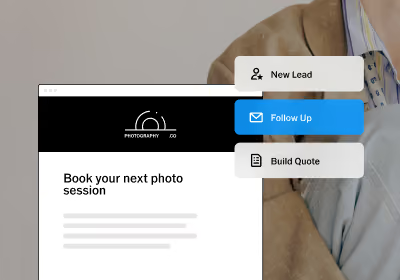
Running a photography business means running two businesses at once: the creative one and the operational one. Inquiries come in, proposals go out, contracts need signing, invoices need chasing, sessions need scheduling, galleries need delivering, and follow-ups need sending.
When all of that happens across your inbox, a calendar app, a notes app, and memory, things fall through.
VSCO Workspace is a CRM built specifically for photographers to manage the full client lifecycle in one place.
This guide walks you through what it is, how it's structured, and how to set it up so your first clients are moving through a complete, professional workflow from the day you start.
To unlock the features covered in the guide, you’ll need a VSCO One subscription. If you’re starting with the free version of Workspace, follow our Guide to Using VSCO’s Free CRM.
What you'll learn in this guide:
- What Is a CRM, and Why Do Photographers Need One?
- What Is VSCO Workspace?
- Your First 30 Minutes: Where to Start
- Set Up Your Photography Business
- Add Your First Lead or Client
- Set Up Your Photography Services
- Build Your Client Workflow
- Create Quotes, Contracts, and Invoices
- Set Up Online Scheduling
- Automate Your Photography Workflow
- Connect Your Website and Contact Form
- Set Up Reusable Templates
- FAQ
CRM stands for Customer Relationship Management.
In practice, for a photography business, it's the system that manages every interaction with every client from the first time they reach out to the last time you follow up.
Without a CRM, client management is distributed across tools that weren't designed to talk to each other: email for communication, a separate app for contracts, another for invoicing, a calendar for scheduling, and a spreadsheet or memory for everything else.
A CRM centralizes all of it. Every client's communication history, contracts, invoices, questionnaires, and project notes live in the same place, attached to the same job record.
You always know where every client is in the process, what's been sent, what's outstanding, and what needs to happen next.
VSCO Workspace is studio management and CRM software built for photographers. It connects everything from inquiry to follow-up, including leads, contracts, scheduling, questionnaires, invoices, automated communication, gallery delivery, and reporting, all in one place.
Instead of piecing together generic business tools, photographers can manage the entire client journey in Workspace, with each job, client, payment, and next step connected.
Core features include:
- Lead capture via customizable contact forms
- Lead and job pipeline tracking
- Quotes with embedded contracts, questionnaires, and payment schedules in one client-facing link
- Online contracts with e-signature
- Invoice creation and automated payment reminders
- Online scheduling and unassisted booking
- Mini session scheduling with specific time slot management
- Customizable email templates with dynamic tokens
- Automated workflow sequences triggered by job stage and client actions
- Questionnaires linked to specific job stages
- Client portal (one link for clients to access everything)
- Text messaging for US and Canadian phone numbers
- Calendar sync and management
- Reporting dashboards for leads, revenue, conversion rates, and booking trends
- Multi-user access and multi-brand support
- Gallery delivery coordination (link VSCO Galleries directly to any job)
- VSCO Sites integration (contact form inquiries route directly into Workspace as leads)
Open VSCO Workspace to follow along →
Book a free onboarding session →
Who Workspace Is For
Workspace is built for photographers, videographers, and other creative professionals at every stage of their business, from booking your first clients to running a full studio. It gives you a professional, organized way to manage the work as your client list, bookings, and business grow.
Workspace is highly customizable, and it's easy to feel like you need to configure everything before you can use it.
You don't.
These five steps, in this order, take you from a new account to booking your first client.
Step 1: Create your contact form
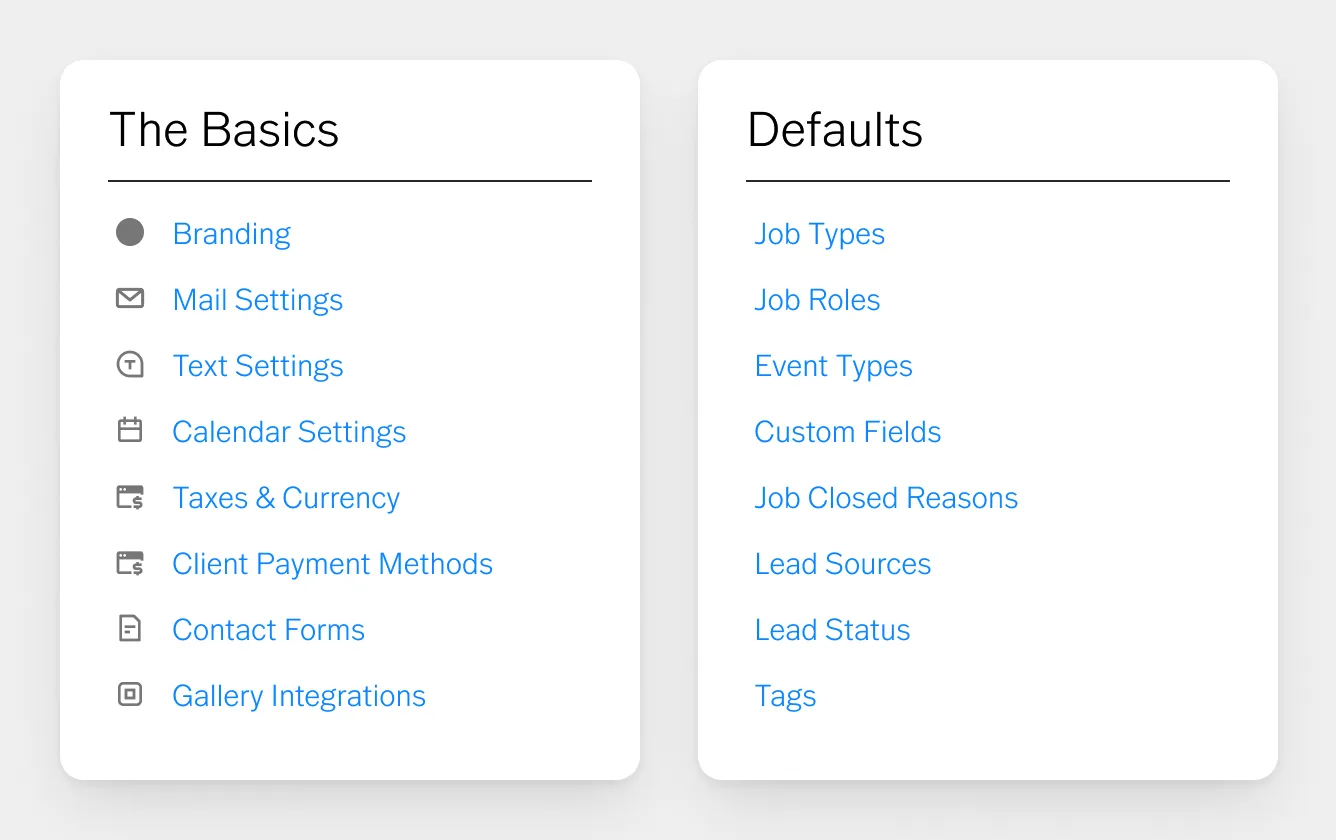
Go to Settings › Contact Forms.
This is how new leads come into your business.
Every new Workspace account includes a default contact form already created for you.
Open it, review the default fields, and adjust to match your business. Name your form, set the page title and intro message, and configure which fields clients fill in.
Mark fields required, optional, or hidden, and adjust the wording to match your brand tone.
Set what happens after someone submits: a thank-you message or a redirect to a specific URL.
Once saved, share the direct link or paste the embed code into your website.
Step 2: Set up your branding and business settings
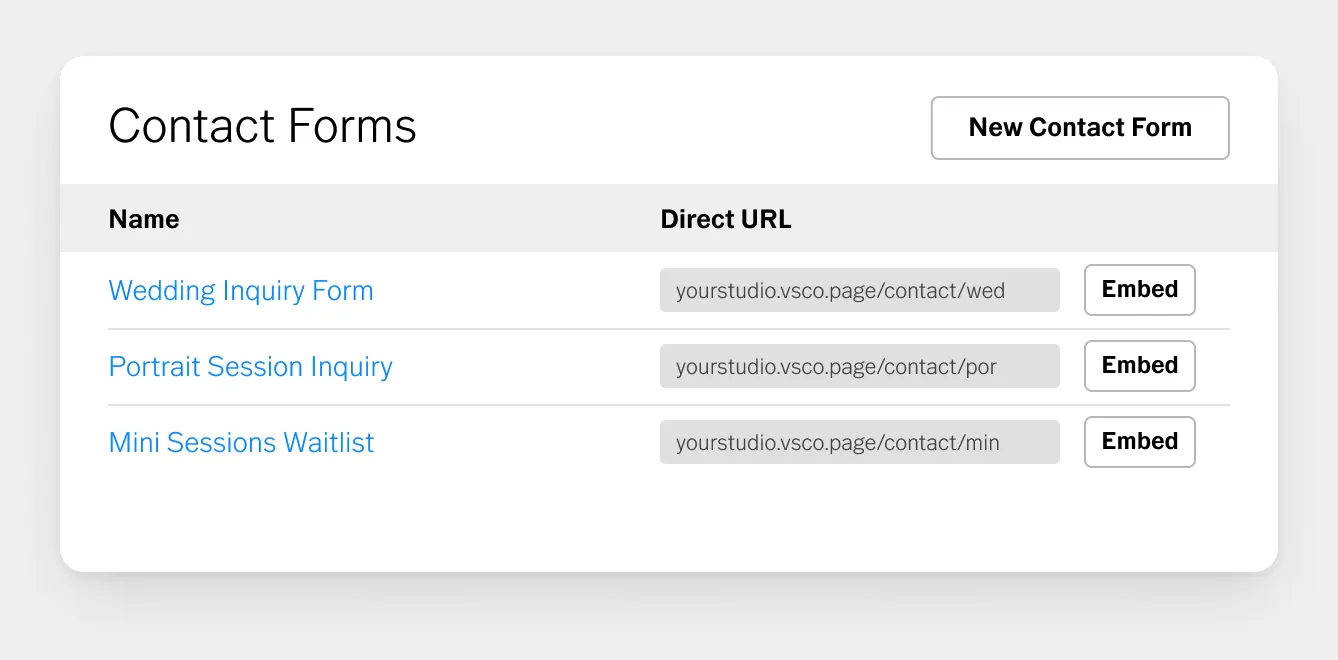
Go to Settings › Branding to set up your first brand profile. Add your brand name, email, website, and set a default contact form.
You can also connect Google Analytics, add your location, office hours, and phone number here.
In the Look & Feel section, you can customize colors, logos, and more.
Back in Settings, connect your email (Gmail recommended for two-way sync), set up calendar integration, fill out Taxes & Currency information, and add a payment method.
Connect Stripe or Square to collect retainers online, or add Mail a Check at minimum so your account can record payments.
Step 3: Set up your job types
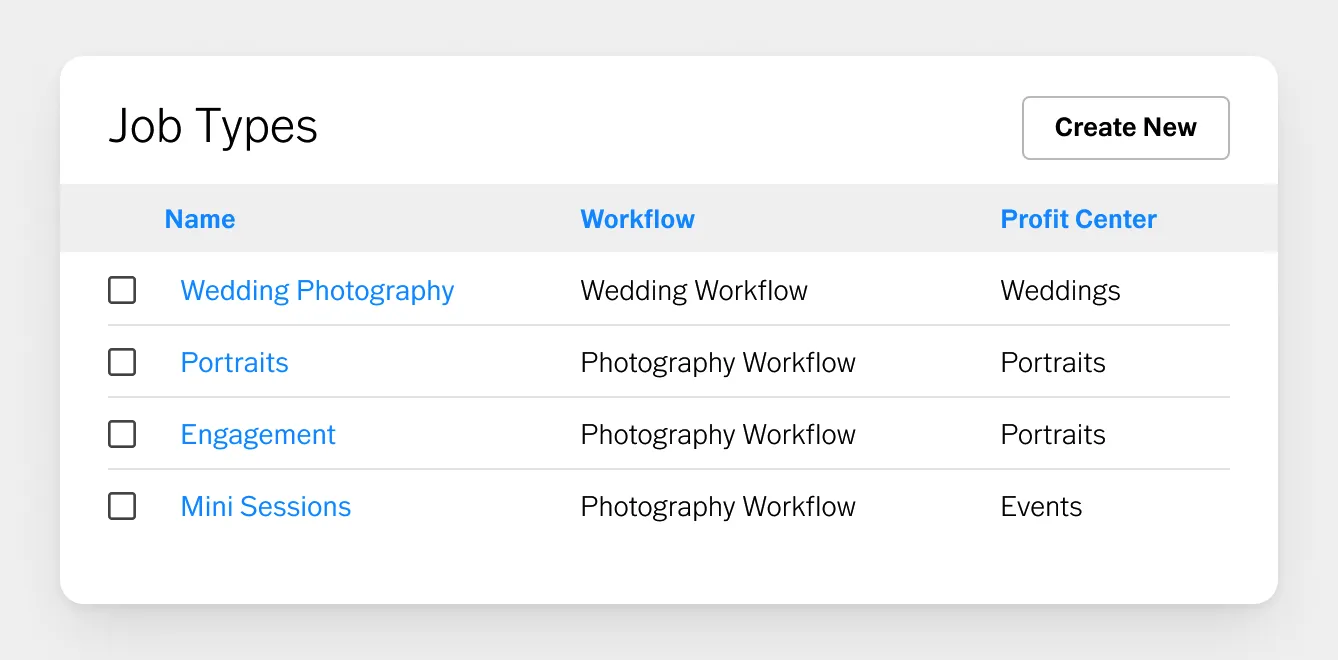
Go to Settings and find Job Types.
Create a job type for each kind of session you offer: portraits, weddings, commercial, mini sessions.
For each one, define the default workflow (the tasks that get created automatically), default contacts, and event types like session or consultation.
Every new lead for that job type now starts fully organized from the moment it comes in.
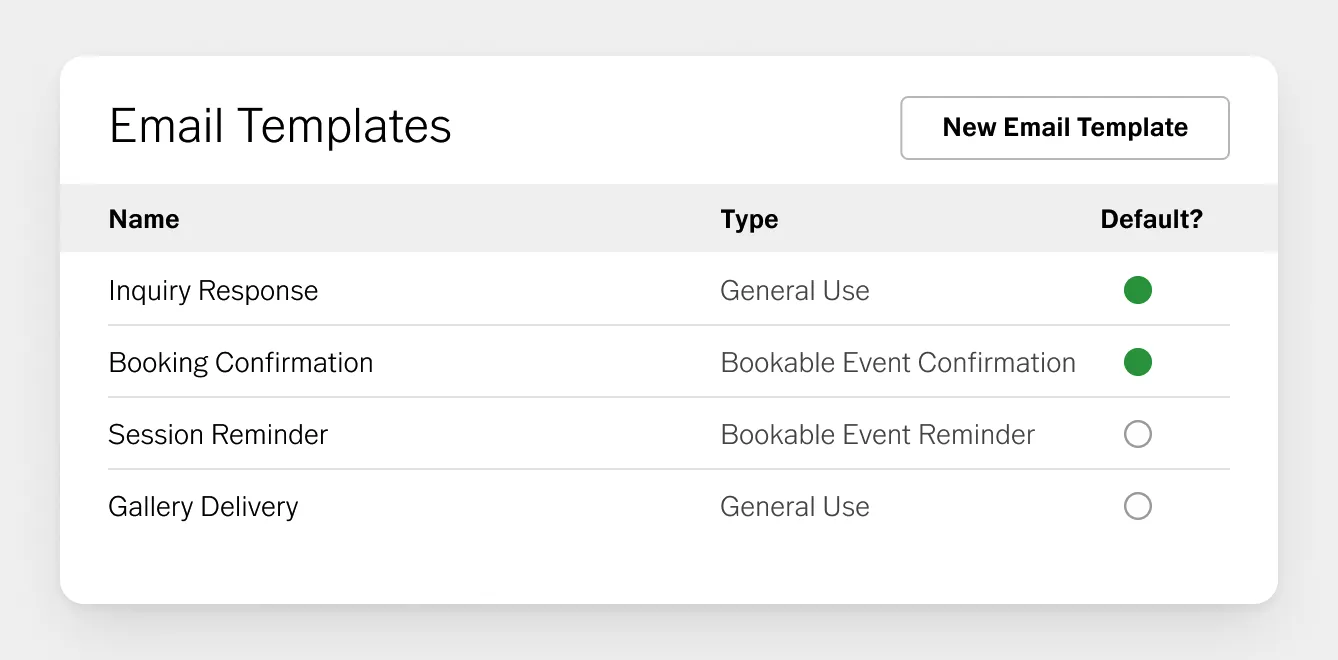
Step 4: Build your templates
This step takes the most time upfront, but it saves the most time long-term. In Settings, build templates for everything you send clients: contracts, emails, payment schedules, products and services, questionnaires, workflows, and quote templates.
The key concept here is tokens: placeholders that auto-fill with client-specific information when a template is used.
Tokens like {{client.first_name}}, {{job.date}}, and {{item.name_link}} mean you write the template once and it personalizes automatically for every client. Your quote template pulls everything into one place: pricing, payment schedule, contract, and questionnaire, all in a single client-facing link.
See our help article for the Complete List of Tokens.
Step 5: Send your first quote
When a client submits your contact form, Workspace creates a new lead and notifies you.
- Open the lead, apply your quote template, and send it.
- The client receives one link to review pricing, sign the contract, complete the questionnaire, and pay the retainer.
- Once they do, the lead converts to a booked job automatically.
That's it. Those five steps take your account from zero to fully operational.
Everything else (automations, scheduling, reporting, multi-brand setup) builds on this foundation once you've booked your first client.
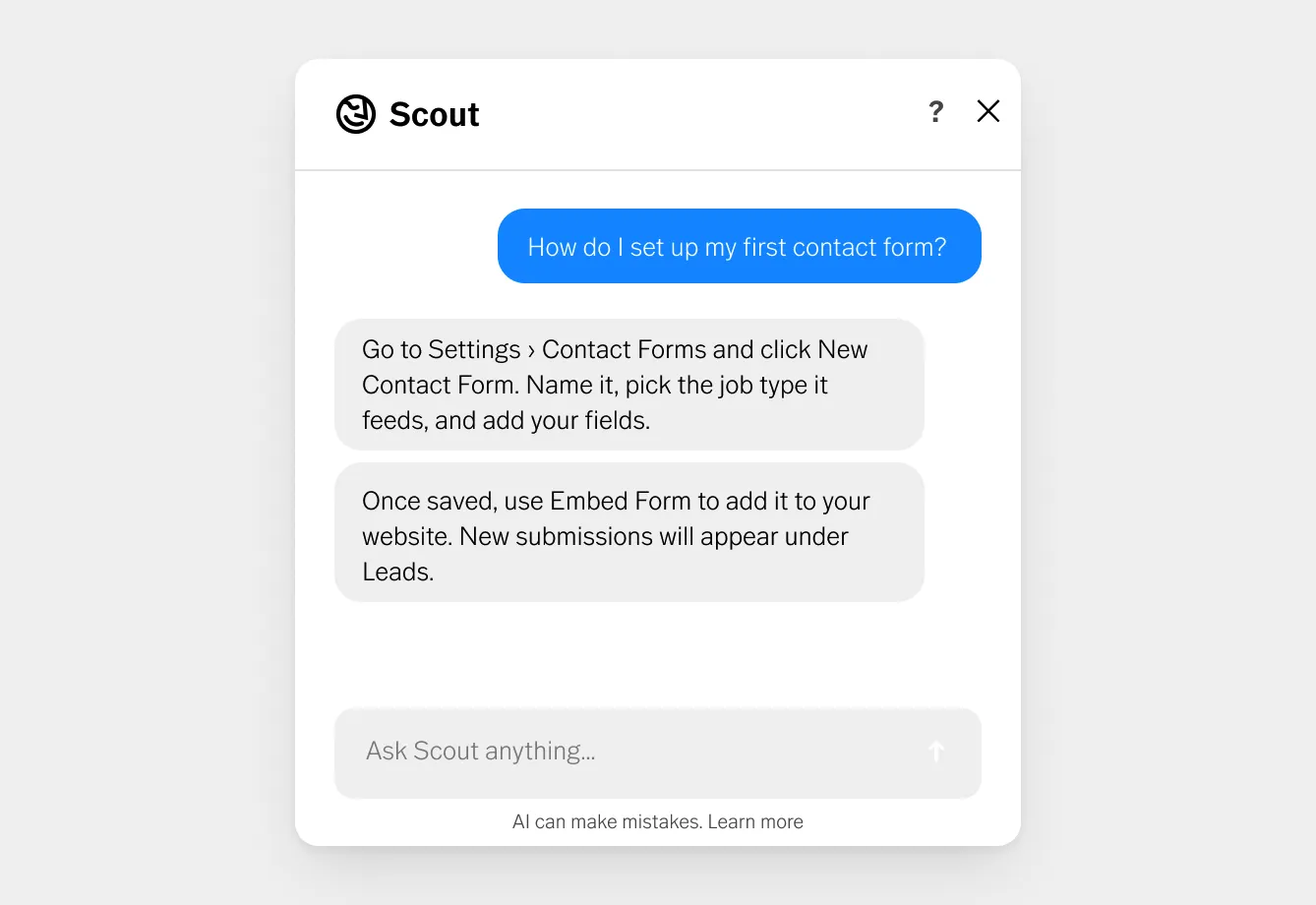
If you get stuck, tap Support. The Support panel gives you access to an AI agent that can answer questions about your account, search the full Workspace help library, and connect you directly with the human Workspace Support Team.
System status is also shown here, so if something isn't behaving as expected, you can check whether there's a known issue before troubleshooting.
Before building workflows and sending quotes, set up the foundational settings that apply across your entire account.
These take about 10–15 minutes and are worth doing before anything else.
Brand and Business Settings
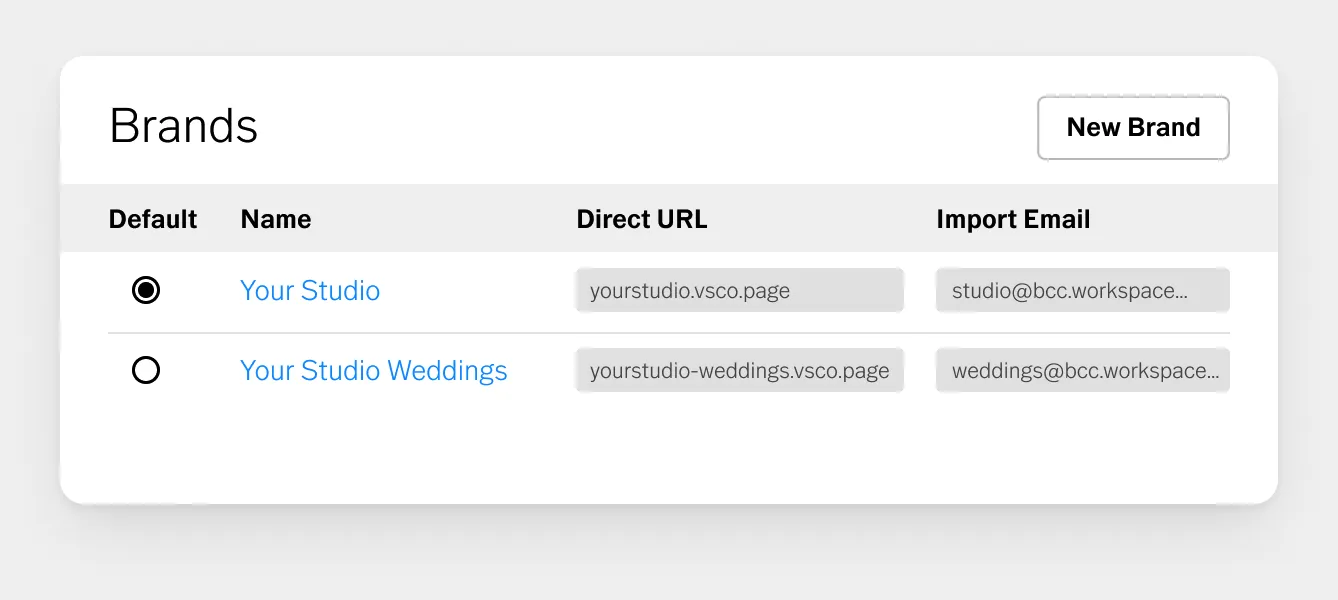
In your Workspace dashboard, go to Settings › Branding. Here you can create new Brand Profiles or edit existing ones.
In each Brand Profile you can customize the full client-facing experience across quotes, contracts, invoices, the client portal, emails, and other branded touch points.
Adjust your logos and imagery, page backgrounds, headers and footers, brand colors, email signature, and other visual details to create a more consistent experience for your clients.
For even more control, Advanced Design settings let you customize page and email styling with CSS and HTML.
Add your first brand profile and set up business details:
- Name
- Brand's Website
- Fallback URL and custom domain
- Default contact form
- Google Analytics
- Location and office hours
- Phone Numbers
- Client Access Settings
Advanced Branding Settings
In the Brand Profile › Look & Feel section, you can customize key brand moments across all client-facing pages: quotes, contracts, invoices, and the client portal.
- Images
- Page Header
- Page Footer
- Page Background
- Printout Logo
- Email Logo
- Colors
- Page Background
- Box Background
- Text Color
- Primary Color
- Secondary Color
- Footer Text
- Error
- Printout Accent
- Footer
- Email signature
- Advanced Design: Add your own CSS and HTML to customize your pages (head, header, and footer), the container around your emails, and legacy printouts.
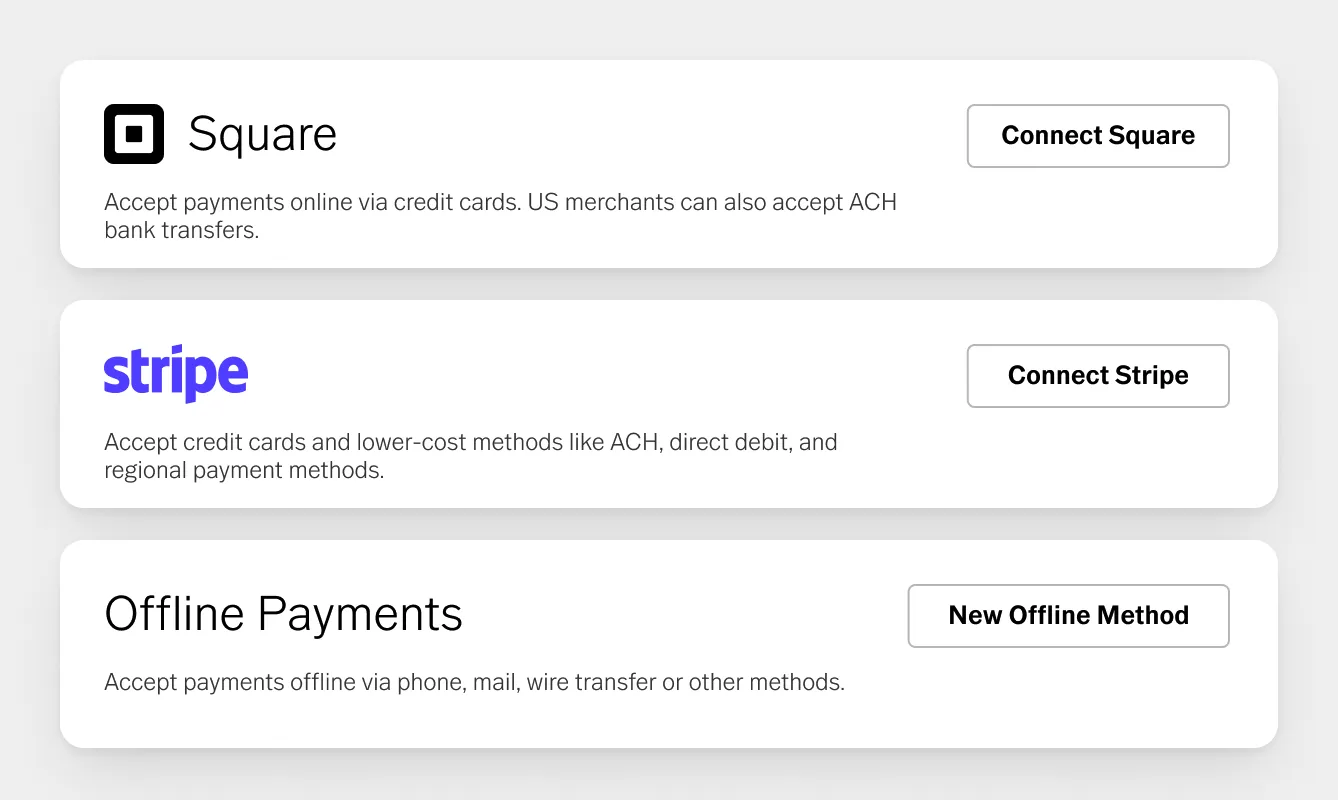
Payment Methods
Go to Settings › Client Payment Methods. Add at minimum one payment option.
Options include:
- Stripe or Square for online credit card payments (recommended for collecting retainers at booking)
- ACH payments through Stripe or Square (bank transfer, lower processing fees)
- Apple Pay and Google Pay (enabled within Stripe or Square settings)
- Mail a Check for offline payments
Connect Stripe or Square if you want clients to pay their retainer at the time of booking, which is the standard for most portrait and wedding photographers.
If you're not set up for online payments yet, add Mail a Check as a minimum so your account can accept payment records.
Email Setup
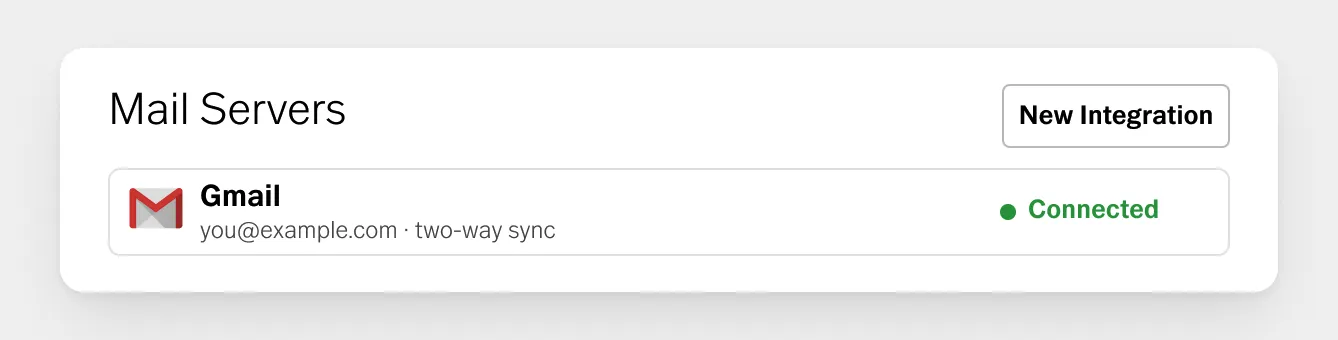
Go to Settings › Mail Settings. Connect your email account.
Options include:
- Gmail (recommended): enables two-way sync, which means client replies import into Workspace automatically
- Outlook: send-only (replies go to your inbox, not into Workspace)
- Custom SMTP: send-only, for custom email addresses
Gmail two-way sync is the most complete option and the one the Workspace team recommends for photographers who want their full communication history in one place.
Calendar Integration
Go to Settings › Calendar Settings. Options:
- Two-way Google Calendar integration (changes in either system reflect in the other)
- Subscribe to a Workspace calendar feed to display your jobs in any calendar app
- Subscribe to external calendar feeds to check for conflicts from personal or secondary calendars. You can view any public calendar link.
For scheduling, Workspace checks whichever calendars you configure for conflicts when clients try to book a slot. Setting this up correctly prevents double-bookings.
Workspace organizes people and projects around three connected concepts: Contacts, Leads, and Jobs.
Contacts
A Contact is a person in your system. Every lead and client has a contact record that stores their name, email, phone number, and communication history.
When someone submits your contact form, Workspace creates their contact record automatically.

Leads
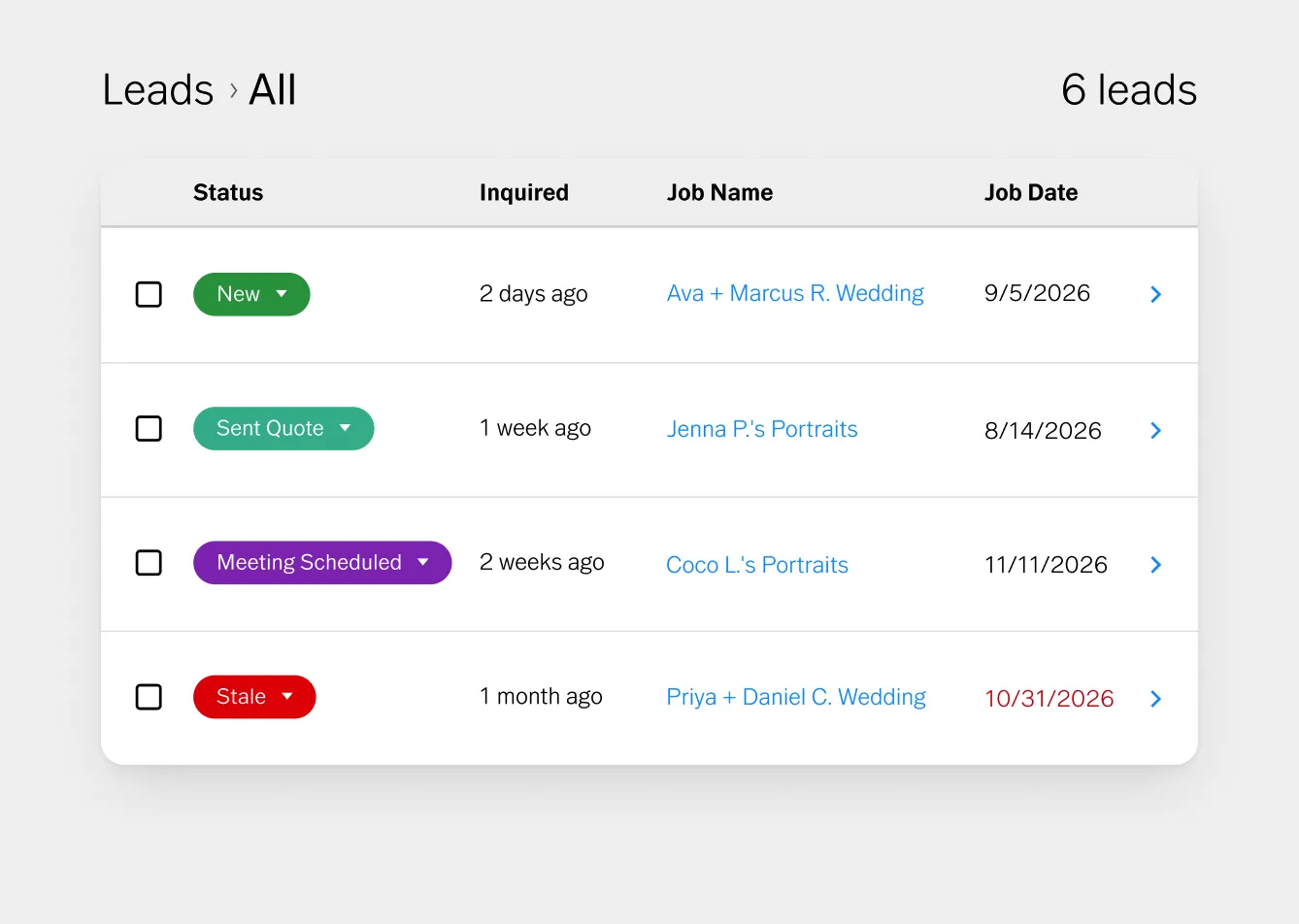
A Lead is a potential booking. When someone reaches out about a session, that inquiry becomes a Lead in Workspace.
Leads track where every potential client is in your pipeline, from the initial inquiry through to booked, declined, or lost.
The lead pipeline view shows you the status of every active inquiry at a glance.
To create a lead manually:
- Click New Lead from the dashboard
- Enter the job date (if known), contact name and email, and any details already collected
- Click Save to arrive at the Job Overview
Jobs
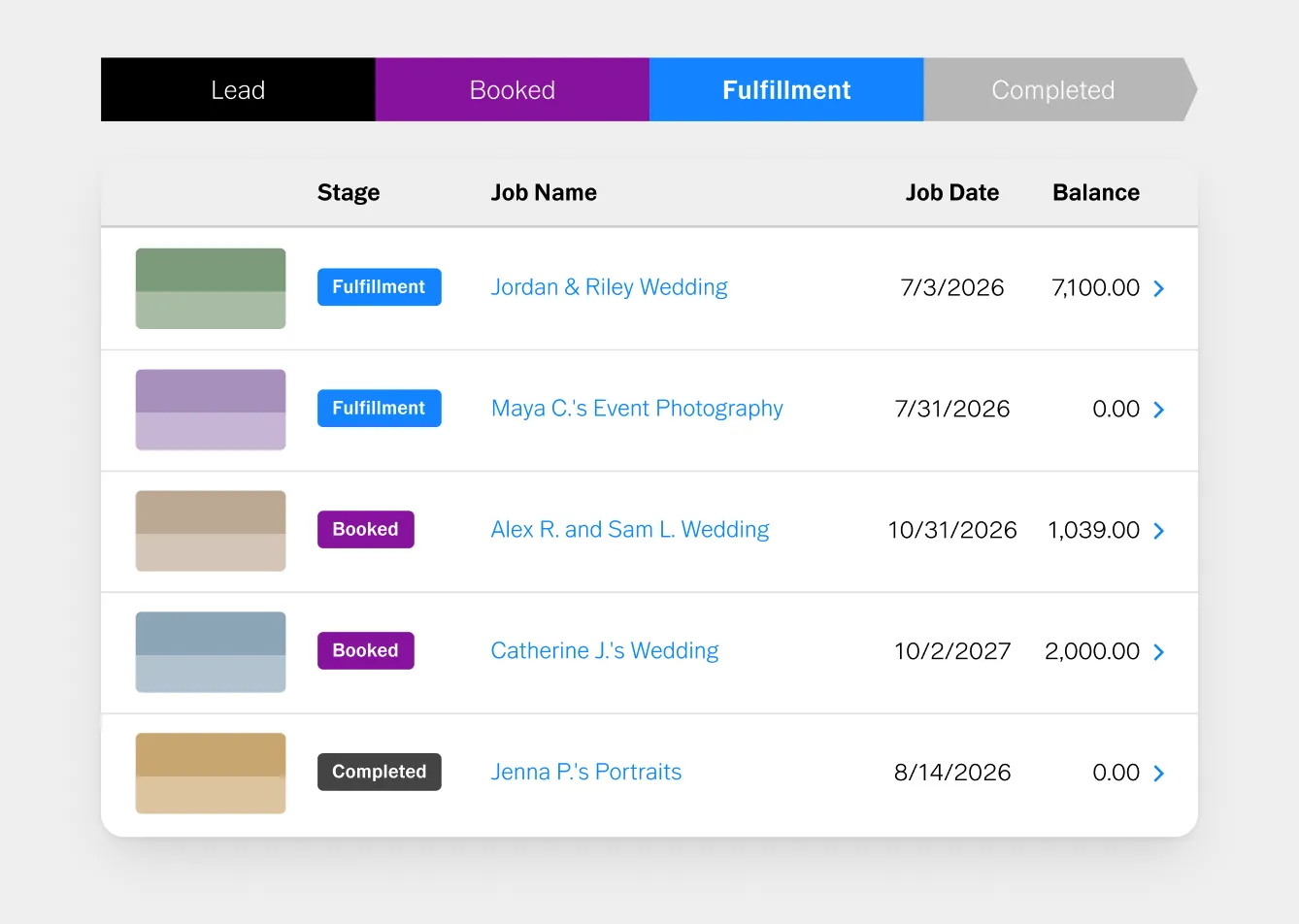
When a Lead converts to a booking (when the client signs the contract and pays the retainer), it becomes a Job.
Jobs hold everything related to a specific project: the session details, all communication, the contract, invoices, questionnaires, notes, and any connected VSCO Gallery.
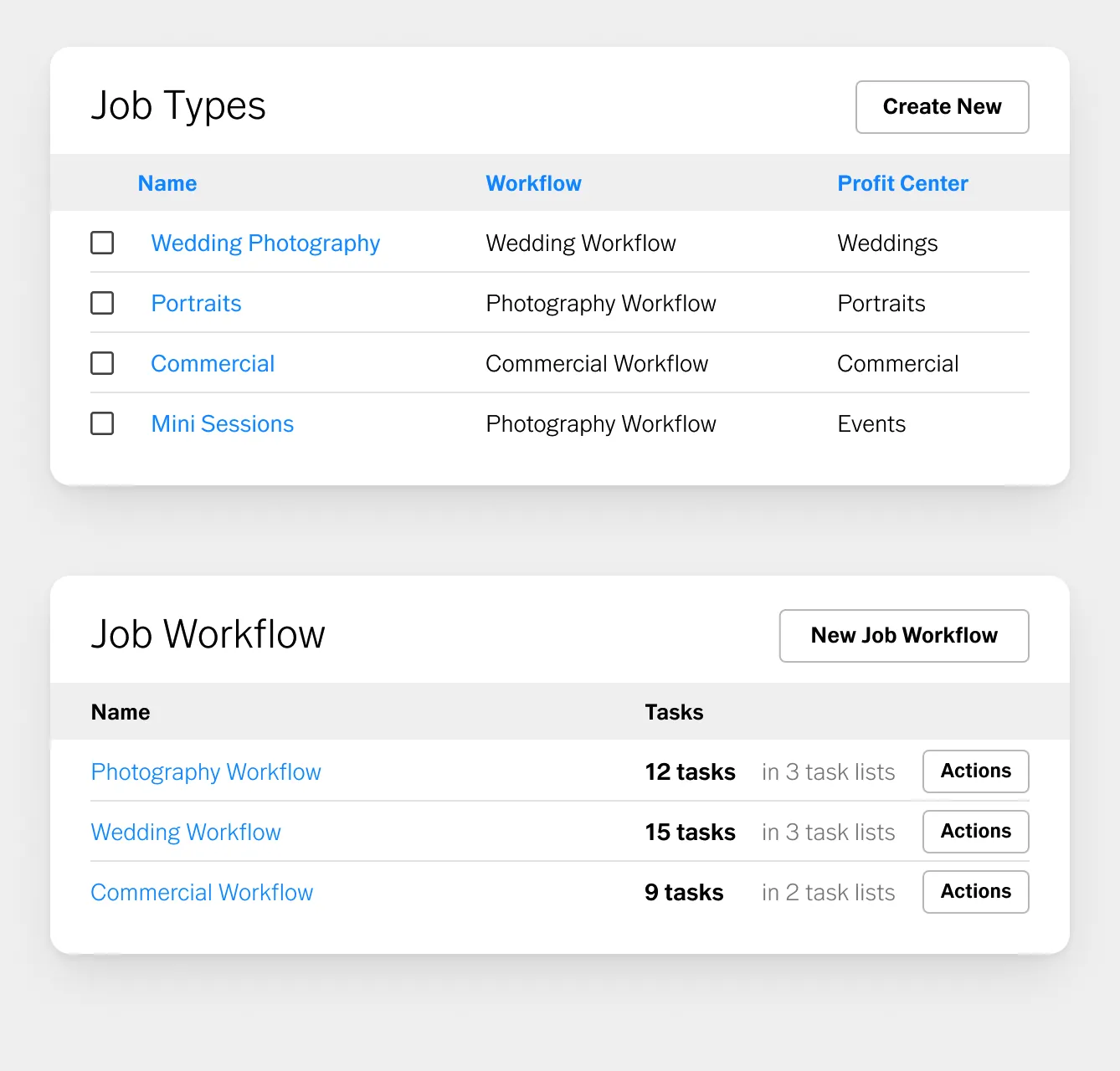
Job types define the work you do and automate how each project is structured from the moment a lead comes in.
Job Types
Go to Settings › Job Types.
Create a job type for each session category you offer: Portrait, Wedding, Commercial, Mini Sessions, Headshots, and so on.
For each job type, you define:
- Default workflow: the task sequence that gets created automatically for every job of this type
- Default contacts: which contact roles apply (primary client, venue, second shooter)
- Event types: the session, consultation, or delivery events associated with this job type
When a new lead comes in for a portrait session, Workspace creates the right workflow, assigns the right tasks, and structures the job correctly without any manual configuration on your end.
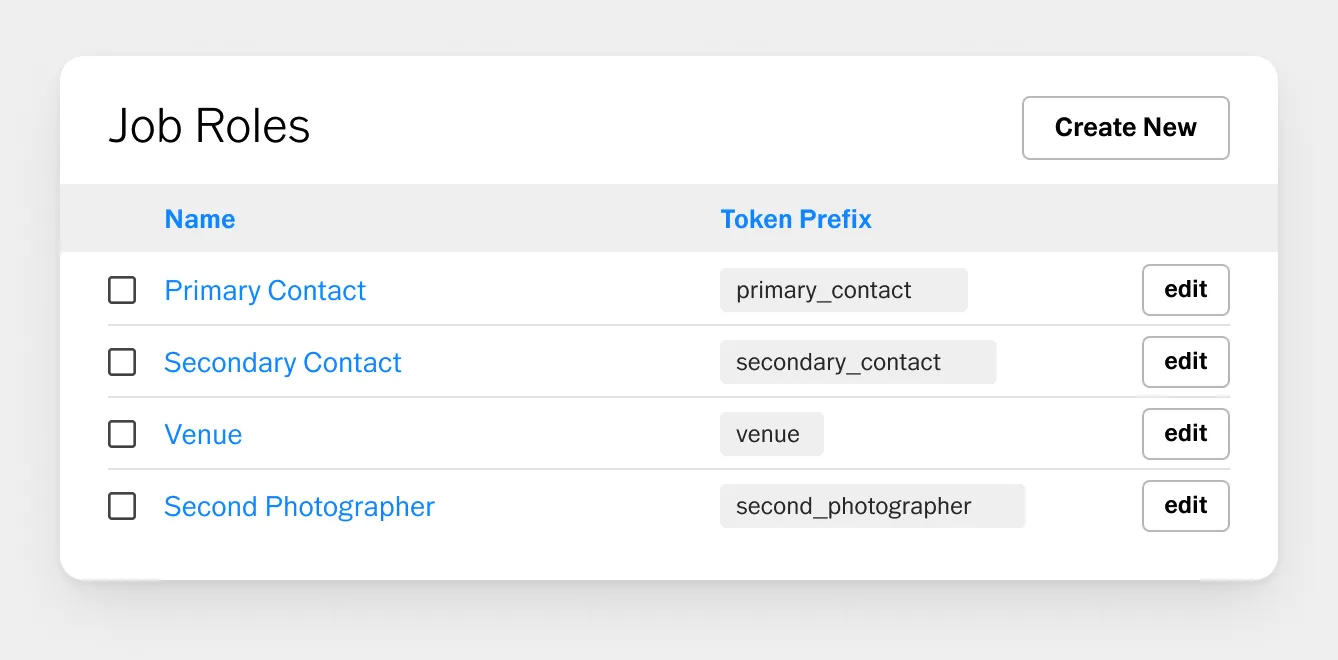
Roles
Roles define the relationship each contact has to a job: primary contact, venue coordinator, second shooter, album designer.
You can add multiple contacts to a job in different roles, which is particularly useful for wedding and commercial work with multiple stakeholders.
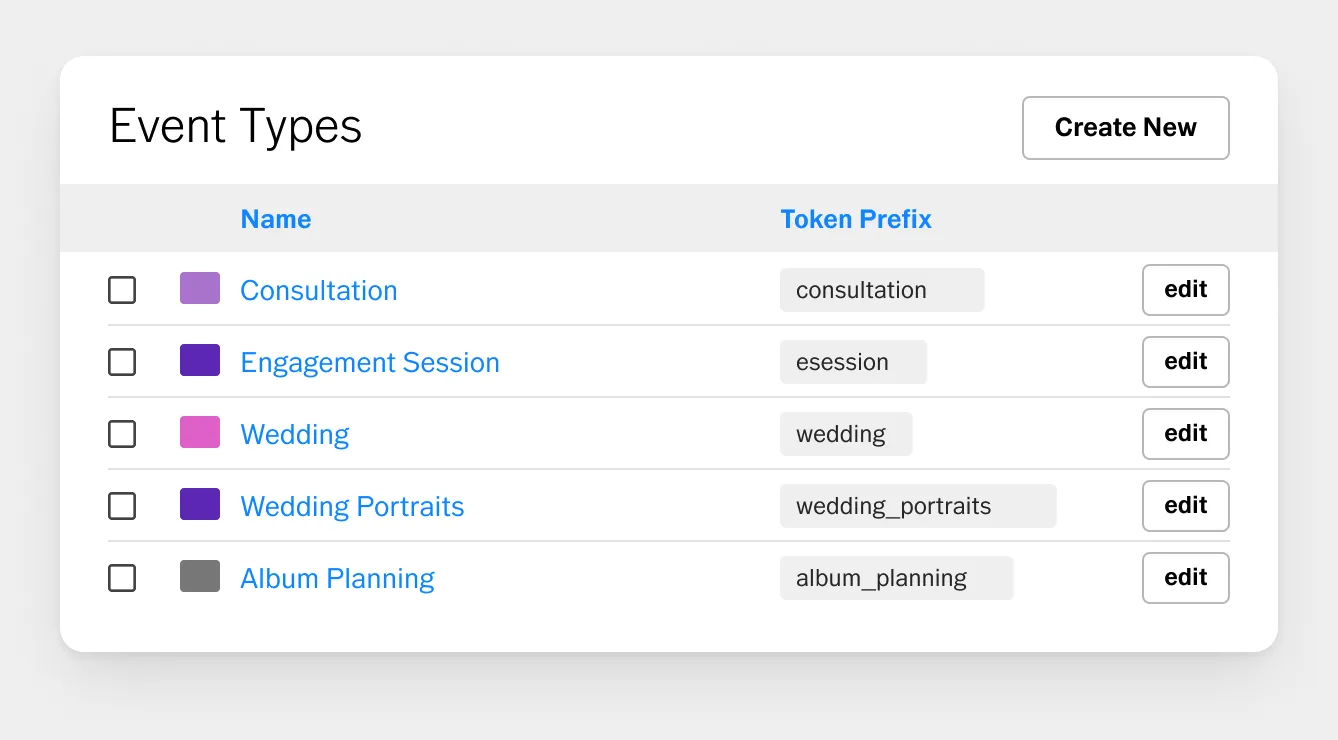
Event Types
Event types are the individual events within a job: consultation call, engagement session, wedding day, editing, delivery.
You can create as many event types as your workflow requires and attach them to specific job types so they appear automatically.
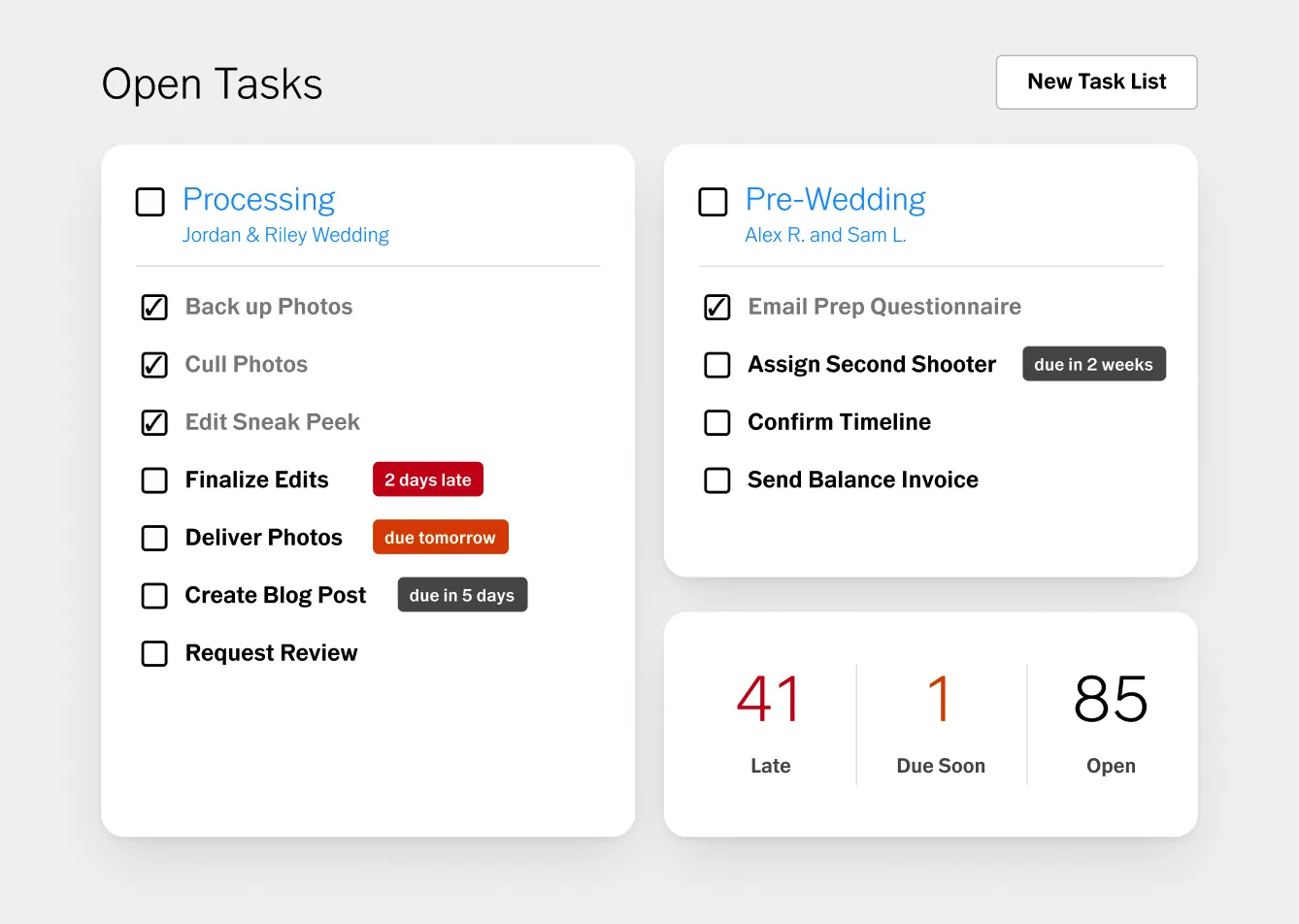
A workflow in Workspace is a sequence of tasks, emails, and automations that define exactly what happens at each stage of a client project.
The most valuable thing you can do in Workspace is build a complete workflow for each job type.
Done once, it adds the appropriate tasks for every job, right from the start.
A typical photography workflow moves through these stages:
- Inquiry The client submits your contact form or you manually create a lead. Workspace creates the lead record. An automatic email response fires (once you've set up the automation) to acknowledge receipt and let the client know what happens next.
- Consultation A discovery call to understand the project. This may be scheduled through Workspace's scheduling tools or coordinated via email. Your intake questionnaire can go out at this stage to collect the information you need before sending a quote.
- Booking You send a quote. The client receives a single link containing the pricing, contract, questionnaire, and payment schedule. They review, sign, and pay without leaving the page. The lead converts to a booked job. Workspace notifies you and triggers the post-booking workflow.
- Production Tasks in the workflow remind you of prep steps: confirm the location, send the session prep guide, check equipment. Any shoot-day logistics confirmed via email live in the client's job record.
- Editing A task in the workflow marks the job in editing. Workflow reminders can prompt you at the expected delivery date so nothing slips.
- Delivery Link your VSCO Gallery to the job in Workspace. Send the gallery link from within Workspace alongside the delivery message. The gallery, the delivery email, and the job record all connect to the same client file. Trigger the post-delivery automation from here.
- Follow-up Automated post-delivery sequences fire from the job record: a thank-you message when the gallery goes out, a review request a few days later, an anniversary follow-up a year out timed to the shoot date. These run automatically across every client once they're configured.
The quote is the center of Workspace's booking flow.
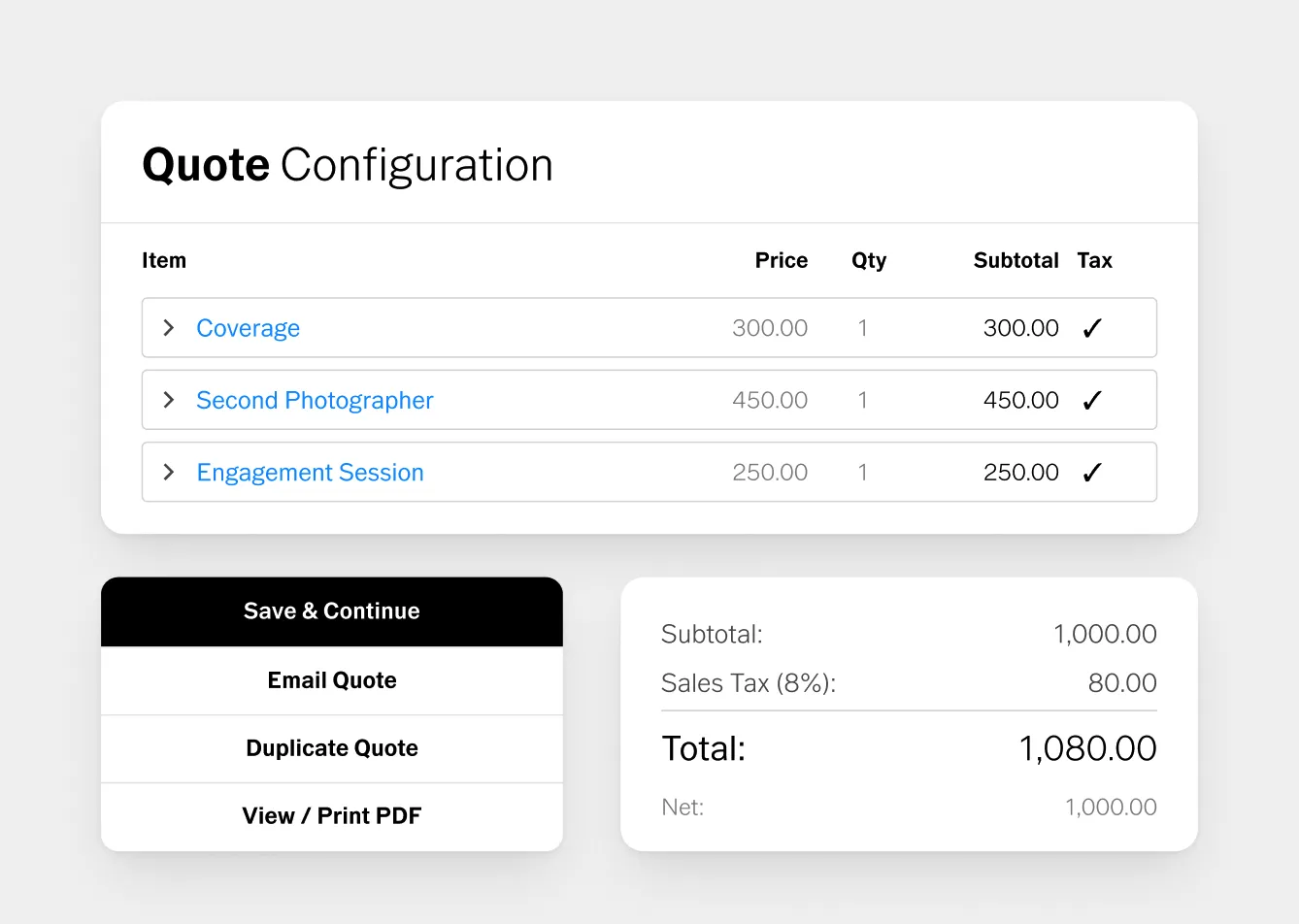
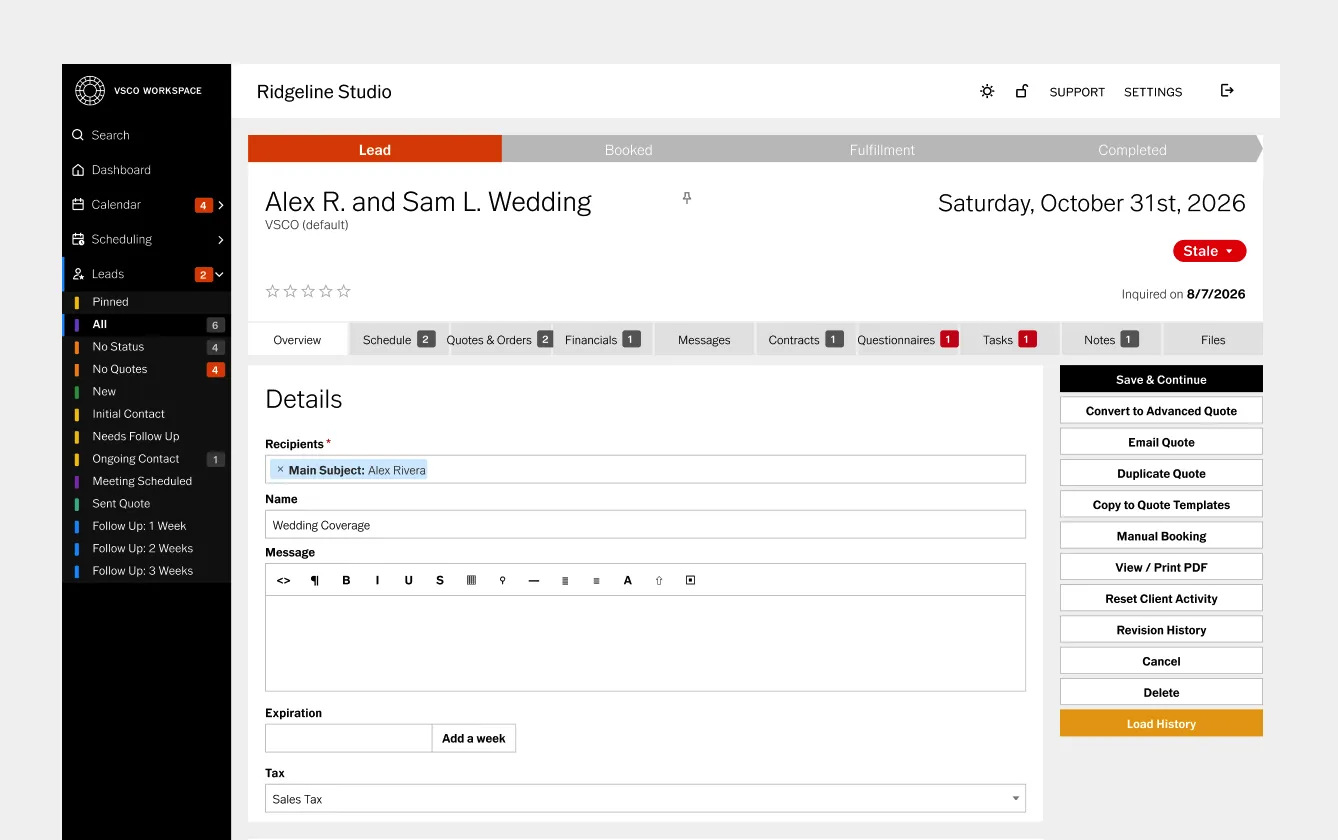
A single quote combines pricing, the contract, the questionnaire, and the payment schedule into one client-facing link.
When the client opens it, they move through the booking process without any additional back-and-forth.
Building a Quote
- From the job, click Quotes and Orders › New Quote
- Add the recipient, quote name, message, expiration date, and sales tax group if applicable
- Click Add Product to add your services. If a product doesn't exist yet, use manual entry and check Save as Product to add it to your product library for future use
- Add a payment schedule (required): specify the retainer amount and when the balance is due
- Add an intake questionnaire if you want clients to complete one during booking
- Add a contract that the client will sign as part of the booking process
- Click Save and Continue
Once saved, click Direct Link to preview what your client will experience.
Click "Email Quote" to send it. Include the {{item.name_link}} token in the email so clients have the link to access their quote.
Contracts
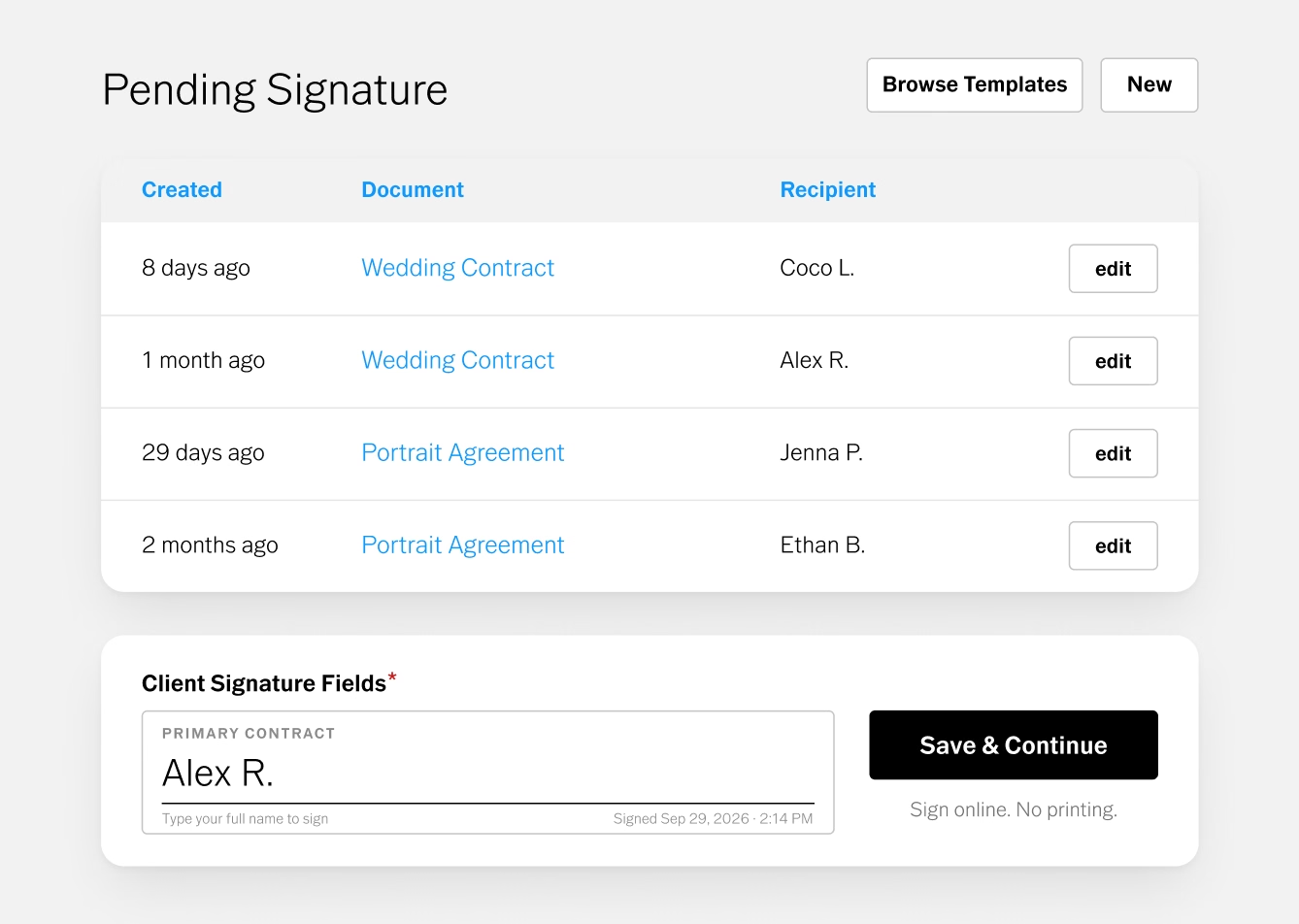
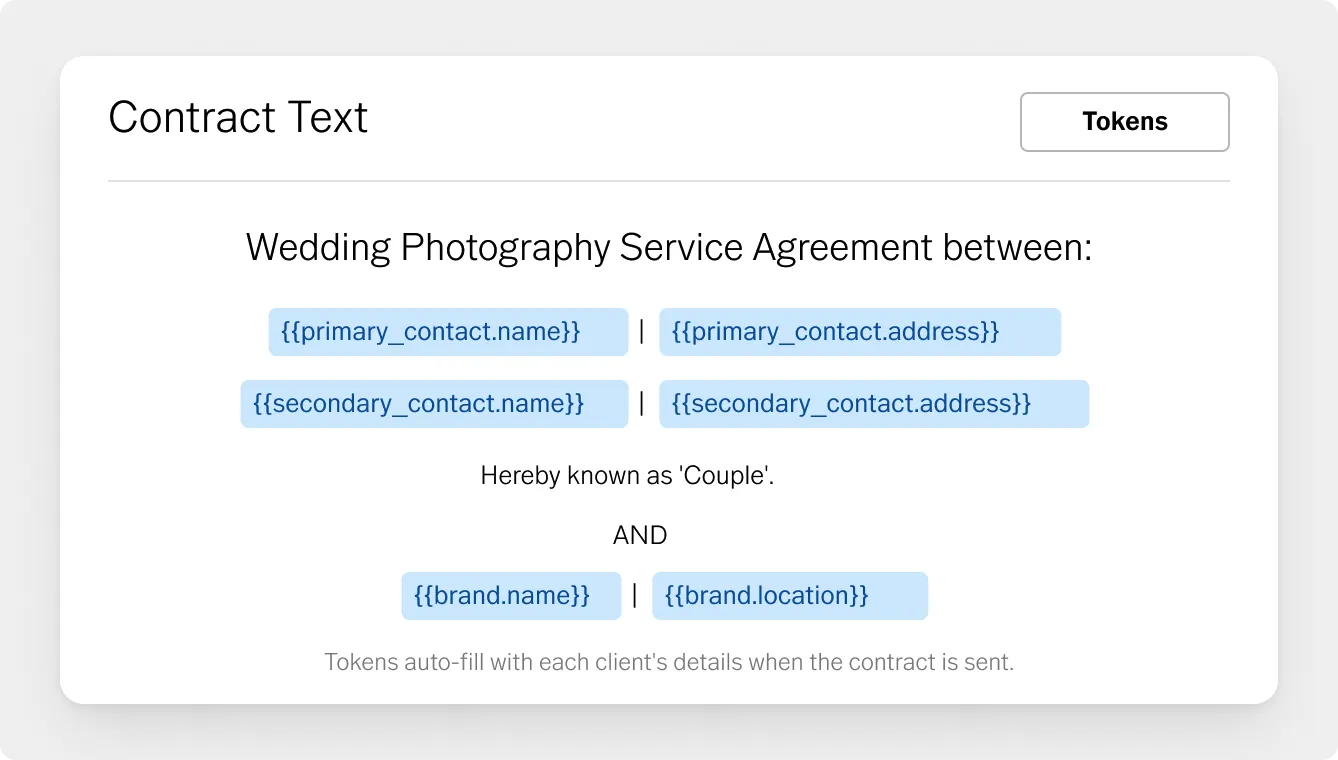
Contracts in Workspace are built from templates using tokens.
Tokens are dynamic placeholders that auto-fill with client-specific information when the contract is generated: client name, session date, location, package details, total price.
Build your contract template once in Settings › Contracts.
Use tokens wherever the information varies by client. Every contract sent from that template is personalized automatically without any manual editing.
Invoices
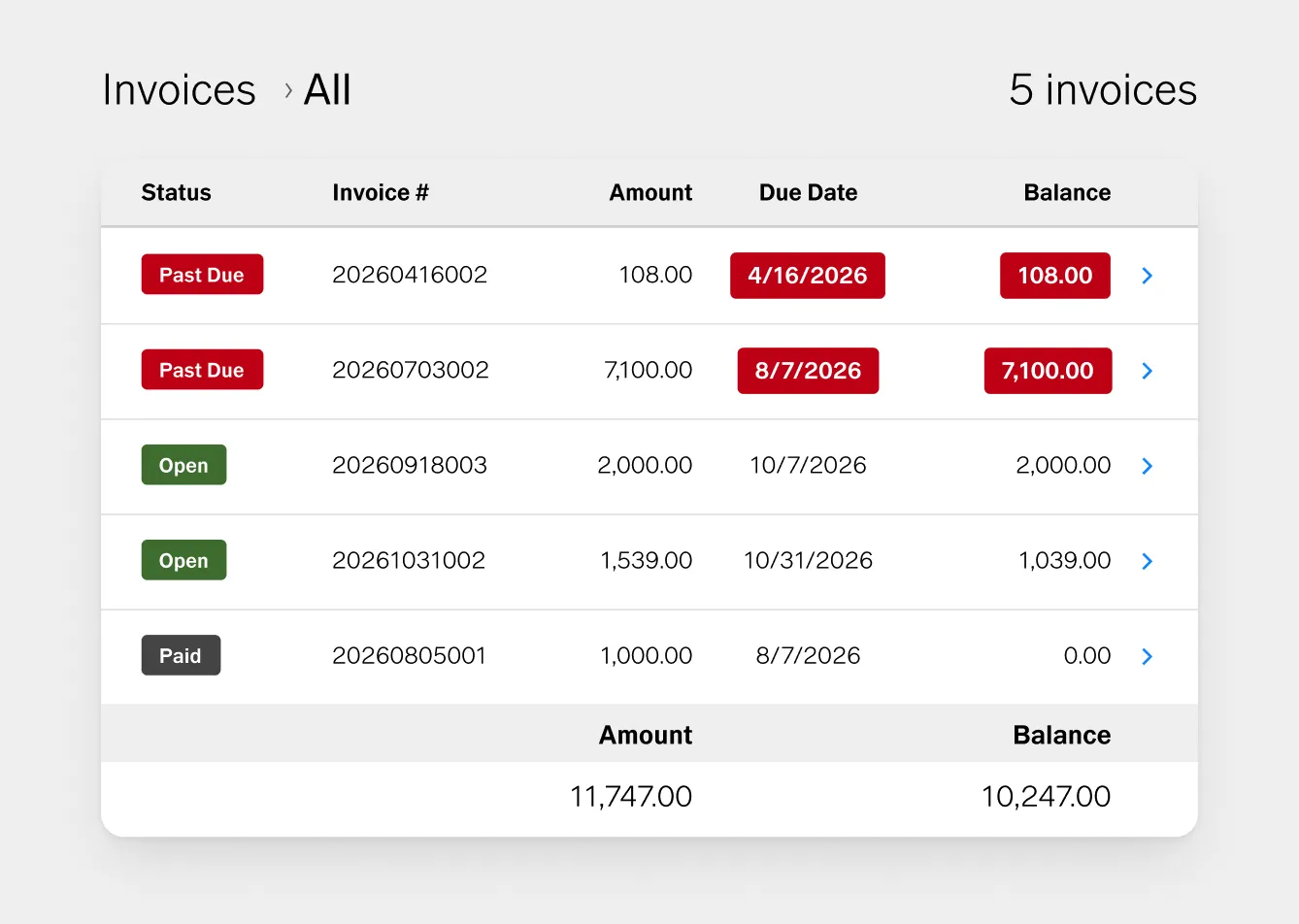
Invoices are generated from the quote's payment schedule. When a payment is due, Workspace can send an automated reminder.
When the client pays online, the payment is recorded automatically and the invoice is marked paid. You can also manually record payments for offline methods like checks.
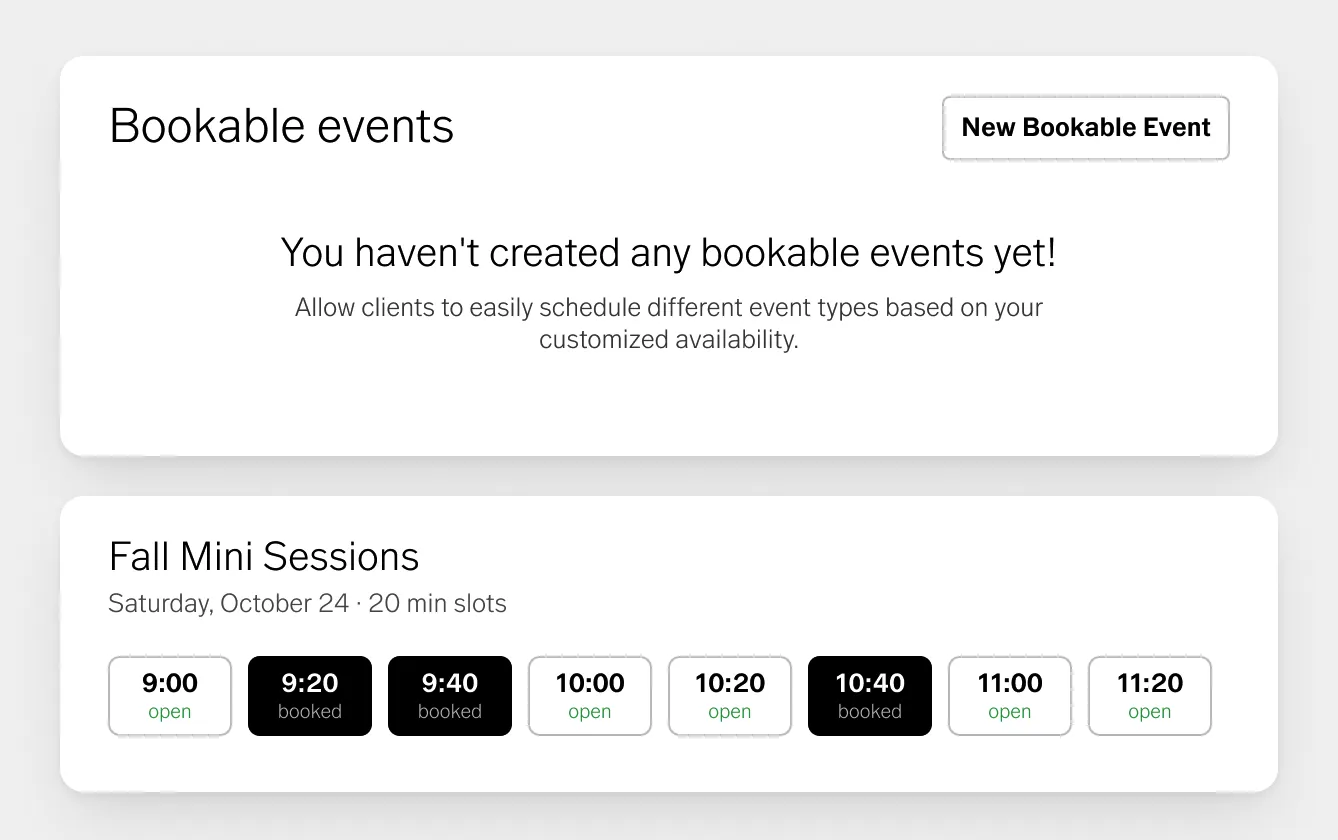
Workspace's scheduling tools let clients book sessions, consultations, and mini sessions without any back-and-forth.
Bookable Events
Go to Scheduling › Bookable Events from the sidebar. Create a bookable event for each session type you want clients to self-schedule.
For each event, you define:
- Session length
- Available days and times
- Which calendars to check for conflicts (your connected Google Calendar, Workspace calendar, or external feeds)
- Whether a deposit is collected at the time of booking
- Buffer time before and after sessions
Once created, each bookable event has its own scheduling link. Share it with clients or embed it on your website.
Mini Sessions
Mini session scheduling gives you control over specific time slots on a specific date.
Clients see the available slots, select one, and pay the retainer to secure their booking.
Your calendar updates automatically.
Go to Scheduling › Mini Sessions to set up a mini session event.
Define the date, session length, buffer time, number of slots, and pricing. Share the link or embed it on your website.
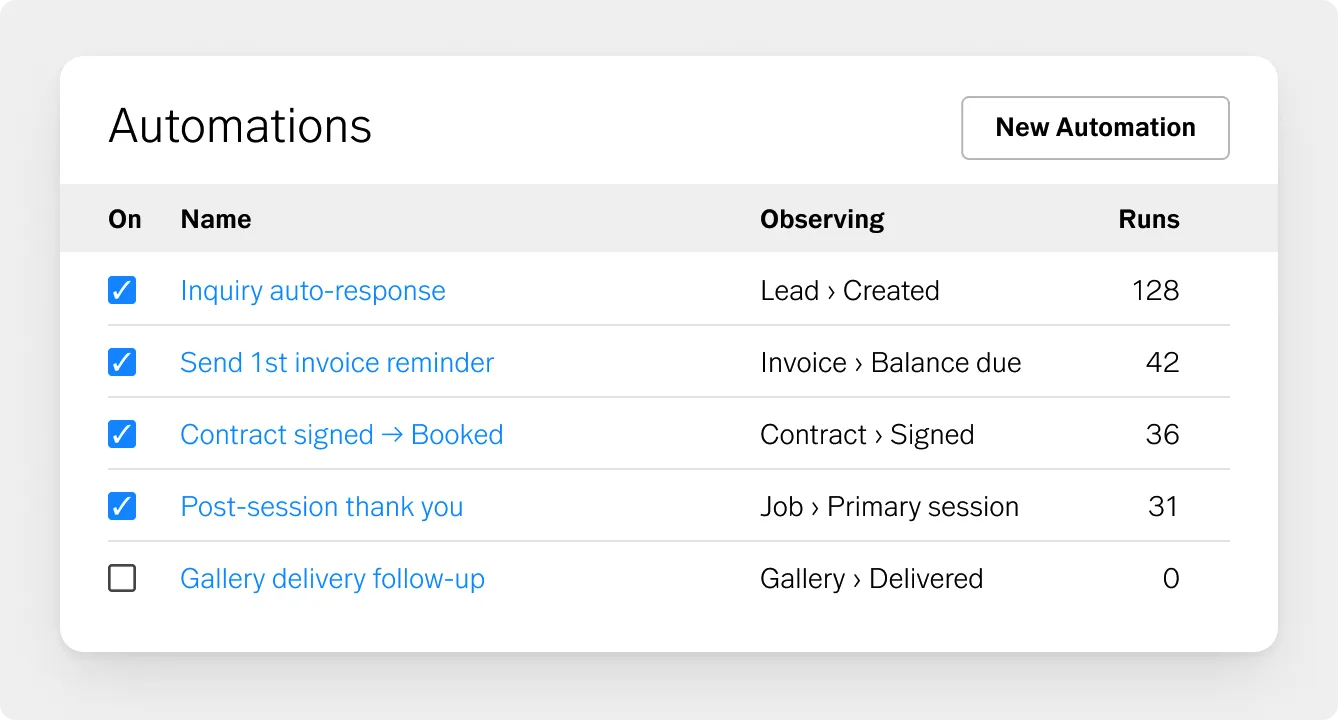
Automations are what make Workspace run without you. An automation is a rule: when a specific trigger occurs, a specific action happens automatically.
How Automations Work
Every automation has three components:
- Trigger: the event that starts it (a new lead is created, a contract is signed, a payment is received, a specific date arrives)
- Condition: optional rules that determine whether the automation should run, for example, only for wedding job types.
- Action: what happens (send an email, create a task, update the job stage, send a text message)
Key Automations to Set Up First
Inquiry auto-response: Trigger on new lead creation. Action: send your inquiry acknowledgment email. This means every potential client hears back within minutes, regardless of when they submit the form.
Post-booking confirmation: Trigger on contract signed. Action: send the booking confirmation email and create the prep workflow tasks.
Pre-shoot reminder sequence: Trigger on session date approaching. Actions: send the session prep guide one week out, a logistics confirmation 48 hours out, and a day-of text message (US and Canada only).
Post-delivery follow-up: Trigger after the main event. Actions: send the delivery notification, queue the review request for 3 days later, schedule the anniversary follow-up for one year out.
Payment reminder: Trigger on invoice due date approaching. Action: send the payment reminder email. Stops automatically when the invoice is marked paid.
Questionnaires
Questionnaires in Workspace can be sent at any step of the client journey. For example, they can be sent as part of the booking flow (embedded in the quote).
Client responses are stored in the job record and available for reference throughout the project.
To build a questionnaire, go to Settings › Questionnaires.
Add the questions relevant to each session type. Automate the sending of questionnaires at any point, conditionally based on the job's type.
Wondering what questions to include? Check out our guide 10 Questions to Include in Your Photography Client Questionnaire.
Text Messaging
Text messaging is available for US and Canadian phone numbers through Workspace with our Quo integration.
You can send manual text messages from within any job record, or include text messages in your automation sequences for time-sensitive communications like shoot-day reminders.
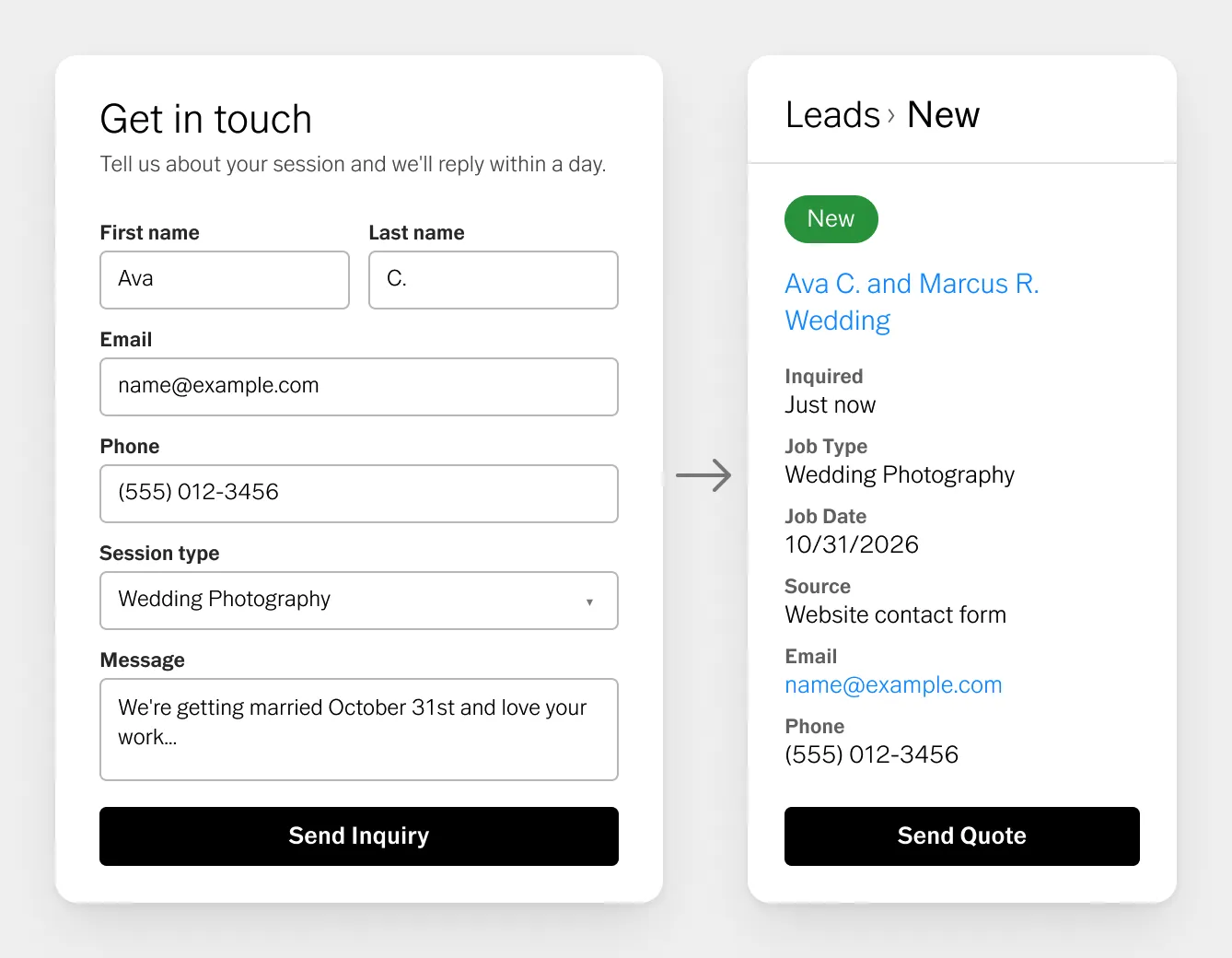
Every inquiry that comes in through your website should flow directly into Workspace as a lead, not sit in an email inbox waiting to be manually entered.
Contact Forms
Go to Settings › Contact Forms. Workspace includes a default contact form with standard fields: first name, last name, email, phone, session or event type, preferred date, and a message field.
Click Edit to customize field labels, mark fields as required or optional, and update the intro message and post-submission confirmation.
Sharing options:
- Shareable link: a direct URL you can share with clients or link from your website
- Embed form: an embed code you paste into any HTML-accepting website platform (Squarespace, WordPress, Wix, and others)
You can also connect your form through the VSCO Sites editor. Open your Site editor, select the Contact tab, enable the contact page, and choose which Workspace form to connect from the dropdown. If you don't have a form yet, a default one is provided automatically. You can also create a new form directly from the Sites editor, which opens Workspace in a separate tab.
For step-by-step instructions: How to Connect Your VSCO Site Contact Form to Workspace →
Need a separate form for a different session type? Click New Contact Form at the top of the Contact Forms page to create additional forms, each with their own shareable link and embed code.
Go to Settings › Products & Services. Templates are the part of setup that takes the most time upfront and saves the most time long-term.
A template built once runs for every client of that type without any additional work.
Tokens
Before building templates, understand tokens. Tokens are used to link to a quote, questionnaire, invoice, contract or bookable event when a template is used.
Common tokens include:
- {{client.first_name}} fills in the client's first name
- {{job.date}} fills in the session date
- {{item.name_link}} inserts a link to a questionnaire, contract or invoice
- {{primary_session.location.address}} fills in the session location
Use tokens in email templates, contracts, and quote templates so every document is personalized automatically.
Contract Templates
Go to Settings › Contract Templates. Build your contract with tokens for any field that varies by client.
Review carefully and consult a legal professional for the specific language. Once finalized, this template can be attached to any quote type and sent in seconds.
Email Templates
Go to Settings › Email Templates. Build templates for every email you send repeatedly: inquiry response, booking confirmation, session prep guide, delivery notification, review request.
Workspace provides some defaults to start from. Customize them to match your voice and add tokens so each email is personalized automatically.
Payment Schedules
Go to Settings › Payment Schedules. Create a schedule for each pricing structure you use: retainer at booking with balance due one week before the session, 50/50 split, payment plans.
Attach the right schedule to the right quote type so payment terms are always consistent.
Products and Services
Go to Settings › Products & Services. Add everything you offer: session fees, prints, albums, digital files, additional editing hours, travel fees, licensing.
Having these in your product library means you add them to a quote with one click rather than typing them out manually each time.
Quote Templates
Once you've built your first quote (products, payment schedule, questionnaire, contract), click Copy to Quote Templates to save it.
Future quotes of the same type start from this template: you select it, adjust for the specific client, and send. The full booking package goes out in a couple of clicks.
Workflow Templates
Go to Settings › Workflow. Build the task sequences for each job type.
Each task in the workflow has a name, an assigned due date (relative to the job date, booking date, session date, and more), and optionally an automation attached.
When a new job of that type is created, the full workflow is set up automatically.
What is VSCO Workspace?
VSCO Workspace is a studio management platform and CRM built specifically for photographers. It manages the full client lifecycle: lead tracking, contracts, invoices, scheduling, questionnaires, automated communication, gallery delivery coordination, and business reporting, all from one place.
Who is VSCO Workspace for?
Photographers who are actively booking clients and want a complete, professional workflow in one place. It's especially well-suited to portrait, family, wedding, and event photographers, as well as commercial photographers with project-based billing. It scales from a solo photographer booking their first paid sessions to a multi-photographer studio managing hundreds of jobs a year.
What can I do with VSCO Workspace?
Capture leads through customizable contact forms, track every inquiry through a visual pipeline, send quotes that include contracts and payment schedules in a single link, collect payments online, schedule sessions with unassisted booking, automate email sequences and reminders, send text messages (US and Canada), coordinate gallery delivery, and track business performance through reporting dashboards.
How do I get started with VSCO Workspace?
Start by setting up your branding, adding a payment method, and creating your first contact form. Then build your first quote template and send your first quote. Free onboarding support is included with every account. The team reviews your workflow and helps you configure Workspace around your specific business. Book your free onboarding session here.
Can I use VSCO Workspace for different types of photography?
Yes. Workspace supports multiple job types, each with their own workflow, templates, and automations. A wedding photographer can have a completely different booking flow and communication sequence from their portrait sessions, and both run automatically from the same account.
What does the free version of Workspace include?
Free and Pro VSCO members get access to a simplified version of Workspace for basic job tracking. Full access to Workspace, including automations, scheduling, advanced reporting, multi-user access, and the complete template system, requires VSCO One. Try VSCO One risk-free for 30 days with a full refund if it's not the right fit.
How does Workspace connect with the rest of VSCO?
Workspace is connected throughout VSCO's core apps. A contact form on your VSCO Site routes inquiries directly into Workspace as managed leads. Link a VSCO Gallery to any job in Workspace and the gallery lives alongside the contract, invoice, and communication history in the same client record.
The business side of photography doesn't have to be the hard side.
A well-configured Workspace account handles the routine operational work automatically, so your attention goes to the clients, the creative decisions, and the work itself.
Set up your account, build your first workflow, and send your first quote. Free onboarding support is available to help you get there faster.
Open VSCO Workspace →
Book a free onboarding session →
Book a free demo →