Most photographers put business systems in place after something goes wrong, like an inquiry that sat unanswered for a week, a deposit nobody recorded, or a contract that ended up in three versions across two email threads.
The better time to start is earlier, while your client list is short and a new habit costs a few minutes instead of a weekend of cleanup.
The free version of VSCO Workspace is built for that stage. It gives you one place to collect inquiries, store client details, follow each job, and prepare contracts and invoices you can share by link.
There's no cost and no trial period, so you can learn how a CRM fits your process before deciding whether you need more from one.
This guide covers everything available in free Workspace and how to set it up step by step.
VSCO One members get the more advanced, full version of Workspace, which adds quotes, online payments, automations, and email and calendar integrations. To set that up, see our guide to Getting Started with VSCO Workspace.
What you'll learn in this guide:
- Why a CRM Helps Before You're Fully Booked
- What's Included in Free VSCO Workspace
- Who the Free Version Is Built For
- Five Steps to Your First Organized Client
- Set Up Your Business Details and Branding
- Find Your Way Around the Dashboard
- Add Contacts and Capture Leads
- Track Jobs on the Stage Board
- Create a Free Photography Contract
- Create Free Invoices and Track Payments
- Capture Inquiries With a Free Contact Form
- Pair Workspace With Other Free VSCO Tools
- When to Upgrade to VSCO One
- FAQ
CRM stands for customer relationship management. For a photographer, it's the record of each client relationship, covering who reached out, what they asked for, what you agreed to, what they owe, and where the project stands.
Early on, that information tends to scatter. An inquiry arrives as an Instagram DM, the session date goes into your phone's calendar, the price lives in a text thread, and payment shows up in Venmo with a note that says "photos." Each piece makes sense on its own. Together, they make simple questions hard to answer quickly, like whether a client paid their deposit or which delivery date you promised.
A CRM gives every client a single record to check. Even with a handful of clients, that means less time searching and fewer details that depend on memory. It also means that when inquiries pick up, the system is already in place.
VSCO Workspace is business management software made for photographers and creative professionals who work with clients.
The free version is available to all VSCO Starter and Pro members, with no VSCO One membership required.
It handles the core of client organization, while you manage client communication and payment collection with the tools you already use.
Here's what you can do with free Workspace.
- Collect inquiries through 1 customizable contact form
- Store client contact details, notes, and job history
- Follow every job across five stages on a visual board
- Create contracts from a built-in photography services agreement
- Create, share, and track invoices
- Upload your logo and set a primary brand color
- Add your business name, email, client page URL, website, phone number, mailing address, currency, and tax settings
- Connect your contact form to a free VSCO Site, so website inquiries arrive in Workspace as leads
- Ask Scout, the Workspace AI assistant, for help with setup
Connect your Gmail account to send contracts and invoices straight from Workspace, and client replies import back into Workspace. You can also share either one by link through your own email or messaging app. You update each invoice yourself once payment arrives.
Free Workspace suits photographers who are beginning to take on client work, whether that means a first paid portrait session, a few events each season, or occasional commercial projects alongside another job.
It also works well if you want to try a CRM for the first time, or if you're considering full Workspace and want to learn how it's organized before you commit.
If you're handling a steady flow of bookings, collecting deposits online, or writing the same emails to every client, the tools included with VSCO One will likely save you more time.
Starting on the free version means your contacts and job history are already in Workspace when you reach that point.
Complete these in order. Each step sets up something the next one relies on, so by Step 5 you can create a contract and invoice for a real client without stopping to configure anything.
Step 1. Add your business details and branding
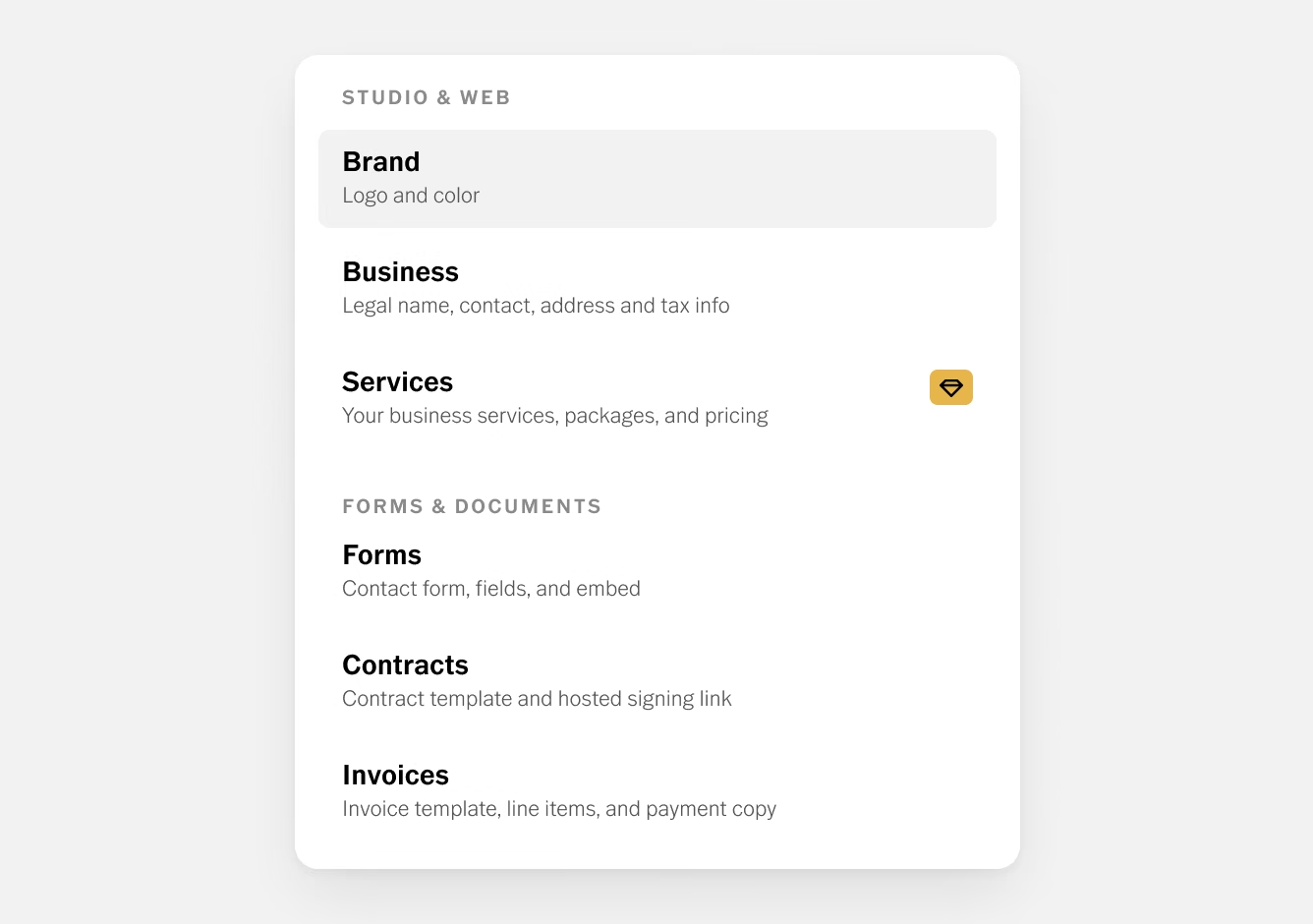
Go to Settings › Brand to upload your logo and choose a primary brand color. Then open Settings › Business to enter your business name, email, phone number, and mailing address, along with your currency and tax details. If you have a portfolio website like a VSCO Site, add it here too.
Step 2. Review your contact form
Every free account starts with a default contact form. Go to Settings › Forms, open it, and adjust the headline, intro message, optional fields, and confirmation message to fit your business. Then share its direct link, embed it on your website, or connect it to your VSCO Site.
Step 3. Set up your contract template
Go to Settings › Contracts, acknowledge the legal disclaimer, and set defaults for the terms you use most often, such as image count, delivery format and timeline, revision rounds, and payment policies. Every contract you create starts from these settings.
Step 4. Set up your invoice template
Go to Settings › Invoices and add the line items you charge for most often, along with a note telling clients how to pay you. You can adjust both on each individual invoice.
Step 5. Add your first client and job
Create a contact, then a job with the session date, time, and location. From there, create a contract and an invoice for that job and share both links with your client. If the client finds you through your contact form first, Workspace creates the lead for you, and you can pick up from there.
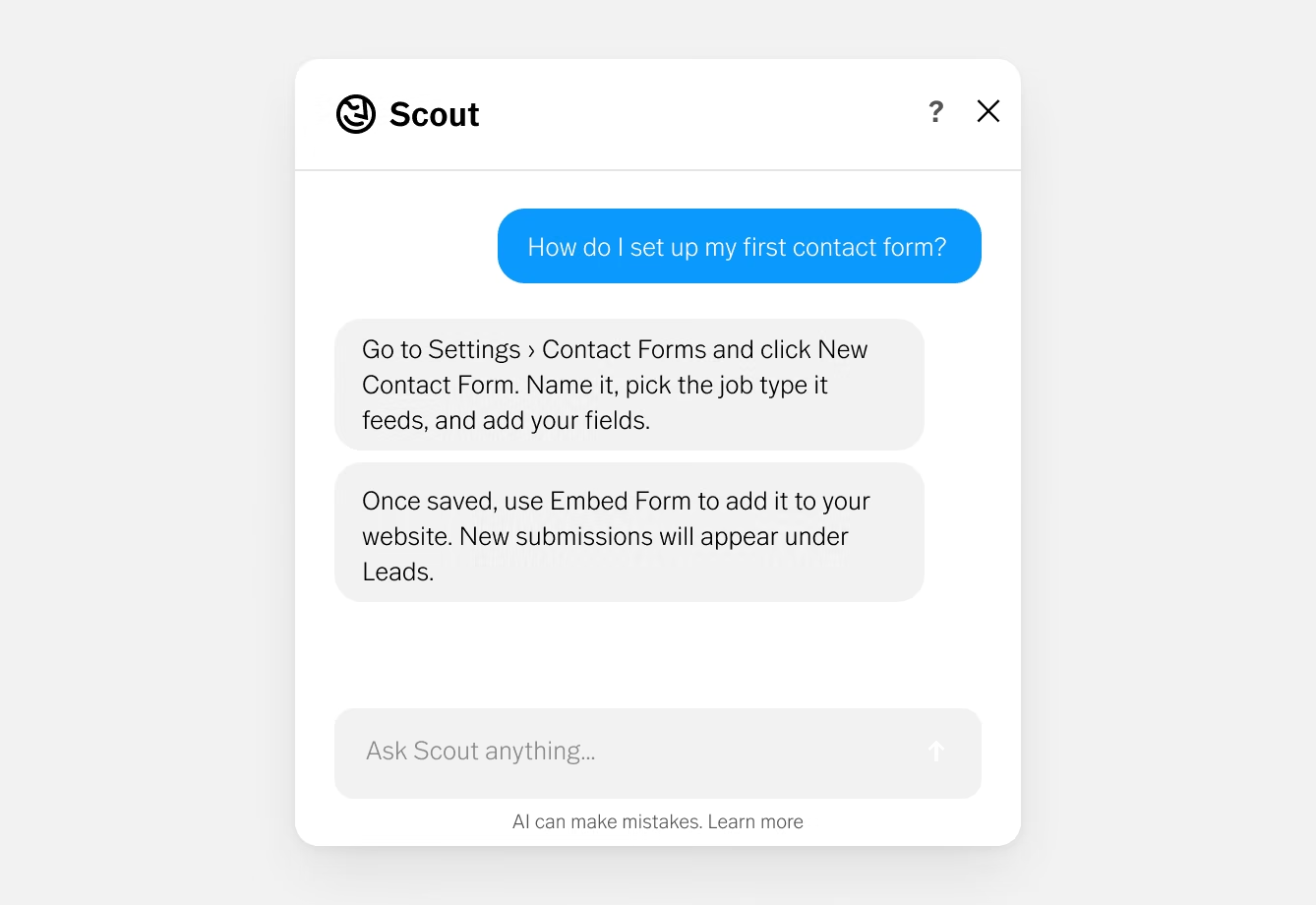
Prefer to be guided? Open Scout from the icon in the bottom-right corner of Workspace and ask in plain language, such as "How do I set up my first contact form?"
Scout can explain the steps or help complete the task. Review anything it creates before sharing it with a client.
The Workspace Help Center and VSCO's 24/7 AI support are also available to every member.
These settings appear on the contracts and invoices your clients open, so complete them before sending anything out.
Brand
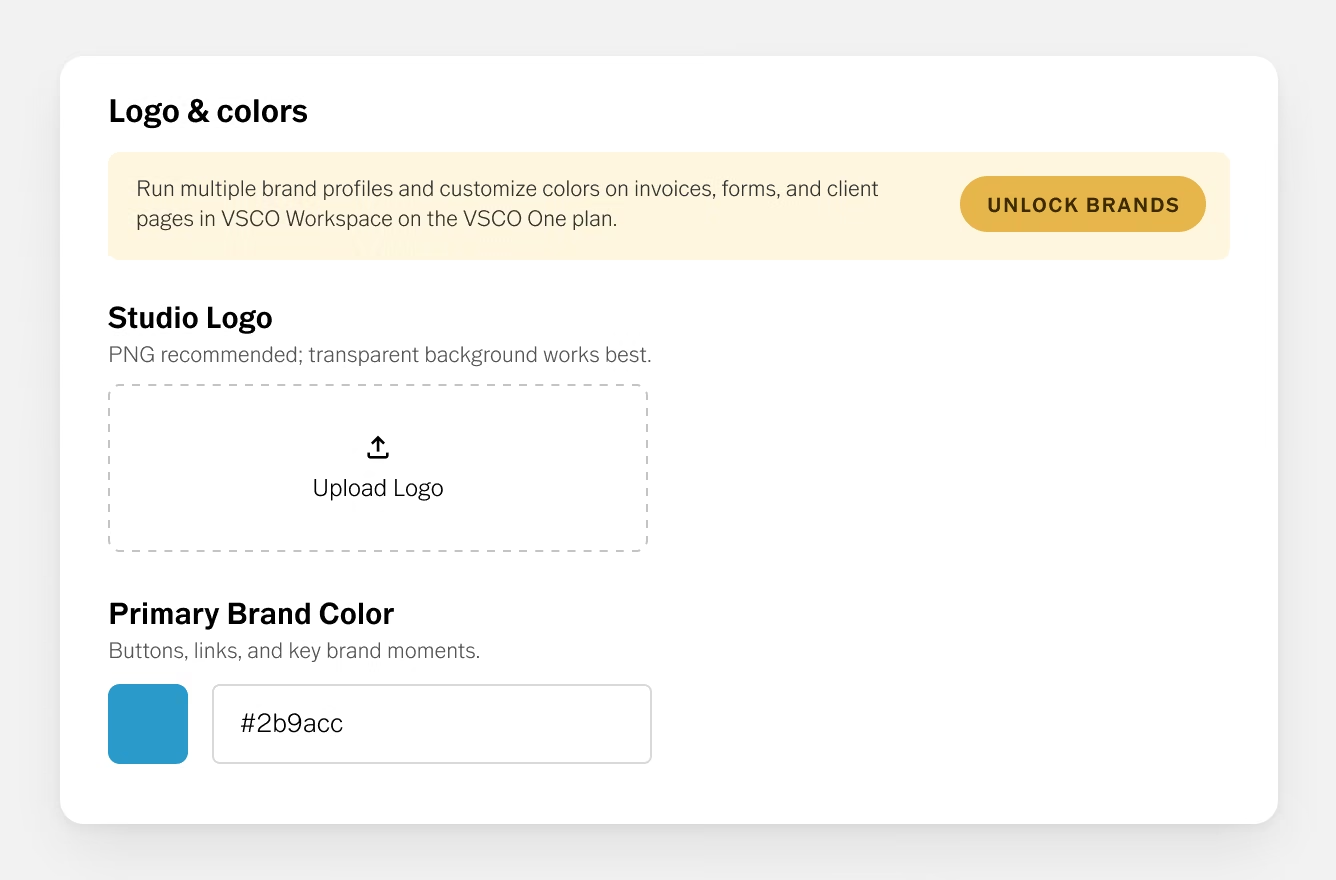
Go to Settings › Brand. Upload your studio logo (a PNG with a transparent background displays best) and choose your primary brand color.
Workspace applies that color to buttons, links, and key details on your client-facing contracts, invoices, and pages.
Business
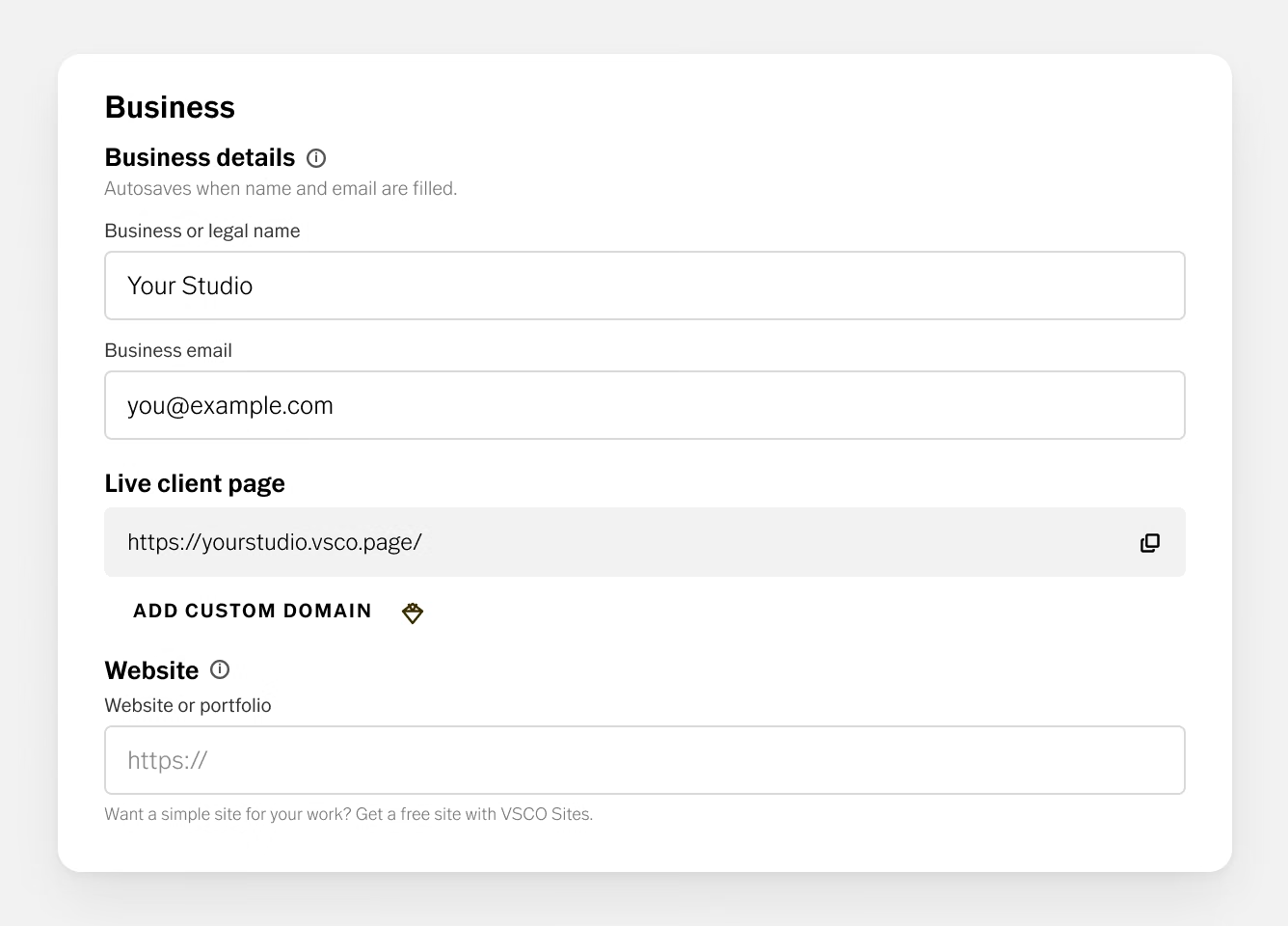
Go to Settings › Business. This section holds your business identity and financial defaults.
- Business details cover your business or legal name and business email. Changes save automatically once both fields are complete. This email also receives a notification each time a new inquiry comes in through your contact form.
- Live client page shows your client-facing Workspace URL (yourname.vsco.page). Custom domains are available with VSCO One.
- Website links to your portfolio. If you don't have one yet, Workspace points you to a free VSCO Site.
- Contact info holds your business phone number.
- Mailing address appears on invoices and other client-facing documents.
- Currency & tax sets your currency, VAT or tax ID if you have one, and a default sales tax rate. Turn on inclusive tax if your prices already include tax.
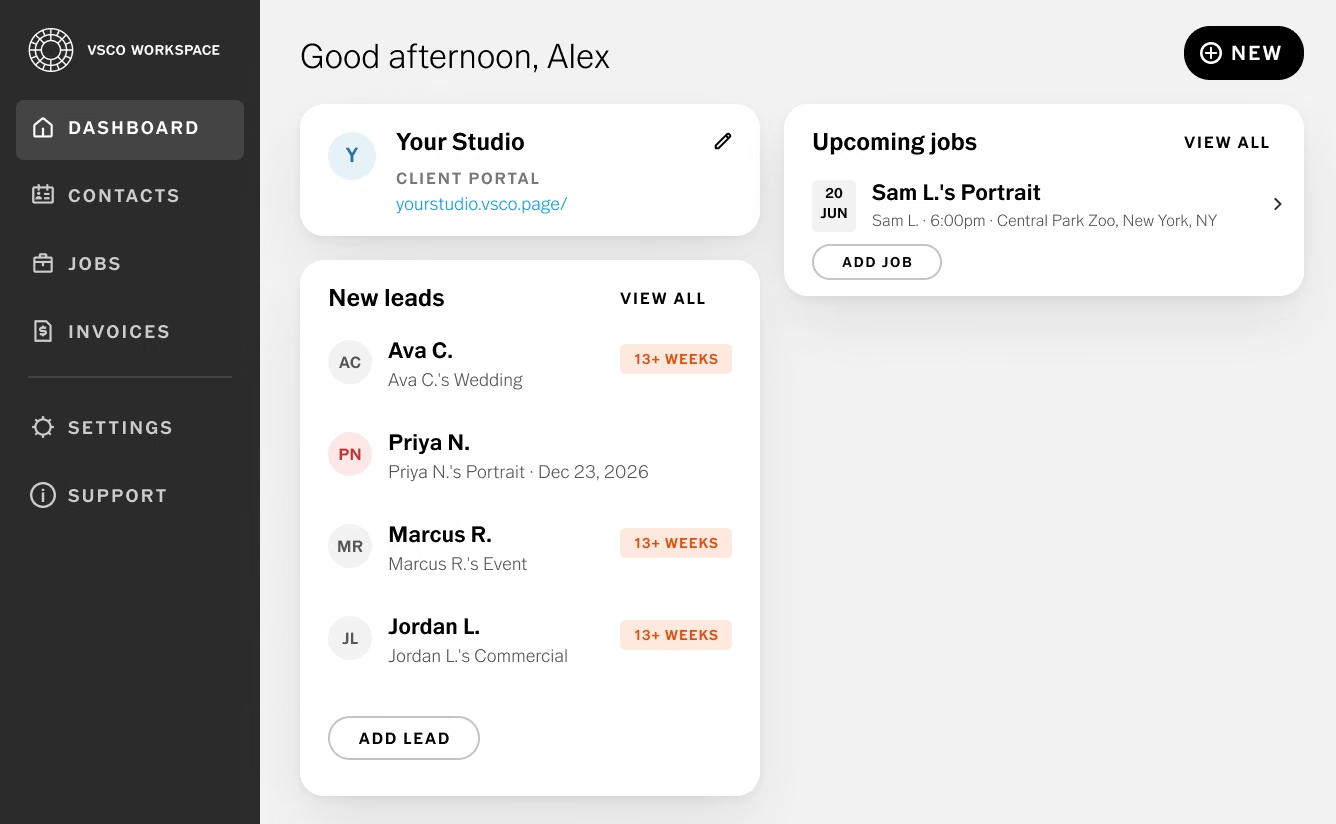
Select Dashboard in the sidebar for a snapshot of your business.
- New Leads lists recent inquiries, whether they came through your contact form or you added them yourself.
- Upcoming booked jobs shows your confirmed sessions by date.
- Your contact form link is ready to copy and share with a potential client.
The dashboard is also the quickest place to create something new. Use it to add a contact, job, contract, or invoice without opening a separate section.
New accounts include example entries, so you can see how leads and jobs appear before adding your own.
Free Workspace is organized around people and projects. Contacts are the people. Jobs are the projects, and a lead is a job that hasn't been confirmed yet.
Contacts
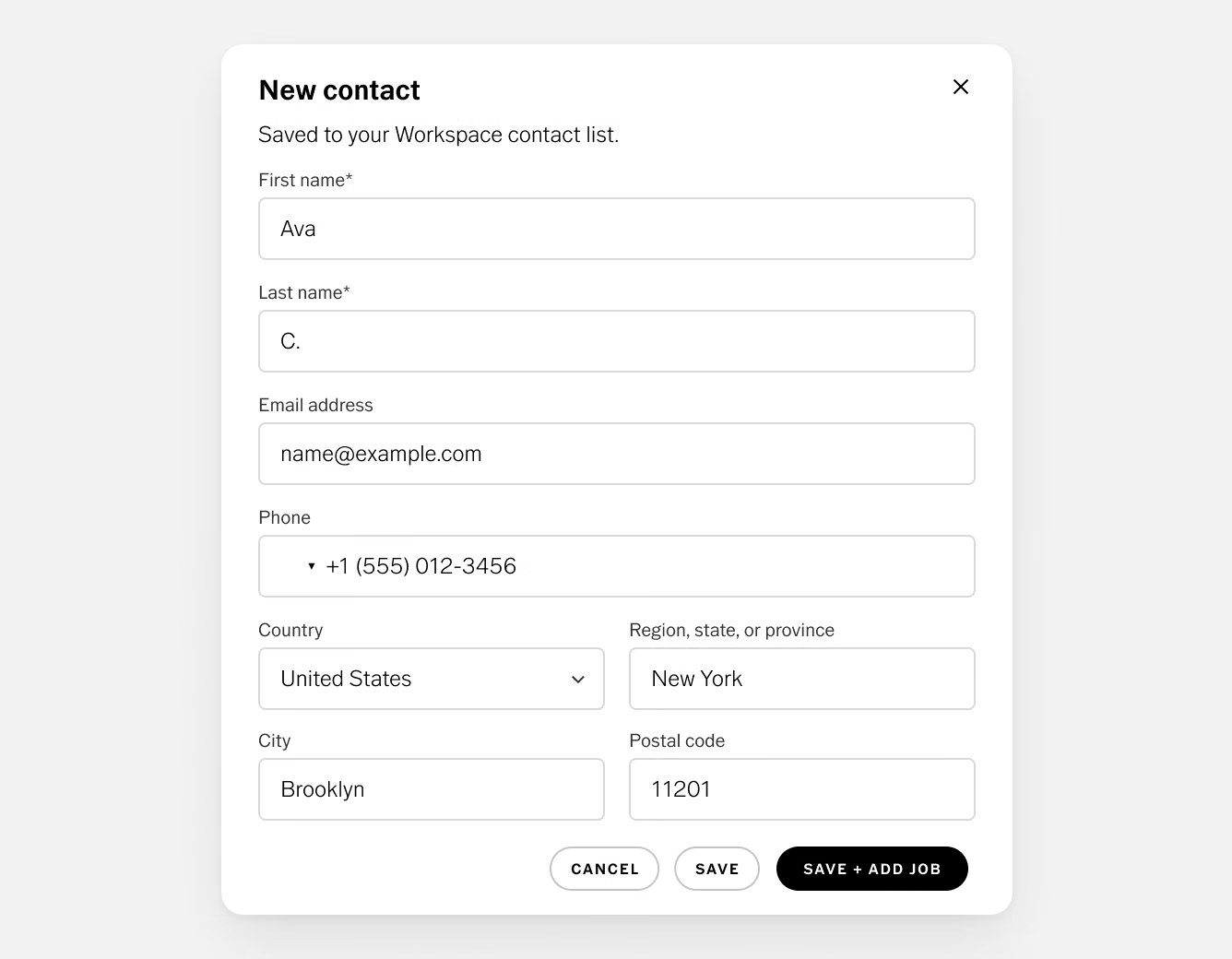
Contacts work like an address book for your business. Each record holds a client's contact information, your notes, and their job history, so a returning client's past sessions are one click away. New contact form submissions are added for you.
To add a contact yourself, follow these steps.
- Select Contacts in the sidebar.
- Click New in the top right, then New Client.
- Enter a first and last name (both required), plus email, phone, address, and notes as needed.
- Save the contact on its own, or save it and add it to a job.
Search contacts by name, email, or phone number, and open any record to edit it.
Leads
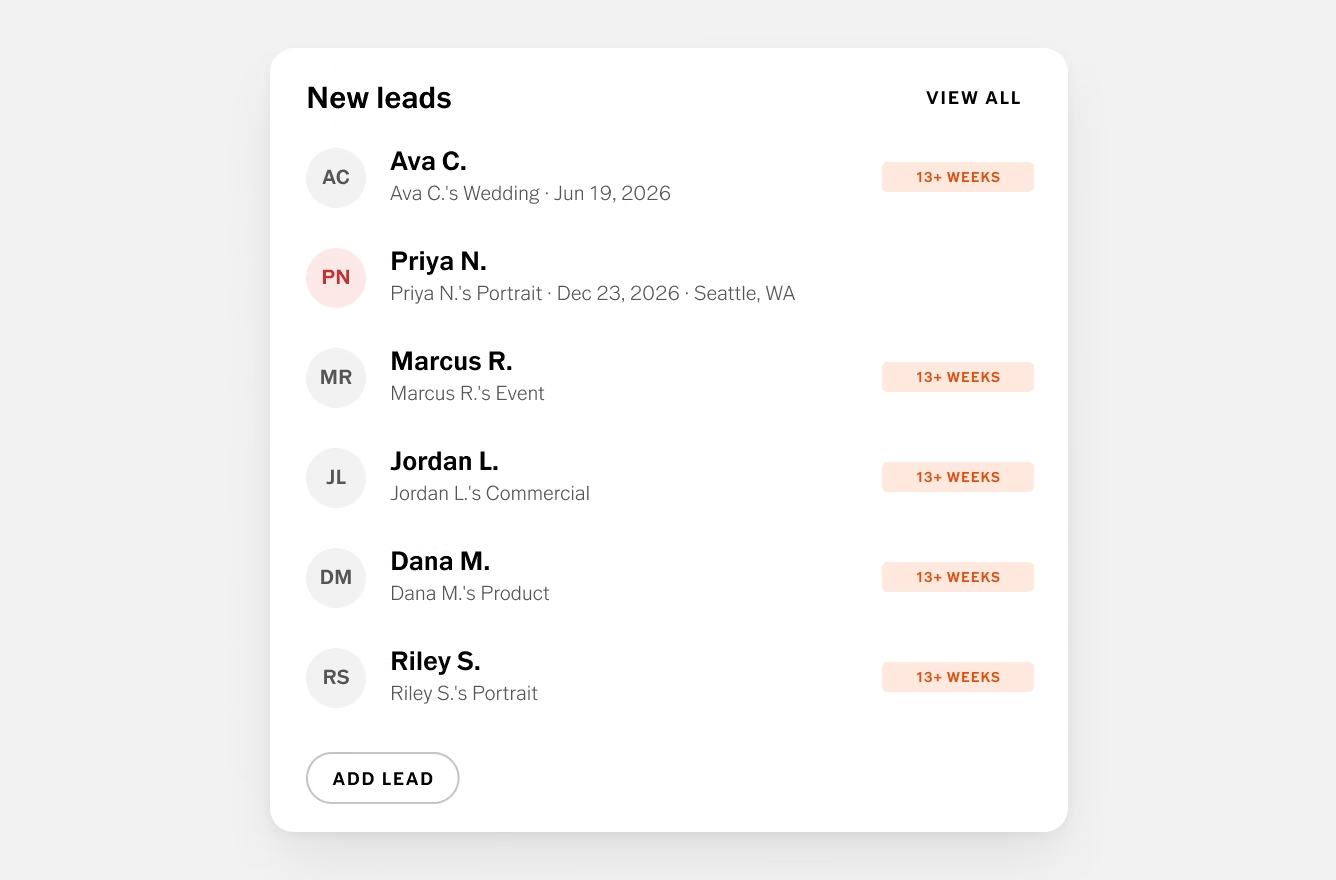
A lead is a potential client who hasn't booked yet. In free Workspace, each lead is a job in the Lead stage, so it sits on the same board as your booked work and moves forward when the client confirms.
Contact form submissions become leads automatically.
Inquiries that arrive by DM, text, or phone won't appear on their own, so add those manually.
- On your dashboard, find the New Leads list and click Add Lead.
- Choose an existing client or create a new one.
- Select a job type (Commercial, Event, Portrait, Product, or Wedding).
- Enter the session date, start time, and duration.
- Add the session location.
- Add any notes from your conversation so far.
- Set the stage to Lead.
- Click Save. The new lead opens in the Jobs section.
Select Jobs in the sidebar to see every project on a board with one column per stage.
In the free version, you move jobs between stages yourself, so the board reflects each decision as you make it.
- Lead is for an inquiry or potential booking that isn't confirmed yet.
- Booked means the client has committed, for example by agreeing to your contract or paying a deposit.
- Fulfillment covers the work after booking, when the session is scheduled or complete and you're preparing, editing, or delivering images.
- Completed means the final images are delivered and the job is closed.
- Canceled holds jobs that won't go ahead, keeping the record for reference.
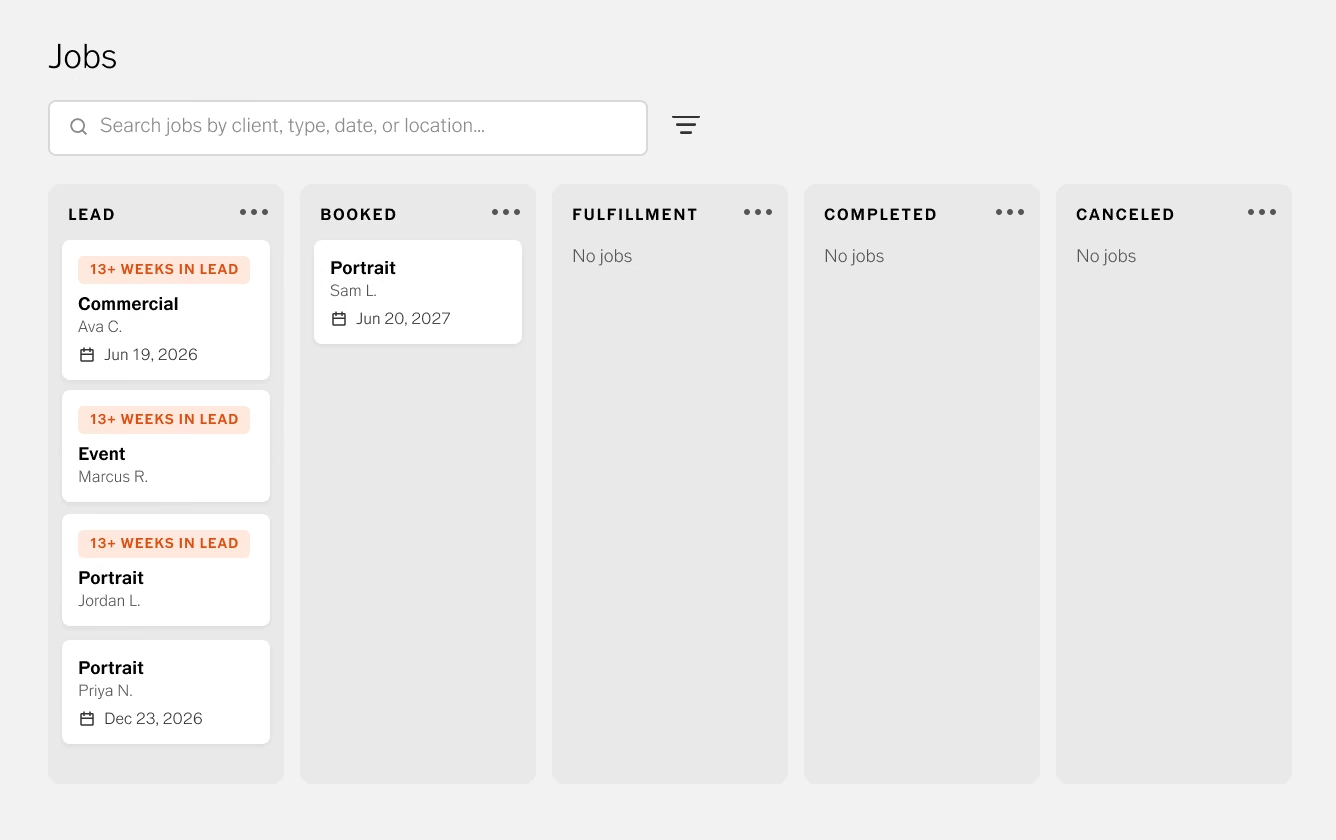
Drag a job to a new column to update its stage, or click any job to view and edit its details in the right-hand panel.
You can also hide columns and filter the board to focus on what needs attention this week.
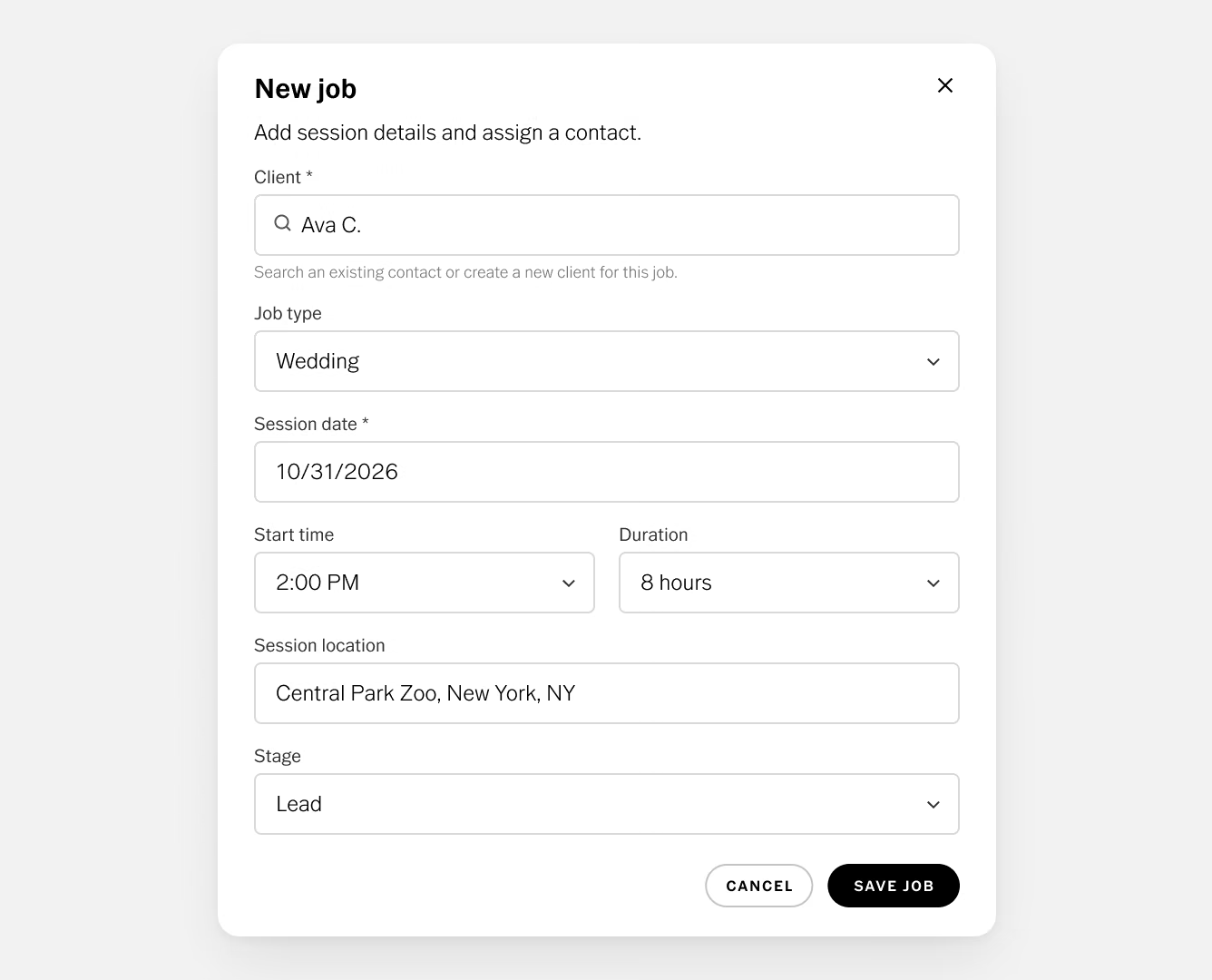
To create a job directly, follow these steps.
- Click New in the top right, then New Job.
- Search for an existing contact or create a new client.
- Choose a job type (Commercial, Event, Portrait, Product, or Wedding).
- Enter the session date, start time, duration, and location.
- Add any relevant notes.
- Choose a stage (Lead, Booked, Fulfillment, or Completed).
- Click Save Job.
Workspace includes a built-in Photography Services Agreement. You set your defaults once, then tailor each contract to the client and session.
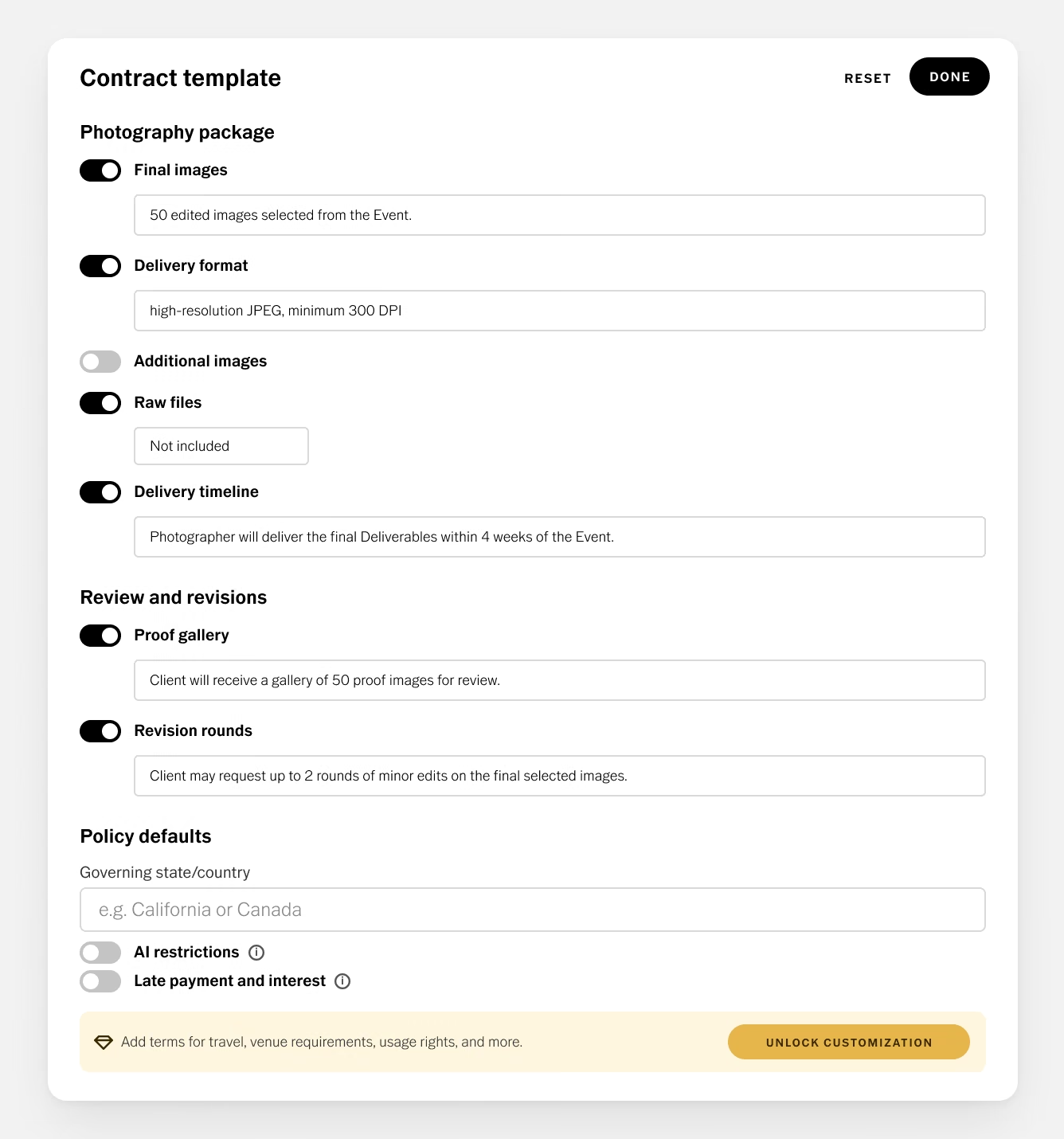
Set your contract defaults
- Go to Settings › Contracts.
- Review the legal disclaimer and select Acknowledge and Continue. The template is a starting point and doesn't constitute legal advice, and any agreement you create is between you and your client. Consider having an attorney review it for your situation.
- Turn clauses on or off and fill in your details in each section below.
- Select Done to save your template.
Photography package
- Final images sets how many edited images the client receives, such as 50 images selected from the event.
- Delivery format specifies file type and resolution, for example high-resolution JPEG at a minimum of 300 DPI.
- Additional images sets your price per image beyond the included count.
- Raw files can be marked Not included, Included, or Available for an additional fee.
- Delivery timeline sets when final images arrive, for example within four weeks of the event.
Review and revisions
- Proof gallery sets how many proof images the client reviews before final selection.
- Revision rounds limits edits, for example up to two rounds of minor edits such as color correction, cropping, and retouching.
Policy defaults
- Governing state or country sets the jurisdiction whose laws apply to the agreement.
- AI restrictions adds a clause under Ownership of Rights that prevents the client from altering your images with AI tools, or uploading them to AI tools, without your written consent.
- Late payment and interest adds terms to the payment section, such as monthly interest on balances more than 10 days overdue and the right to pause work or hold undelivered images until the account is current.
Selecting Reset clears your selections and edits and restores VSCO's original template. Contracts already saved on jobs stay as they are.
The legal language in the template can't be edited in the free version.
VSCO One gives you unlimited contract templates and the ability to edit language throughout your contracts, add terms for travel, venue requirements, usage rights, and more.
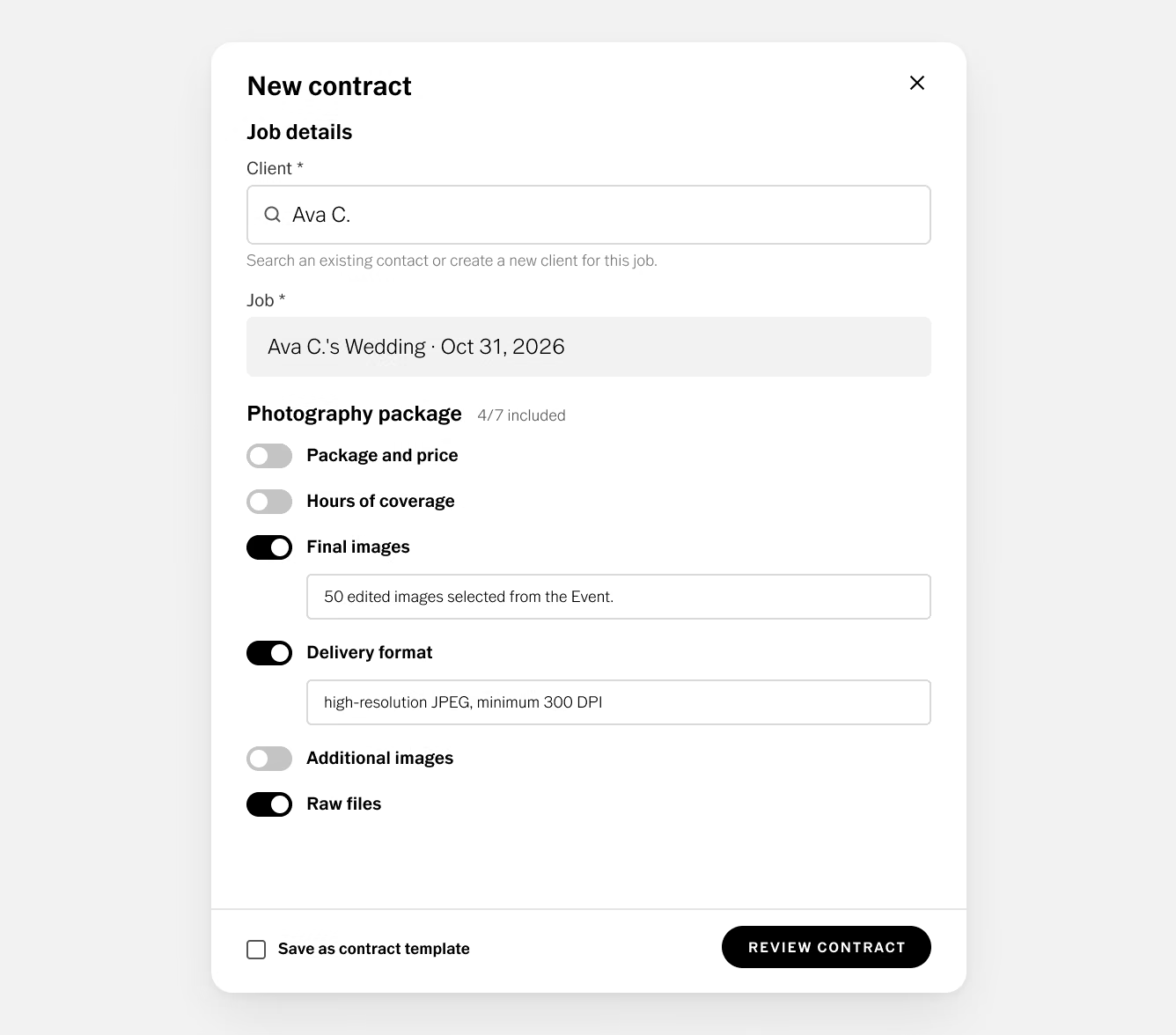
Create a contract for a job
Click New on your dashboard and choose New Contract. Attach it to the job, then turn clauses on or off and adjust the details for this client.
Workspace creates a shareable link for the contract, which you send through your own email or messaging app. Emailing contracts directly from Workspace is available with VSCO One.
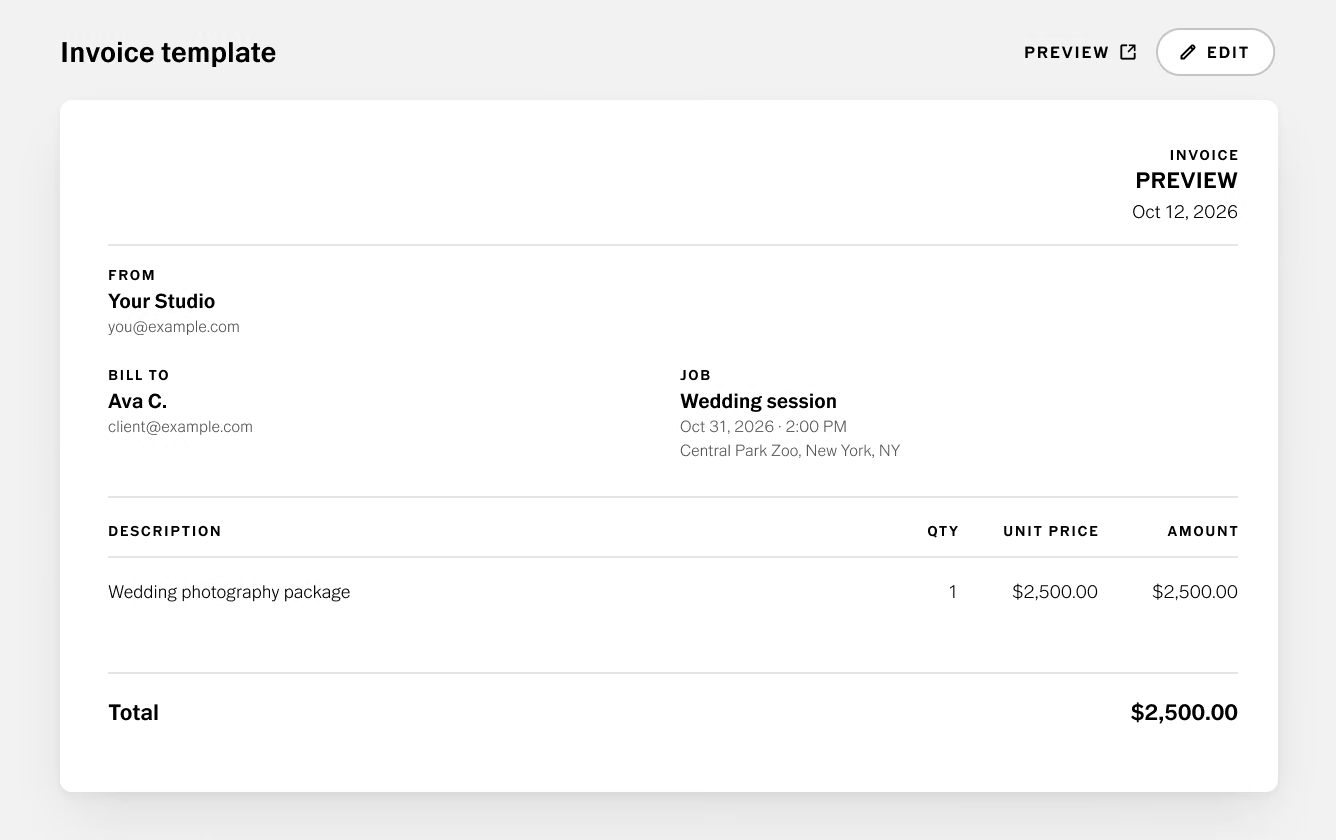
Set Your Invoice Template
- Go to Settings › Invoices and click Edit on the invoice template.
- Add or remove line items and set the quantity and price for each. Workspace calculates the amount.
- Add a note to your client explaining how to pay, such as "Thank you for your business. Payment is accepted via PayPal, Venmo, or check."
- Preview the template to confirm it looks right.
Your client's details, the job, and your business information fill in automatically on each invoice. Because online payments through Stripe or Square are part of VSCO One, the note is where free Workspace users tell clients which payment methods they accept.
Create an Invoice
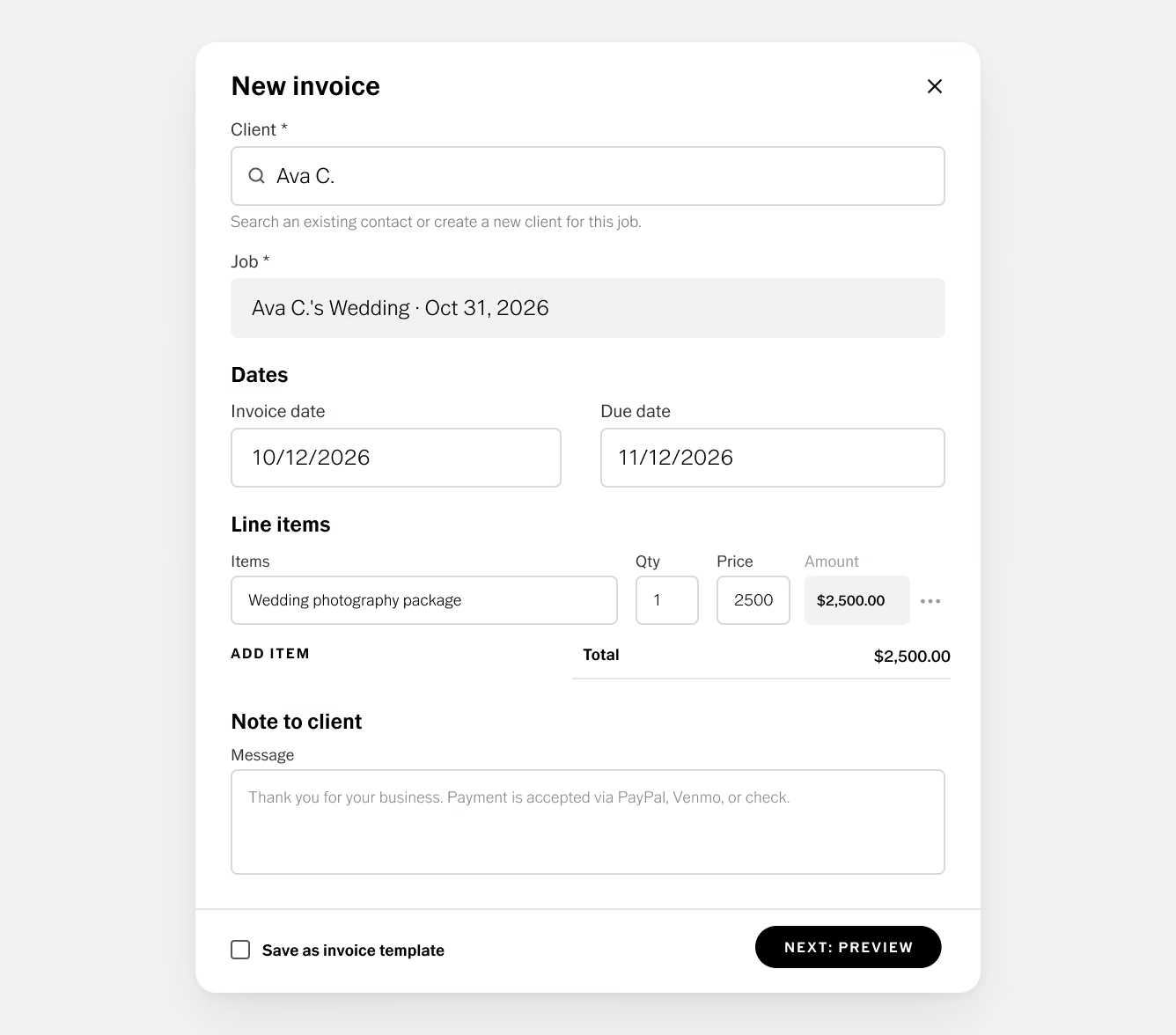
Click New on your dashboard and choose New Invoice, or open Invoices in the sidebar.
Then complete these details.
- Add the client.
- Add the job.
- Set the invoice date and due date.
- Keep your template's line items or adjust them for this session.
Copy the invoice link and send it to your client however you normally communicate.
Track Invoice Status
The Invoices section shows every invoice you've created, and you can filter it by status, including Created, Pending, Sent, Paid, Overdue, and Voided.
From any invoice, you can take these actions.
- Copy the client link
- View the associated job
- Edit, preview, or duplicate the invoice
- Mark it as sent or paid
- Delete it
Update each invoice as it moves along. Mark it as sent once you've shared the link, and mark it as paid when the payment reaches you.
That way, the Overdue filter shows exactly who to follow up with.
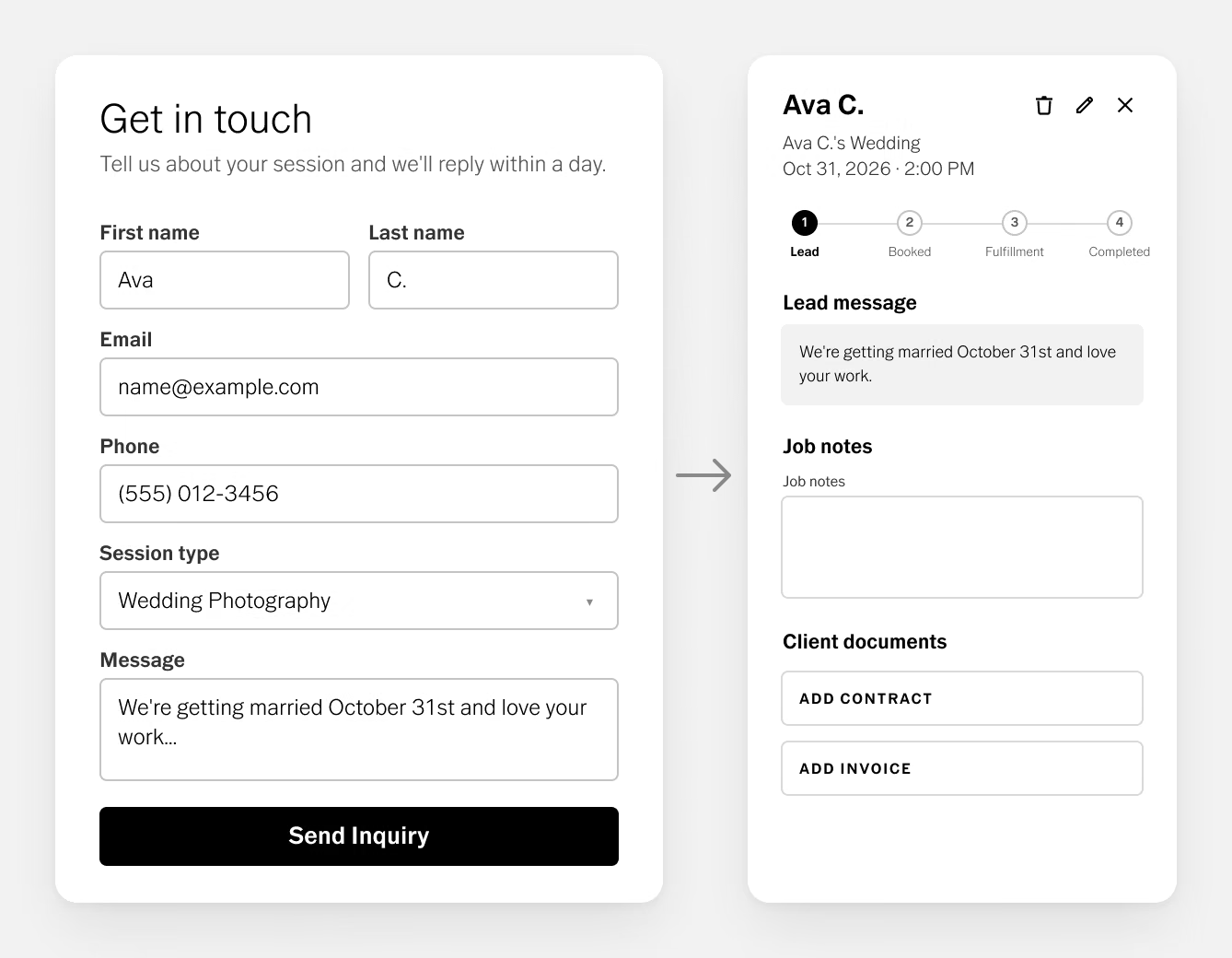
Your contact form turns a new client's first message into a lead on your job board, with their name, email, phone number, and session details already filled in.
You don't have to copy anything from an inbox, and you'll get an email notification for each submission.
Customize Your Free Contact Form
Go to Settings › Forms. Your default form asks for the client's name, email, phone number, session or event type, preferred date, and a message, along with a marketing opt-in.
Click Edit to change the following:
- The headline and intro message
- Which optional fields appear
- The submit button label
- The confirmation message clients see after submitting, such as "Thanks for reaching out! I'll review your inquiry and get back to you within 24 hours."
Share Your Form
You don't need a website to start collecting inquiries. Choose whichever option matches where clients find you.
- Share the direct link in your Instagram bio, link-in-bio page, or email signature, or send it in reply to a DM.
- Paste the embed code into any website builder that accepts HTML, including Squarespace, WordPress, and Wix.
- Connect it to your free VSCO Site by turning on the "Enable your VSCO Sites Contact section" toggle in Settings › Forms.
For step-by-step instructions, see: How to Connect Your VSCO Site Contact Form to Workspace
Free Workspace includes 1 contact form. With VSCO One, you can create separate forms for each type of session you offer.
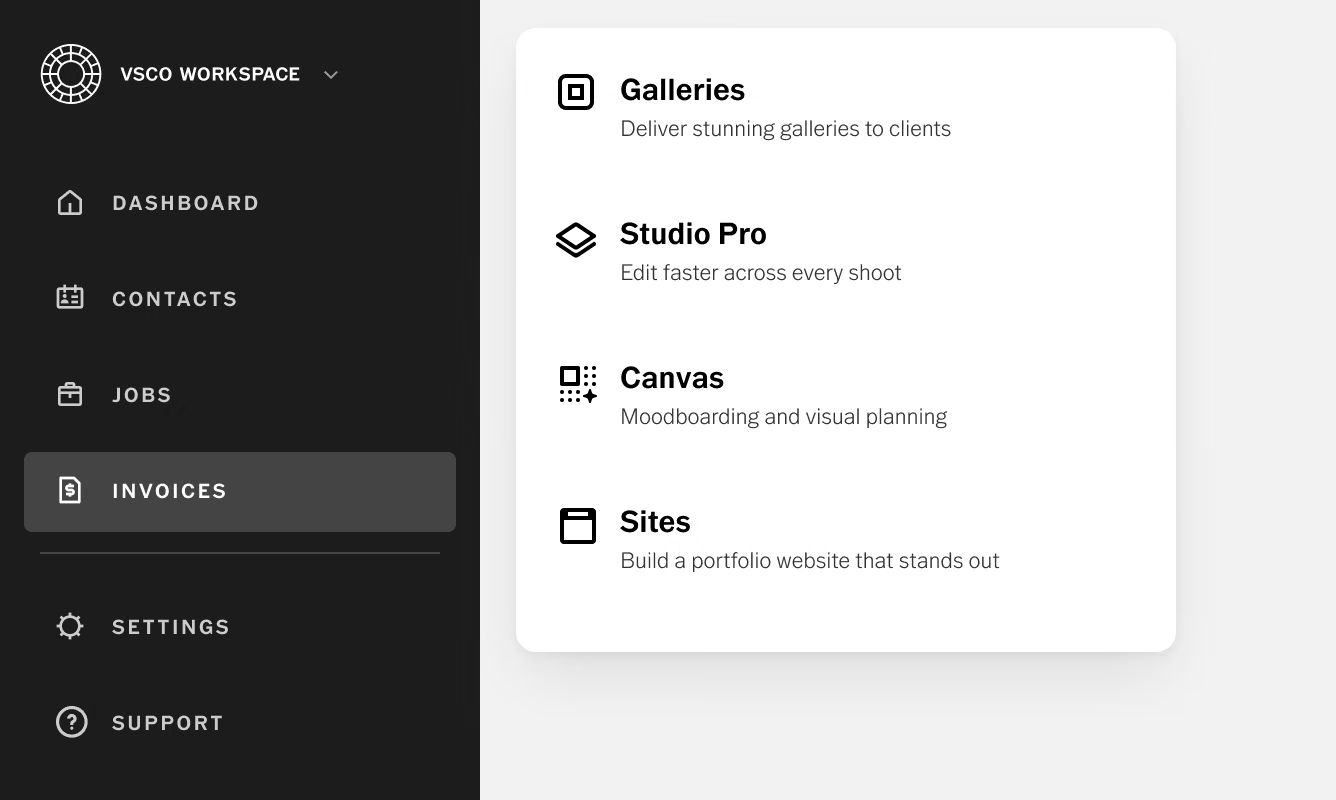
Your free VSCO membership includes tools for the parts of a client project that happen outside Workspace, including planning, delivery, and your online presence.
VSCO Sites lets you build a basic portfolio website at a free subdomain, such as yourname.vsco.site, using the photos, Galleries, and Blogs already in your VSCO account. Add your Workspace contact form, and inquiries from your Site appear on your job board as leads.
VSCO Canvas gives you a moodboard for each project. Before the session, add reference images, notes, and links, then share the board with your client so you agree on a visual direction before you pick up the camera. Starter includes one Canvas project and 100 one-time AI generation credits.
VSCO Galleries delivers finished images through a shareable gallery with 10 GB of storage and full gallery downloads. Collaborative uploads let clients or event guests add their own photos through a link or QR code, and you can add any public gallery to your VSCO Site as a portfolio piece.
Here's how that looks for a single portrait client:
- They find your VSCO Site and submit the contact form, which creates a lead in Workspace.
- You share a Canvas moodboard to agree on the look, send contract and invoice links, and move the job to Booked once they confirm.
- After the session, you deliver the images in a VSCO Gallery and move the job to Completed.
Free Workspace relies on you to send each message, collect each payment, and move each job forward.
With a few clients at a time, that's manageable.
As bookings increase, those manual steps are usually the first to fall behind.
A VSCO One membership includes full access to Workspace, which adds these tools and services.
- Quotes that combine pricing, a contract, a questionnaire, and a payment schedule in one client link
- Online payments through Stripe or Square
- Email and calendar integrations, plus client text messaging
- Automations, custom workflows, and task management
- Unlimited contact forms and bookable events for online scheduling
- Editable contract language and custom templates
- A client portal, lead reporting, and gallery integrations
- Up to 6 users and 4 brands
- A personalized onboarding session and premium support
VSCO One also includes a 30-day cancellation window, with a full refund if you cancel within 30 days of joining.
Is VSCO Workspace free?
Yes. VSCO Starter and Pro members can use a free version of Workspace that includes 1 contact form, contracts, invoices, and job tracking. Full access to Workspace requires a VSCO One membership.
What's the difference between free Workspace and full Workspace?
Free Workspace covers contacts, jobs, 1 contact form, and contracts and invoices you share by link. VSCO One adds quotes, online payments, email and text messaging, automations, scheduling, reporting, and more.
Can I collect payments in free VSCO Workspace?
You can create invoices, share them by link, and track whether they've been paid. Online payments through Stripe or Square require VSCO One, so free users collect payment their own way and mark each invoice as paid.
Can I email contracts and invoices from free Workspace?
Not directly. Workspace creates a shareable link for each contract and invoice that you send through your own email or messaging app. Emailing clients from Workspace is available with VSCO One.
Can I edit the free contract template?
You can turn clauses on or off and fill in details like image count, delivery timeline, and revision rounds. The template's legal language can't be edited on the free version.
Do I need a website to use free Workspace?
No. You can share your contact form's direct link anywhere clients find you, including your Instagram bio or email signature. A basic VSCO Site is also free and connects to your Workspace form.
What types of photography jobs can I track for free?
Free Workspace includes five job types, which are Commercial, Event, Portrait, Product, and Wedding. Custom job types with their own workflows are available with VSCO One.
Where can I get help setting up free Workspace?
Ask Scout, the AI assistant inside Workspace, or search the Workspace Help Center. VSCO's 24/7 AI support is available to every member.
Start Organizing Client Work for Free
Your first client records become the reference for everything that follows, including what you charged for a portrait session last spring, how long editing took, and which contract terms you ended up needing.
Keeping them in Workspace from the start gives you real numbers to work from when you set new rates or decide it's time for more tools.