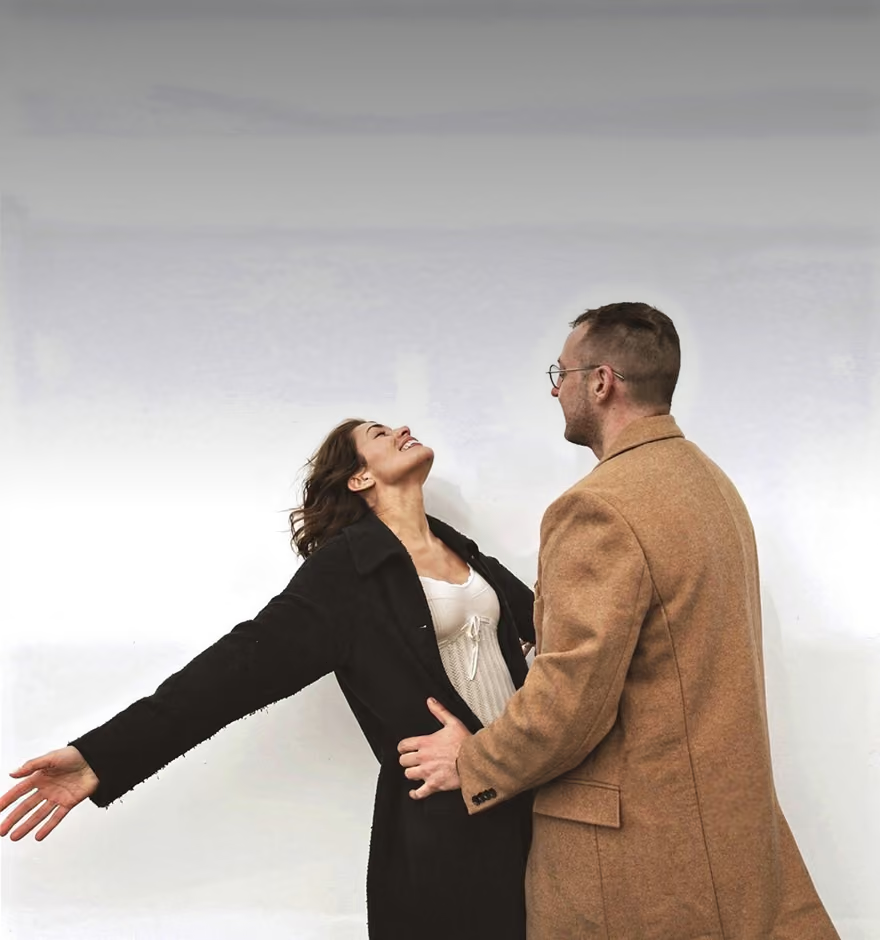
Change Hairstyles in Photos With AI
Preview or change a hairstyle direction for a photoshoot, client, or concept with the Prompt tool in AI Lab.
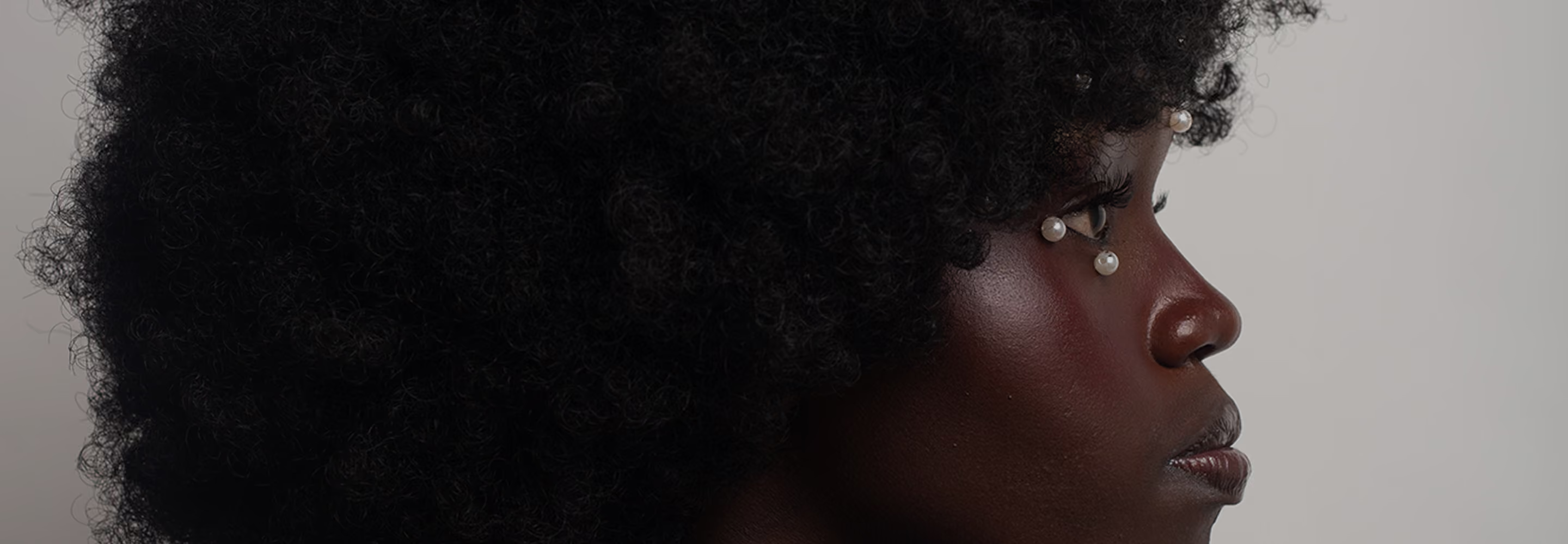
Describe the length, texture, and color you're picturing, and AI Prompt generates it directly on the photo, while keeping the face, pose, and background exactly as they were.
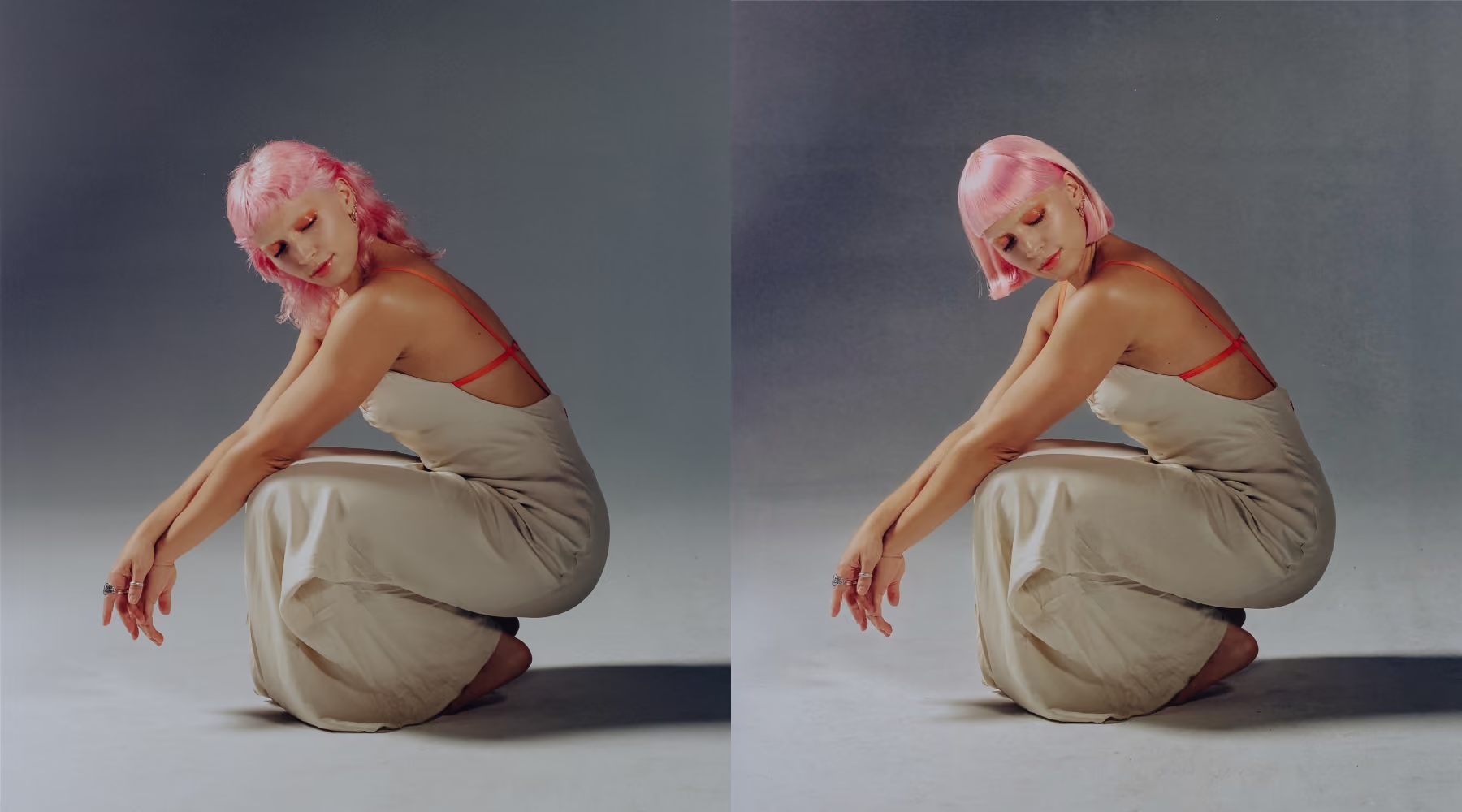
Explore new hairstyles
Before the photoshoot, it's a reference everyone can shoot toward. Stylist, client, second photographer, all looking at the same photo instead of a Pinterest board shot on someone else's hair texture.
After the photoshoot, it's a way to answer "what if" without booking a new session. Client wants to see herself with an updo instead of loose curls? Run the prompt on the final image and show her.
How to try a new hairstyle with AI Prompt
Type a prompt with length, texture, color, and style. The more specific, the better.
Adjust one detail at a time, texture, length, or color, and regenerate until it's right.
Export your final image or continue refining before posting or delivering.
Give the Details, Get the Look
Name the specifics: length, texture, color, finish. "Short textured pixie cut," "sleek straight bob, glossy finish," "long box braids, low ponytail," the detail is what makes the prompt work.
Same for color and occasion: "loose curls with honey balayage" previews a shade, "braided crown updo" previews a bridal look. Add "keep face and background unchanged" to anchor the edit, and rerun until you land on the version worth keeping.
Download VSCO
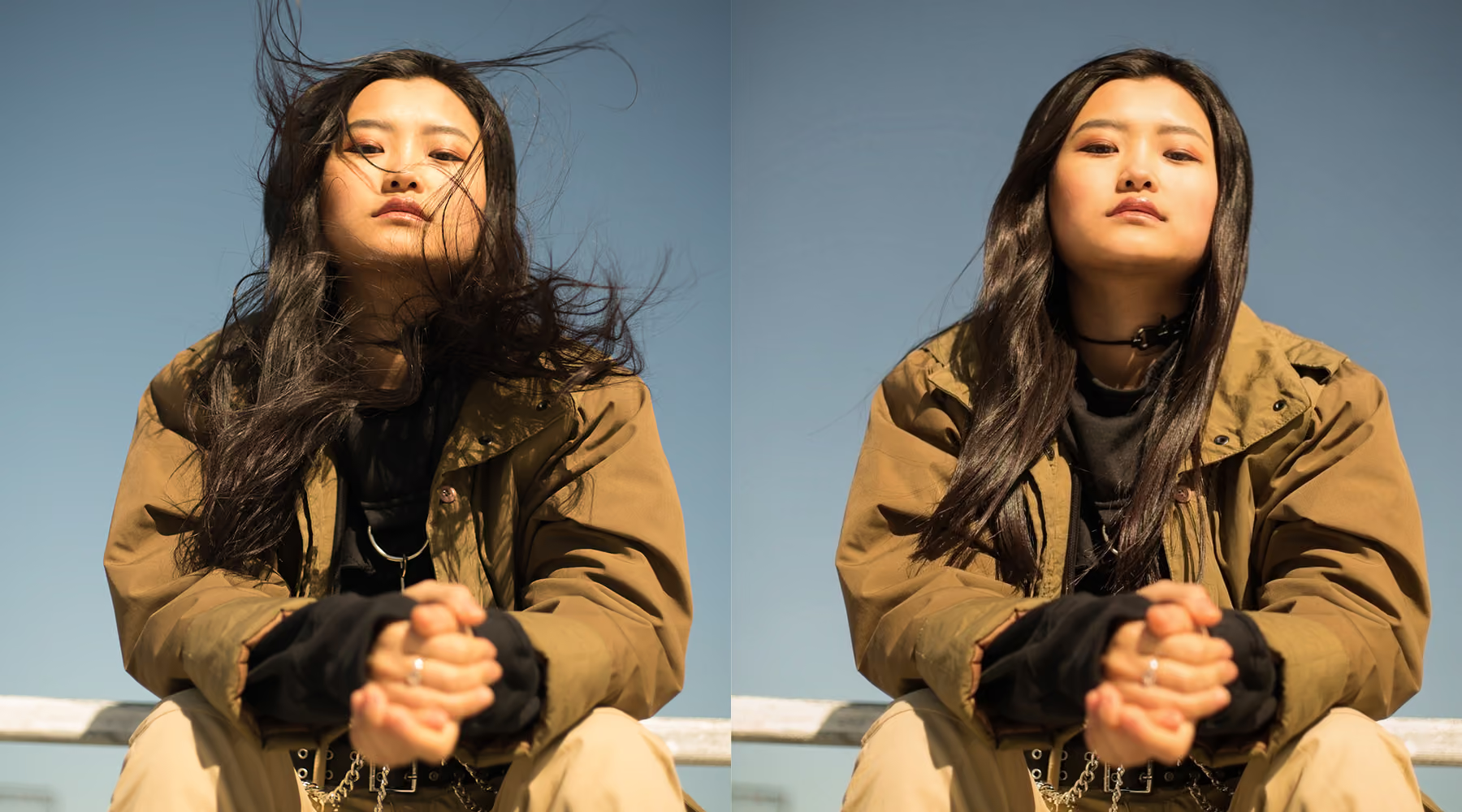
Spend less time on stray strands and more time on the portrait itself. The AI Hairstyle tool removes flyaways and windblown hair without sacrificing realism, so every image holds up at full resolution, and every texture still looks like the one you photographed.
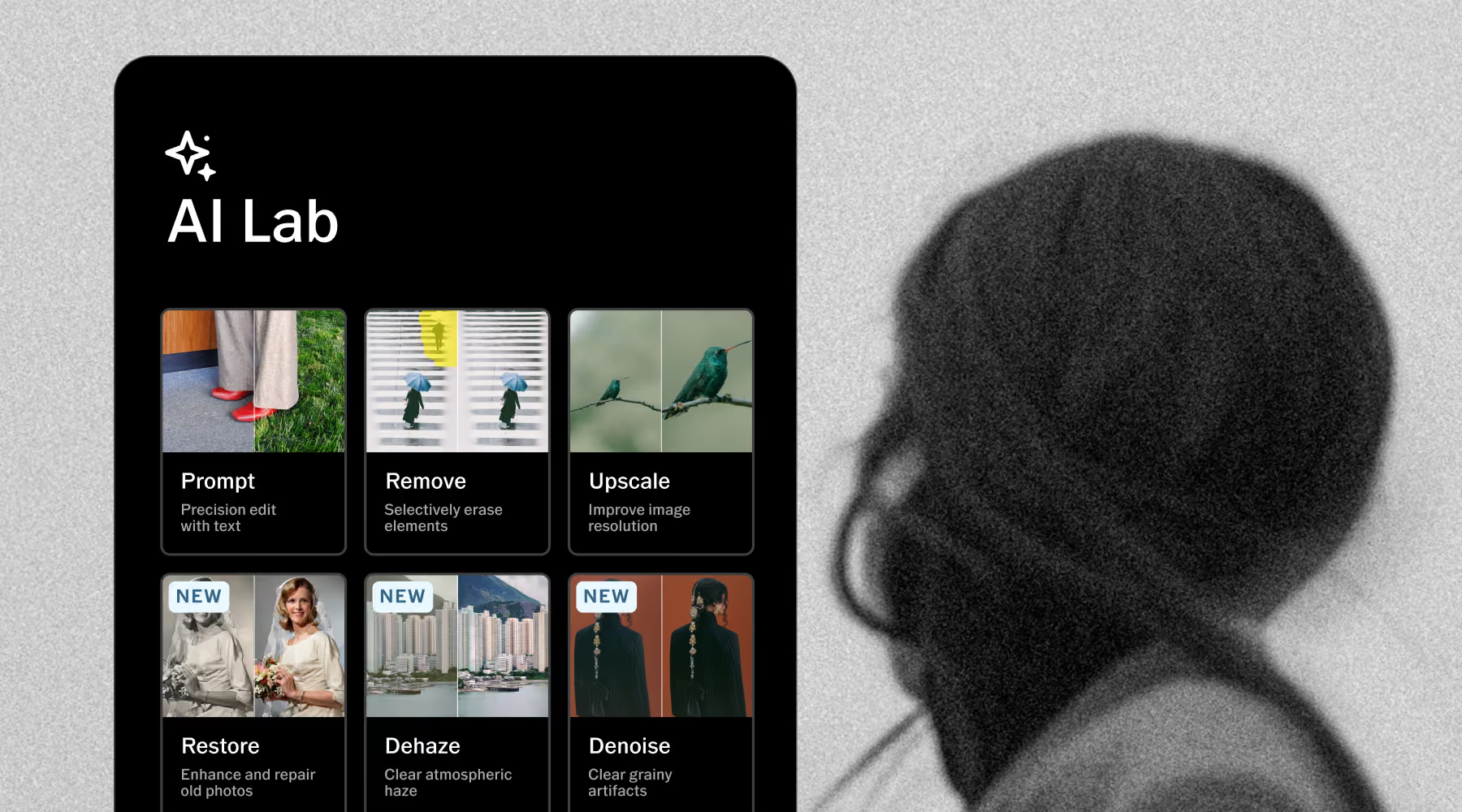
AI Lab is available in the VSCO app for iPhone. Download VSCO to start editing with tools like Hairstyle, Remove, Upscale, and more, all built to support your workflow.
Frequently asked questions
How do I change a hairstyle in a photo using AI Prompt?
Upload your photo to VSCO AI Lab, then describe the hairstyle you want: length, texture, color, and style. AI Prompt generates the new look while keeping your face, pose, and background unchanged.
What's the difference between Prompt and the Hairstyle tool?
AI Hairstyle cleans up flyaways and refines the shape, volume, and definition of hair that's already in the photo, it doesn't change what the style is. AI Prompt generates an actual new hairstyle, a different cut, color, or texture that wasn't there originally. Use AI Hairstyle to fix a photo you already like. Use AI Prompt to preview a direction you don't have yet.
What should I include in my prompt for the best results?
Be specific. Name the length (chin-length, shoulder-length, mid-back), the texture (sleek, wavy, coily, curly), the color, and the finish. A detailed prompt gives AI Prompt something concrete to work from, and a vague one leaves too much to guess.
How should I use this with a client?
Treat it the way you'd treat any other edit made on someone's behalf: with them, not just of them. Loop the client in before generating a new hairstyle direction on their photo, the same way you'd get their sign-off before publishing any other edit. VSCO's AI Lab is also built to limit results involving non-consensual likeness changes, so this works best as a collaborative tool during a consultation or shoot, not something run on a client's photo without their knowledge.
Can I try more than one hairstyle on the same photo?
Yes. Run a new prompt as many times as you want to compare cuts, colors, or textures side by side before deciding on a direction.
Will AI Prompt change faces or anything else in the photo?
It shouldn't, and adding a line like "keep face and background unchanged" to your prompt helps anchor the edit to the hair specifically. Results can vary, so if a version changes more than you wanted, adjust the prompt and try again.
Can I use this to show clients hairstyle options before a session?
Yes. It's a fast way to give a client a couple of real directions to react to before a session, a wedding, or a styling appointment, rather than relying on a verbal description or a reference photo of someone with different hair.
Who can access AI Prompt?
AI Prompt is included with a VSCO Pro or One Membership. You can try it with a free trial alongside the rest of the AI Lab editing suite.
Tools to refine every detail
Refine more than just hair. VSCO’s AI Lab gives you tools to elevate the entire image—AI Remove clears unwanted elements, AI Upscale brings back clarity and resolution, and AI Prompt turns simple text into precise, controllable edits.
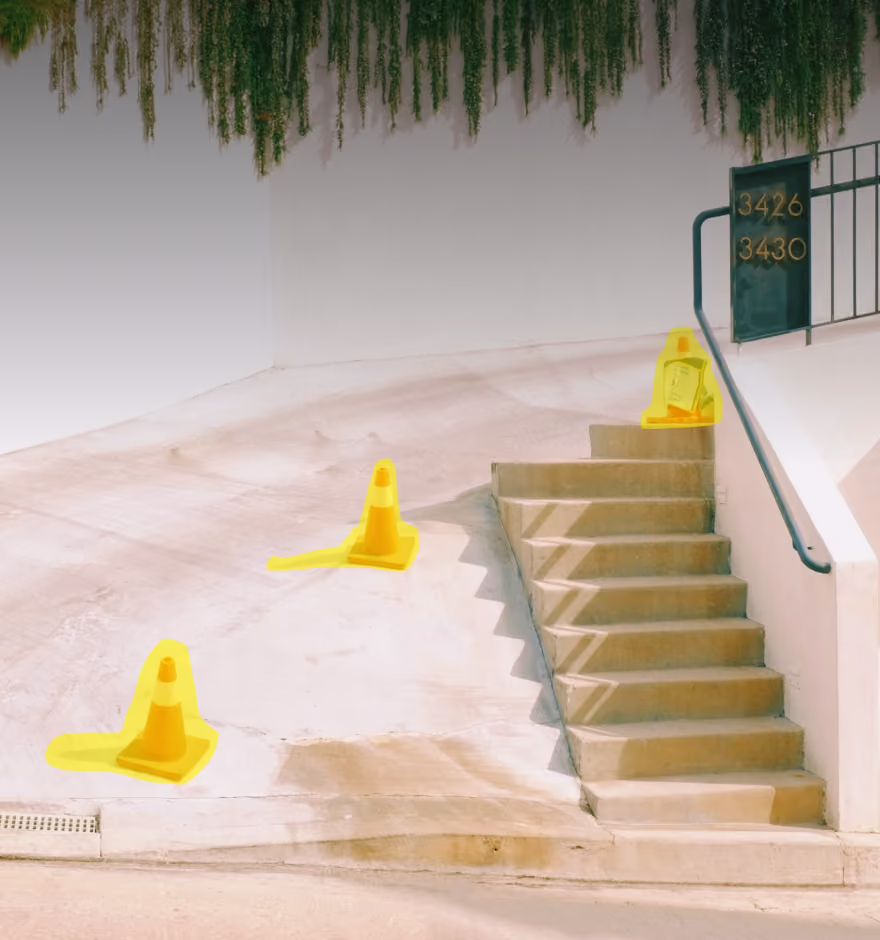
AI Remove
Erase distractions, stray elements, and blemishes with seamless, natural fill.
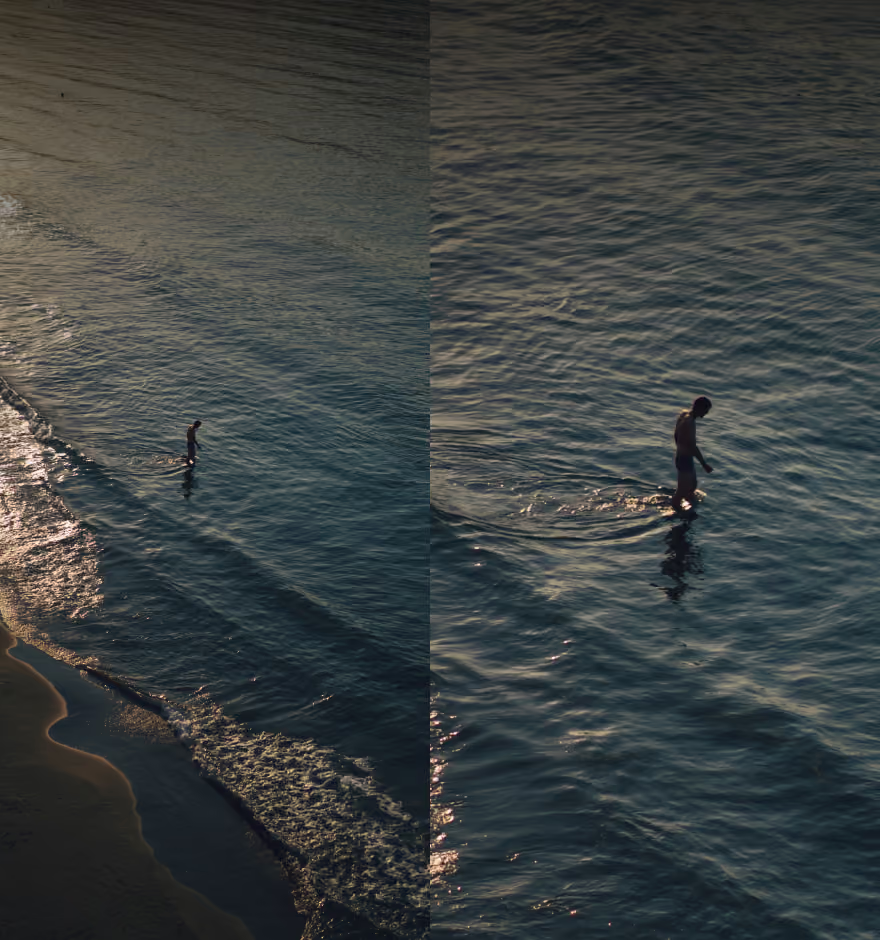
AI Upscale
Increase resolution and sharpen detail while preserving natural texture.
AI Isolate
Cleanly cut your subject out onto a solid background, no manual selection needed.