Repair Photos with AI Restore
Bring old photos back to life. Restore faded color, softened detail, scratches, and dust with AI built to preserve the character of the original image.

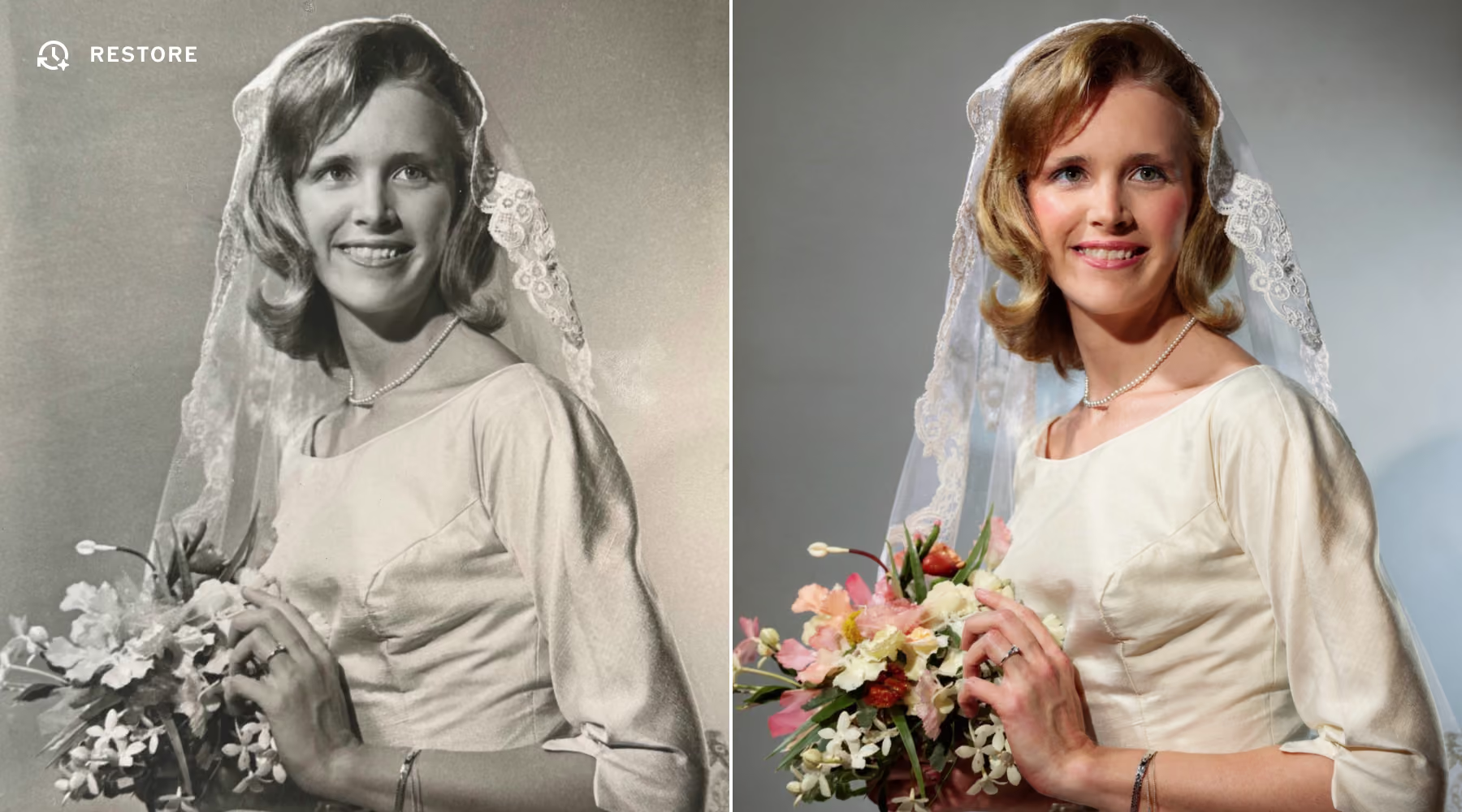
Restore old photos in seconds. Revive old family photo albums, scanned film, and damaged prints while keeping the feeling of the original image intact.
Repair and revive without compromise
AI Restore brings back faded color, sharpens softened detail, and cleans up dust and scratches, giving aging prints and scans a new sense of clarity.
The goal isn't to make an old photo look new. It's to bring back what time took away while keeping the texture, character, and feeling that made the original so special.
How to restore old images with AI Restore
Import photo
Open your file in the VSCO editing app. Start with a snapshot, scanned print, film scan, or older digital image.
Select the AI Restore tool
Select Restore in AI Lab. Apply the restoration in one tap. Restore faded color, recover detail, and reduce visible damage.
Refine results
Try Restore again for another version. Compare results, then continue editing with VSCO's presets and adjustment tools.
Download, Save, and Share
Export your restored image at full resolution, ready to print, share, or add back to your archive.
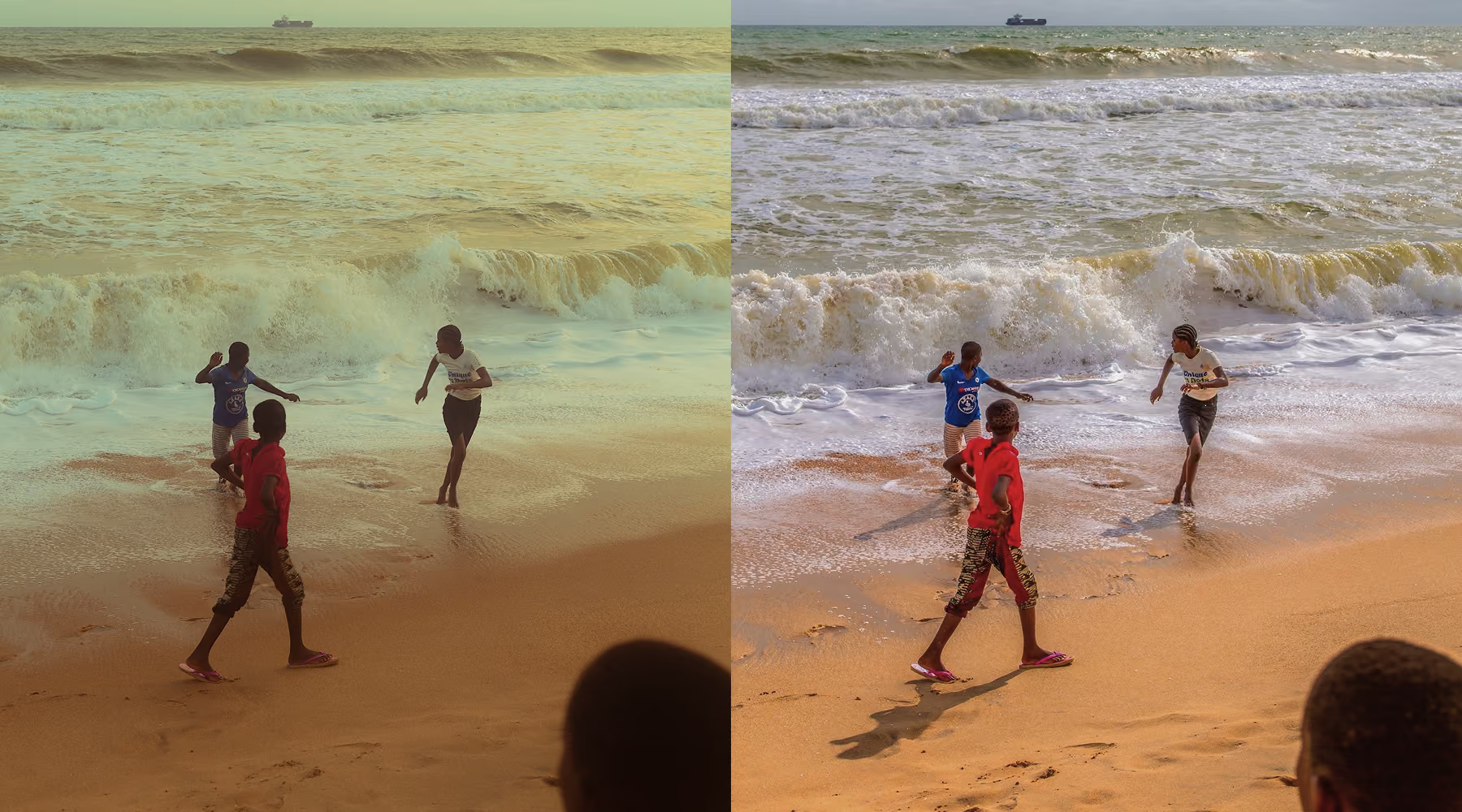
Keep the memory. Restore the image.
Perfect for family archives, historical collections, and scanned film, AI Restore helps preserve the images that matter most. It builds on what's already there, keeping the original tone and character intact.
The result is a cleaner, more polished photo that still reflects the emotion and context of the moment it captured.
Download VSCO
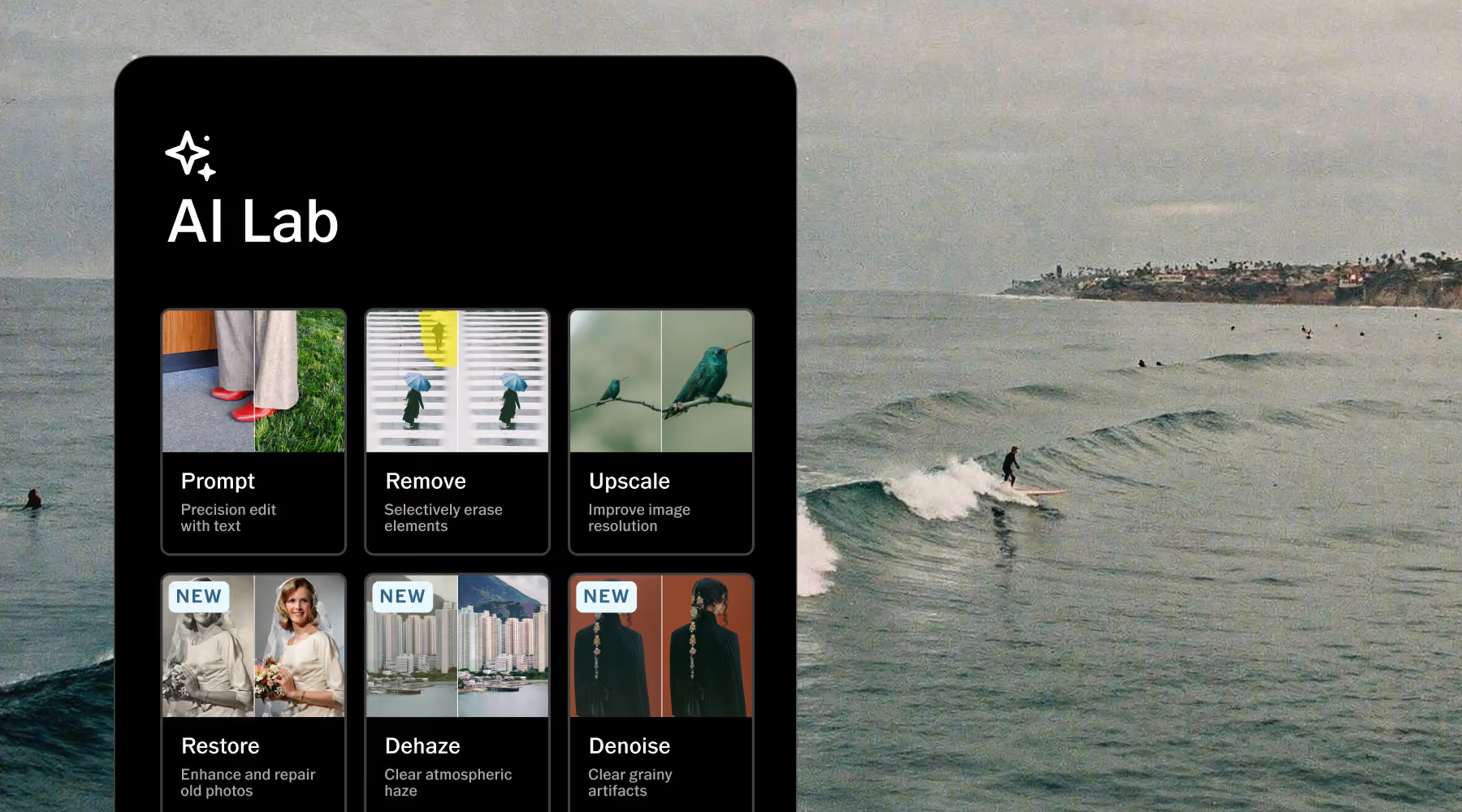
AI Lab gives you more ways to refine your images without taking creative control away from you. Start with Restore to bring an old photo back, then explore other AI editing tools like Upscale, Remove, Denoise, and Prompt.
Restore is available in the VSCO app for iPhone. Download VSCO and start your free Pro trial to try Restore and the rest of AI Lab.
Frequently asked questions
How does AI photo restoration work in VSCO?
AI Restore analyzes your image and automatically repairs common signs of aging and damage. It can brighten faded color, sharpen softened detail, and reduce visible scratches and dust in a single edit.
Will restoring a photo reduce its quality?
No. VSCO maintains full resolution and protects natural detail throughout the process. Your image stays sharp and realistic, without compression or the overly processed look you'll find in some restoration tools.
Can I edit restored photos further?
Yes. After restoring your image, you can continue editing with other VSCO tools and effects. Apply presets, adjust settings, or explore additional AI Lab features to shape the final result.
Does VSCO overwrite my original image?
No. AI Lab creates a new edited version while keeping your original file untouched. You can compare versions, revisit your starting point, or create a new edit at any time.
What types of photos work best with AI Restore?
Restore works best with clear, high-resolution images, including scanned film, printed photos, and lightly damaged archives. Higher-quality scans and photos produce more accurate, natural-looking results.
Is AI Restore included with VSCO Pro Membership?
Yes. Restore and all AI Lab tools are included with VSCO Pro or One Membership. Preview tools live in the free VSCO app or start a free Pro trial before you decide.
AI tools beyond restoration
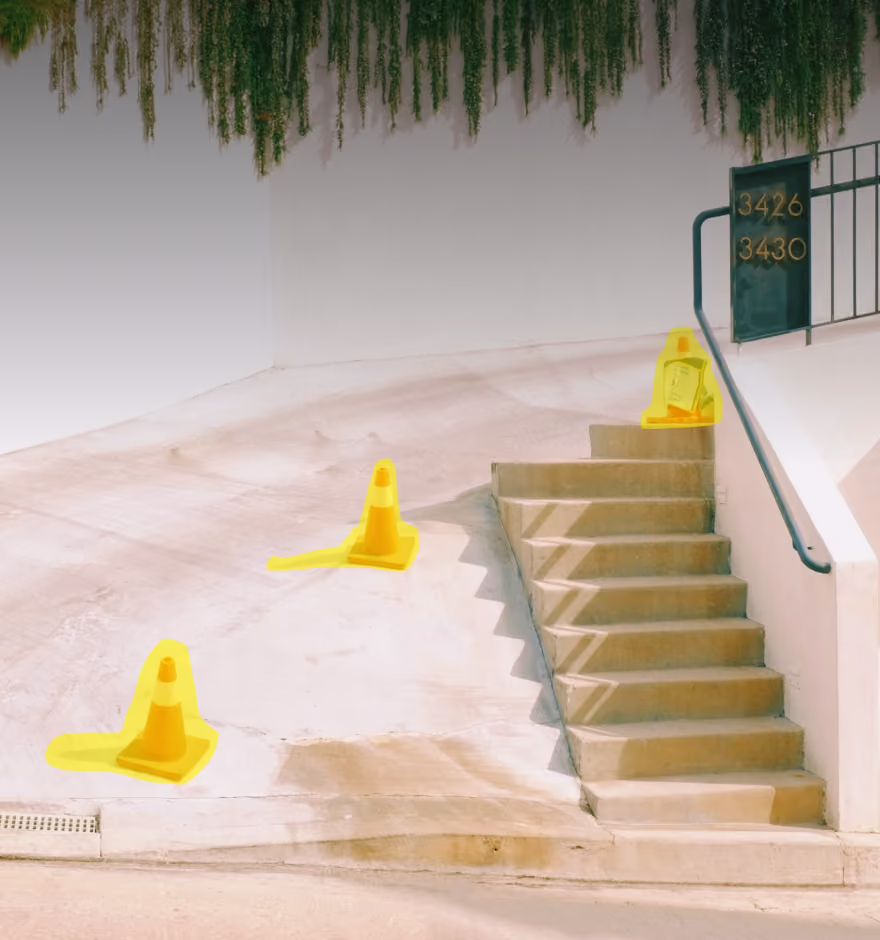
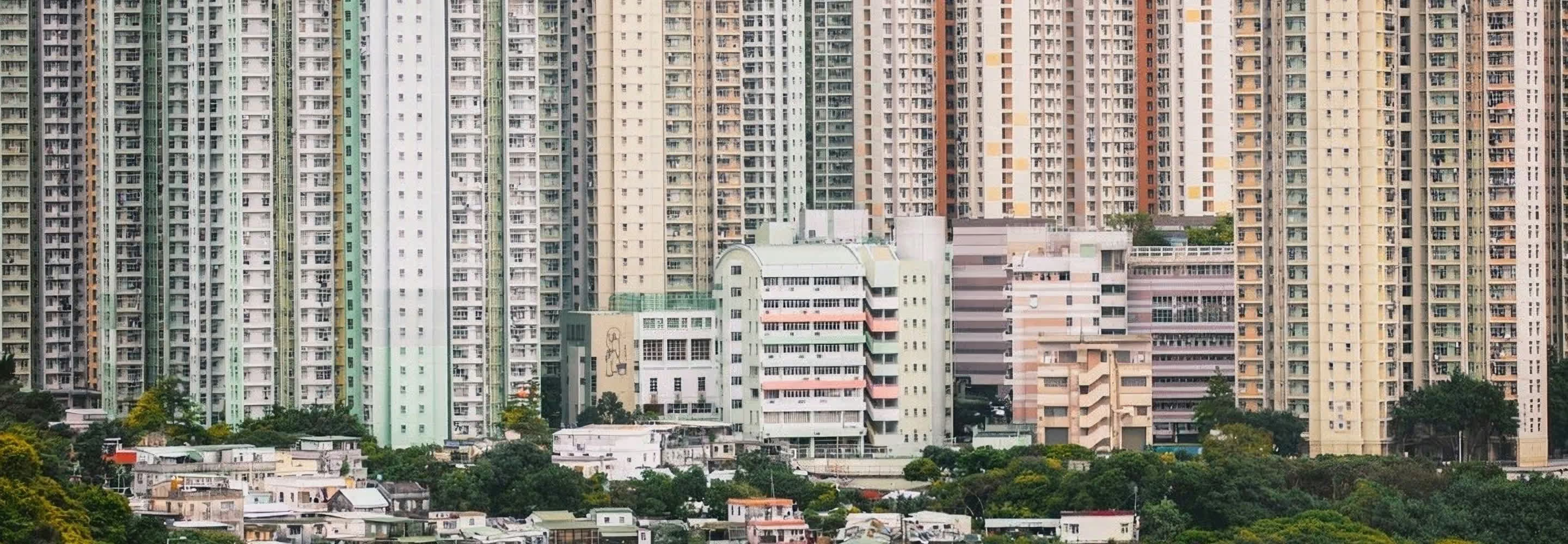
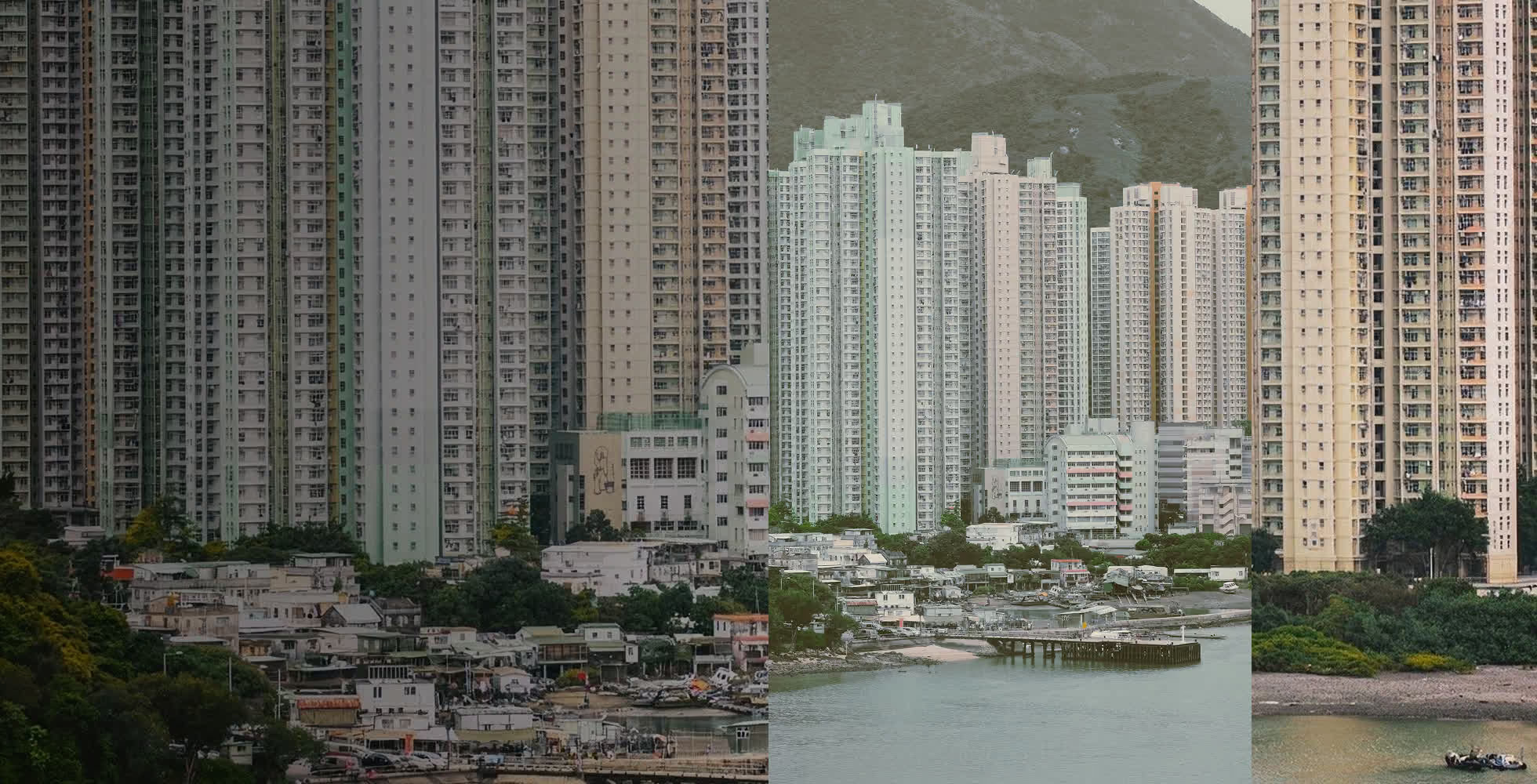
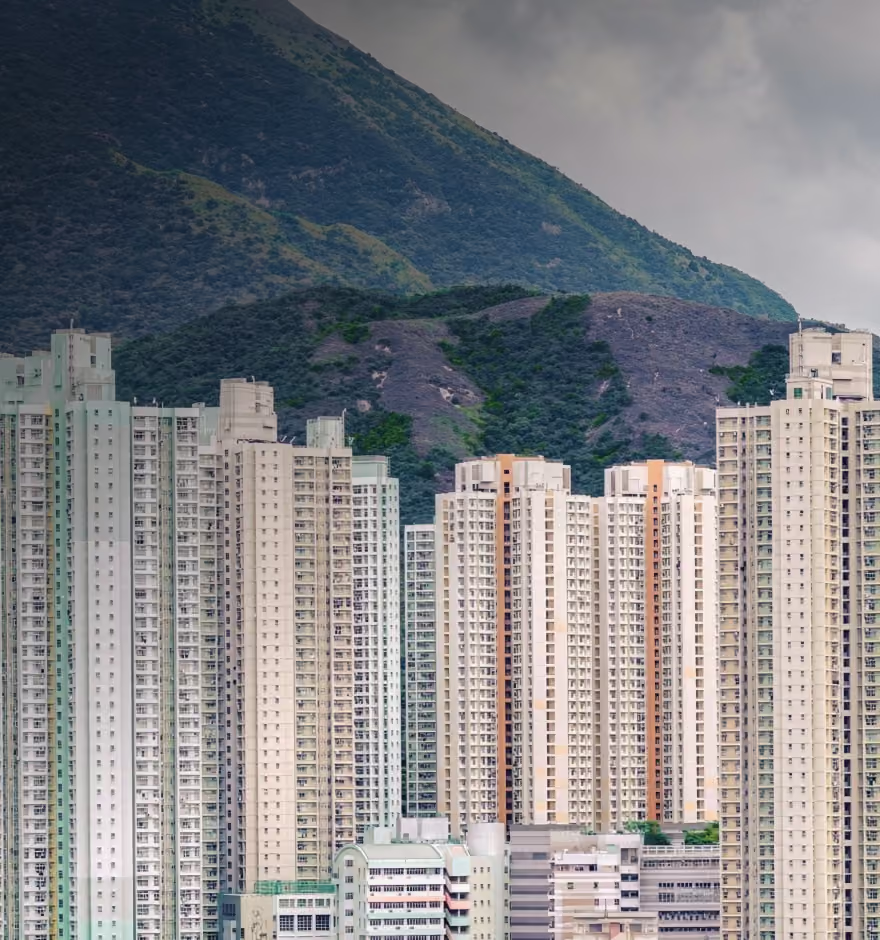
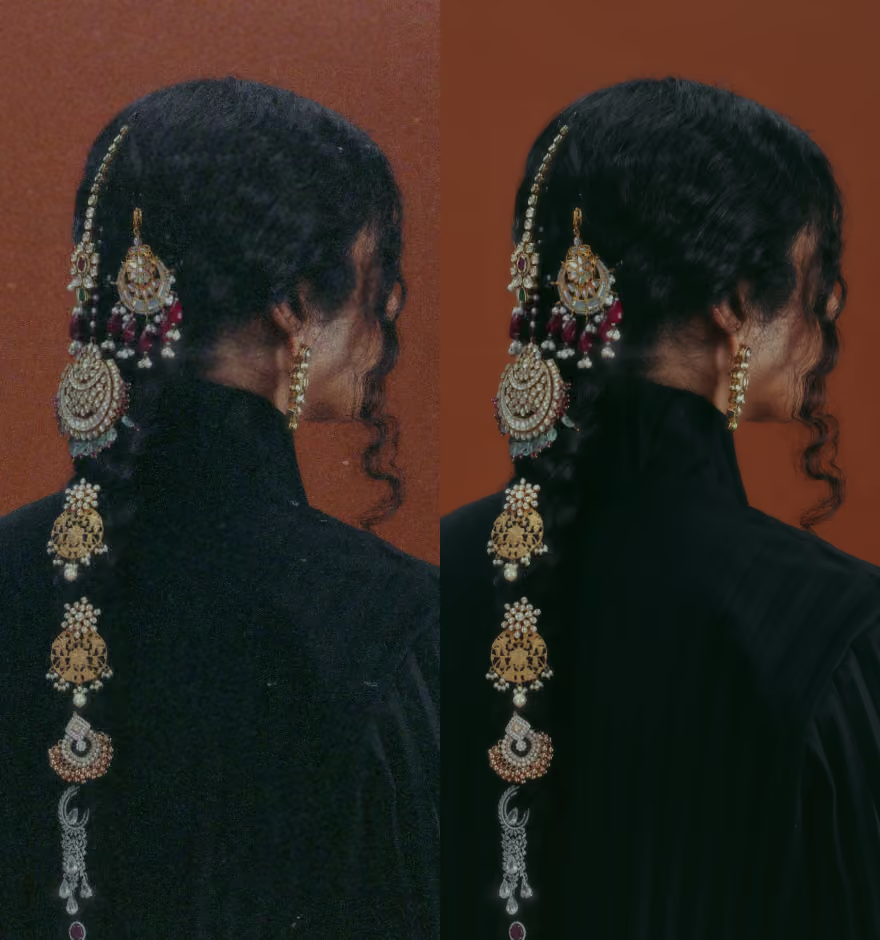
Go further than basic restoration with a set of AI-powered tools built to refine your entire image. Add depth back into hazy scenes with AI Dehaze, smooth out grain while keeping texture intact with AI Denoise, or clean up distractions using AI Remove.
AI Dehaze
Improve clarity and depth in outdoor or atmospheric scenes.
AI Denoise
Reduce noise while keeping texture natural and intact.
AI Remove
Erase distractions to create a more focused composition.