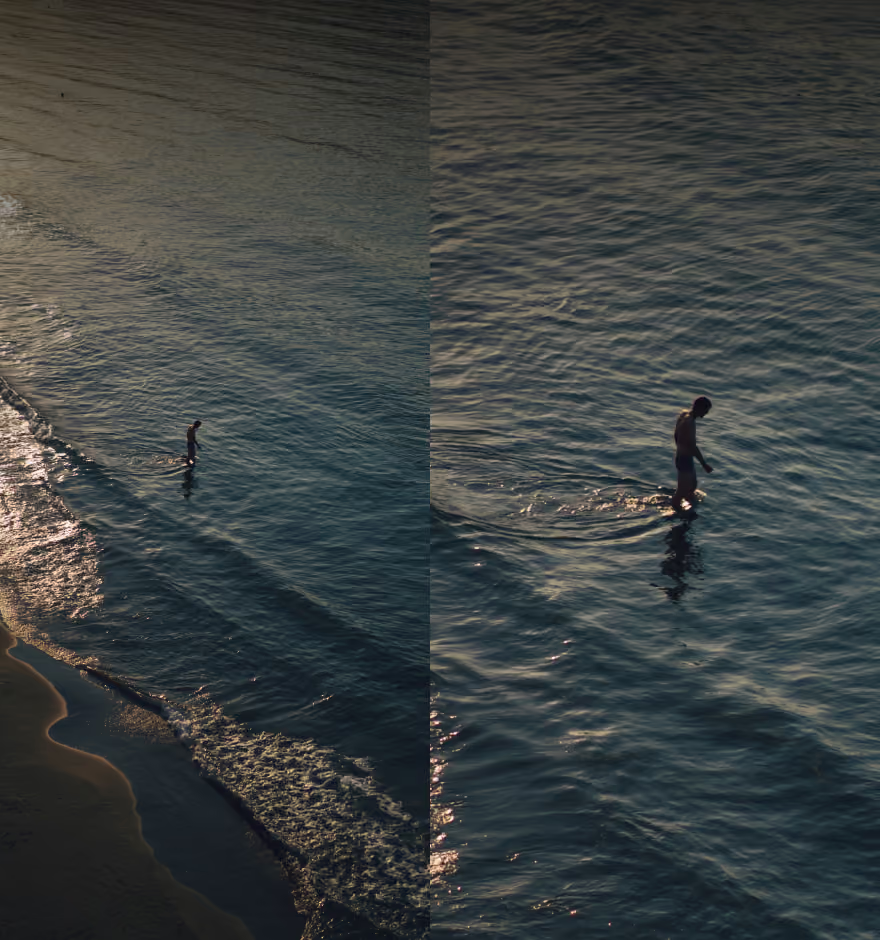
Extract Subjects With AI Isolate
Create clean, precise cutouts in one tap. No manual masking or tedious cleanup required.

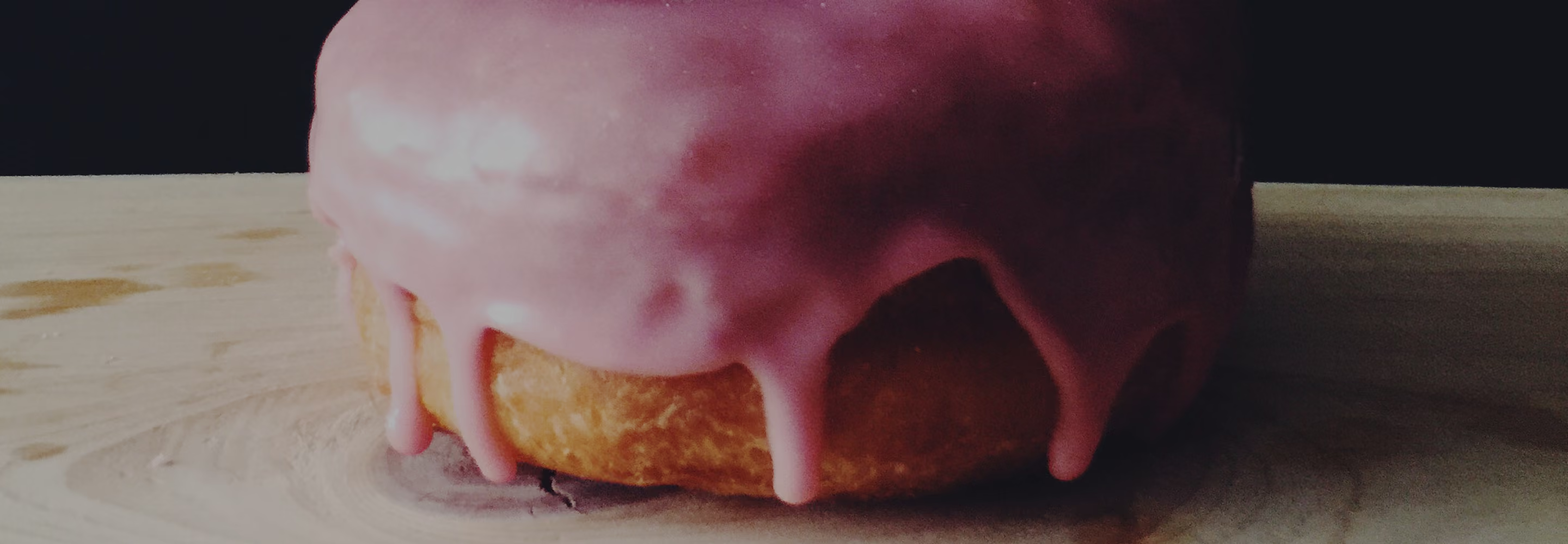

Remove backgrounds in a single step and isolate your subject with precision. Fine details, textures, and edges stay intact at full resolution, so the cutout is ready the moment it's done.
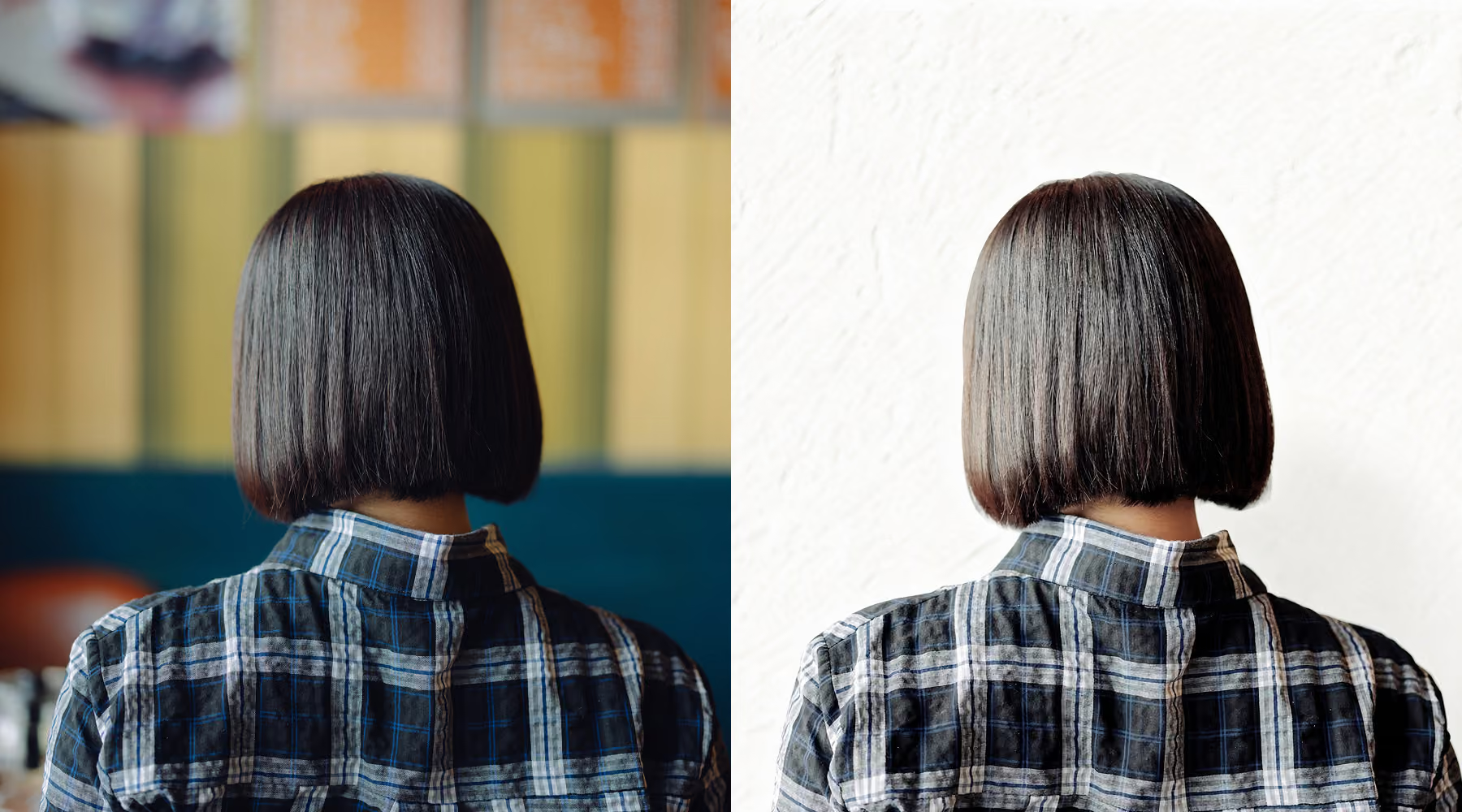
Clean subjects. Zero distractions.
Isolate removes backgrounds instantly with a single tap, producing accurate cutouts without any manual selection. Advanced edge detection preserves the details that are easiest to lose: hair strands, fabric texture, complex shapes.
The result is a natural, polished image that stays sharp and balanced, ready for anything from product listings to editorial layouts and creative composites.
How to isolate images with AI in VSCO
Apply the AI Isolate tool
Go to AI Lab and select Isolate. Tap once to automatically remove the background.
Refine your edit
Reapply the tool to explore alternate cutout variations instantly.
Download, Save, and Share
Export your isolated image, or continue editing with VSCO tools.
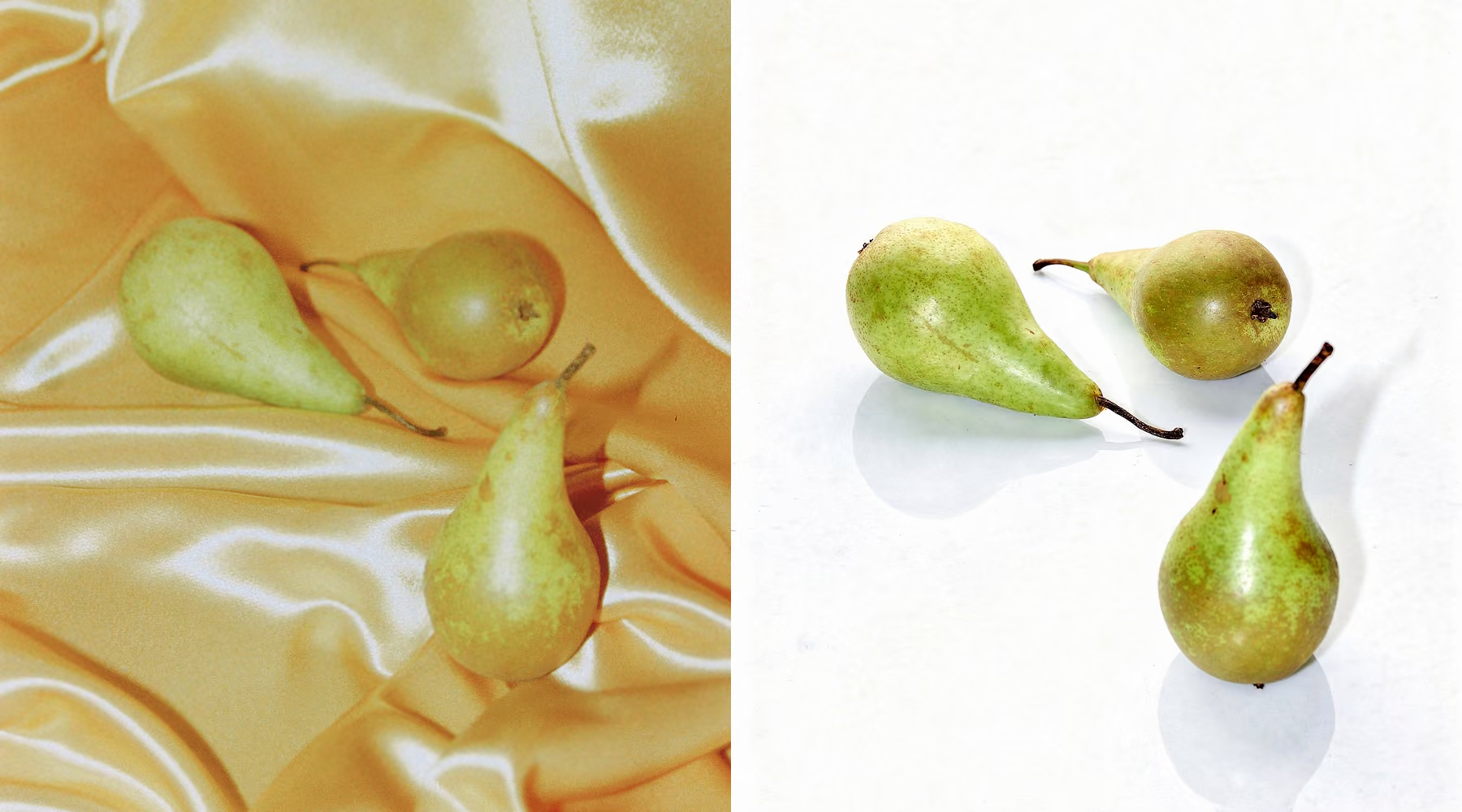
Built for creative workflows
Isolate supports a wide range of creative work, from product shots and portraits to e-commerce, food photography, and client-ready deliverables. It replaces slow, manual masking with a faster way to produce clean, adaptable assets.
Whether you're building client deliverables or refining personal work, you can move from image to polished output in seconds without breaking your creative flow.
Download VSCO
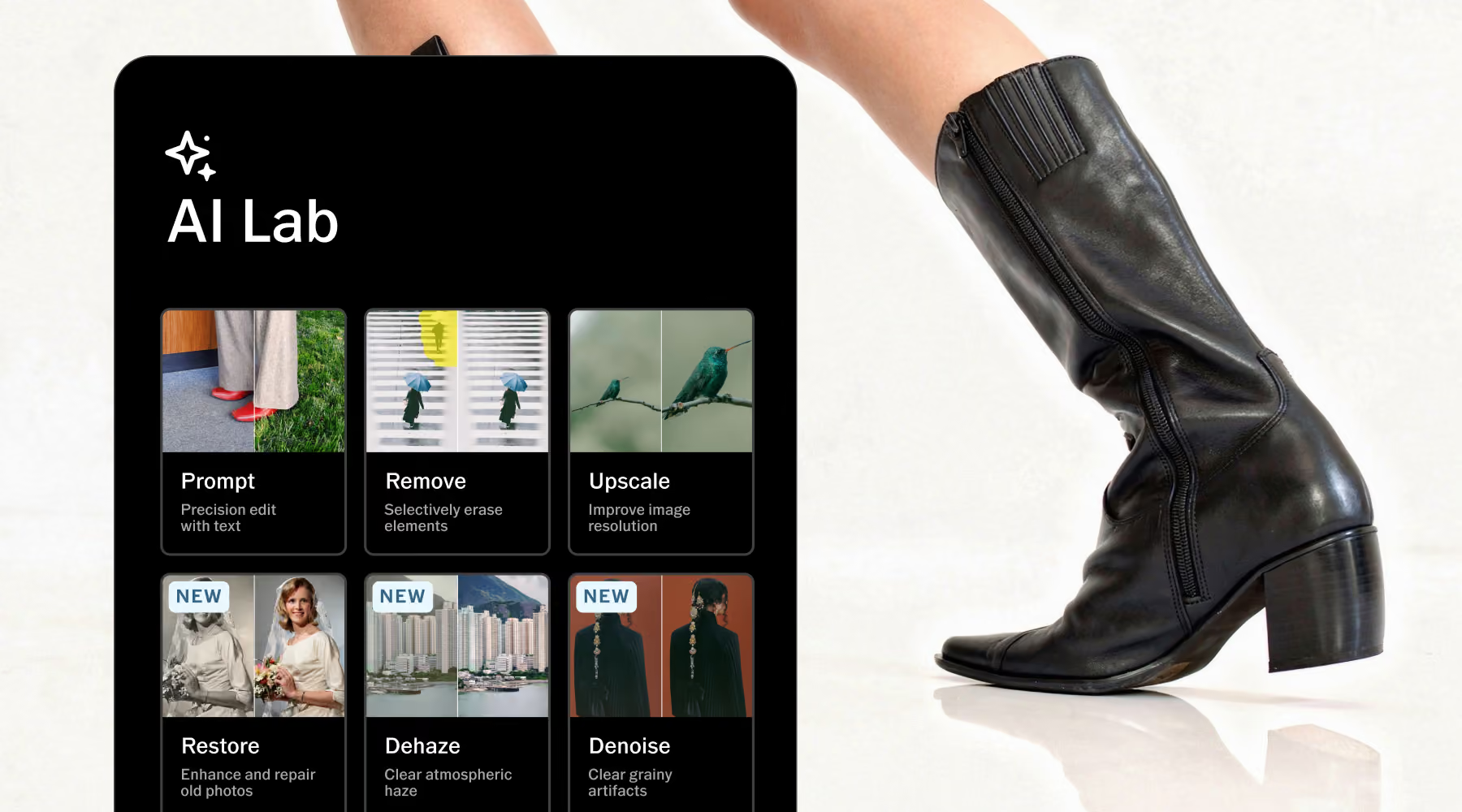
AI Lab gives you faster, more precise ways to shape your images, starting with Isolate. Create clean cutouts in seconds, remove distractions, restore detail, and explore new directions without losing control of the final image.
AI Lab is available in the VSCO iPhone app. Download VSCO to try Isolate, Prompt, Remove, Upscale, and more AI tools built to help you spend less time on tedious edits and more time making the work your own.
Frequently asked questions
What does Isolate do in VSCO AI Lab?
Isolate removes the background from your image and creates a clean cutout of your subject. It uses advanced edge detection to preserve fine details like hair, fabric, and intricate shapes, while maintaining full resolution.
Do I need to manually select my subject?
No. Isolate does the work automatically with a single tap. There’s no prompting, masking, or manual selection required, so you can separate your subject from the background in seconds.
What if the first result isn't quite right?
Run Isolate again to generate a new version of the cutout. Compare results and choose the one that works best for your image.
Will Isolate affect my image quality?
No. Isolate maintains full resolution while preserving the detail and texture of your original image, so your subject stays sharp and ready for further editing.
Can I keep editing after using Isolate?
Yes. Once your subject is isolated, you can continue editing with VSCO presets, adjustments, and other AI Lab features.
How do I access the Isolate tool?
Isolate is available in the VSCO app for VSCO Pro or One Members. You can preview the tool for free or try full access with a one-time free trial, along with the other AI Lab tools.
More ways to edit with AI
Go beyond background removal with VSCO AI tools that refine every detail. Edit with natural language using AI Text Prompt, increase clarity with AI Upscale, and remove distractions with AI Remove.
AI Text Prompt
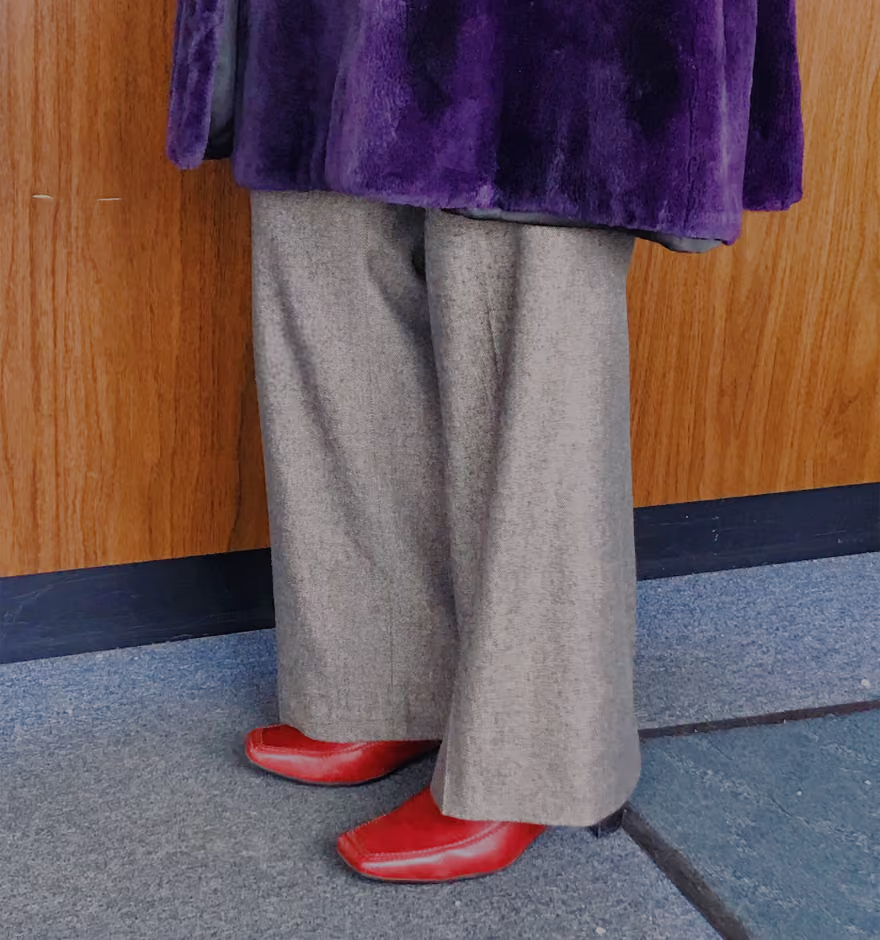
Edit images using natural language for fast, precise creative control.
AI Remove
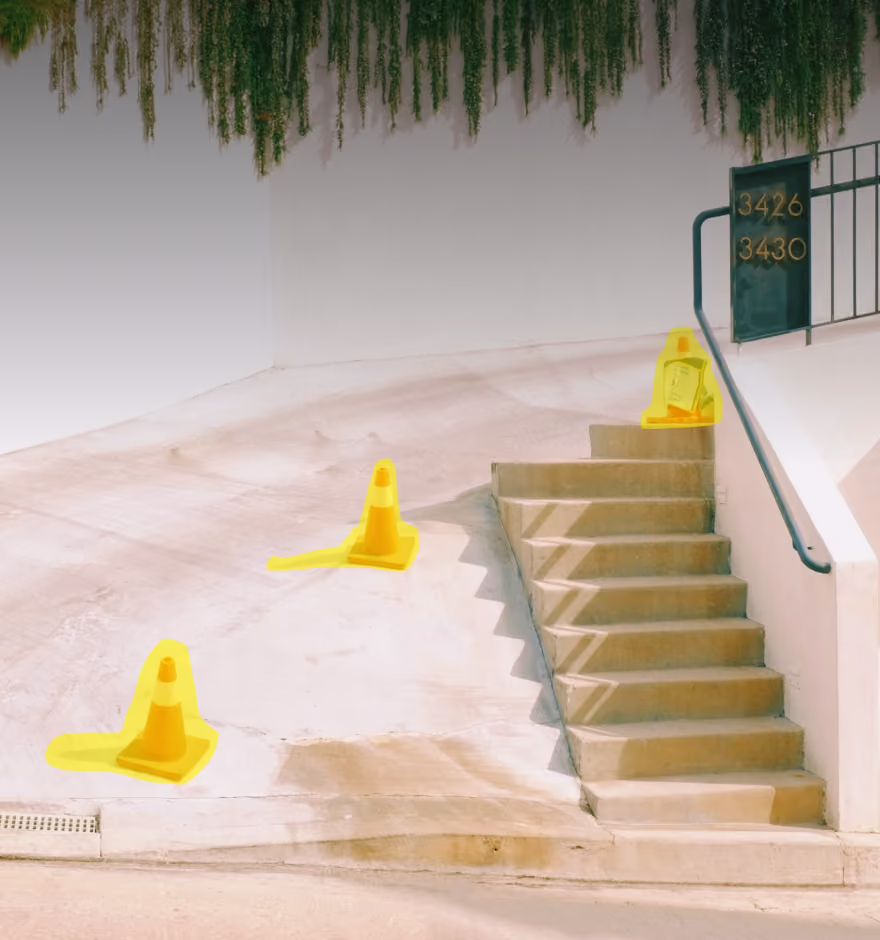
Erase distractions to create a more focused composition.
AI Upscale
Increase resolution up to 4x while maintaining sharpness and clarity.