VSCO & ADOBE LIGHTROOM
Expand your editing workflow by combining the best of VSCO and Adobe Lightroom.
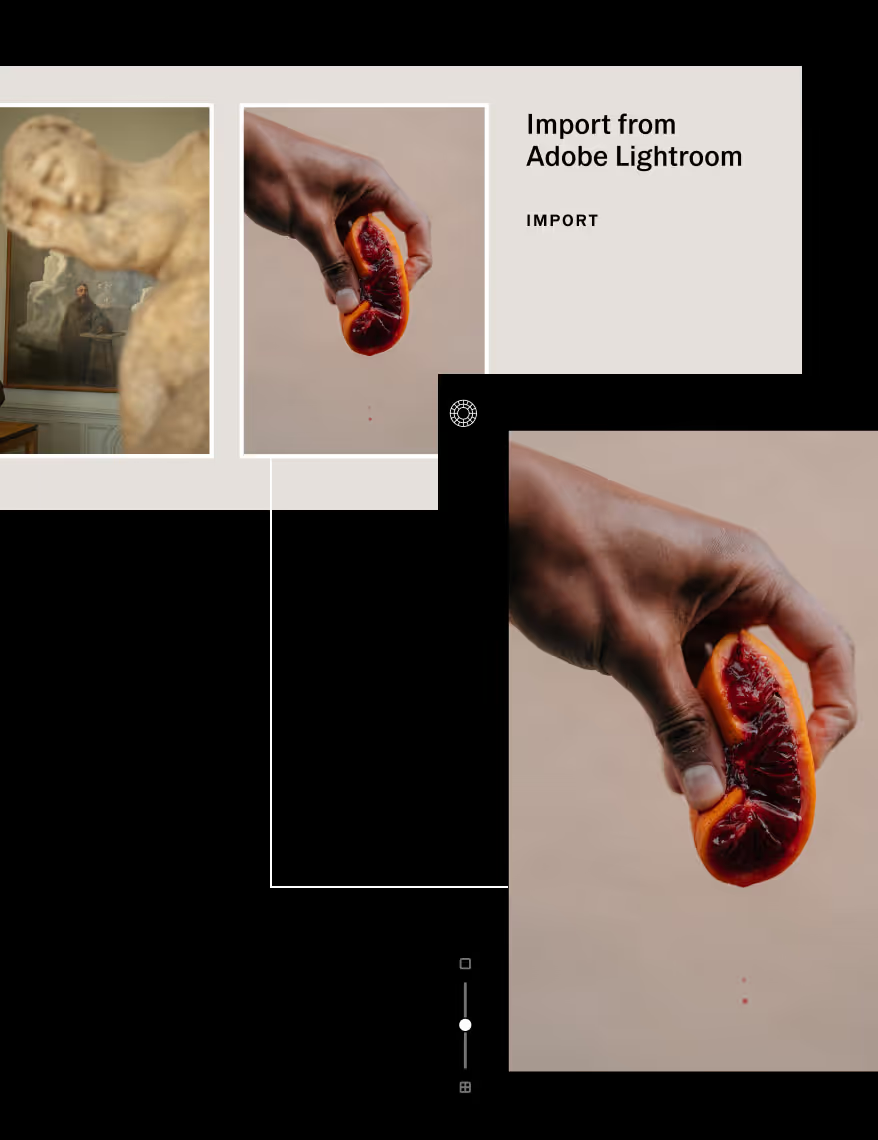
Import from Adobe Lightroom

Connect and import photos with our Adobe Lightroom integration. Access VSCO Presets, publish to your profile, and edit images online with VSCO Studio.
Create, edit, and publish without being confined to a single editor. Join today to build authentic connections that foster professional growth and to edit photos and videos with our full suite of tools. Invest in your creativity with a VSCO Membership.
Streamlined performance
Simplify your photo editing workflow with our Adobe Lightroom integration for VSCO Pro Members. Easily connect your Adobe account online with VSCO Studio to easily import and edit photos.
Better together
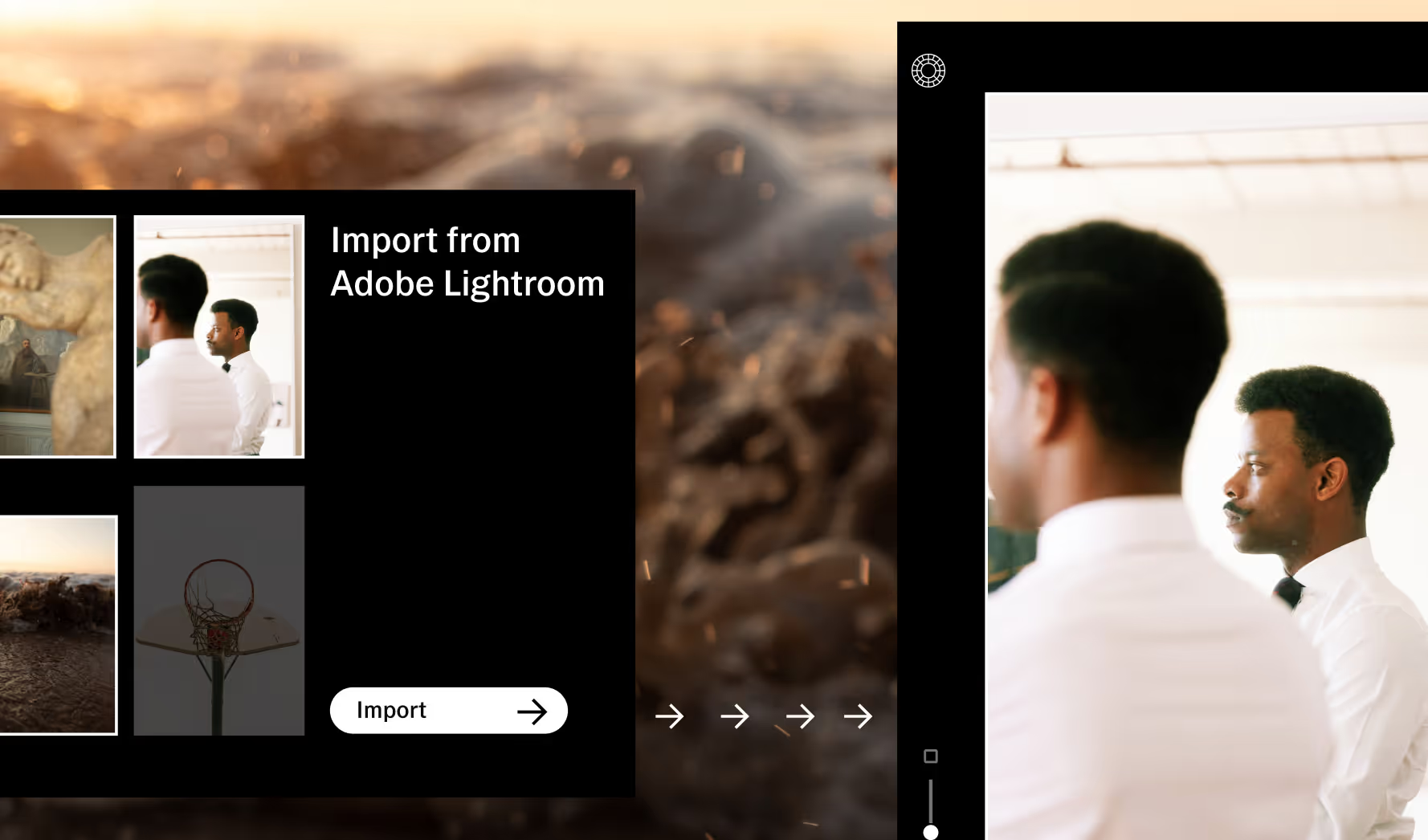
Import photos to VSCO Studio directly from Adobe Lightroom. Keep your tried and true editing processes the same while finding new synergy with VSCO’s professional photo editor and photographer community.
Let creativity flow
Use the Lightroom Classic plugin to publish to your VSCO Profile or use the export feature to continue editing online with VSCO desktop Studio. Batch process photos, update your portfolio, and post with just a few clicks.

Create without limits
Introduce VSCO’s Pro Presets, AI Remove brush, and other professional editing tools to your traditional desktop workflow without missing a beat. Elevate your workflow and combine the best of both VSCO and Adobe Lightroom.

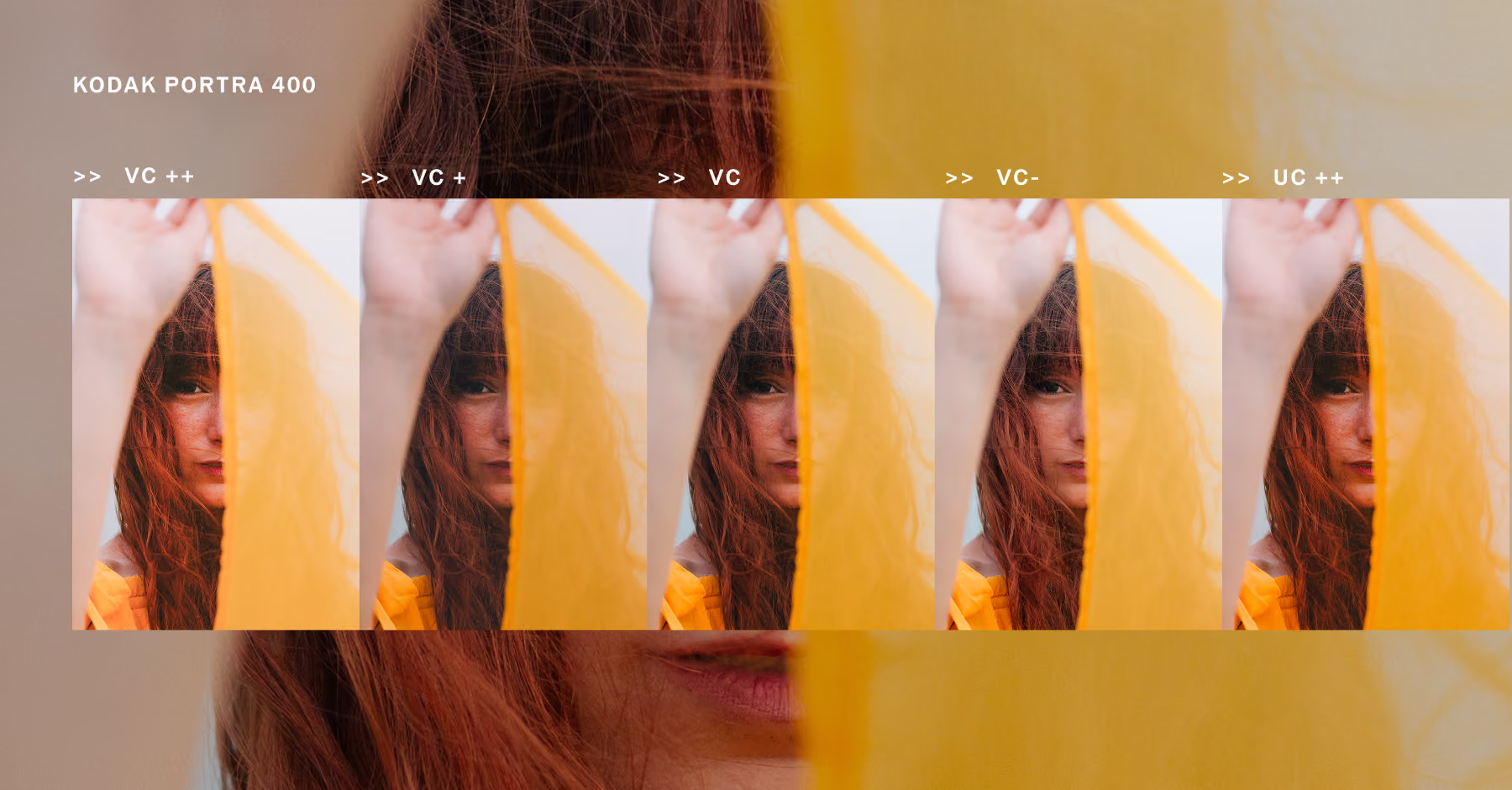
Get VSCO Presets for Adobe Lightroom
Your favorite Adobe Lightroom presets are back, and they’re available for VSCO One members.
Download VSCO Film presets inspired by Kodak, Fuji, and Ilford. Get timeless color and precise RAW control, all within your existing workflow.
How to connect to VSCO to Lightroom
Connect Adobe Lightroom to VSCO Studio directly in “Settings” or as you add new images. Go to studio.vsco.co on your computer. Access “Settings” by clicking on the (...) button at the top of the right sidebar. Select "Connect to Adobe Lightroom," then sign into your Adobe account. Learn more about Lightroom integration here.
Adobe and Lightroom are either registered trademarks or trademarks of Adobe in the U.S. and/or other countries.
Frequently asked questions
What’s the difference between VSCO and Adobe Lightroom?
VSCO is a community-driven platform for photographers with photo editing tools, professional opportunities, and a global creative community. Adobe Lightroom is a standalone desktop photo editor and app focused on in-depth adjustments and file management.
Can I use both VSCO and Lightroom together?
Yes, you can combine the best of VSCO and Adobe Lightroom in your photo editing workflow with our Adobe Lightroom plugin. Connect Adobe Lightroom to VSCO Studio so you can directly export and edit your photos with our online photo editor.
How do I connect Adobe Lightroom to VSCO Studio?
Go to studio.vsco.co on your computer, open Settings, and select ‘Connect to Adobe Lightroom’ to link your Adobe account and start importing photos. Learn more about the connecting VSCO with the Adobe Lightroom Plugin.
Can I edit my Lightroom photos in VSCO?
Yes, you can import photos from Lightroom to VSCO Studio with the Adobe Lightroom plugin and use VSCO’s photo filters and editing tools to continue editing your photos online.
Will my Lightroom edits carry over into VSCO?
Once you import a photo from Lightroom, your exported edits will carry over and you can build on them with VSCO’s online photo editor and photo filters.
What happened to VSCO Film presets for Adobe Lightroom?
We’ve reintroduced a curated collection of VSCO Film presets for Adobe Lightroom, exclusively for VSCO One members. Download the VSCO Film 02 preset pack to bring film-inspired color, contrast, and precise tonal control back into your Adobe Lightroom workflow.
You can always use VSCO photo filters on iPhone, Android, or in our online photo editor for mobile and desktop editing.
Can I publish my Adobe Lightroom edits directly to my VSCO profile?
Yes, Pro Members can publish edited photos from Adobe Lightroom to their VSCO profile using the plugin.
Can I batch import images from Lightroom into VSCO?
Yes, once your Adobe Lightroom account is connected, you can batch import and bulk edit multiple images with our online photo editor for PC and Mac, VSCO Studio.
Is the Adobe Lightroom integration included with all VSCO plans?
No, the Adobe Lightroom plugin integration is only available for VSCO Pro Members.
related features
Explore the full range of tools in the VSCO photo editor — tap into photo filters for instant mood, use AI to clear away distractions, or dial in every hue with HSL. Each one gives you more control, and even more room to shape your vision.
VSCO PRESETS
Import directly from Adobe Lightroom on desktop, then lock in your final look with VSCO presets.

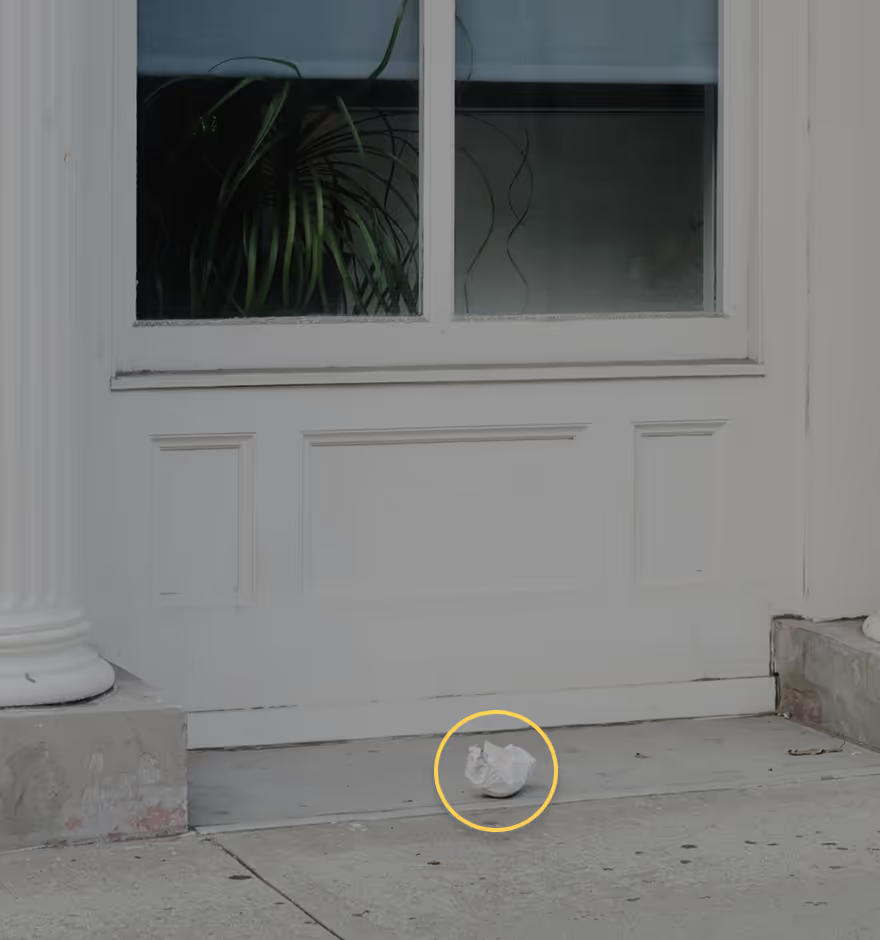
REmove objects with ai
One tap is all it takes to erase unwanted objects in the background and keep the focus exactly where you want it.
hsl EDITOR
VSCO’s HSL editor adjusts hue, saturation, and lightness to fine-tune tones, shift skies, and perfect your palette.