Save Editing Recipes
Apply your style and save time with Recipes. Batch process photos and videos with custom preset and tool combinations that recreate your favorite looks.

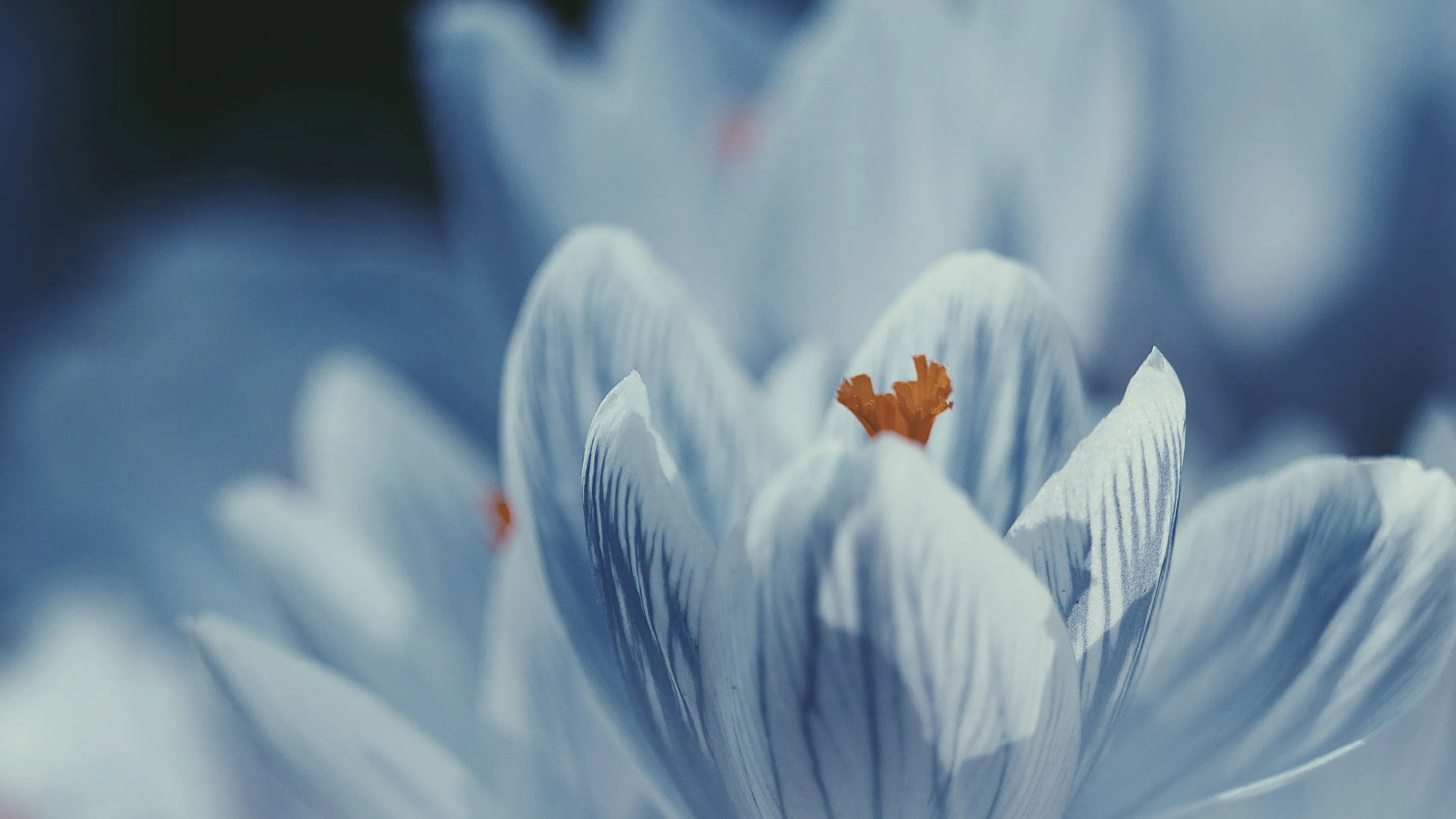
Build a library of looks that's entirely yours. Save and organize editing Recipes by mood, project, or genre. Your workflow stays consistent and every edit is ready when you are.
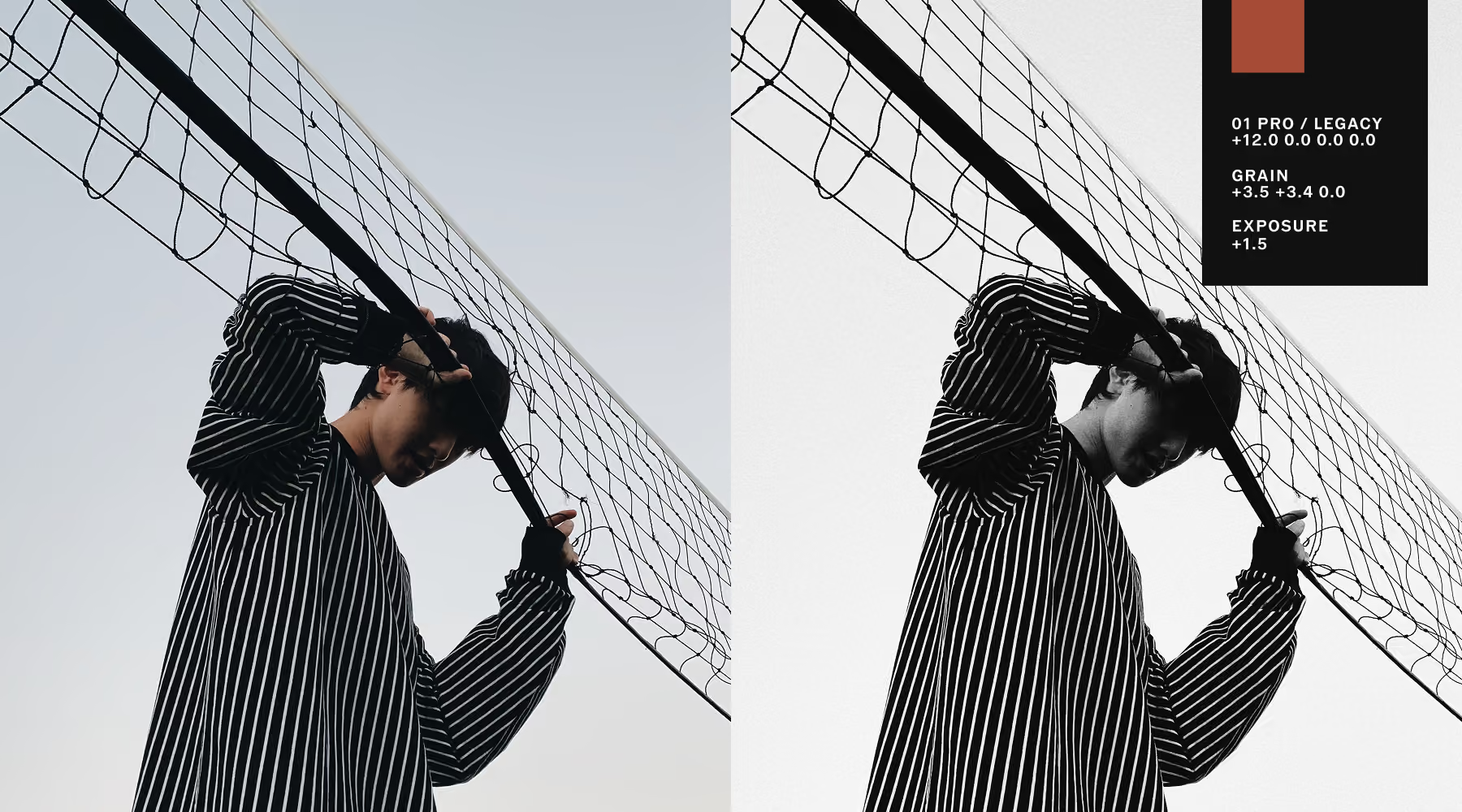
Edit once and Apply anywhere
A Recipe can be a single customized preset or a layered stack of advanced tools and film effects. Edit any photo or video in your Studio, tap the Recipes icon, and use ‘+’ to save. Your look is ready to apply to anything, anytime.
Save the Looks that define your style
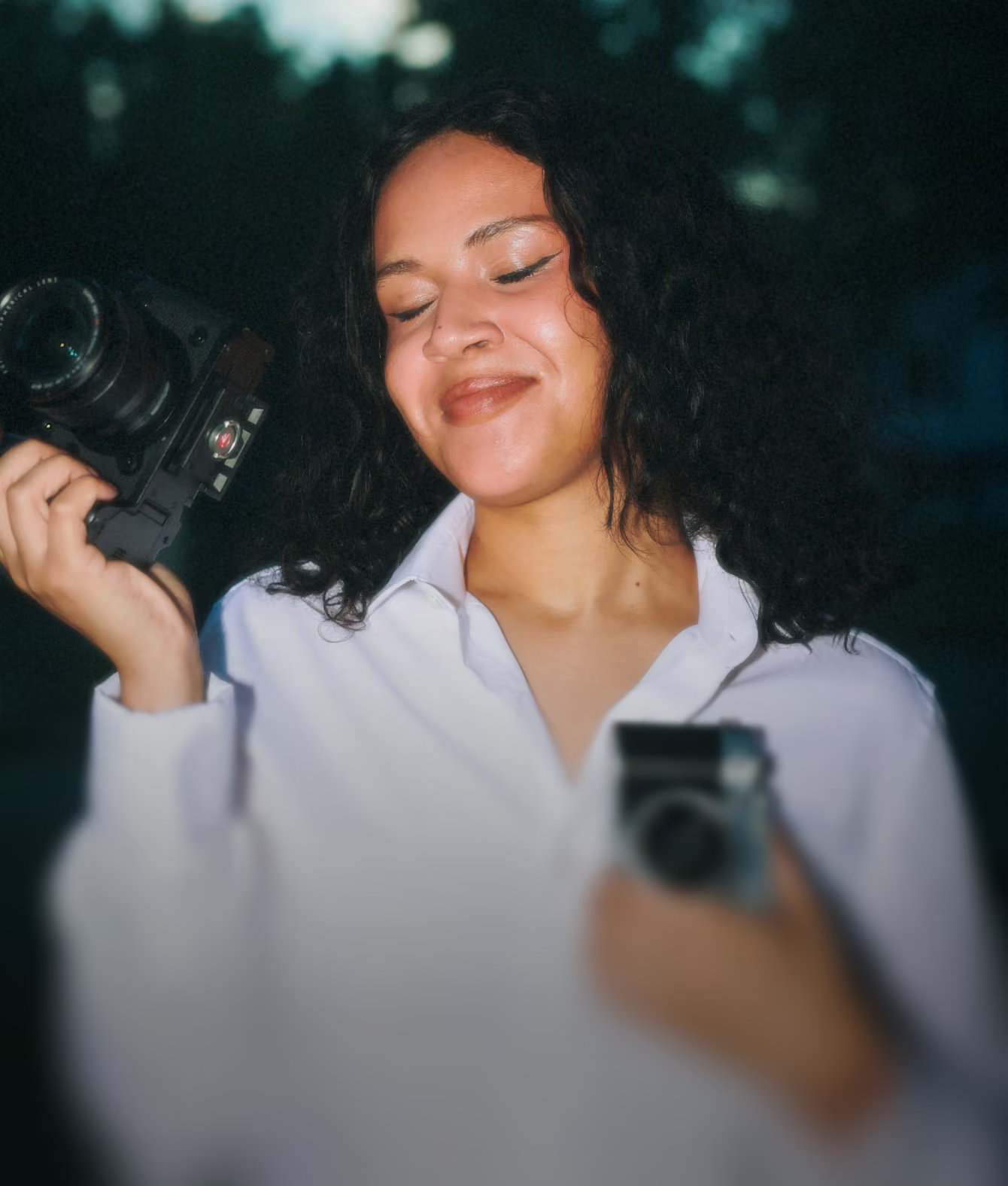
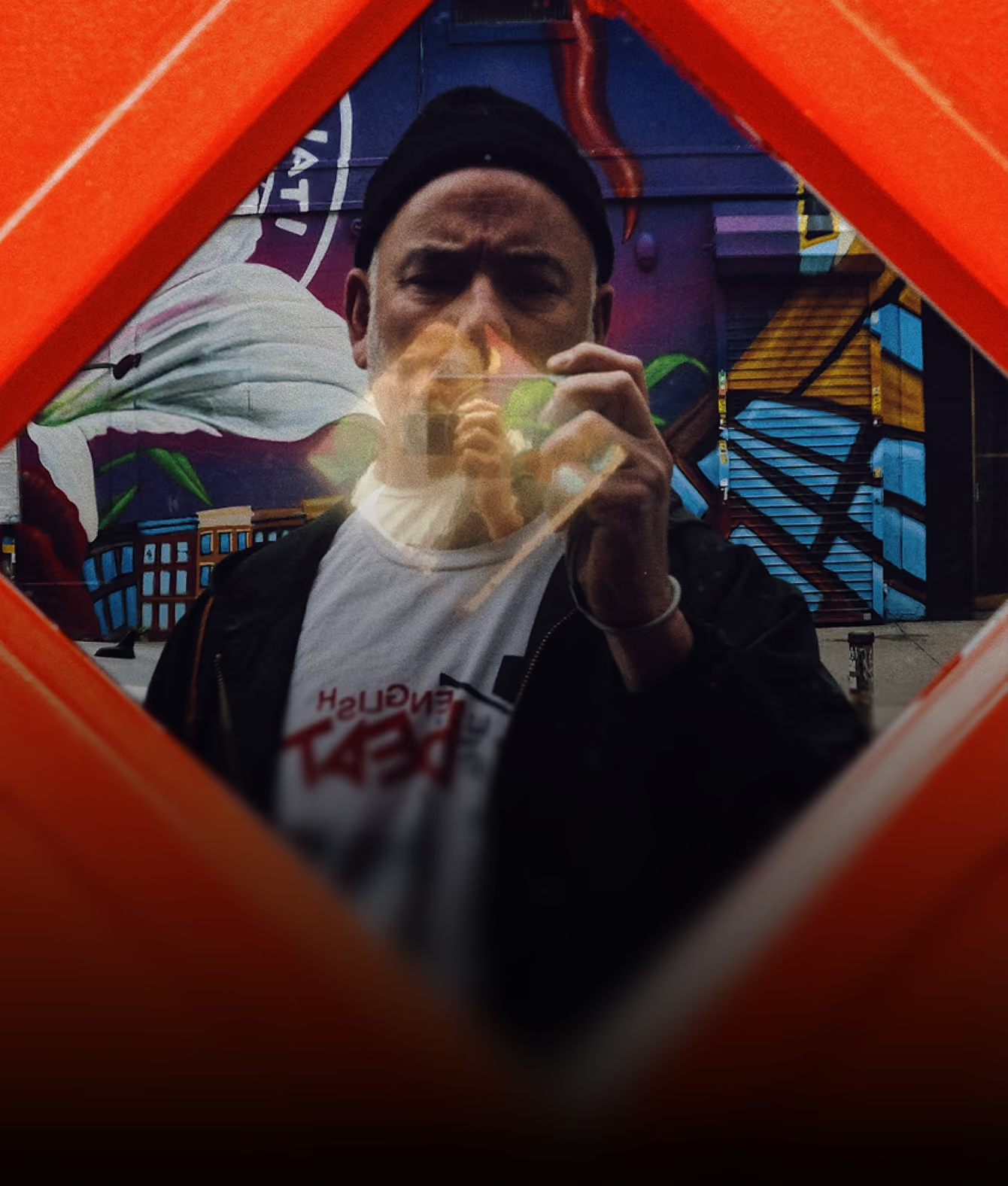
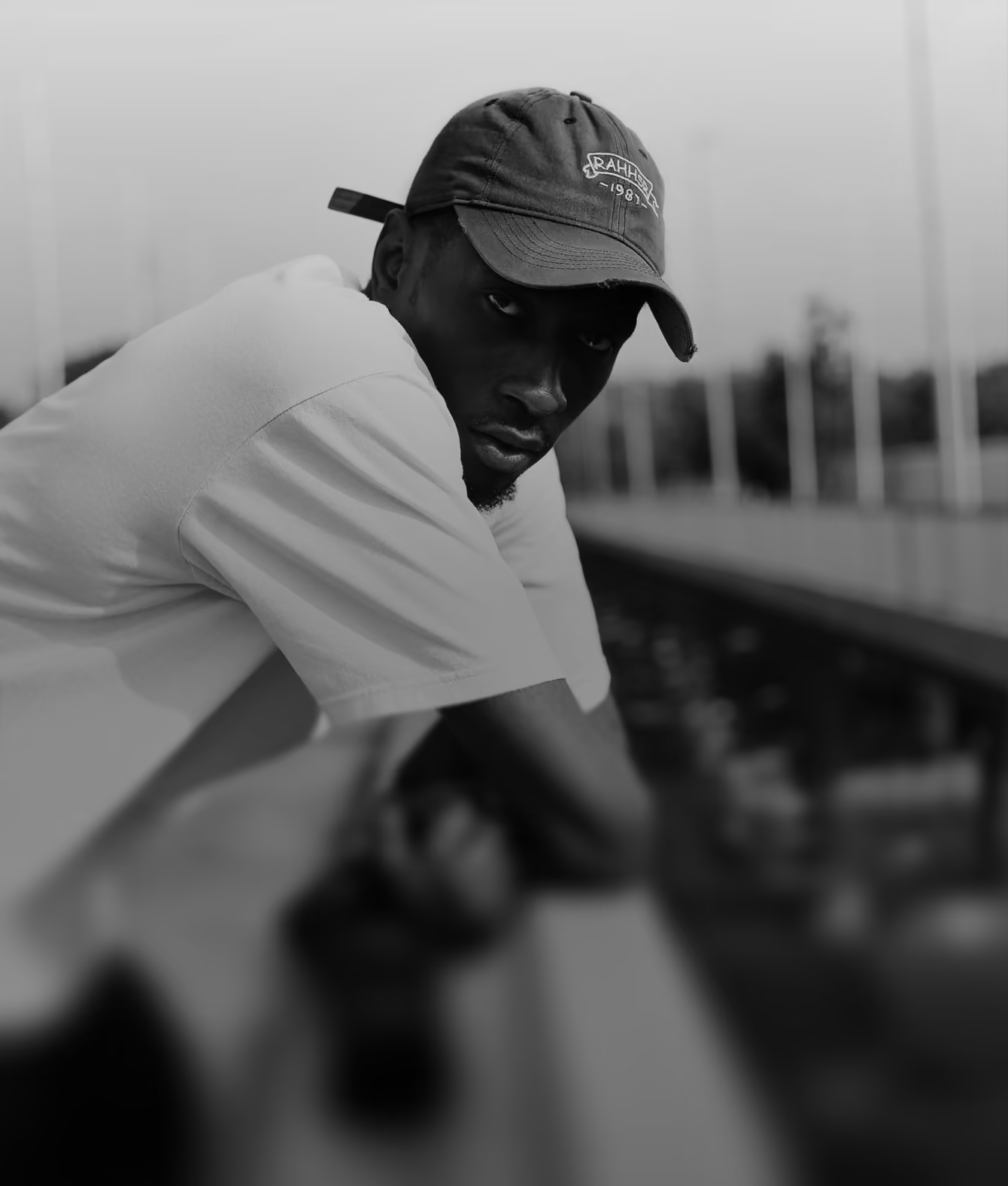
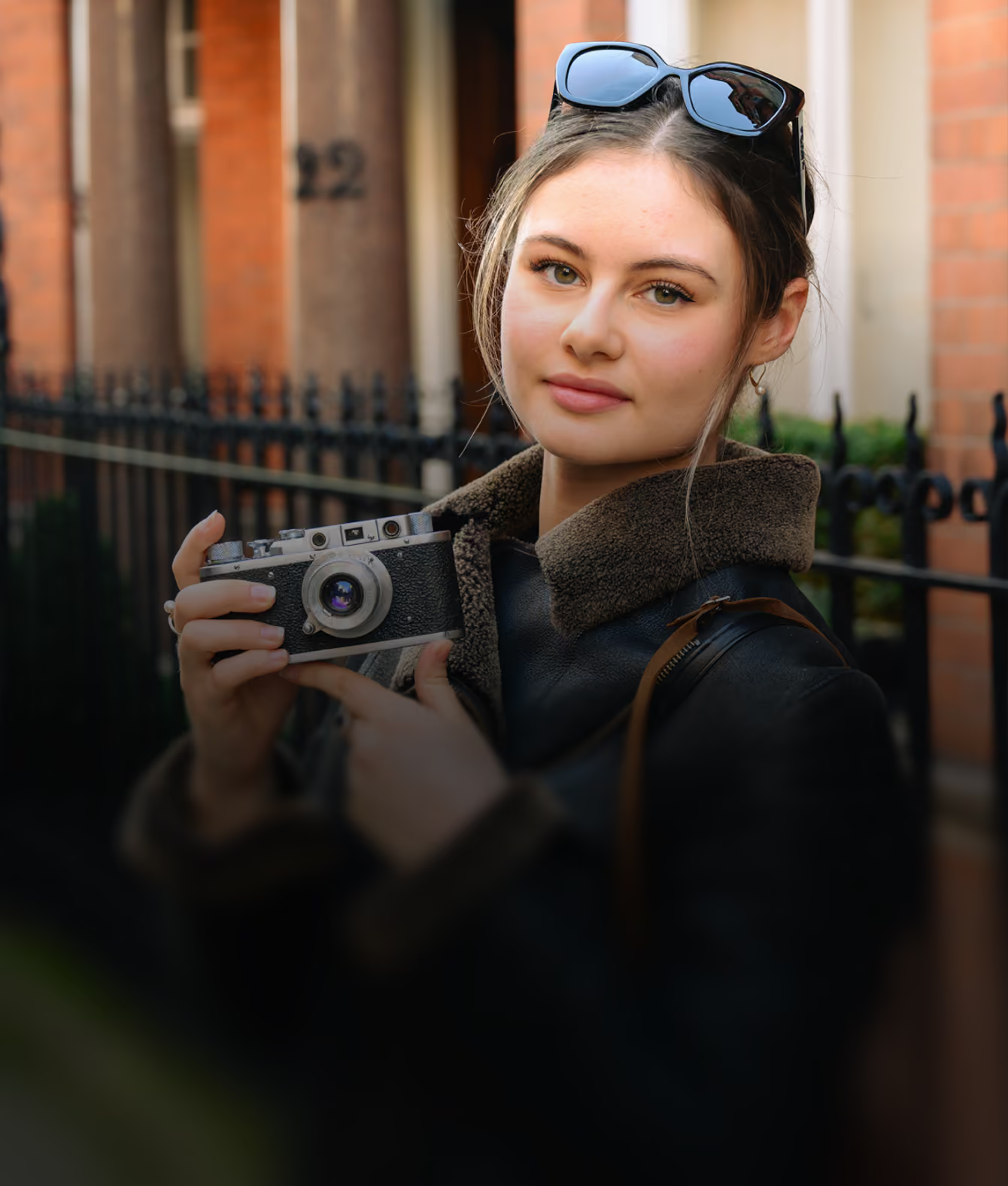
Craft a photo editing workflow that makes your work unmistakable. See how other photographers are using Recipes to develop visual identities of their own.
Make editing effortless
Apply a Recipe to any photo or video for a final look in one tap, or use it as a starting point for more tools like Grain, Tone, and White Balance.

Fine tune your look
Open any saved Recipe and dial it in. As your eye develops, so does your edit, and every change you save becomes the new version of your style.

Combine exclusive looks
Save Recipes with our most powerful tools, from film emulation presets to advanced color control with HSL.

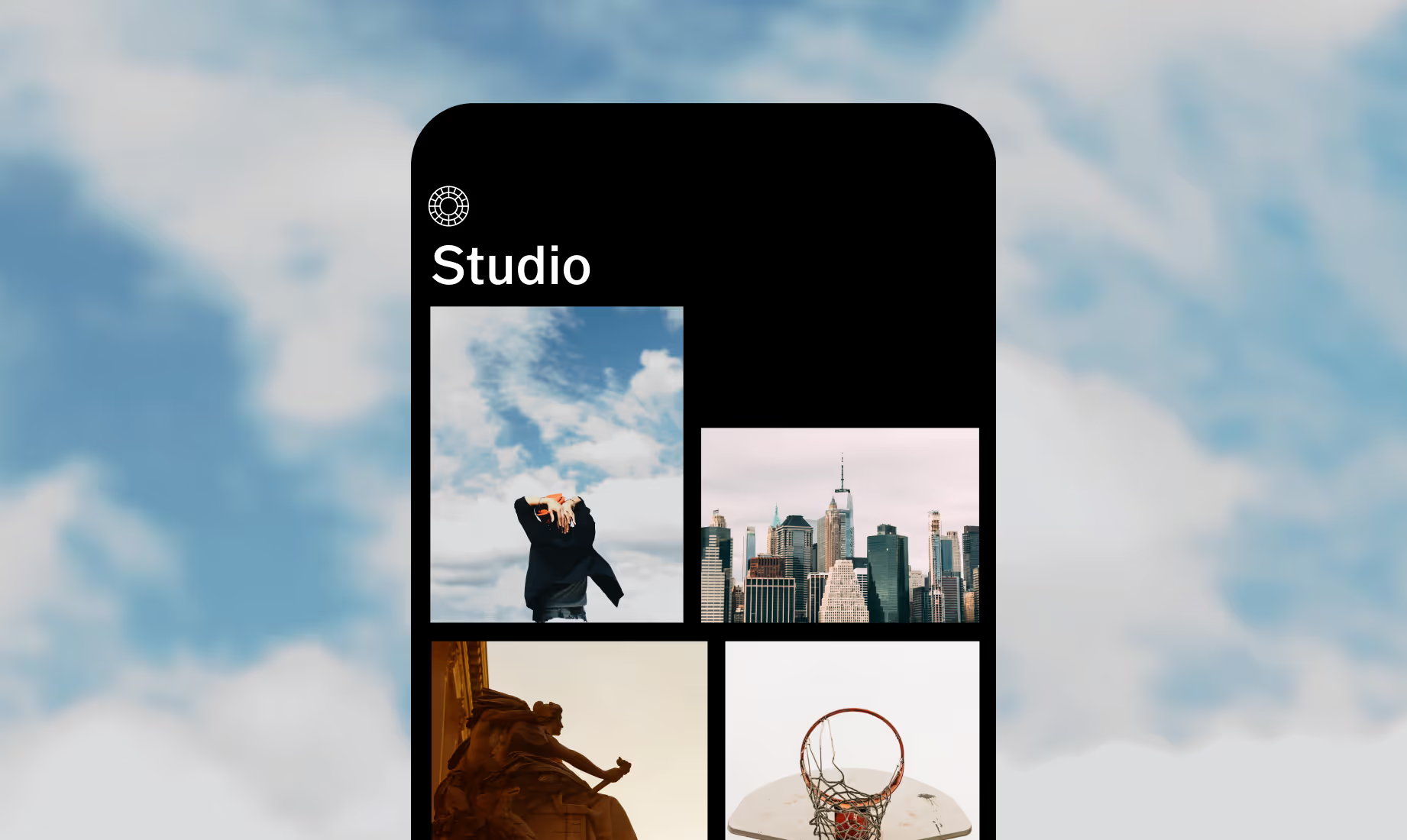
Download VSCO
Your style shouldn't get lost behind sliders. Download VSCO and start saving Recipes that make every photo feel like your best.



Frequently asked questions
What are VSCO Recipes?
VSCO Recipes are saved editing stacks—combinations of presets, filters, effects, and tool adjustments that you can apply to any photo or video in a single tap. Think of a Recipe as your signature look, saved and ready to use. Edit a photo the way you want it, save those settings as a Recipe, and recreate that exact look anytime
How do VSCO Recipes differ from presets or filters?
A preset applies one set of values. A Recipe can combine a customized preset and any additional tool adjustments you've set—Grain, Tone, Saturation, Film FX, White Balance, and more. It's the difference between a filter and a full edit. Recipes are also entirely custom-made by you and specific to your style, not pulled from a predefined library.
Can you batch edit photos with VSCO Recipes?
VSCO Recipes are designed to speed up editing by applying saved looks quickly, but applying them to multiple images at once may require copying edits between photos depending on your workflow. Recipes primarily help you recreate edits consistently rather than fully automate bulk editing.
For photographers who need to apply edits across an entire shoot at once, the free VSCO Studio Pro app takes batch photo editing further. Import and edit up to 100 photos at once, apply your look in one tap, and export a full-resolution set in minutes.
How do you create and use a VSCO Recipe?
Edit any photo or video in your Studio until it looks exactly right. Then tap the Recipes icon—you'll see a list of every edit currently applied. Hit the + icon to save those edits as a new Recipe. From there, select any image or video, tap your Recipe, and that same look is applied instantly. Fine-tune from there if needed.
Why should photographers use VSCO Recipes?
Because building your look from scratch every time means less time behind the lens and inconsistent results. VSCO Recipes let you define your aesthetic once, and save it. They keep your portfolio cohesive, your client deliverables consistent, and your editing sessions short. And because Recipes are fully customizable you can update as your style evolves
Tools that refine the look
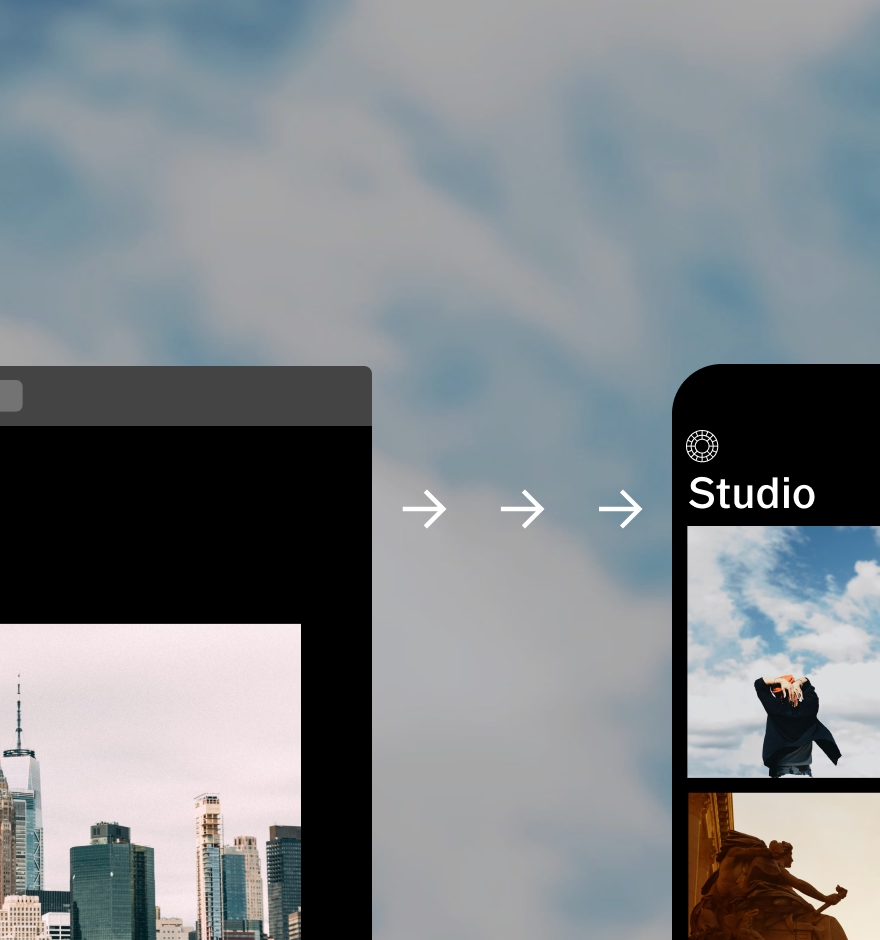
Recipes save your signature edits, and these tools help you perfect them. Use the photo editor to apply tools and presets at full resolution, Tone to recover highlights and lift shadows, and White Balance to correct or stylize color temperature and tint.
PHOTO EDITOR
TONE
Recover detail and balance exposure. Tone lifts shadows, tames highlights, and enhances dynamic range.
White Balance
Correct and shape color with temperature and tint. Neutralize mixed light or move between warm and cool.