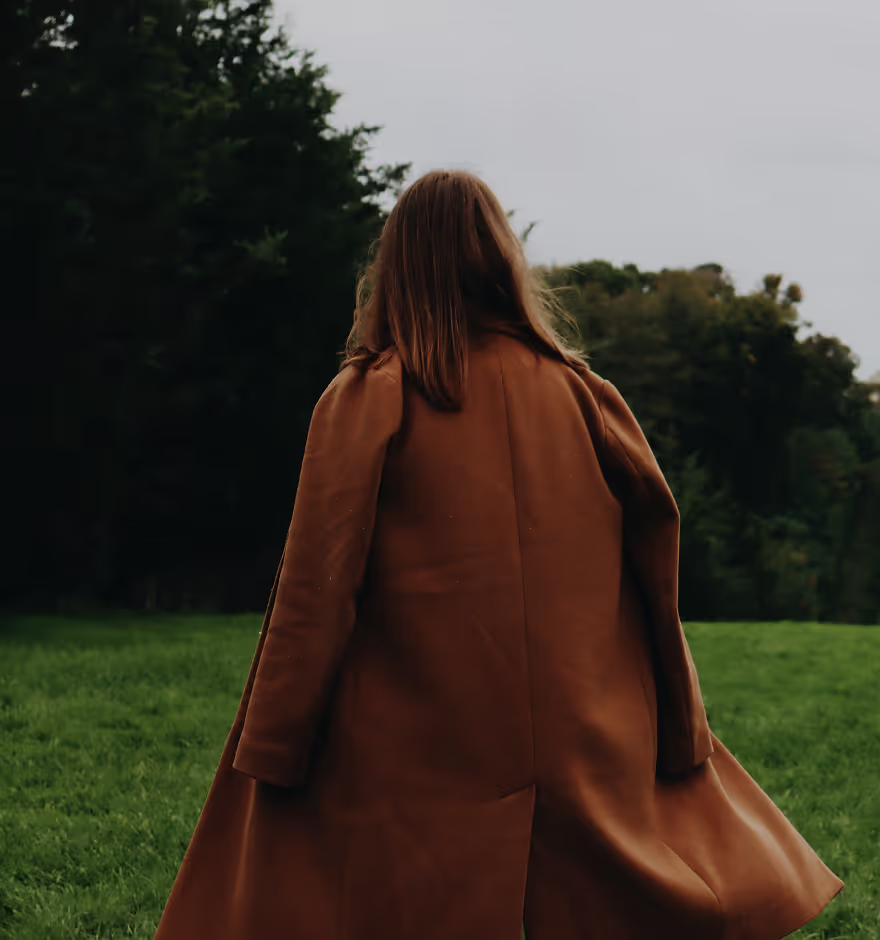
Skin Tone
Correct color casts and let your subject’s natural hues shine with the Skin Tone editor.
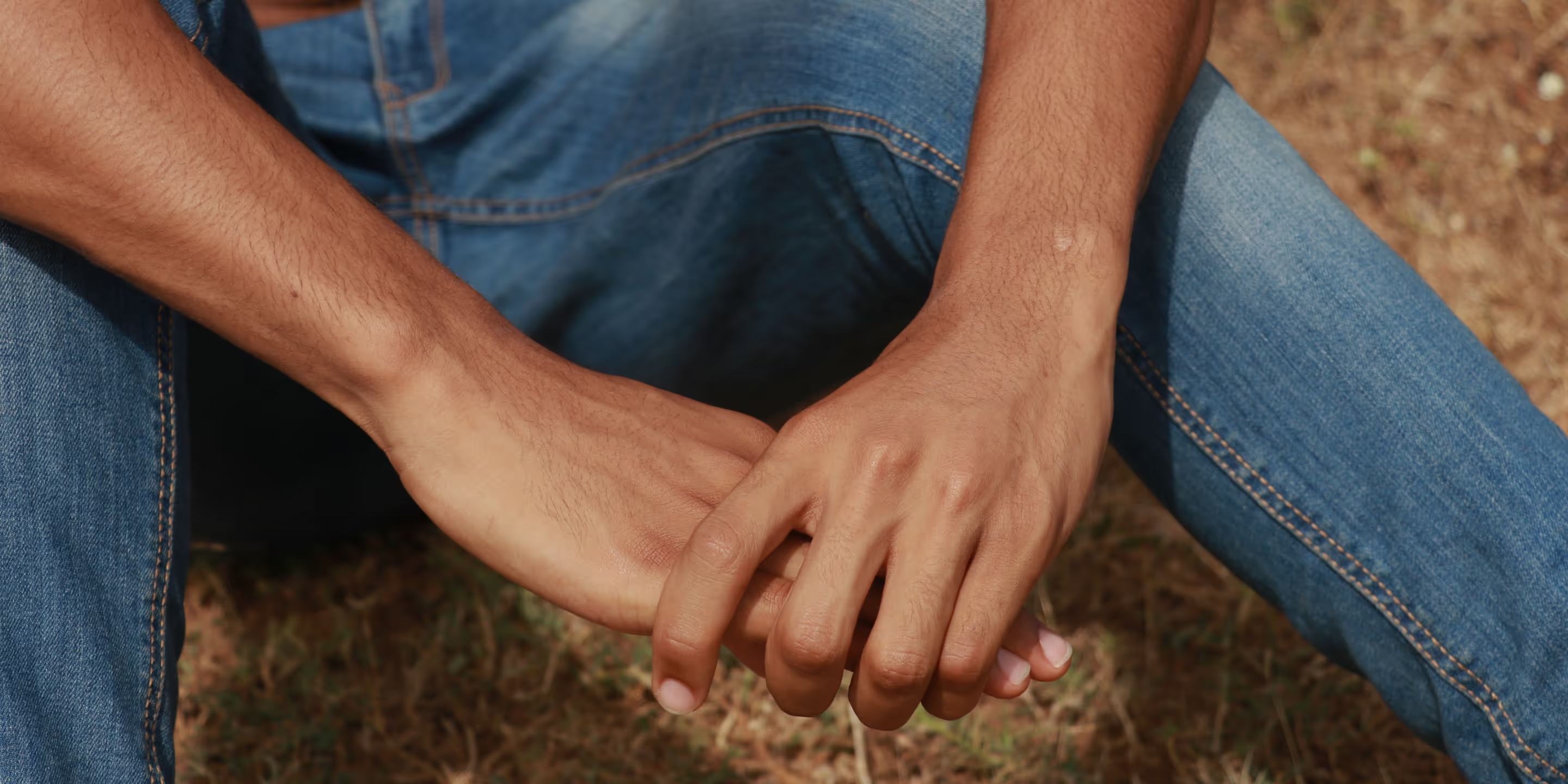
Reduce unwanted red and green skin tints for more natural feeling colors and portraits. Use VSCO’s photo and video editor to try the Skin Tone tool.
VSCO is a community-driven platform that equips photographers to expand creatively and professionally. Join today to build authentic connections that foster professional growth and to edit photos and videos with our full suite of tools. Invest in your creativity with a VSCO Membership.
Skin, as you see it
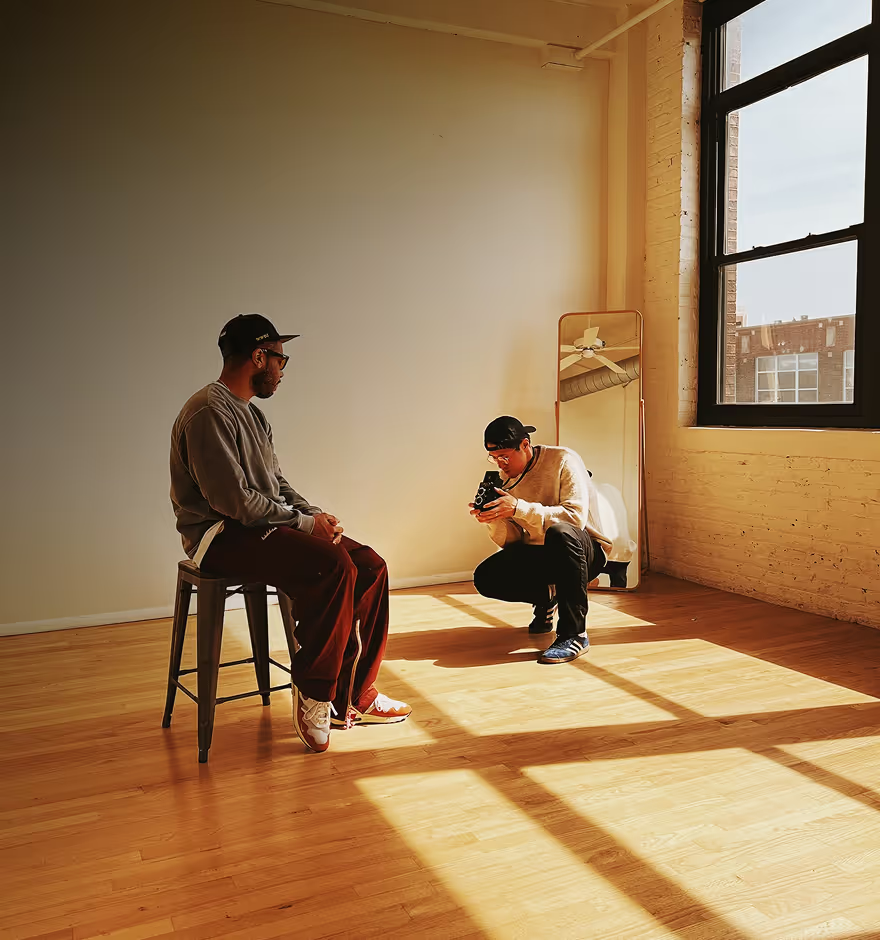
Photos can’t always show the world as we see it — getting the perfect ambiance, and colors, to match your senses is a subtle art. The Skin Tone editor helps target a wide range of skin colors to correct off tints so that the subjects in your images feel just right.
Portraits, in any light
Mixed and artificial can create off-putting color casts and tints, especially for portraits. The Skin Tone editor helps preserve natural skin tones, while correcting hues that create unwanted tints.
Find the perfect preset
Combine Skin Tone with a photo preset that can enhance any portrait. Use Portrait photo filters to try looks like Kodak Portra inspired KP2 and KP8.
More tools to try
Complement Skin Tone with other professional editing tools and photo effects. Find the perfect white balance, blur image backgrounds with a blur effect, or target individual hues with the HSL editor.
How to edit skin tone in photos
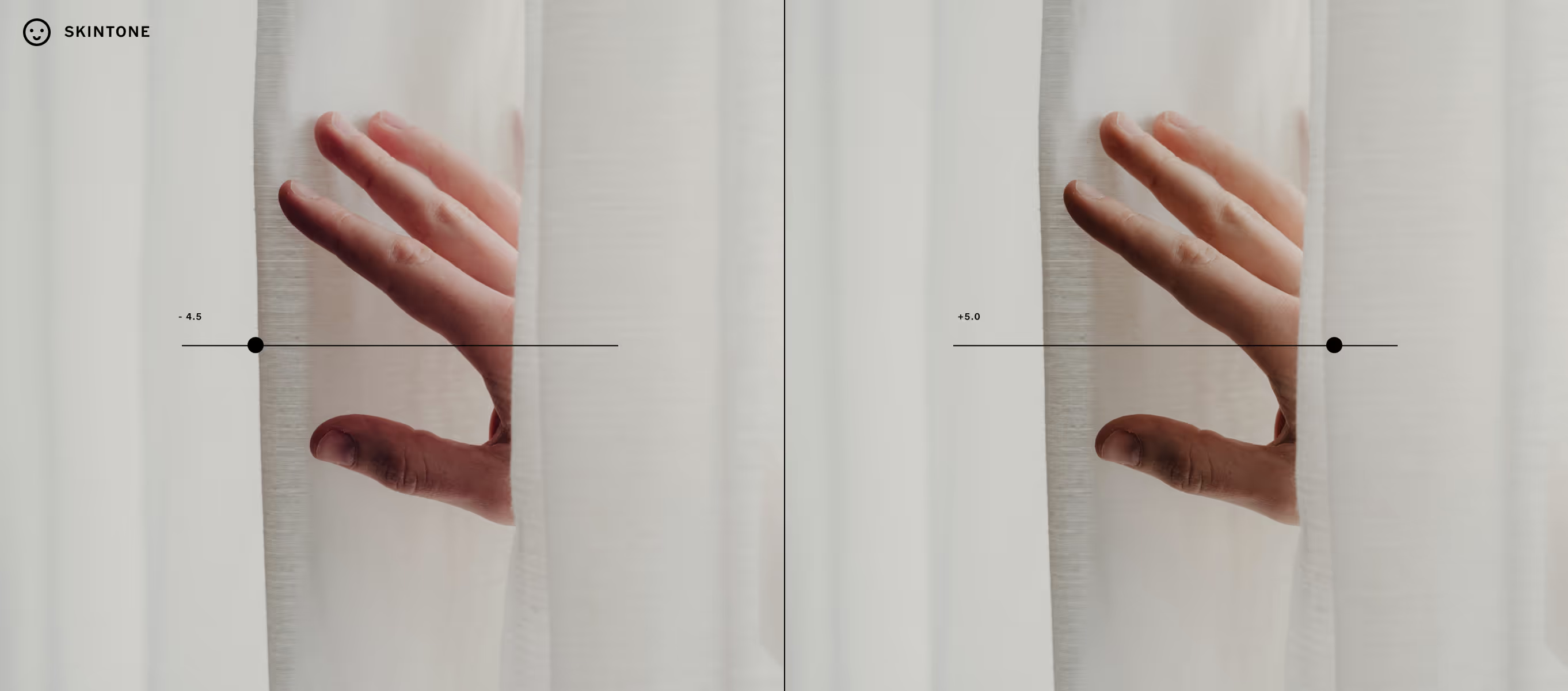
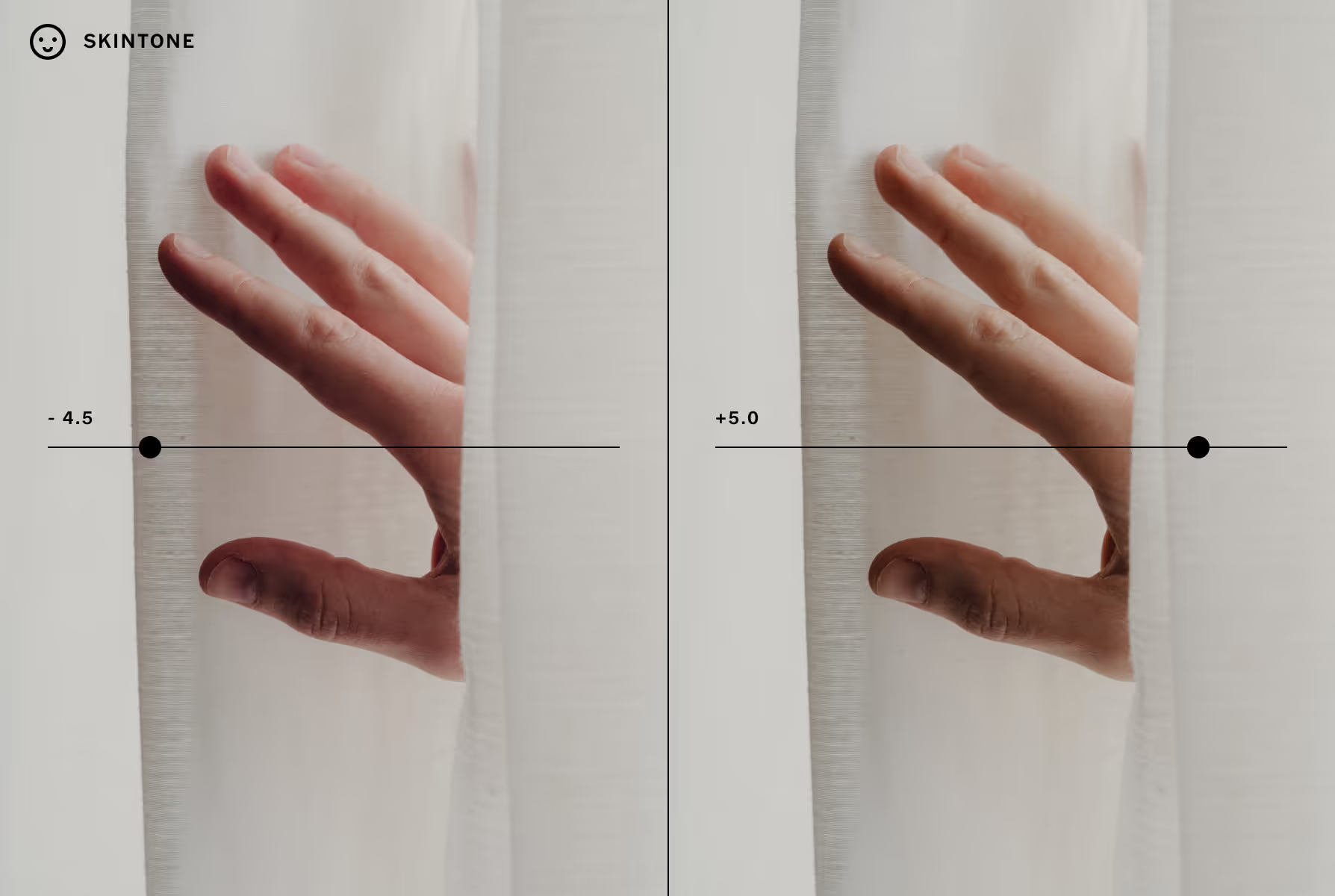
Capture or import images and videos with the VSCO photo editing app and use your Studio to access and select the Skin Tone editor. To reduce green casts, slide to the left, to correct any red tints, slide to the right. Long press your image after editing to preview before and after looks.
Frequently asked questions
What does the skin tone editor do?
How can I reduce skin redness in photos?
To reduce skin redness, use the skin tone editor in the VSCO app and slide the adjustment to the right. It’s an easy way to edit skin tone for a more balanced and lifelike color.
How to fix green skin tone in photos?
To fix a green skin tone or color cast in a photo, open the VSCO skin tone editor and slide to the left to warm up the tone. This photo skin tone editor helps restore natural hues with one simple adjustment.
Can I adjust skin tone in both photos and videos?
When should I use the skin tone tool instead of HSL?
Use the skin tone editor when you want to adjust skin hues specifically without affecting other colors. The HSL editor is better for adjusting a range of specific colors across a photo or video, while the skin tone editor is designed to target just skin.
Does the skin tone tool affect other colors in the image?
No, VSCO’s skin tone editor is designed to affect only skin tones without shifting the overall color palette. It’s a focused way to edit skin tone without disrupting your full image.
Can I save skin tone edits as a preset?
Yes, VSCO allows you to save skin tone edits as part of a custom preset recipe. This makes it easy to batch edit images and apply your favorite skin tone corrections across multiple photos.
MORE PHOTO EDITING TOOLS
Skin Tone helps correct color casts and make subjects look true to life. Pair it with White Balance to fix overall temperature and tint, Exposure to balance brightness, and HSL to refine individual hues for confident, consistent results.
White Balance
Temperature and tint sliders fix mixed light and let you push for a warmer or cooler mood that matches what you see.

EDIT Exposure
Adjust overall brightness to achieve balanced, natural lighting for every skin tone, scene, and subject.
Hue, Saturation, Lightness
Edit specific colors without touching the rest of the frame. Shift hues, tweak saturation, or adjust lightness.