ADD Text TO PHOTOS
Customize and add text to photos and videos with the Text editor tool from VSCO.
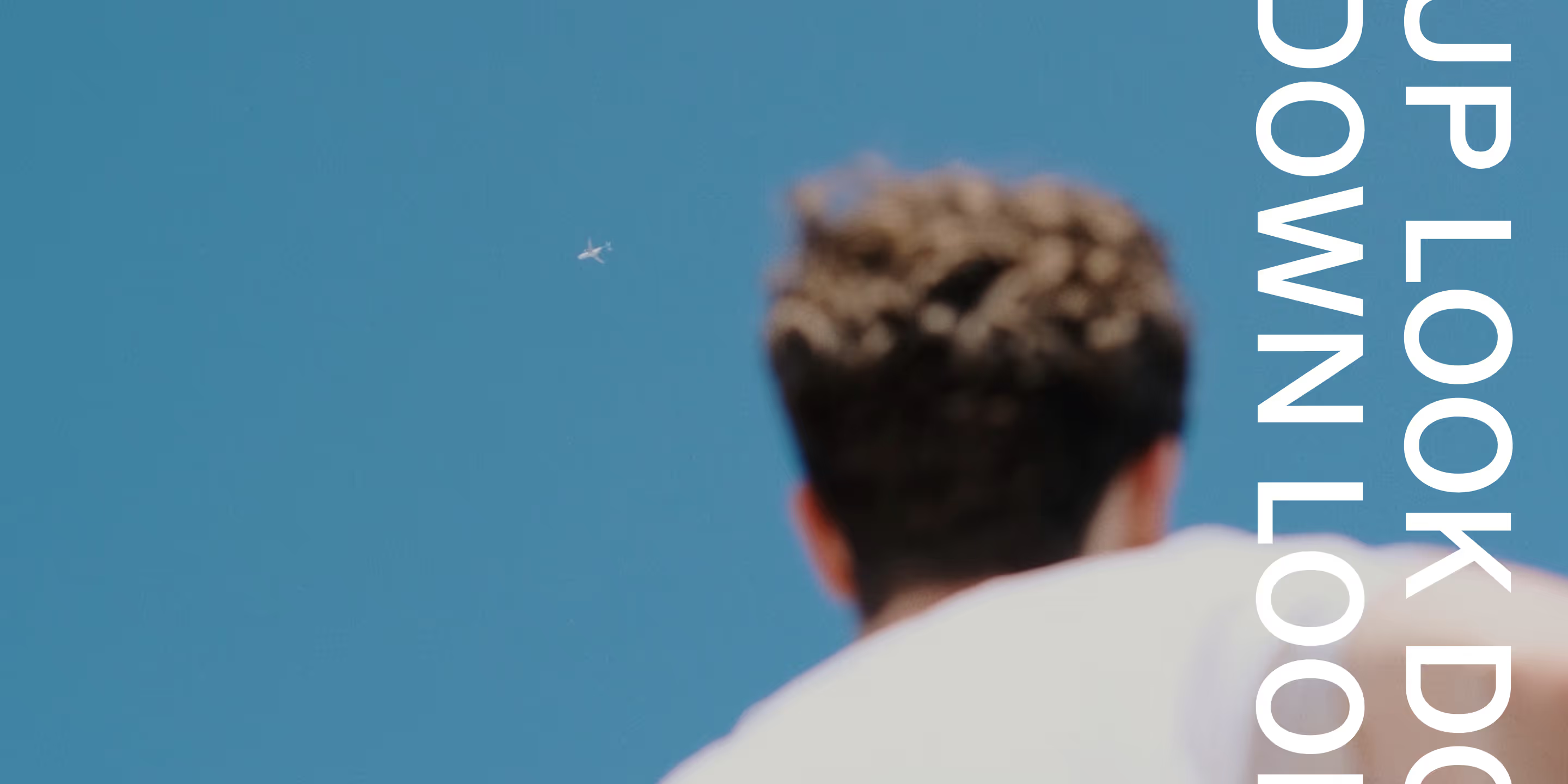

Add text to photos and videos with the VSCO mobile app. Use the text editor tool to switch color, adjust size, swap fonts, align, and rotate text.
VSCO is a community-driven platform that equips photographers to expand creatively and professionally. Join today to build authentic connections that foster professional growth and to edit photos and videos with our full suite of tools. Invest in your creativity with a VSCO Membership.
Say it your way
Do more with your photos and videos by adding designer text. Find the perfect style to complement or contrast your composition with endless custom text on photo combinations.
Make a statement
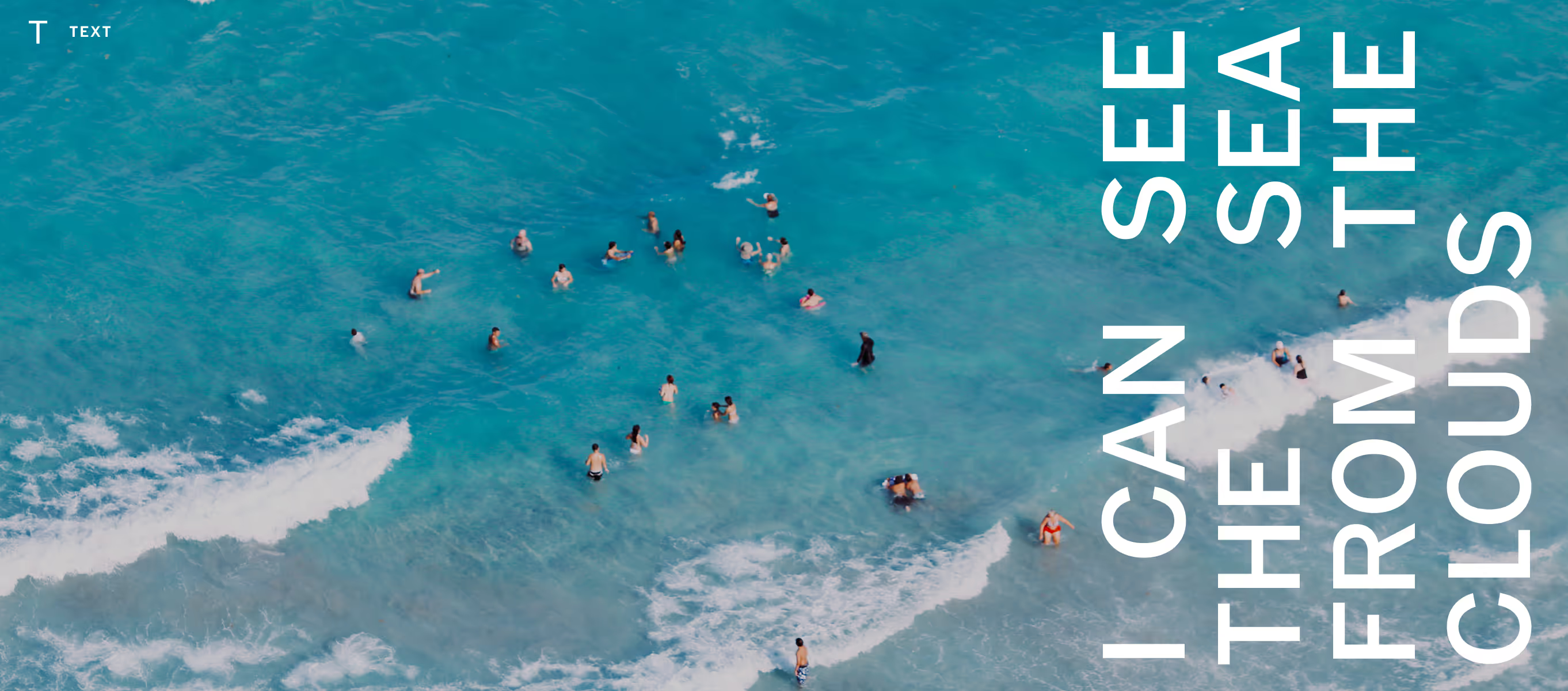
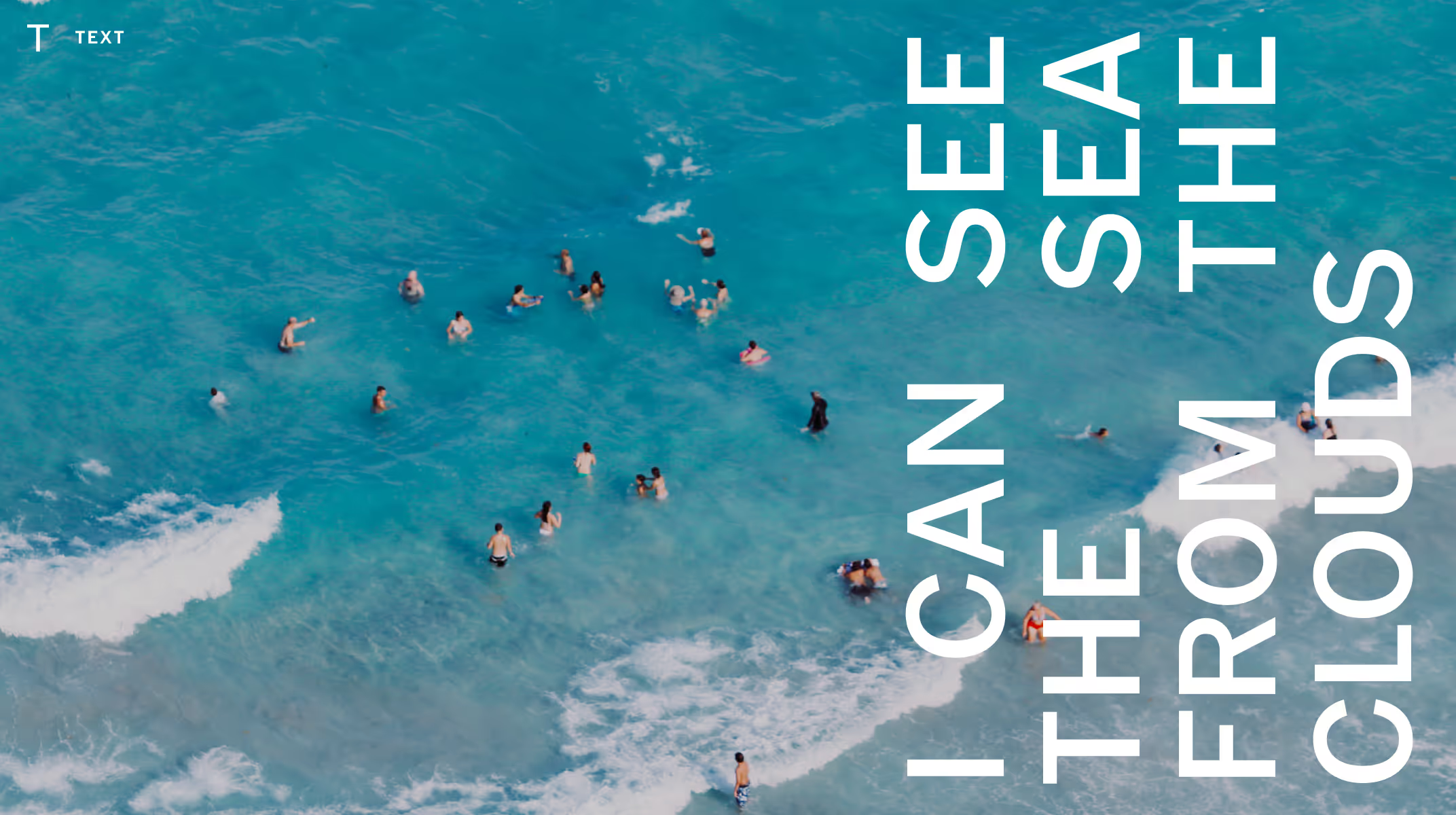
Get that designer look without blending in with the crowd. Text on VSCO is bold, beautiful, and simple — leaving plenty of space for both you and your work to speak for themselves.
Align and rotate text
Tap the align and rotate icons to move text throughout your photo and video compositions. Go from left to right to center with align, or move text from corner to corner with rotate.
Find your style
Customize text to create a unique look that matches your aesthetic. Pick a color from our palette or create a custom swatch from any part of your frame. Easily switch font styles and perfectly scale your text.
How to add text to photos & videos
Capture or import photos or videos with the VSCO app and use the photo editor to access the Text tool. Tap on your video or image to start typing your text. Use the color picker to select a custom color for the text. Select tools in the menu to adjust text size, style, alignment, and rotation to complement your photo or video. Try a Pro preset to finish your edit before exporting or publishing to your profile.
Frequently asked questions
What does the VSCO text tool do for my photos and videos?
VSCO’s text tool enables you to place custom text overlays on both photos and videos, adjust font style, size, color, alignment, and rotation directly within the VSCO editor.
Can I add text to photo collages in the VSCO app?
Yes. If you’ve added text to photos, you can then add them into a collage.
Are there different fonts available when adding text?
Yes. Within the text editor you can switch between font styles to find one that complements the look and mood of your photo or video.
How do I change the color of my text?
After inserting text, use the color palette or sample from your photo with the custom picker to set text color that matches your aesthetic.
Can I scale or rotate text once it’s on my photo?
Absolutely. VSCO gives you intuitive controls to resize, align, and rotate text so it fits your composition perfectly.
How do you make text readable on busy or complex photo backgrounds?
Increase contrast before adding text by adjusting exposure, highlights, or shadows in the VSCO editor. Place dark text on lighter areas of the image, or light text on darker areas, and position text where the background is visually quieter. You can also use subtle tools like Vignette to create natural separation between the text and the photo.
Will adding text affect the quality of my photo or video?
No. VSCO preserves the resolution of your original file when you add text, so long as you export using high-quality settings in the app. If you want more resolution than your original file, try the Upscale tool in AI Lab.
PHOTO COLLAGE MAKER
Resize, crop, rotate, flip, mirror, and rearrange images using VSCO’s collage maker.
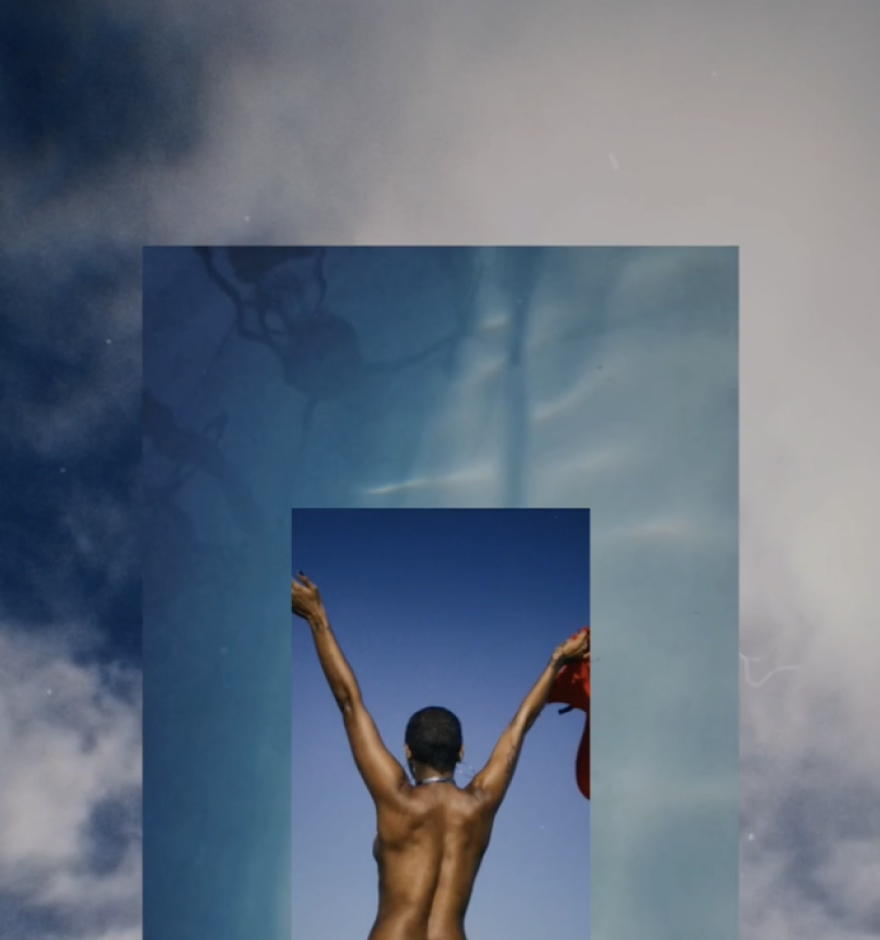
Add photo Borders
Frame your images using adjustable borders and customizable colors.
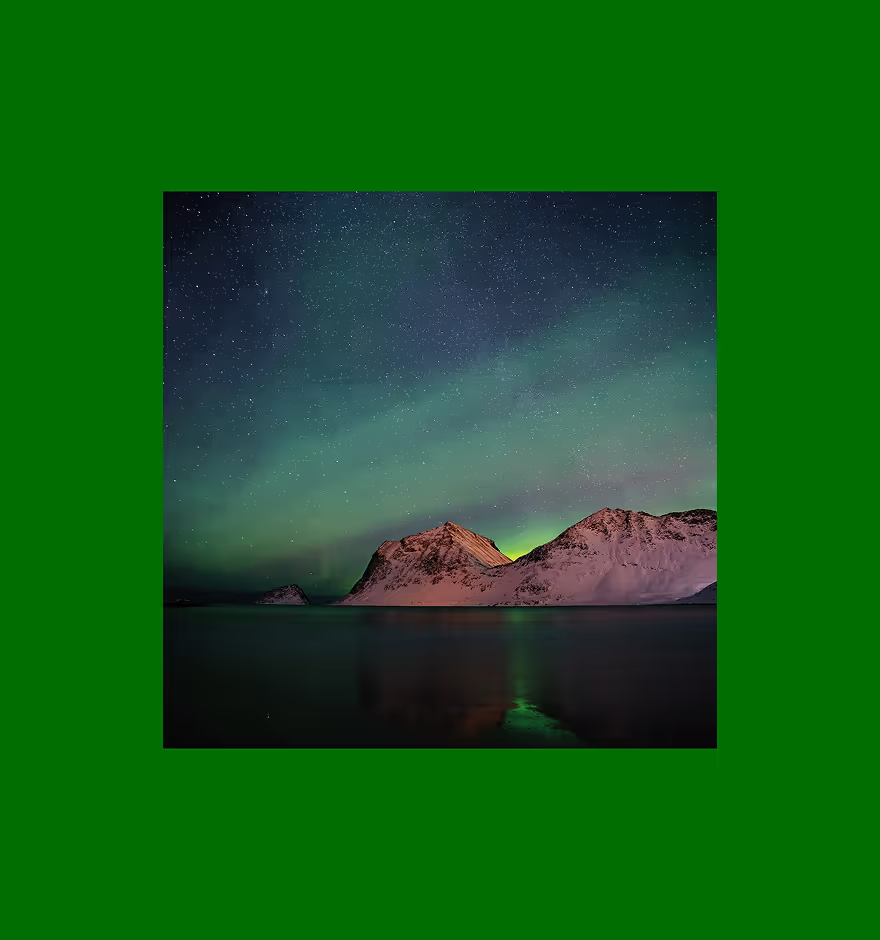
Crop Your Composition
Create the perfect composition with tools for cropping, straightening, and skewing.