Split Tone
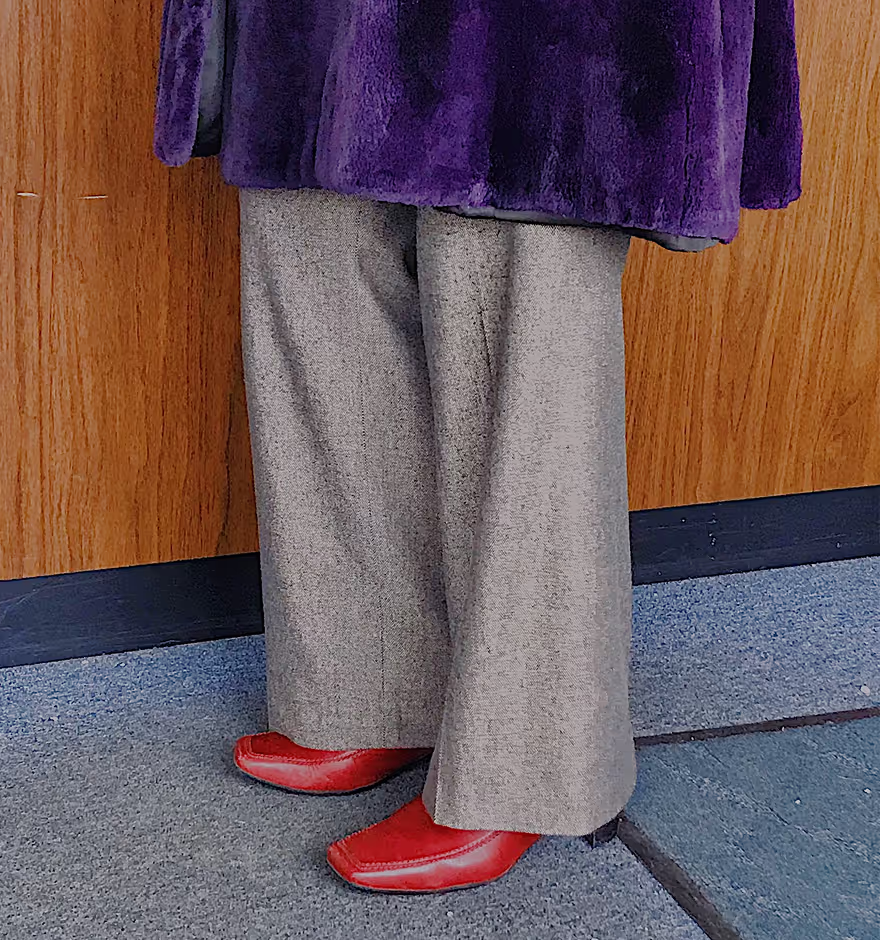
Add color tints to shadows and highlights with VSCO's Split Tone image color editor.

Create a dreamy pastel aesthetic with Split Tone in the VSCO photo editing app. Target shadows or highlights and add subtle color tints to any photo or video.
VSCO is a community-driven platform that equips photographers to expand creatively and professionally. Join today to build authentic connections that foster professional growth and to edit photos and videos with our full suite of tools. Invest in your creativity with a VSCO Membership.
Soft, colorful hues
Inspired by real vintage film effects, Split Tone is a color tint photo editor that brings a full spectrum of color to add to images and videos. Independently edit shadows and highlights and create color tint combinations that can contrast or complement your look.


Pick your palette
Craft your color tint palette with six colors to choose from in both shadows and highlights. Combine complementary colors or create a pastel sepia tone edit with warm colored highlights.
Monochrome tints
Color toning was first used as a way to colorize black and white film. Combine the Split Tone editor with a monochrome preset like B1 and watch the colors emerge from shades of gray.
Combine with film effects
With its vintage roots, the color tint photo editor combines flawlessly with VSCO’s Film FX. Complement your photo edit by adding some light leaks, a film frame, or unique distressed textures.
How to add color tint to photos with Split Tone
Capture or import photos or videos with the VSCO mobile app and use the editor to access the Split Tone tool. Select the image you’d like to tint with Shadows Tint or Highlights Tint. Use the color swatches to select a color tint to add and adjust the slider to go from strong to subtle.
Frequently asked questions
What is split tone in photo editing?
How can I change the color tint of photos?
VSCO is a photo color editor that lets you adjust image color and add a custom color tint using the Split Tone tool. Choose a highlight or shadow color tint and fine-tune the strength with a slider.
How do I add color tint to a video?
VSCO’s Split Tone tool works on both photos and videos in the mobile app for iPhone and Android. Just import your video into the video editor and use the color tinter to add a unique color tint to highlights or shadows.
What’s the difference between split tone and color grading?
Split tone is a type of color grading that focuses specifically on adding tints to highlights and shadows. Color grading often includes broader tools (or our color grading photo filters), but split tone is a quick way to create a specific mood or a vintage look.
Can I use split tone with other editing tools like filters or grain?
Yes, VSCO offers split tone color grading that works great with filters and photo effects like Film FX, or Grain for a full film-inspired edit. Add light leaks, frame overlays, or texture after applying your color tint.
How can I add a sepia tone to photos?
Use the Split Tone tool in VSCO and select warm color tints like orange or yellow for both highlights and shadows to create a sepia tone effect. It’s an easy way to add a timeless color tint to your image.
Can the split tone editor make photos look like film?
Yes, the split tone photo editor from VSCO is inspired by film photography and works perfectly with VSCO film filters to create authentic, retro looks. Try combining it with Grain or vintage filters for even more film-style edits.
KEEP EDITING WITH MORE TOOLS
Push your edits further with precise control. Combine Split Tone with black and white filters to master tonal range, the photo clarity editor to elevate texture, and the image sharpener to give your final image a polished finish.
BLACK AND WHITE FILTERS
Convert color images into black and white in one tap. Emphasize contrast, light, and shadow.
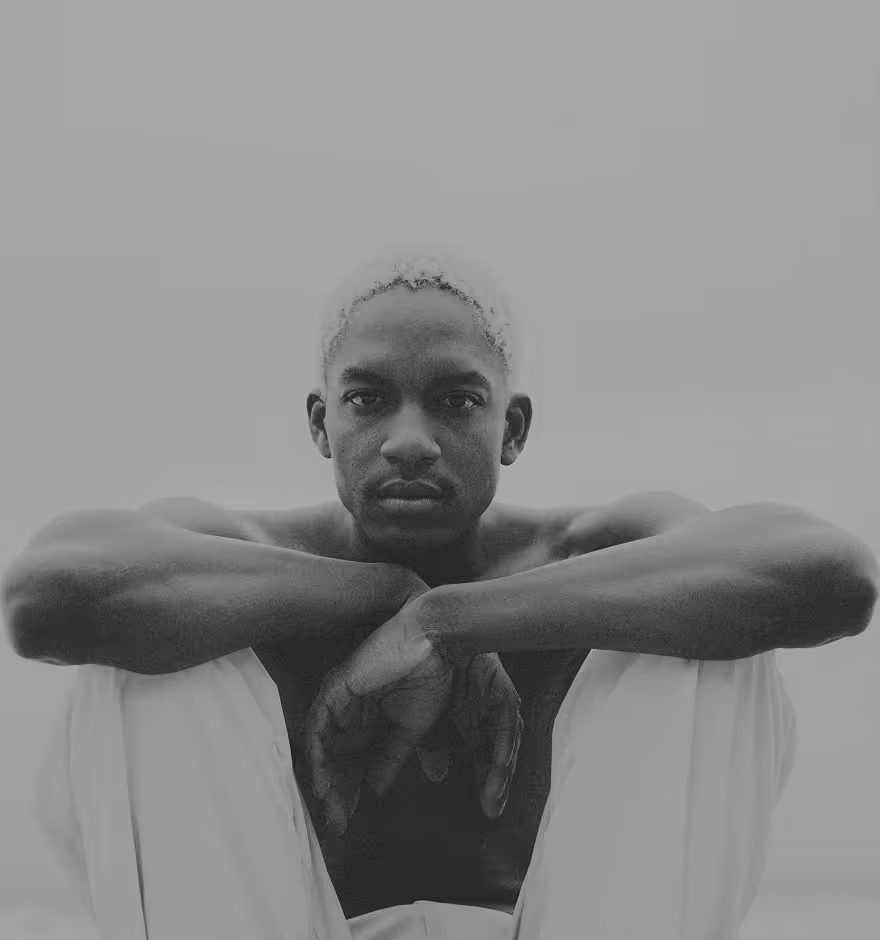
Photo clarity
Clarity enhances texture and mid-tone contrast, perfect for emphasizing detail while keeping a natural feel.

SHARPEN IMAGES
The image sharpener enhances fine detail and edge definition so every element feels polished and in focus.