Video Volume
Cut through the noise — edit and adjust audio volume with the VSCO video editor.
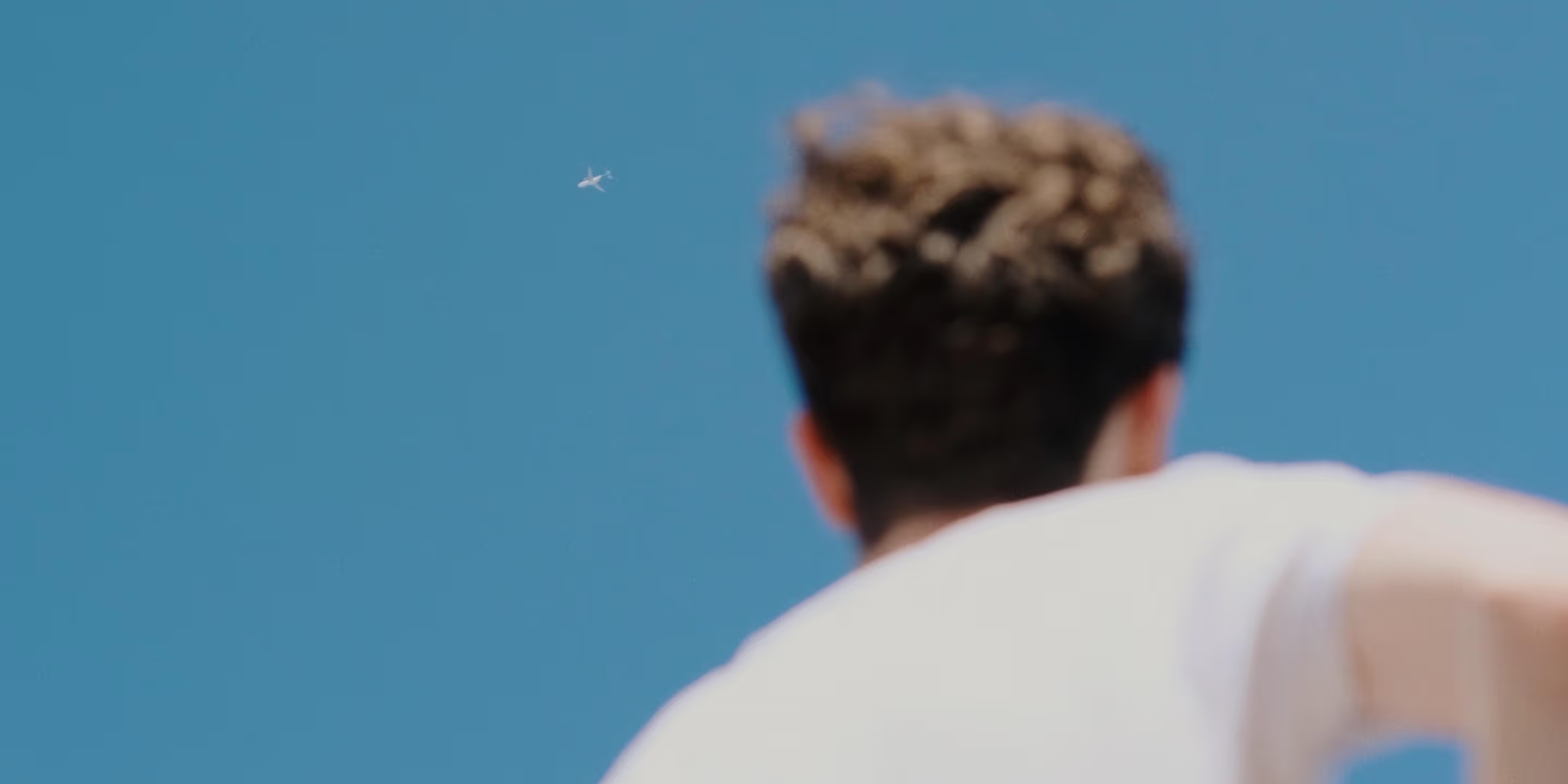
Easily change video volume with the VSCO mobile video editing app. Use the simple slider to reduce or remove video audio from the original level.
VSCO is a community-driven platform that equips photographers to expand creatively and professionally. Join today to build authentic connections that foster professional growth and to edit photos and videos with our full suite of tools. Invest in your creativity with a VSCO Membership.
Advanced video editing
With VSCO, you can take full control of your video editing on the go. From audio control with Volume, to the video Trim and Text tools – you can edit from start to finish in one app. When you’re done, unite photos and videos into a story of your own with Montage.


Control the noise
Use the Volume tool to change video volume with one slider. Start from the original audio and fine tune your way down to find the perfect audio volume for your film edit.
Remove video audio
With the Volume tool you can use the slider to mute videos by decreasing volume all the way down to zero. With media kept in your Studio, you can go back and undo changes at any time.
Merge with Montage
After you find the perfect volume for your clips, you can merge and combine photo and video scenes with Montage. Publish to your VSCO profile or export to save on your camera roll.
How to decrease or remove video audio
Capture or import videos with the VSCO mobile app. Select a video from your Studio and tap the editing icon to access the video editor. Tap the editing icon at the bottom of the screen to view all video editing tools – scroll to select Volume. Use the video volume changer to adjust volume down from the original audio. Slide the control all the way down to mute the video.
Frequently asked questions
How do I change the volume of a video in VSCO?
VSCO offers a video volume changer tool on iPhone and Android that lets you adjust video volume with a simple slider in the mobile video editor app.
Can I mute a video?
Yes, you can mute a video by setting the volume slider to 0%. VSCO’s video volume editor will export your clip with no sound.
Can I change volume in reverse or slow motion videos?
Yes, you can edit volume in reversed or slow motion videos using VSCO’s audio video editor on mobile.
Can I add a filter to a muted video?
Yes, VSCO lets you apply video filters and effects to muted videos so you can still shape the visual mood even without sound.
MORE VIDEO EDITING TOOLS
Adjusting volume gives your video the right balance between silence and sound. Combine it with Reverse to play clips backward for creative loops, Speed to stretch or compress motion, and the video trimmer to isolate the moments that matter.
VIDEO REVERSER
Play videos backwards and create seamless video loops with the reverse video editor.
SPEED UP OR SLOW DOWN VIDEOS
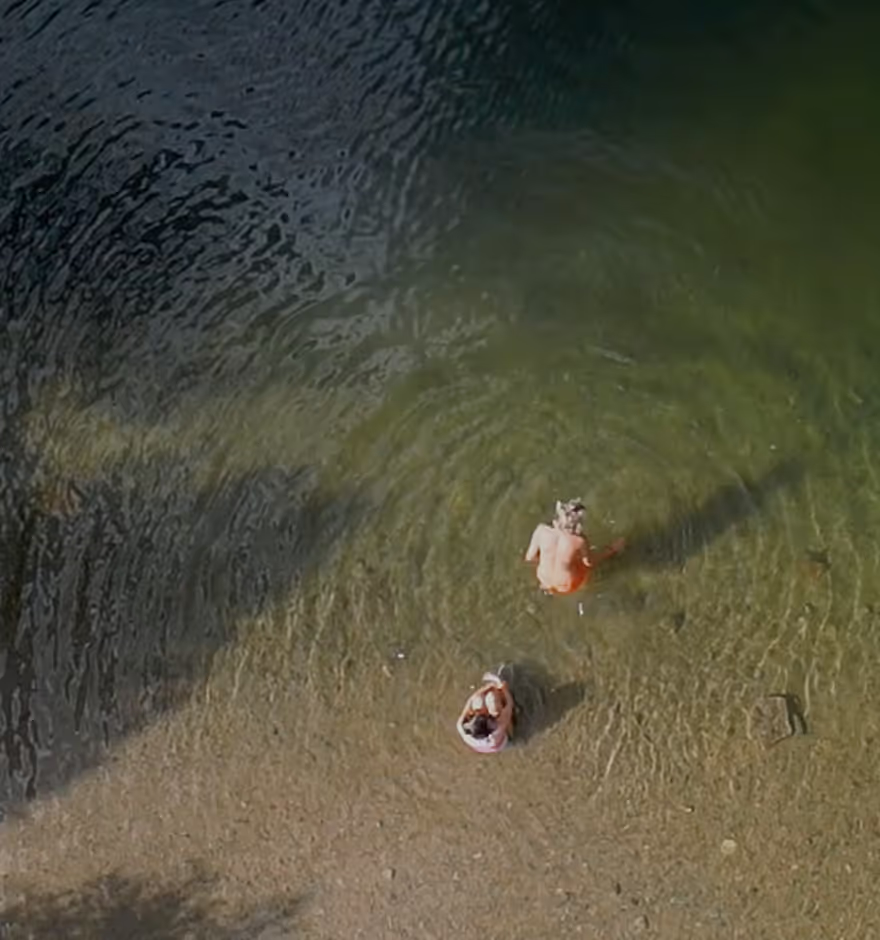
Stretch or compress time to enhance mood or rhythm. Go slo-mo or speed up videos for energy and impact.

VIDEO TRIMMER
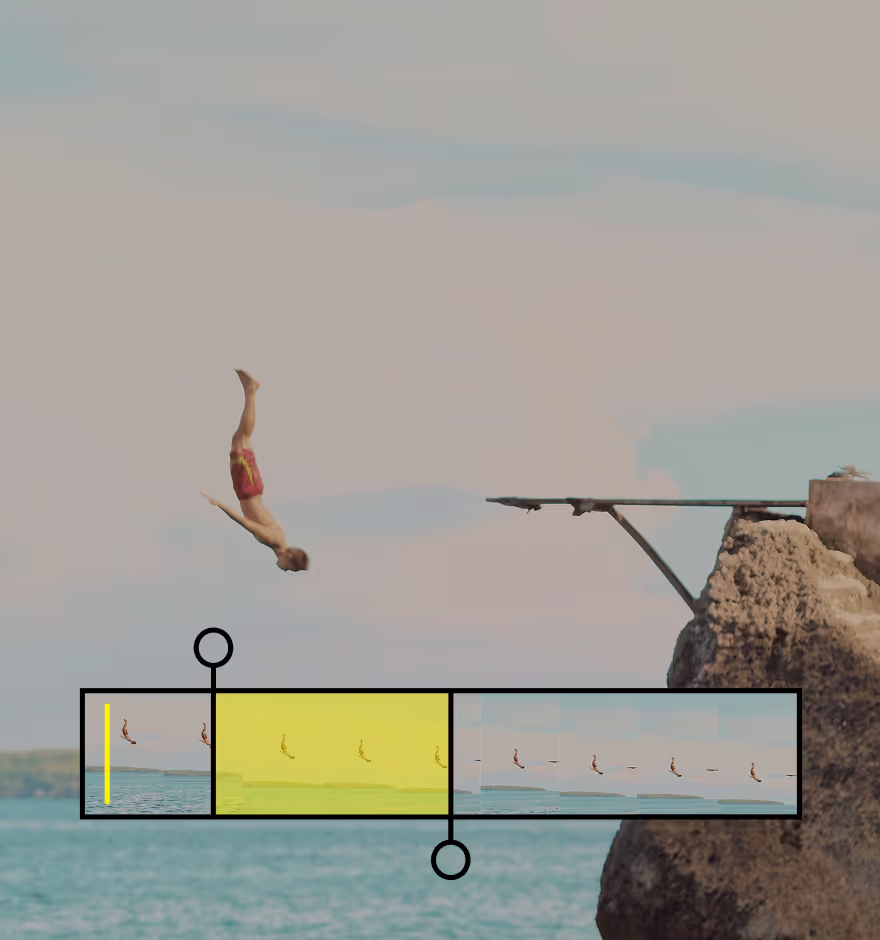
Trim videos and select precise start and end points to focus on the most important parts of your video edits.