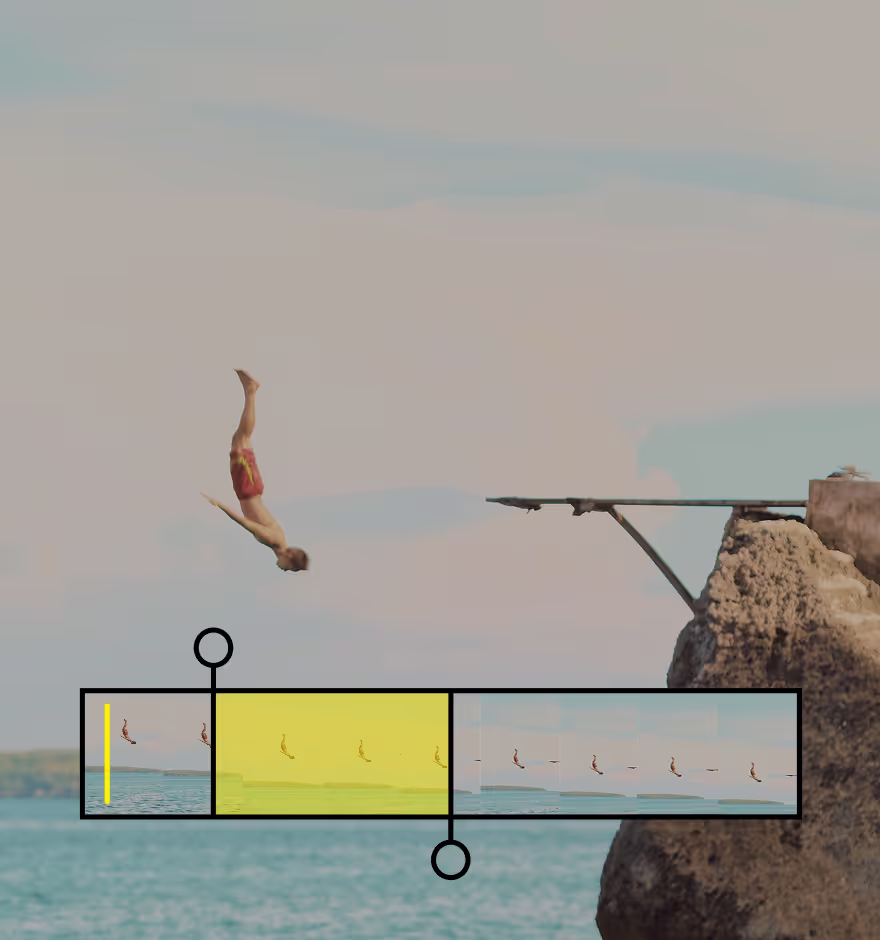
Remove audio from video
Silence distractions and give your visuals more impact with effortless video audio control in VSCO.

Make your videos look intentional
Easily mute or lower audio in any clip using VSCO’s intuitive volume tool.
Focus attention on visuals, refine mood, and create polished edits in seconds.
Import your video
Slide volume to mute
Export or share

Take Charge of Your Video Audio
Remove sound from videos for precise control without extra complexity. Adjust audio from its original level down to complete silence with one simple slider. All edits are non-destructive, letting you tweak audio anytime while your clips remain safely in your Studio.
Whether you’re muting a single clip or refining a full sequence, VSCO keeps your workflow flexible and fast.

How To Remove Audio From Video
Import a video from your camera roll directly in the VSCO video editing app.
Open the video editor, select the Volume tool, and slide the control down to mute the original sound.
Export your silent video, save it to your device, or publish it to your VSCO profile.

When To Remove Video Sound
Removing sound from video is ideal when visuals speak louder than audio. Mute clips for cinematic edits, looping visuals, or background footage where sound distracts from the mood. It works well for portraits, lifestyle scenes, travel footage, product shots, and abstract visuals.
Pair muted clips with video filters, Grain, or text overlays to guide attention. Edits are non-destructive, so you can revisit your volume adjustments anytime. Experiment freely and let your creativity guide the edit.

Edit iPhone, Android, and Digital Camera Files
VSCO supports the formats photographers actually use. Import MP4 videos from your iPhone, Android, DSLR, or mirrorless cameras and start editing instantly.
Work with everything from everyday clips to high-resolution 4K footage, then export at the same quality you captured.
Shoot video with VSCO Capture
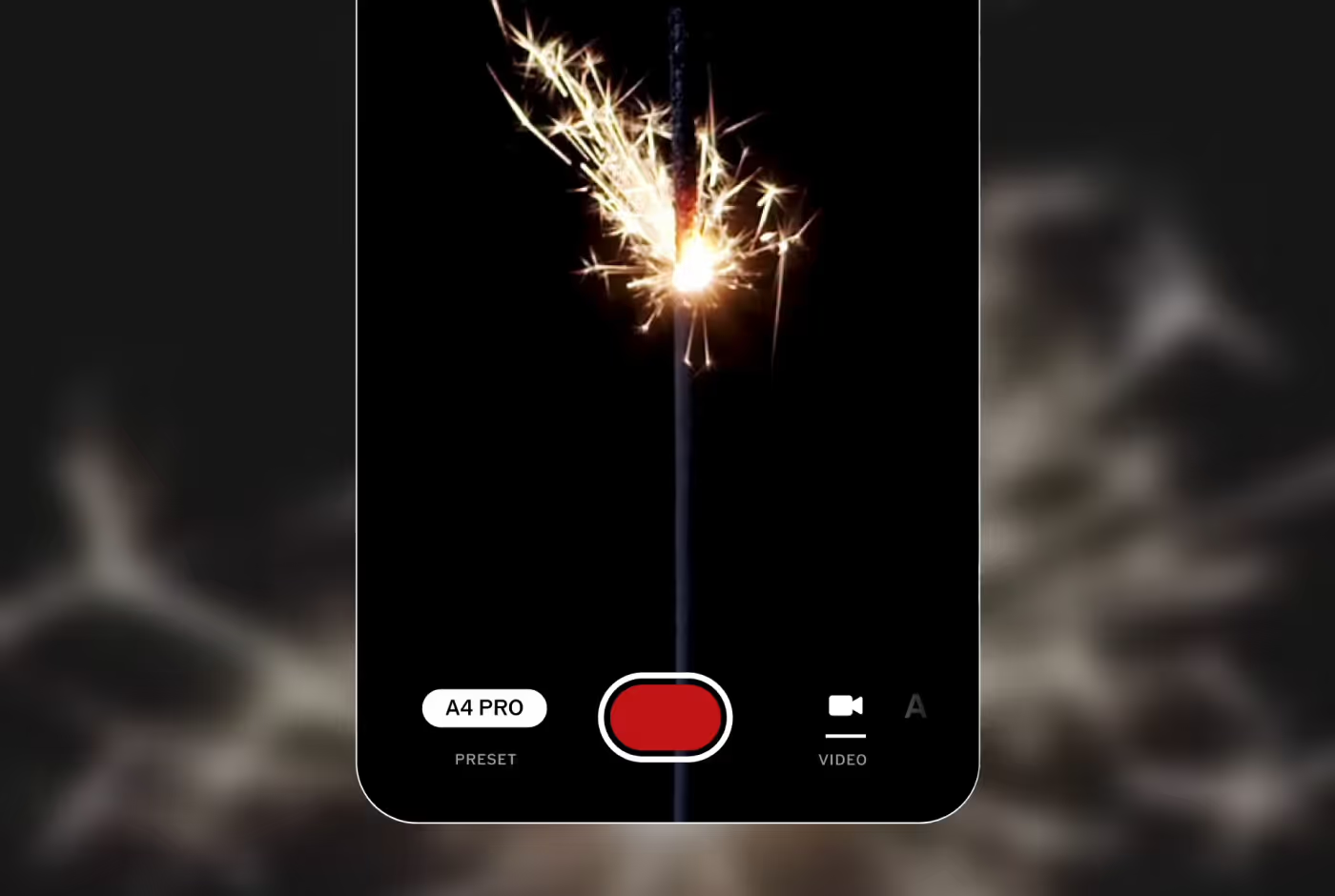
With VSCO Capture, you can record videos on your iPhone using VSCO’s live presets as you shoot. Then export your clips to the main VSCO app to access the video editor—trim for timing, mute audio, and color grade for a consistent aesthetic.




Frequently asked questions
Can I bring back the original audio later?
Yes. VSCO keeps your original source file safely stored in your Studio, even after you mute or lower the volume. You can return to your edit at any time to restore the original audio, fine-tune volume levels, or try a different approach without starting over.
Will muting lower video quality?
No. Removing or adjusting audio has no impact on visual quality. Your video’s resolution, clarity, and color remain exactly as edited, ensuring your final export looks just as sharp as the original footage.
Can I remove audio from only part of a clip?
Yes. Trim your video into sections, mute the desired segment using the Volume tool, then recombine clips in Montage for a smooth, continuous edit.
Does removing sound work with speed changes?
Absolutely. You can adjust playback speed and edit audio independently, giving you full creative control over timing and mood.
Reverse Video
Flip motion backward for cinematic loops or unexpected reveals.

Video Speed
Adjust video playback speed to shape rhythm and emphasize peak action.

Trim Video
Refine your clip by trimming the start or end, keeping only the best moments.