Crop videos
Get full control over framing with VSCO’s video cropper. Cut edges, resize for any aspect ratio, and crop videos with confidence.
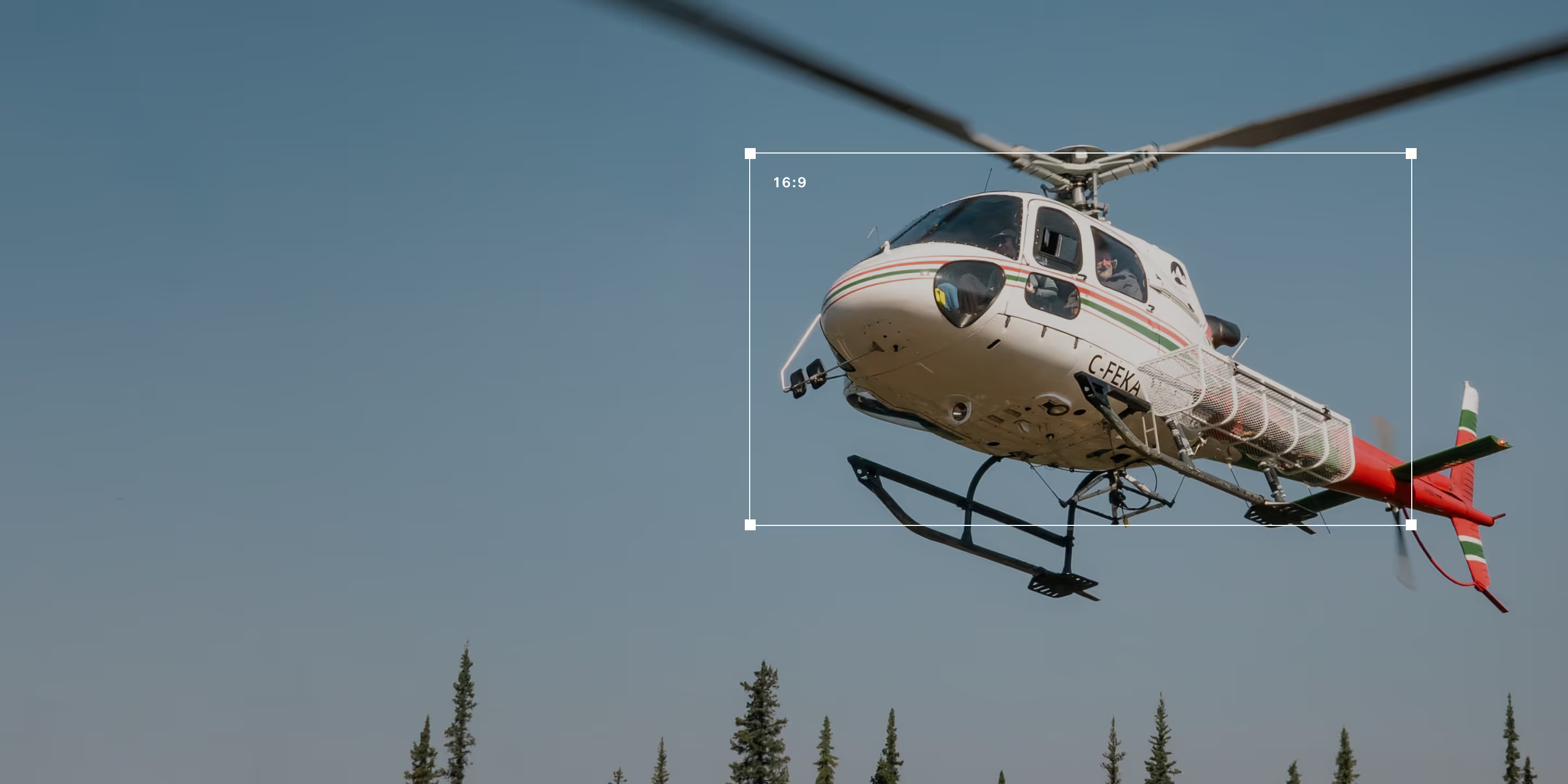
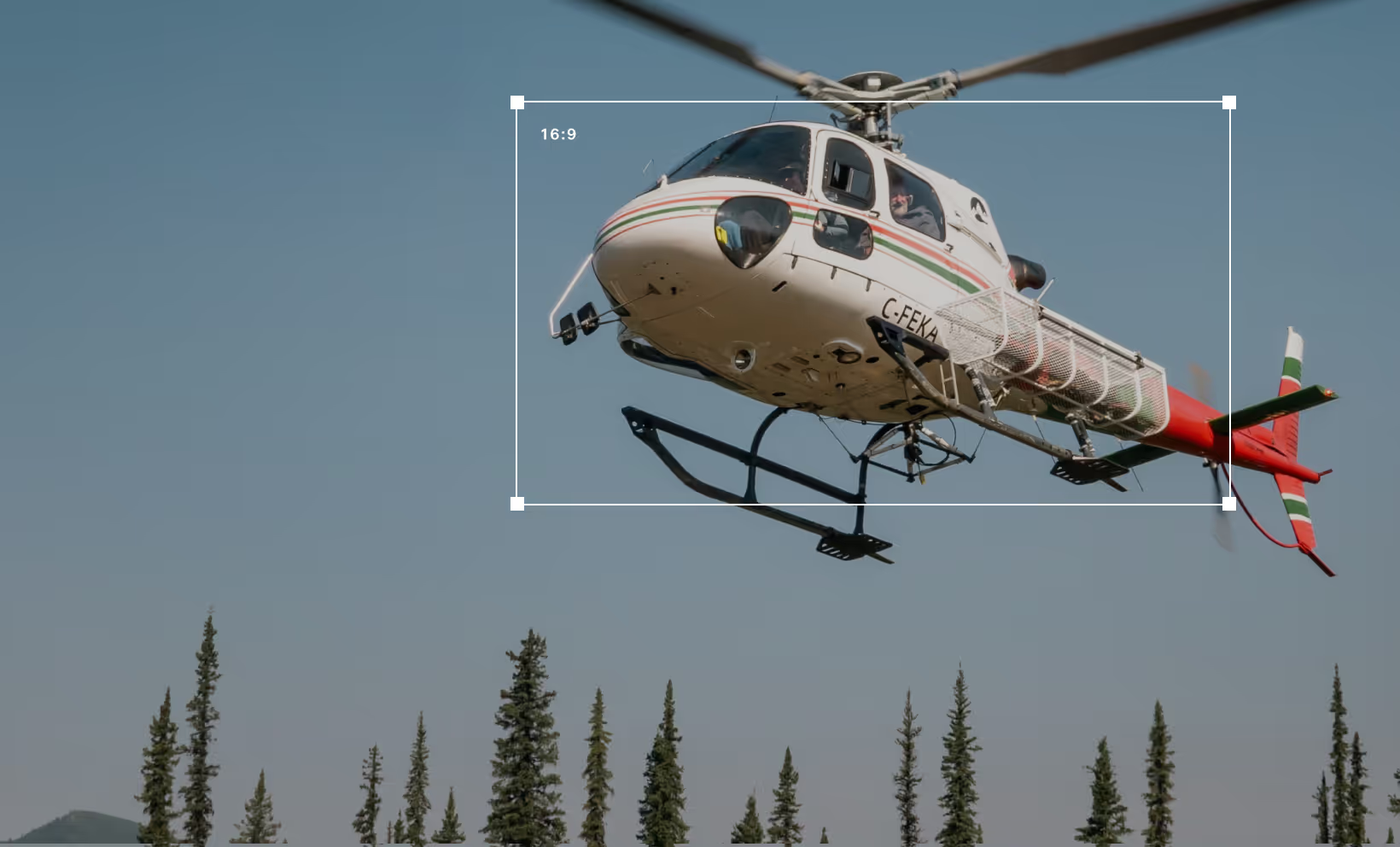
Adjust aspect ratios, remove unwanted edges, and fine-tune your video framing. Crop videos freely or use popular sizing formats with the VSCO editor.
VSCO is a community-driven platform that equips photographers to expand creatively and professionally. Join today to build authentic connections that foster professional growth and to edit photos and videos with our full suite of tools. Invest in your creativity with a VSCO Membership.
Crop videos
Crop and resize videos in the VSCO video editor app to fit any platform. Choose aspect ratios like 1:1 for Instagram, 9:16 for Reels or TikTok, and use grids to align your shots perfectly. Fine-tune your footage with tools to straighten, skew, and adjust framing, so every clip looks polished and ready to share.


Trim video length
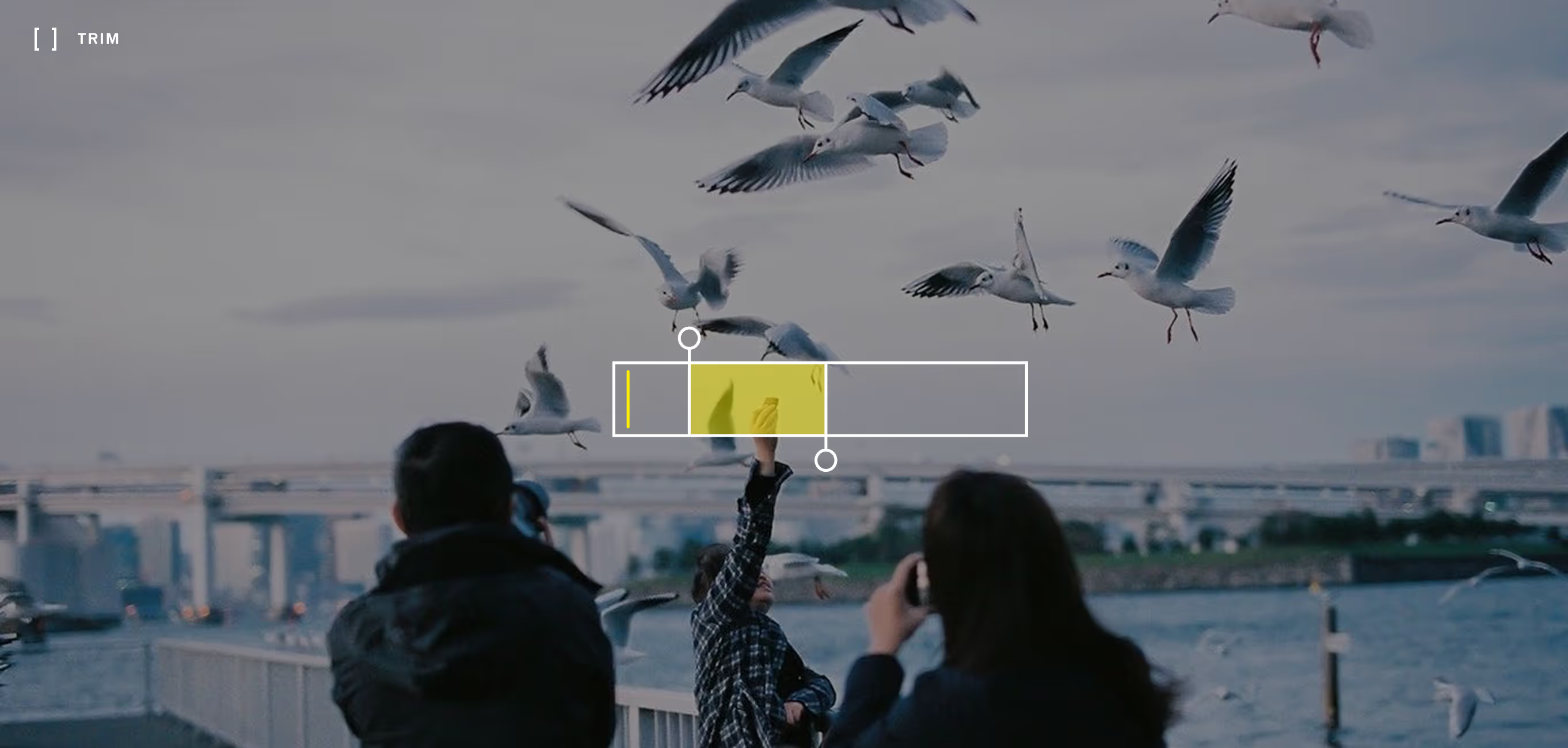
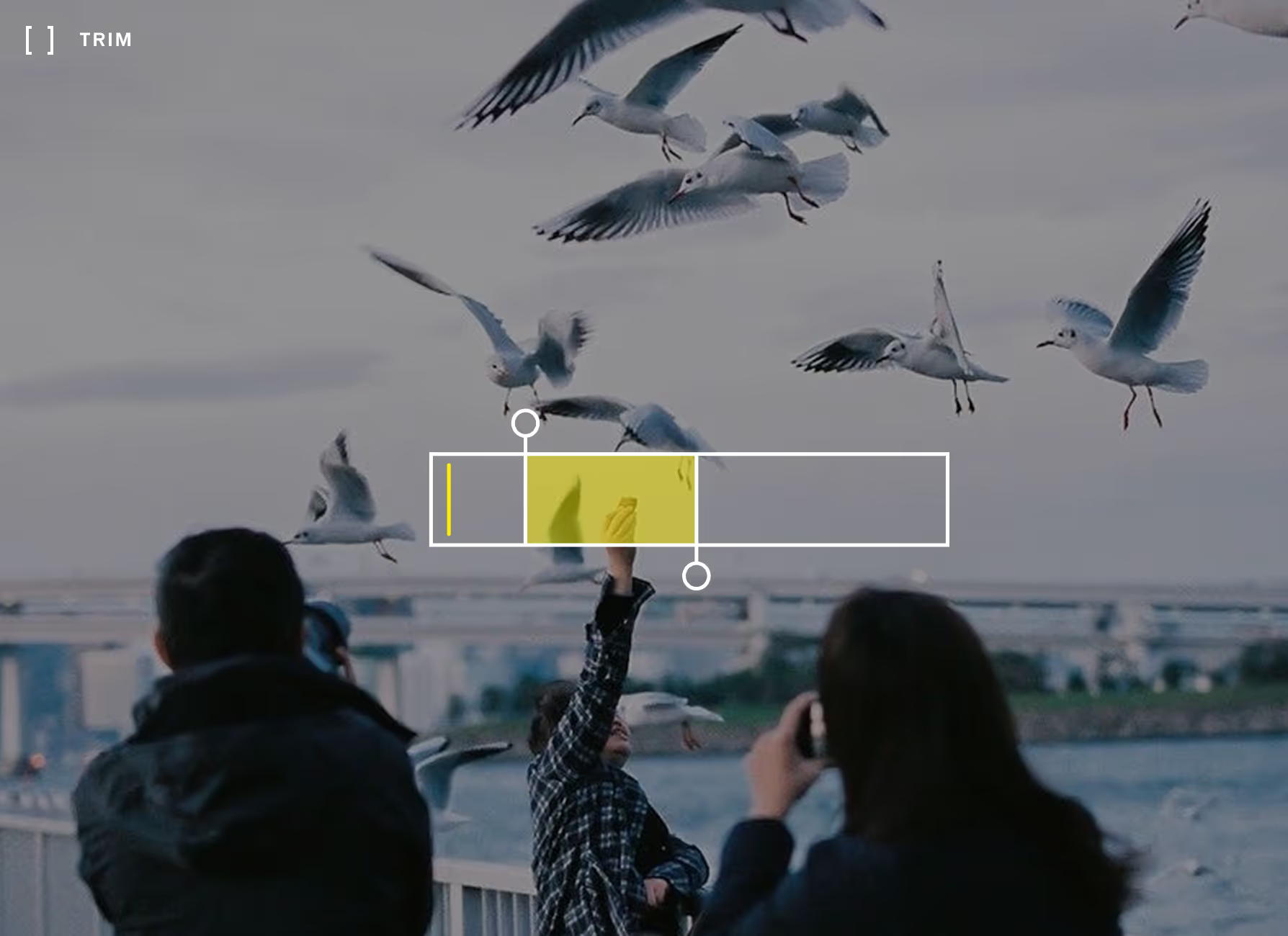
Need to cut down the length of your video too? VSCO’s video trim tool lets you select the exact moment to start and stop your footage. Together, trim and crop help you shape your video exactly how you want, frame by frame.

How to crop videos
Download the VSCO video editor app on iPhone and Android to get started, then follow the steps below to crop your video.
1. Upload your video
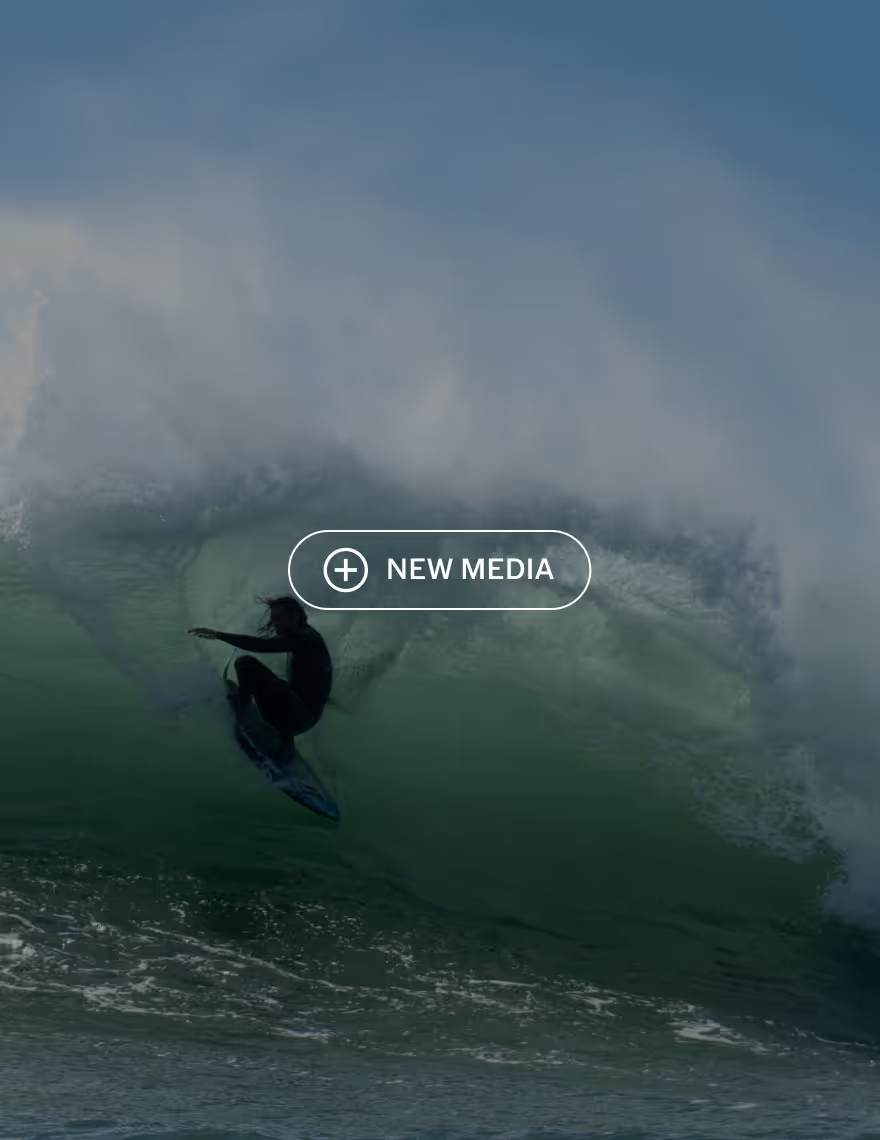
2. Crop with the Adjust tool
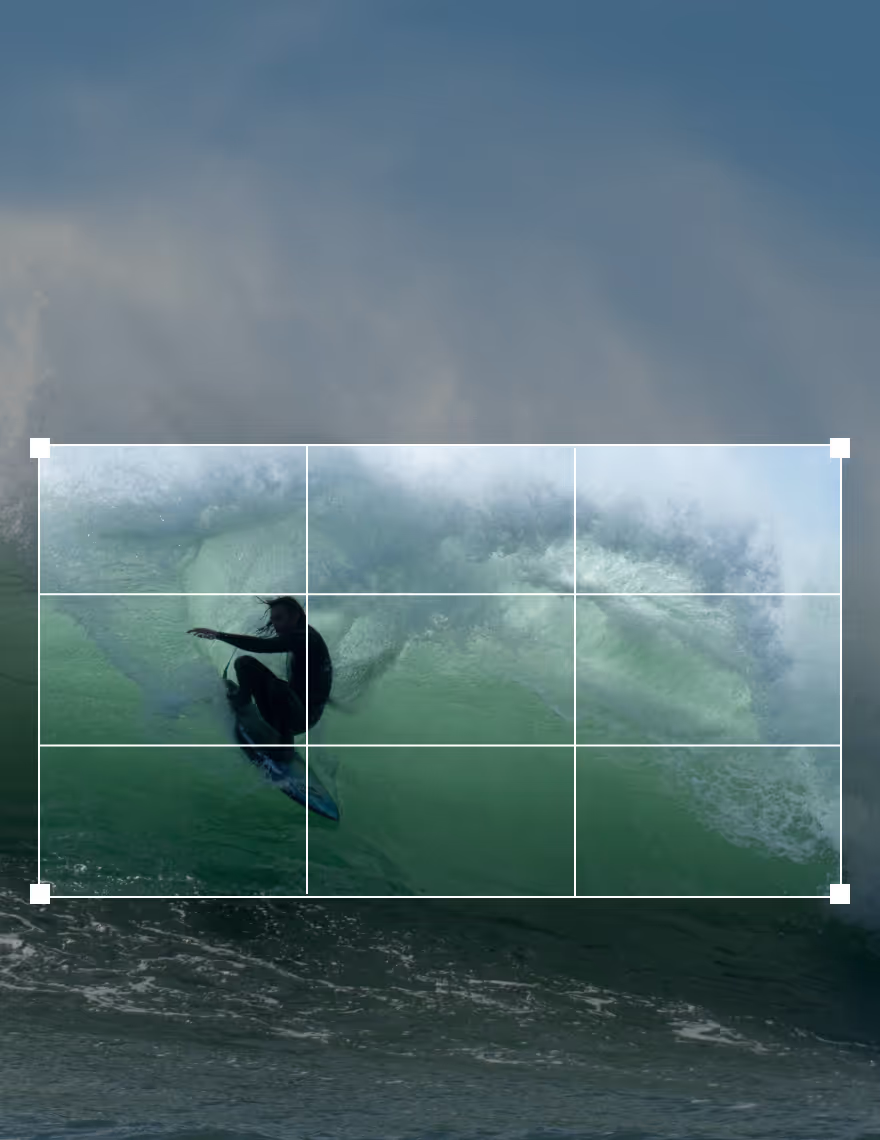
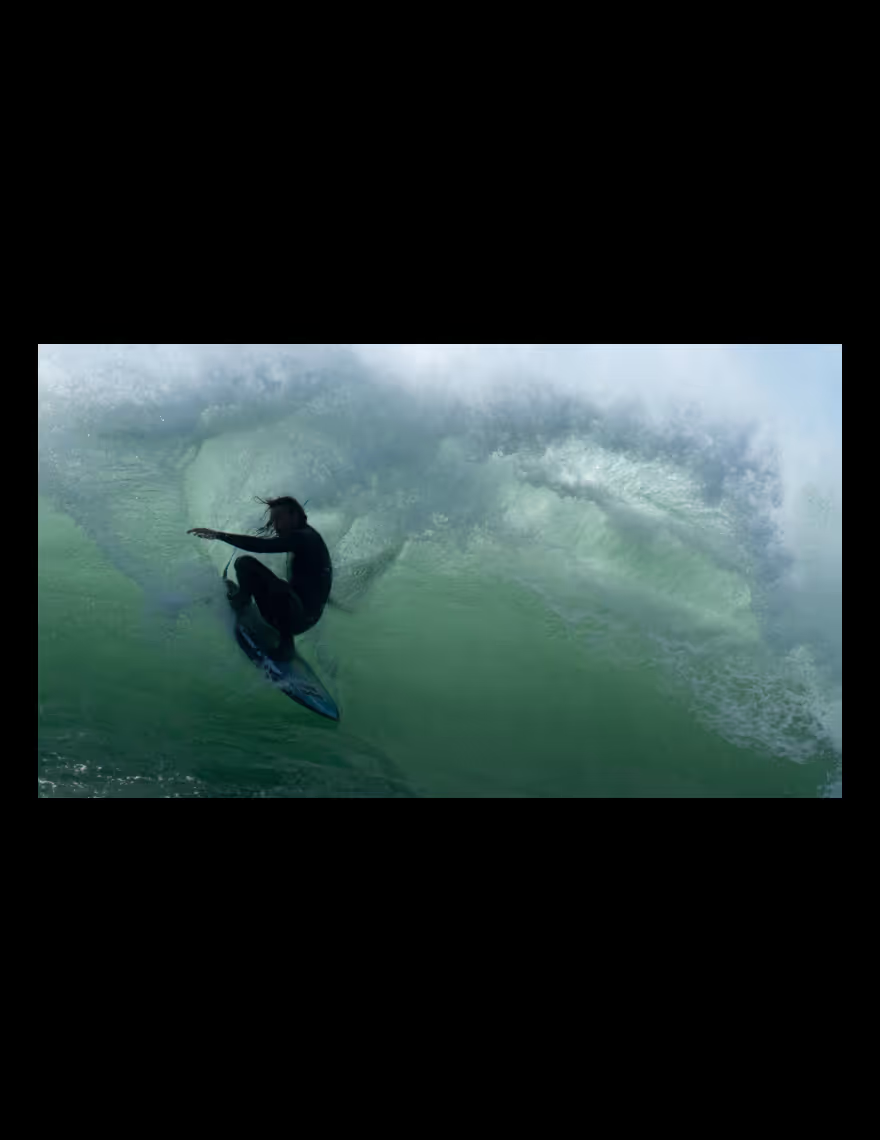
Open the tools tray and tap Adjust. Freehand crop by dragging the corners, or select a defined aspect ratio to guide your framing.
Frequently asked questions
How do you crop a video?
What’s the difference between cropping and trimming a video?
Crop changes what’s visible in the frame by removing edges — helping you reframe your video or fit a specific aspect ratio. Trim, on the other hand, cuts time by changing the beginning or end of your video. Crop adjusts the visual composition, while trim edits the duration.
How to crop for social media (Instagram, YouTube, etc.)?
VSCO is built for cropping video to fit any platform. Choose from popular preset aspect ratios like 1:1 for Instagram or 16:9 for YouTube, or free crop to frame your footage exactly how you want.
What is video crop aspect ratio?
Aspect ratio refers to the relationship between your video’s width and height. With VSCO, you can quickly apply popular ratios made for social platforms, or freehand crop a custom ratio for more exact framing.
How to crop a video to 16:9?
What is the difference between crop and resize?
Cropping a video removes edges to reframe your shot, while resizing adjusts the dimensions without cutting any part of the frame. Though often confused, they serve different purposes—and with VSCO’s crop tool, you get full control to fine-tune your video’s composition.
MORE VIDEO EDITING TOOLS
Go beyond cropping to shape your videos. Fine-tune edits in the video editor, play with motion using reverse, and layer on film-inspired effects to craft a distinct mood and style.
VIDEO EDITOR TOOLS
Explore all video editing tools available in the VSCO video editor app.

VIDEO TRIMMER
Trim video length and easily adjust the start and end points of your video.

VIDEO EFFECTS
Add video effects and recreate vintage film looks on digital footage.