Combine Images with Collage in VSCO
Combine multiple images into one with the Collage maker in the VSCO app. Merge two or more photos into a single frame with custom layouts.
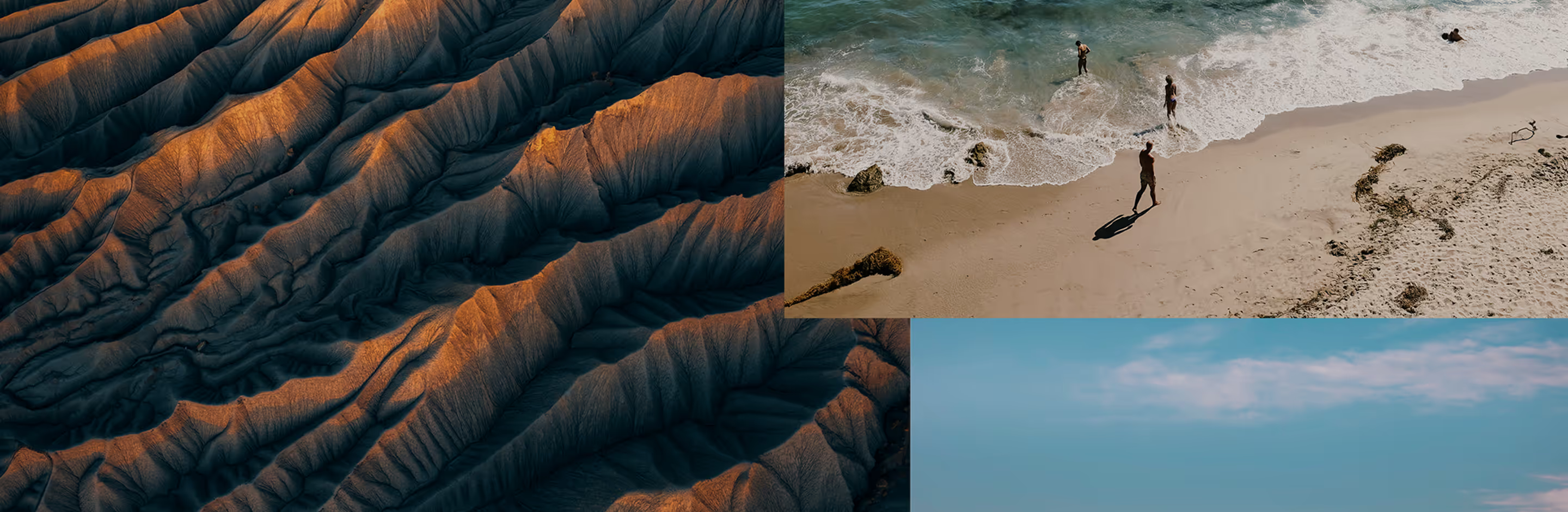
Merge and combine multiple images into one
Combine images with the Collage maker in the VSCO app.
Import and select your photos
Tap Collage to combine your images
Save, edit, and share your combined image
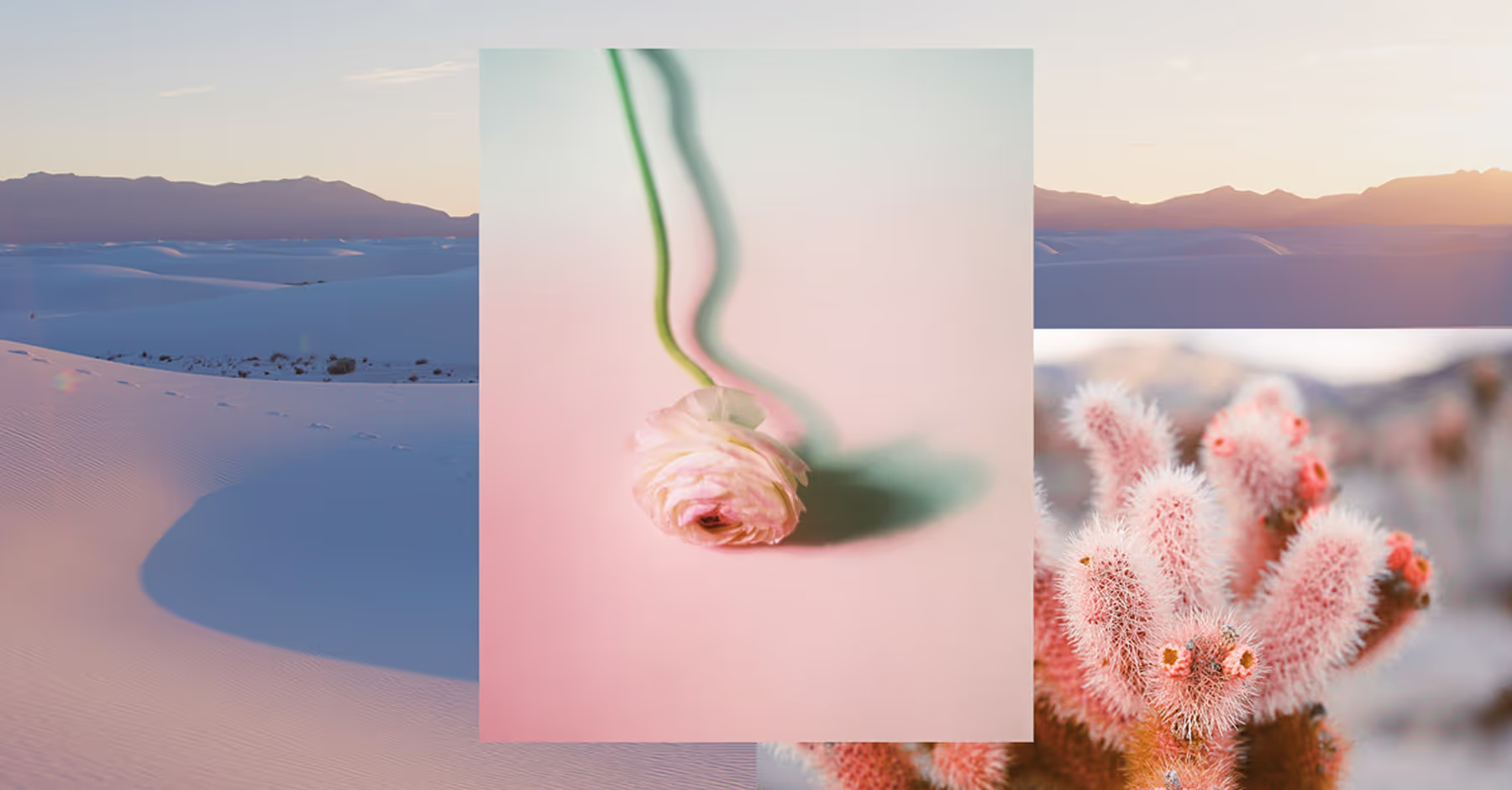
Combine Images with VSCO
The VSCO Collage tool makes it simple to combine multiple images into one with customizable collage layouts. Merge two images or more into a single frame for a seamless, creative look.
Enhance your collaged images even further with tools for cropping and adding borders, giving you full control over your final composition.
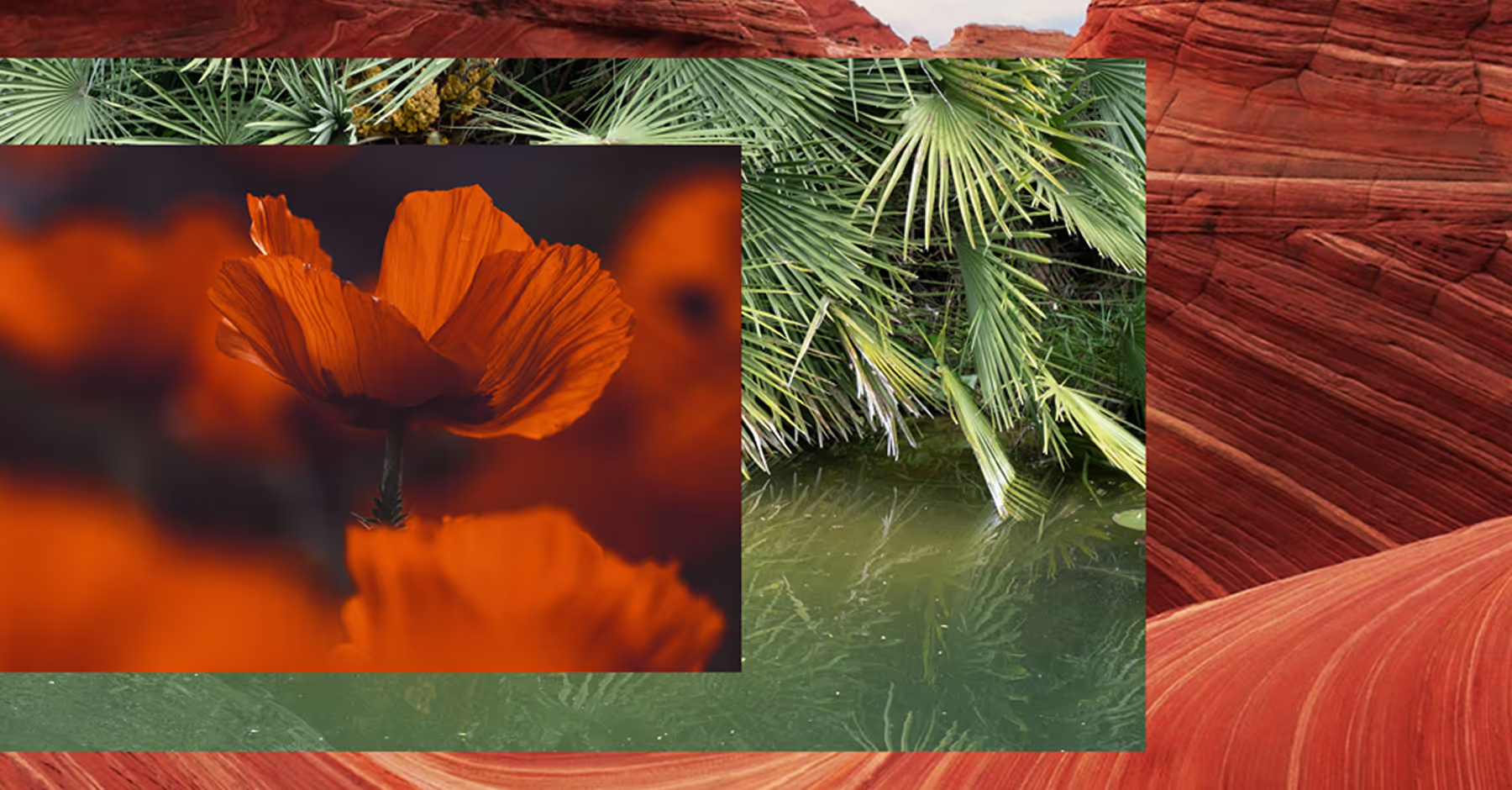
How to Combine Images in the VSCO App
Import and select photos to combine in the VSCO app.
Tap Collage to combine your images into one layout.
Customize your layout and edit photos seamlessly from from within the collage editor.
Save your combined image and post it directly to your VSCO profile or social media.
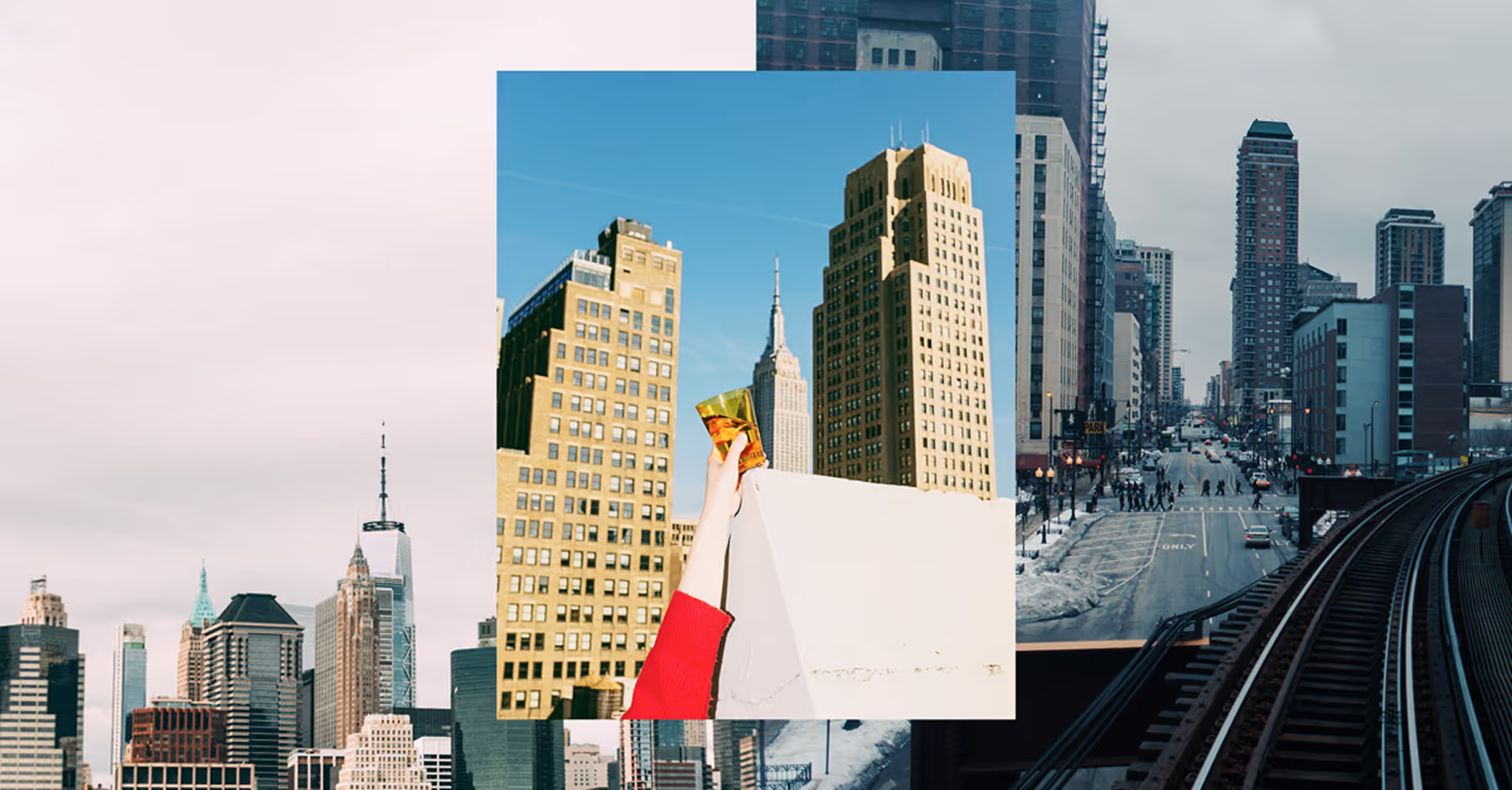
EDITING COMBINED IMAGES
While merging photos, you can adjust each image’s opacity, and rearrange layers to bring your favorite shots forward or back.
Easily flip, mirror, resize, or drag and drop images into place, and apply your favorite photo filters or film effects directly within the editor.
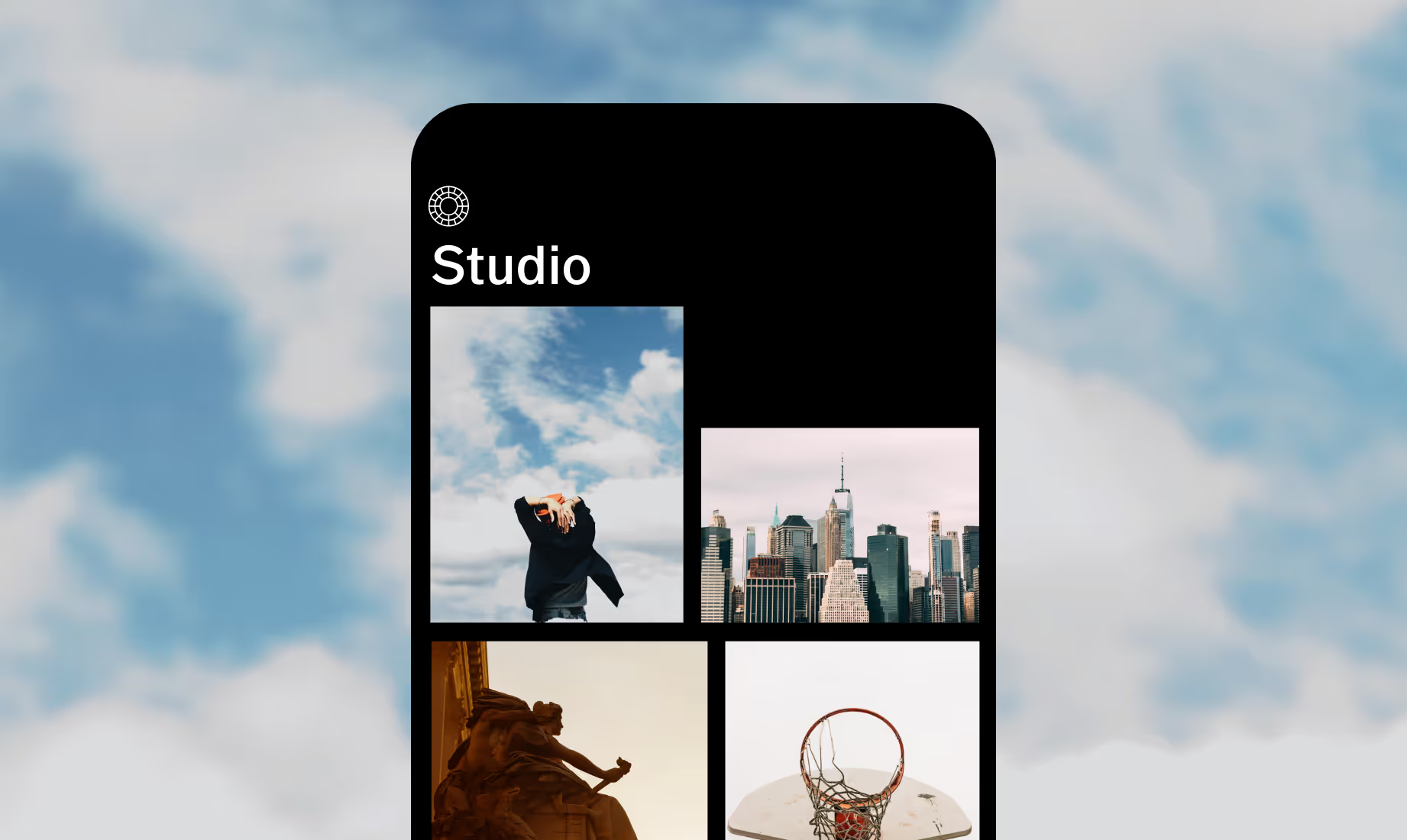
Merge Images on Your Phone
Combine images and create photo collages in the VSCO app for Android and iPhone.



Frequently asked questions
How can I combine images on mobile (iOS/Android)?
You can combine images directly in the VSCO app for both iOS and Android. Just import and select two or more images, and merge them into a single customizable layout with the Collage maker.
How many images can I combine?
With the Collage tool in the VSCO app, you can combine multiple images into one layout. Add as few as two photos or start with as many as 12, with the ability to add even more later.
What merge layouts are available?
Can I customize borders or spacing?
Yes. Once your images are combined, you can adjust spacing, size, border thickness, and background color directly in the Collage editor. To change the background, add a colored shape, resize it to fit your layout, and move it behind your images.
Can I blend and overlay images?
Yes. In the VSCO app, you can create a blended, double-exposure–style effect by adjusting opacity and layering images with the Collage tool. You can also apply filters, fade, or vintage effects to enhance the blended image look.
related EDITING TOOLS
Refine your merged images with powerful tools and features. Add colorful photo borders, make crop adjustments, and add film-inspired effect to give your collage depth and style.
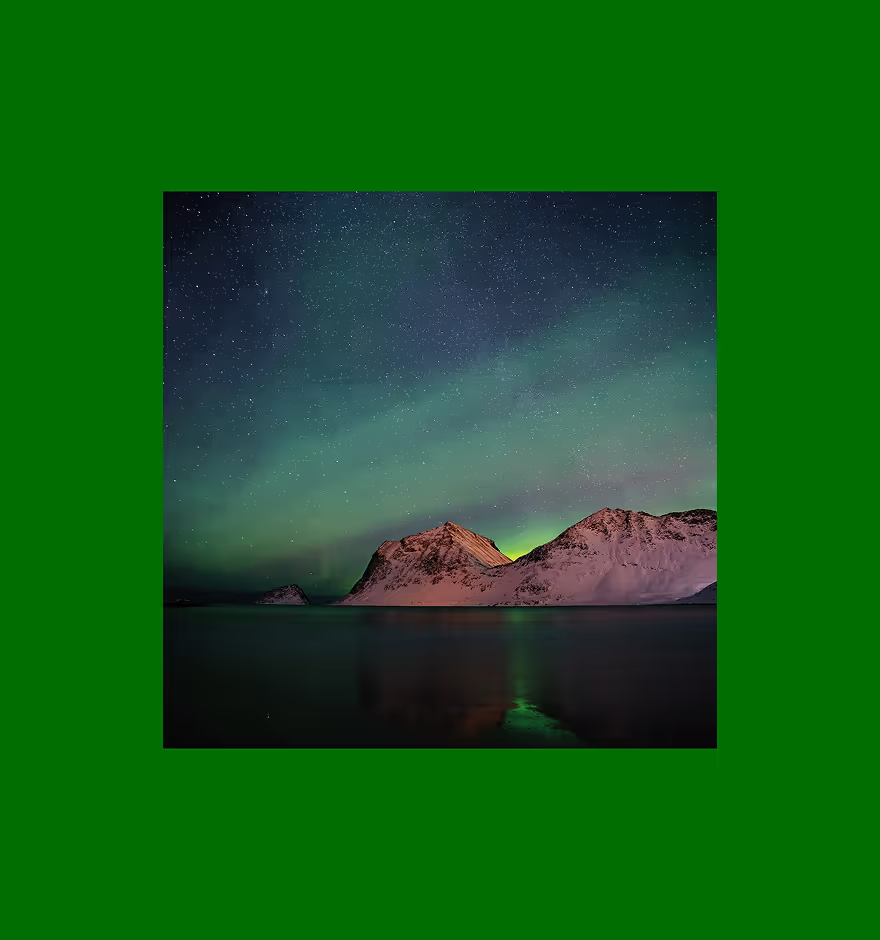
Add Custom Borders
Frame your images using adjustable borders and customizable colors.
Crop Your Composition
Create the perfect composition with tools for cropping, straightening, and skewing.
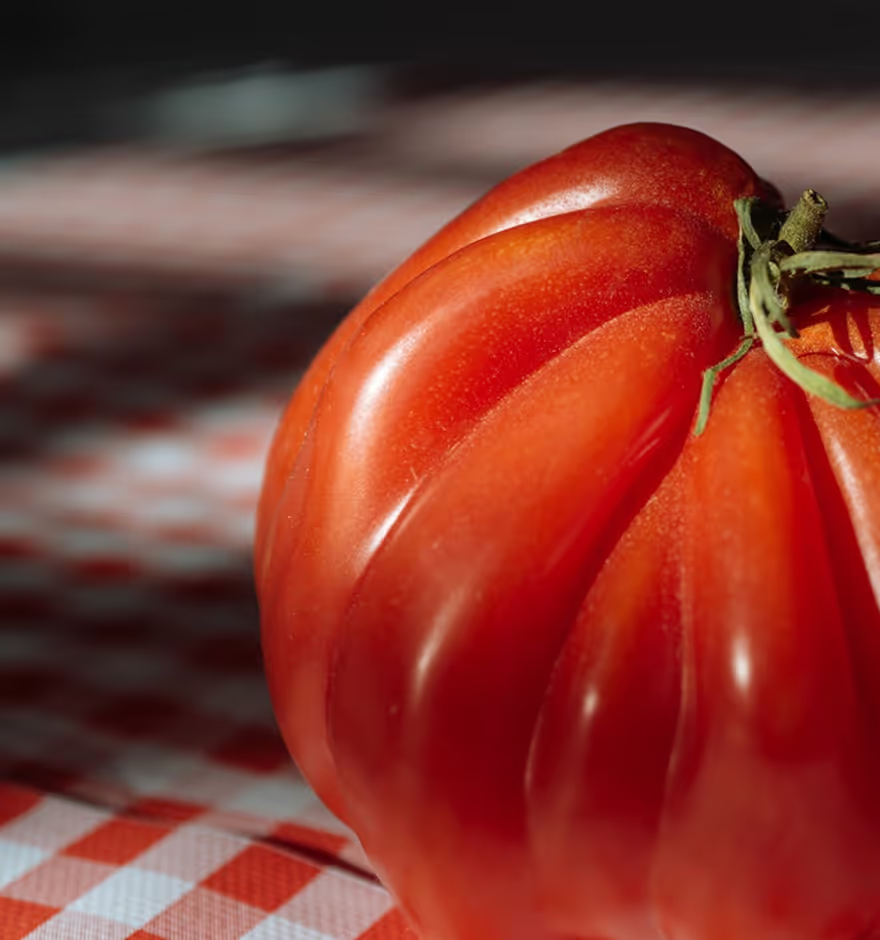
Apply Real Film Effects
Add lens flares, film frames, dust texture and more for an authentic film-inspired look.