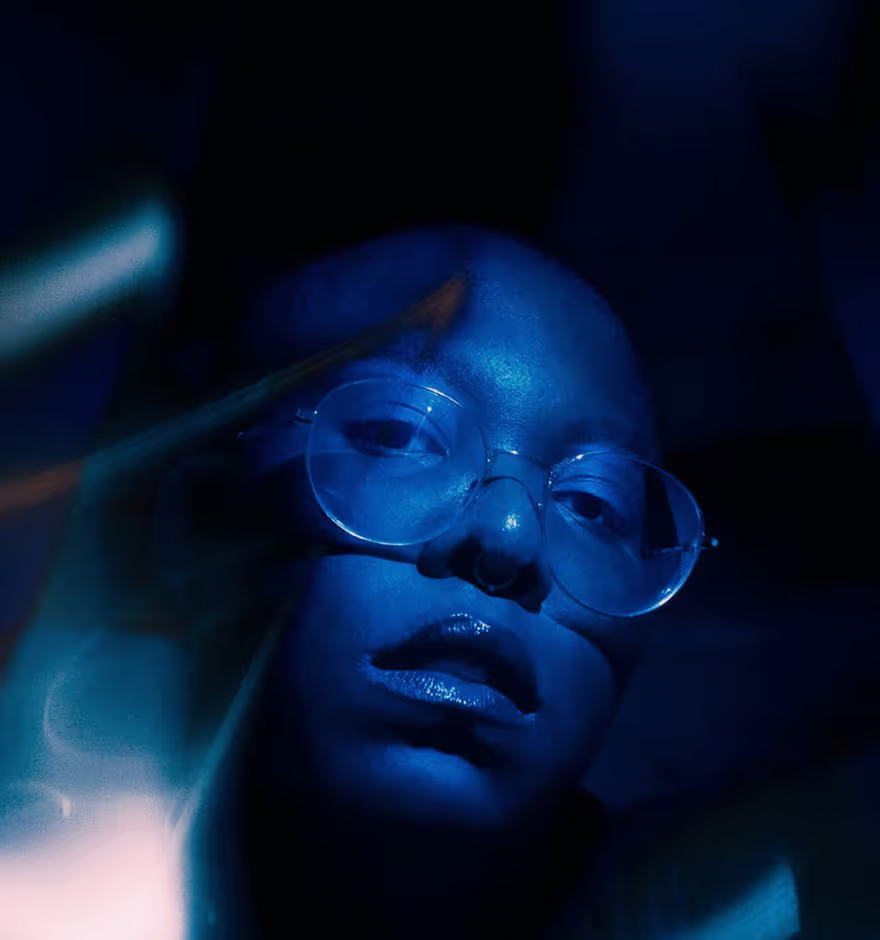
Add a Sepia TONE Filter to Your Photos
Transform your images with a sepia tone filter. Create warm, vintage-inspired photos and experiment with different sepia color tints.
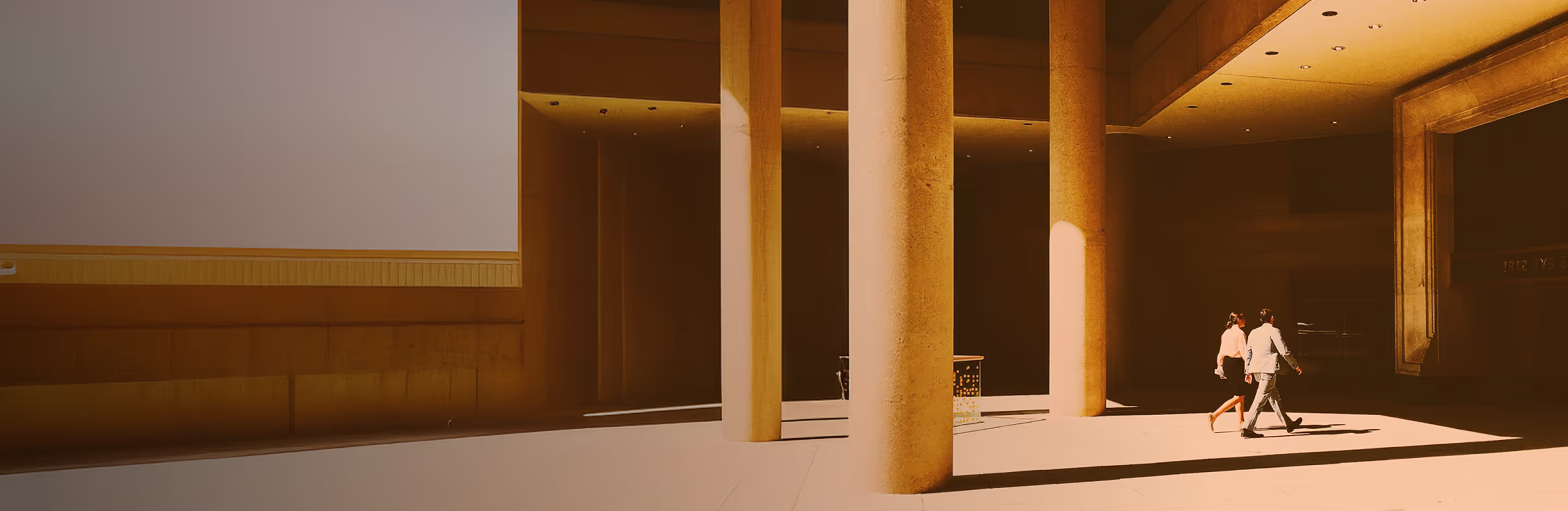
Apply a sepia tone filter for classic warm tones
Create sepia photos with filters and tools in the VSCO app.
Add your photos to VSCO
Save and share your sepia image
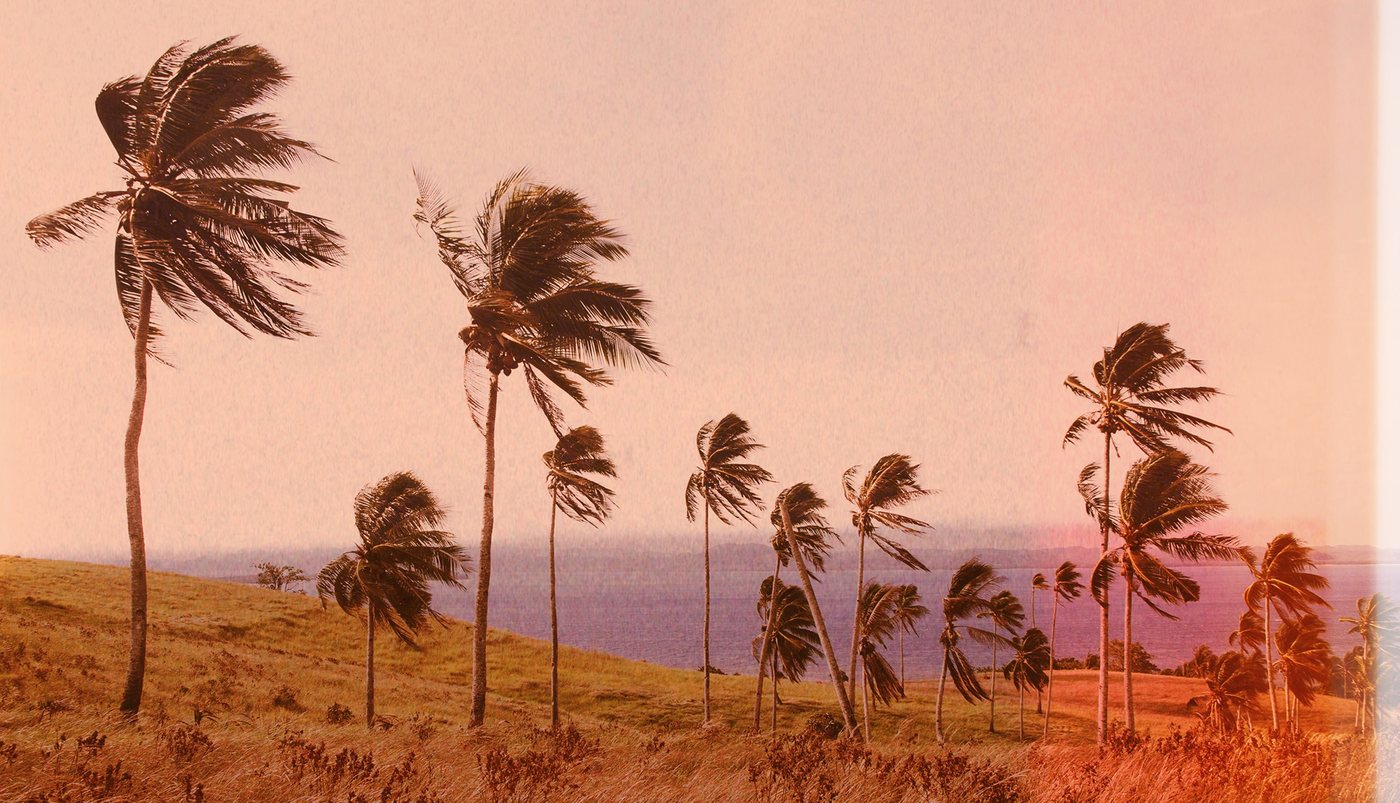

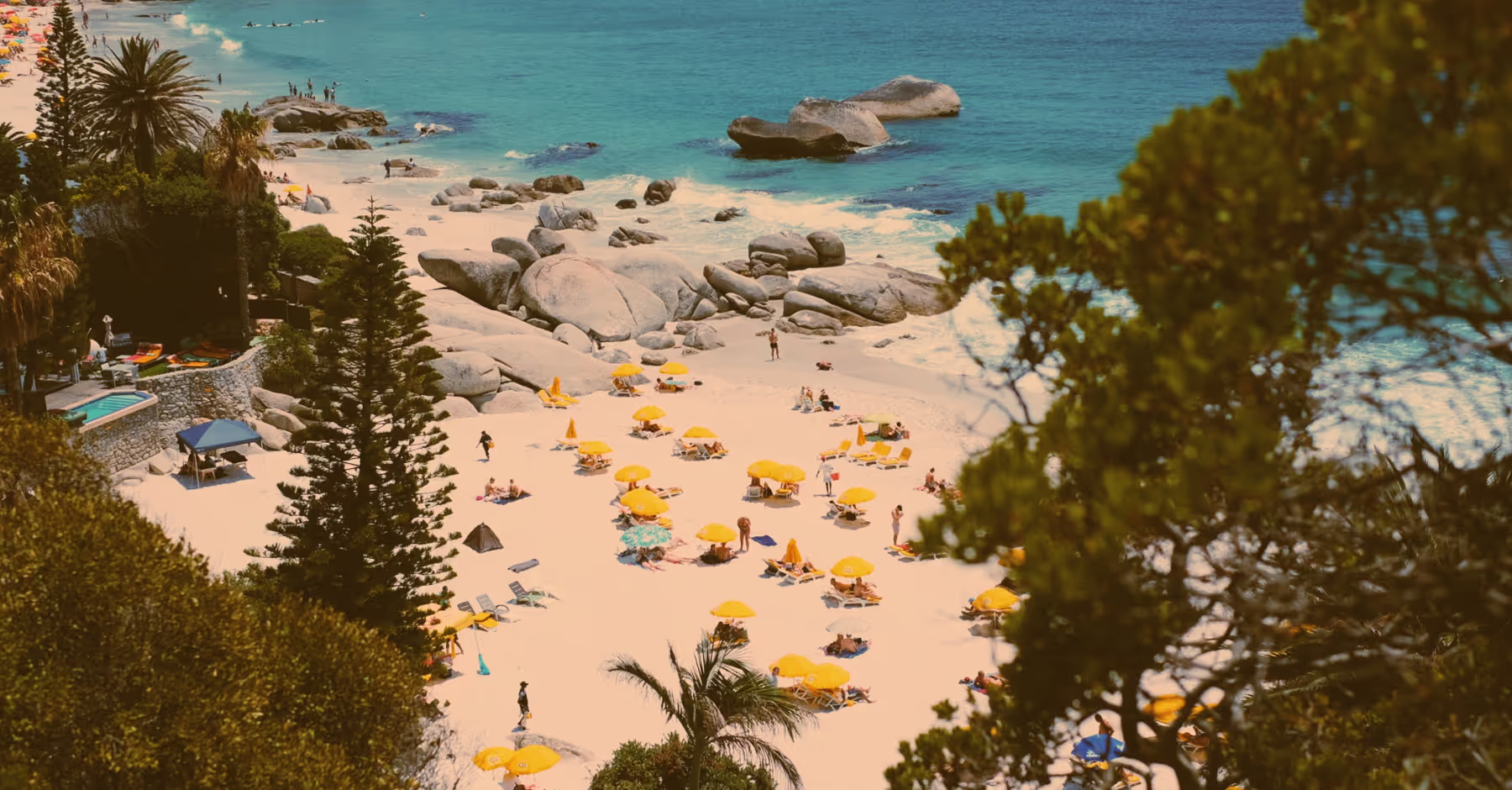
How to Create a Sepia Tone Filter
Import and select a photo in the VSCO app.
Apply a black and white preset (B1), or a warm preset (M5).
Tint shadows and highlights with a warm color, like orange, or experiment with other colors for a different mood.
Save your photo, post on VSCO, and share on social media.
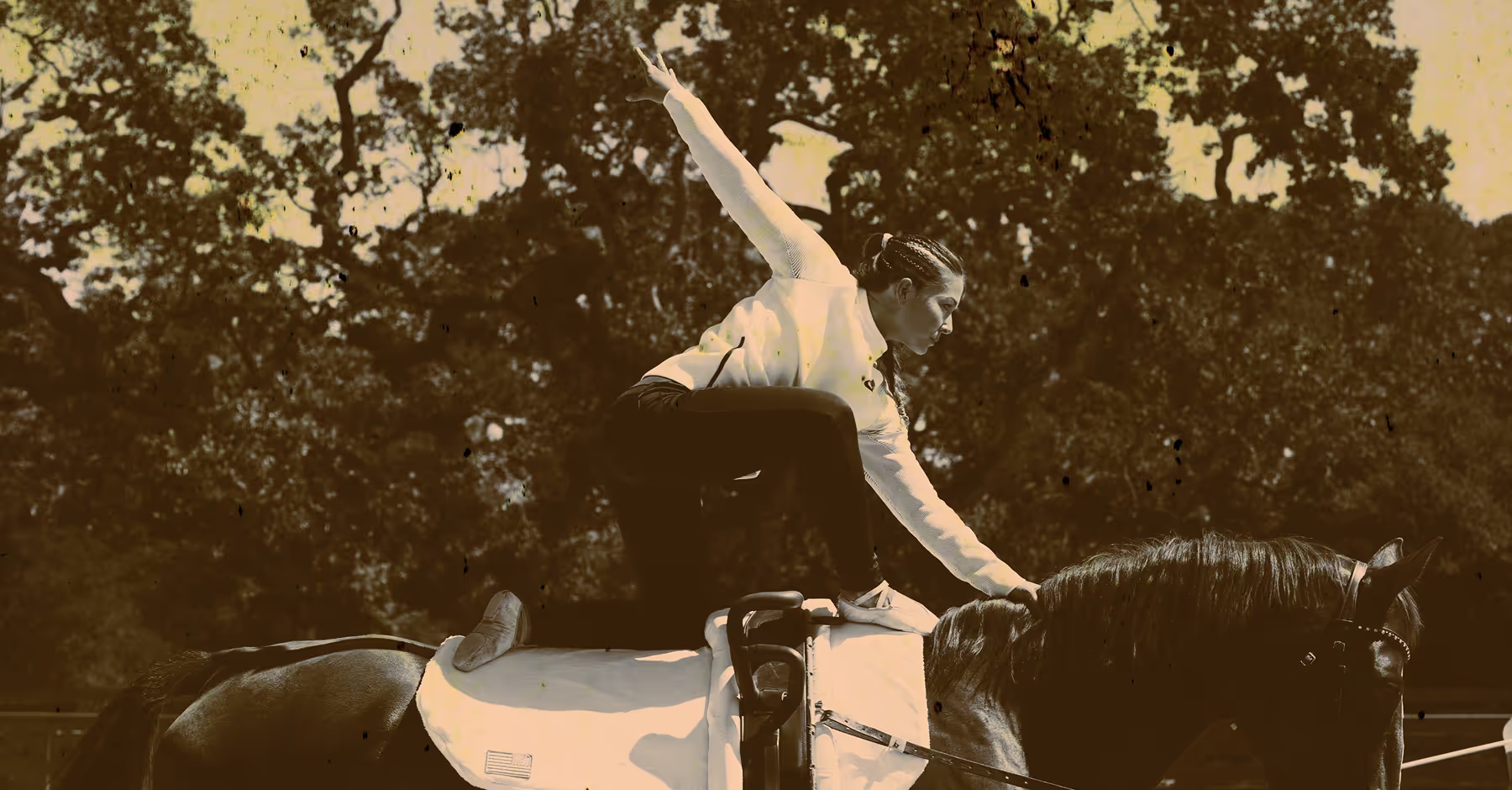
Edit Timeless Sepia Tone Photos
Sepia tone began in early photography, when prints were treated with sepia pigment for warmth and durability. Here are two approaches to recreate the sepia tone effect in the VSCO app.
For a traditional effect, start with a black and white filter like B1, then use Split Tone to add warm colored tints to shadows and highlights.
For a more modern variation, apply a warm, color preset like M5, reduce Saturation, and then tint with Split Tone.
Both methods create an authentic sepia photo effect, and experimenting with different colored tints can add a unique, personal touch.

Add Sepia Color on Your phone
Create unique sepia tone effects in the VSCO app for Android and iPhone.



Frequently asked questions
What is a sepia filter?
A sepia filter is a photo effect that gives images a warm, brownish tone for a vintage-inspired look. VSCO offers sepia tone filters and tools to help you create classic or modern sepia photos.
How do I apply a sepia filter?
VSCO makes it easy to apply a sepia filter on iPhone and Android. Start with a black and white or warm color preset, then use Split Tone to add sepia color tints to both highlights and shadows.
Can I adjust the intensity or tone of the sepia?
Yes, VSCO lets you fine-tune the intensity of your sepia photos by adjusting Split Tone hues, saturation, and filter strength for a subtle or strong sepia effect.
Can I apply sepia to color images, or just black and white?
You can apply sepia to any photo in VSCO. Start with a black and white preset like B1 for a traditional look, or try a warm preset like M5 for a modern look with a touch of color. When using a color photo filter, it helps to reduce Saturation in addition to adding sepia tone tints with Split Tone.
What types of photos work best with a sepia filter?
VSCO’s sepia looks work especially well with portraits, landscapes, and nostalgic moments where a warm, timeless mood enhances the story.
Are there tools that apply sepia in bulk?
What creative tools pair well with sepia?
VSCO offers tools like Grain, Fade, and distressed film effects that pair perfectly with sepia tone looks to give your photos authentic texture and mood.
Add Grain for Texture
Apply grain to mimic the tactile quality of film and give your photos a timeless feel.
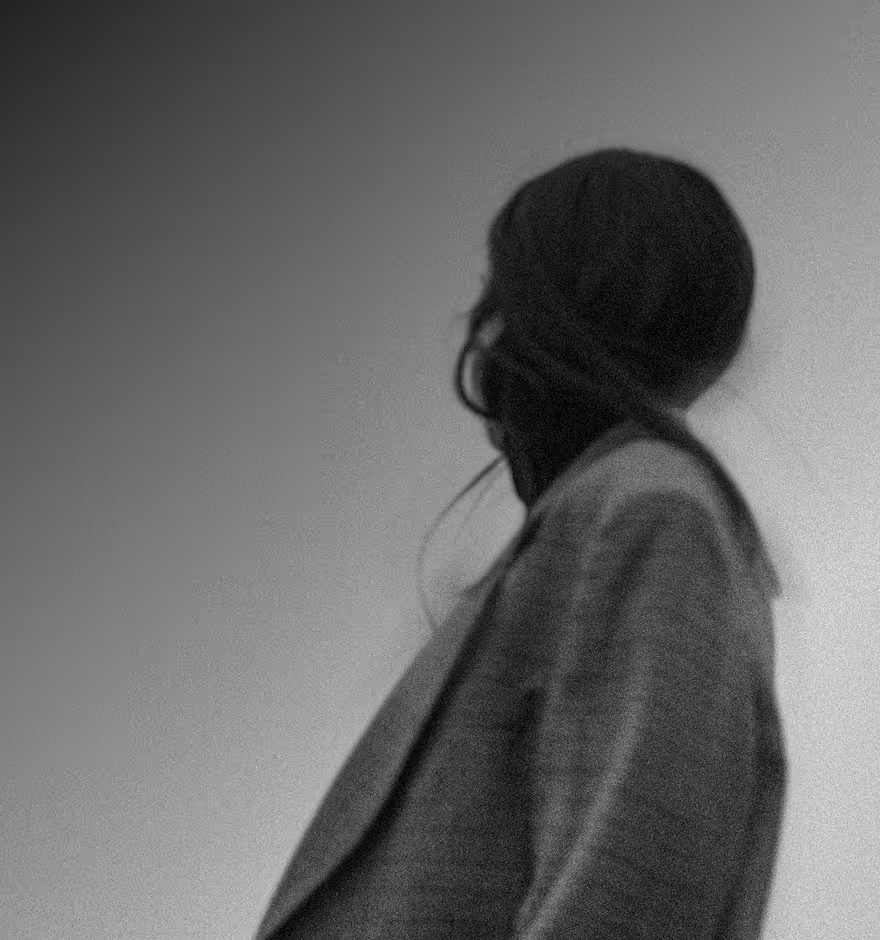
Mute Shadows with Fade
Use the image fader to gently flatten shadows and soften colors in your sepia tone edits.
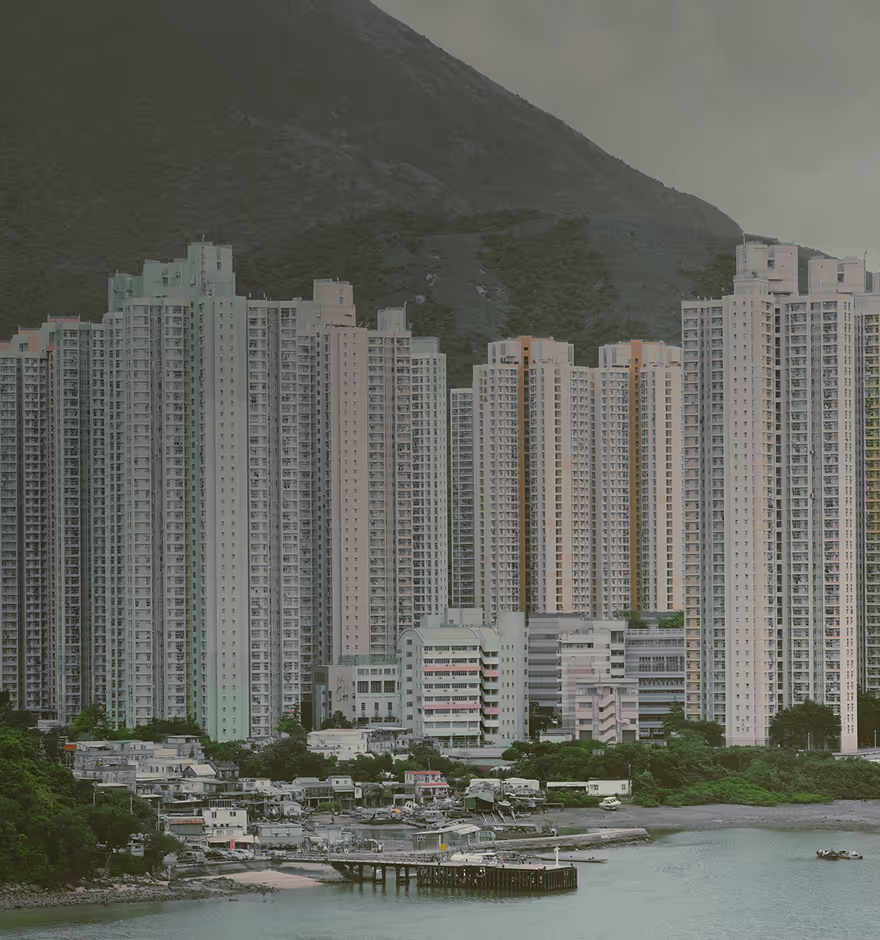
Try Distressed Film Effects
Add dust, scratches, lens flares, and more to create an authentic, aged look.