Hi, I'm Zach Hodges, and I'm going to get you started with VSCO.
Most people find VSCO looking for a photo editor, and it's a great one: 200+ presets built from real film research, precise manual tools, and a growing set of AI-assisted editing tools. But that's really just the beginning. Behind it is a creative community built around the love of photography, plus a full set of tools for photographers running real businesses: batch editing, client galleries, portfolio sites, moodboarding, booking, client management, even a standalone camera app with live presets.
This guide covers all of it, from your very first edit to the tools a working photographer reaches for on a real job. Skip around, or read it start to finish.
Let's get into it.
In this guide:
- Using the VSCO Photo Editor App
- Editing photos with VSCO
- Importing an image into VSCO Studio
- Editing with VSCO Presets
- For This Photo & Strength
- Types of preset photo filters
- Tools in the VSCO photo editor
- Online web editor
- VSCO Studio Pro
- VSCO’s AI photo editor
- Film (FX) effects
- Video editing tools
- Collage maker
- Montage maker
- VSCO’s camera app: VSCO Capture
- Save your own recipes
- Sharing Photos on VSCO
- Profile on VSCO
- Discover on VSCO
- VSCO Search
- VSCO Spaces
- Frequently asked questions
- From photoshoot to payment
When you first open the VSCO mobile app, you'll see 6 tabs. Starting from the far left:

- Home is your feed of images from people you follow in the VSCO community
- Discover is where you’ll find inspiring content, creative prompts, and the search function
- The Studio is your private workspace to gather and edit the images you want to work on
- AI Lab is where you’ll find VSCO’s AI-powered tools like object removal, editing with prompts, and upscaling
- Profile lets you view your published work, update your personal details, and build or manage your VSCO Site
- In Spaces you can join or create collaborative groups built around a particular focus or theme
Additionally, there is this side menu where you’ll see activity on the content that you’ve published, messages from other users, images you’ve favorited, people you can follow or that follow you, and various account and privacy settings for the app. From the sidebar, you can also navigate to VSCO Canvas to use the moodboarding tool or VSCO Capture to access the camera app.
The photo editor tools in the VSCO app offer a variety of ways to achieve your desired aesthetic.
To get started, let’s import a photo. First, open the studio tab in the middle, and then tap the import button to create your first draft. Select an image from the camera roll that you want to edit (you can select as many as you’d like, and videos too). Once you’re done with your selections, tap ‘Add’ and these images get added to your VSCO Studio.
This is your private workspace, nothing here is public or published yet. And, these images are still in your camera roll too. These drafts are just references, so don’t delete them in the camera roll or they’ll disappear from VSCO as well.
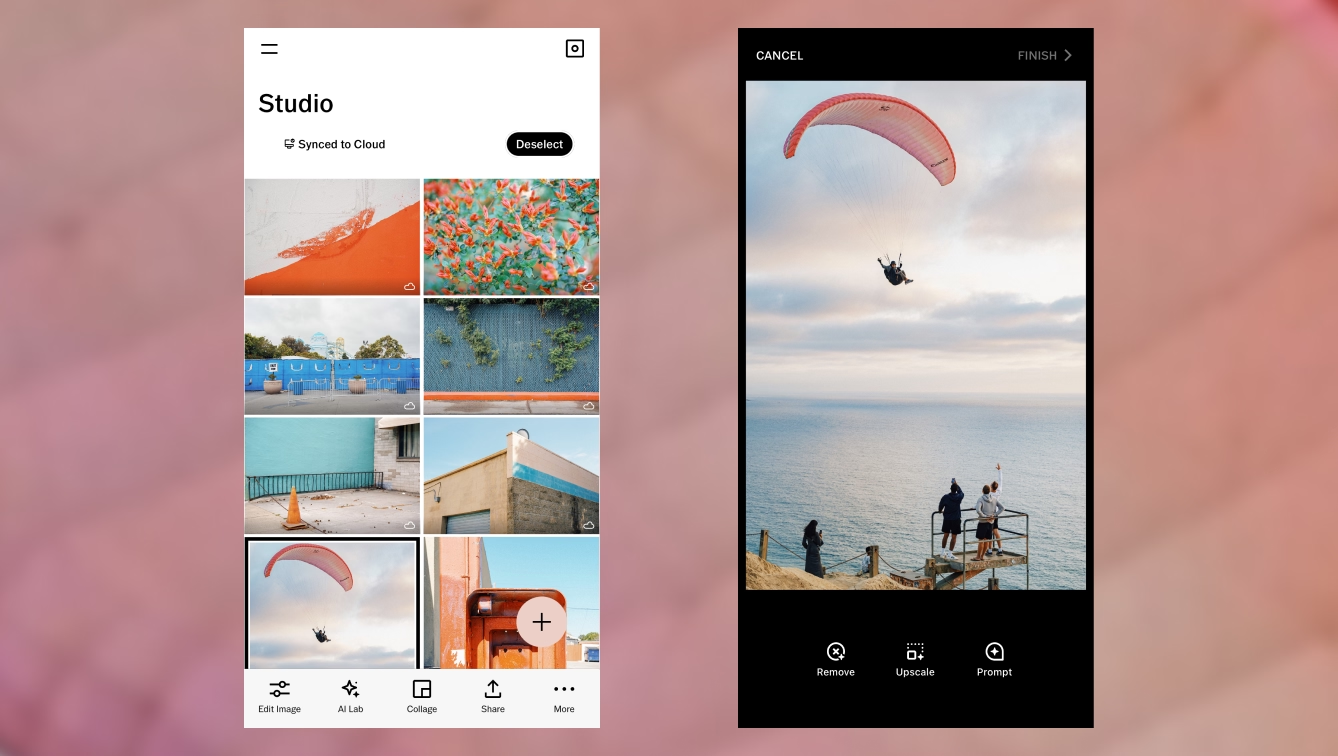
Once you’ve created a draft, select it and you can see there’s several options here like editing the image, using AI Lab, creating a collage, syncing to the desktop, and sharing your photo.
To access preset photo filters and photo effects, select your image and click ‘Edit Image’ to open the photo editor.
You’ll start off in the Presets tab, and this is the best place to start for most people.
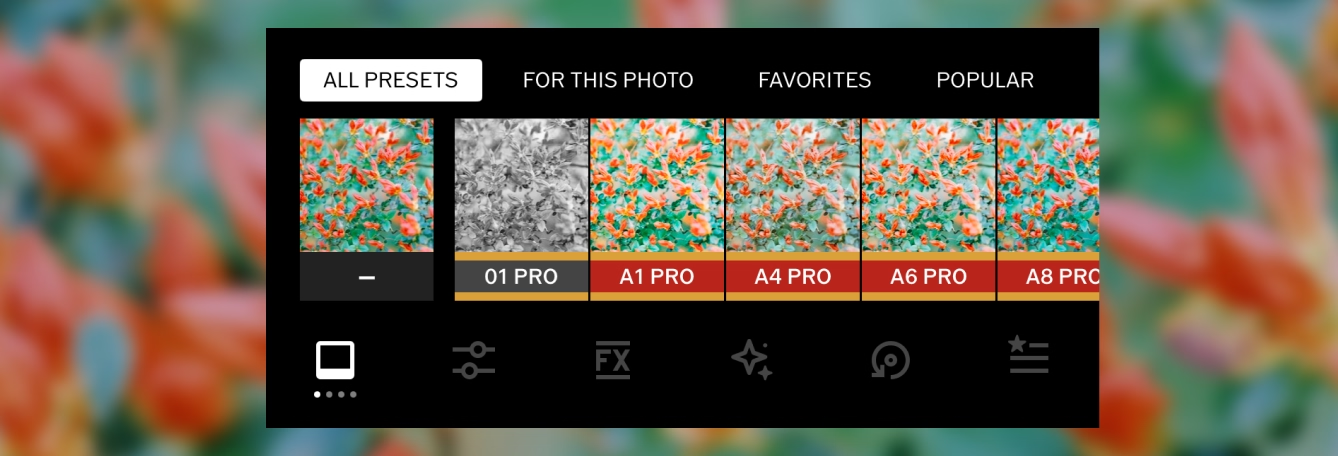
These VSCO Presets are pre-made looks for a wide range of styles and applications that you can apply to your image very quickly while still getting great results. You can tap on the preset icon to get more ways to view them in a grid, and these categories up top here are really helpful in finding your way around this list.
‘For This Photo’ actually uses AI to recommend a preset for your photo, and this is many people’s favorite place to start with editing on VSCO. From the recommendations you can choose to apply it to your photo, and even tap it again to adjust the strength of the look to your taste.
There are over 200 presets available in VSCO, categorized into several types of preset photo filters depending on the look you want to achieve:
- Free presets available to anyone that signs up for VSCO: B1, B5, F2, G3, M3, M5, P5, T1, X1
- Standard presets with a strength slider, including Legacy 01-10, Analog A1-5, Artificial Lighting AL1-6, Black & White Classic B1-3, C1-3 / Vibrant Classic, C4-9 / Chromatic, G1-9 / Portrait, Infrared filters IR1-7, Mood M1-6, Instant P1-9, Bright S1-6, Low Contrast V1-8, and many more.
- Film presets are inspired by various analog film stocks like Fujifilm, Kodak, Agfa, and Ilford.
- We the Creators presets are made in collaboration with photographers to share their signature styles.
- VSCO Pro Presets offer additional contrast, color, and tone controls to many of our most popular looks.
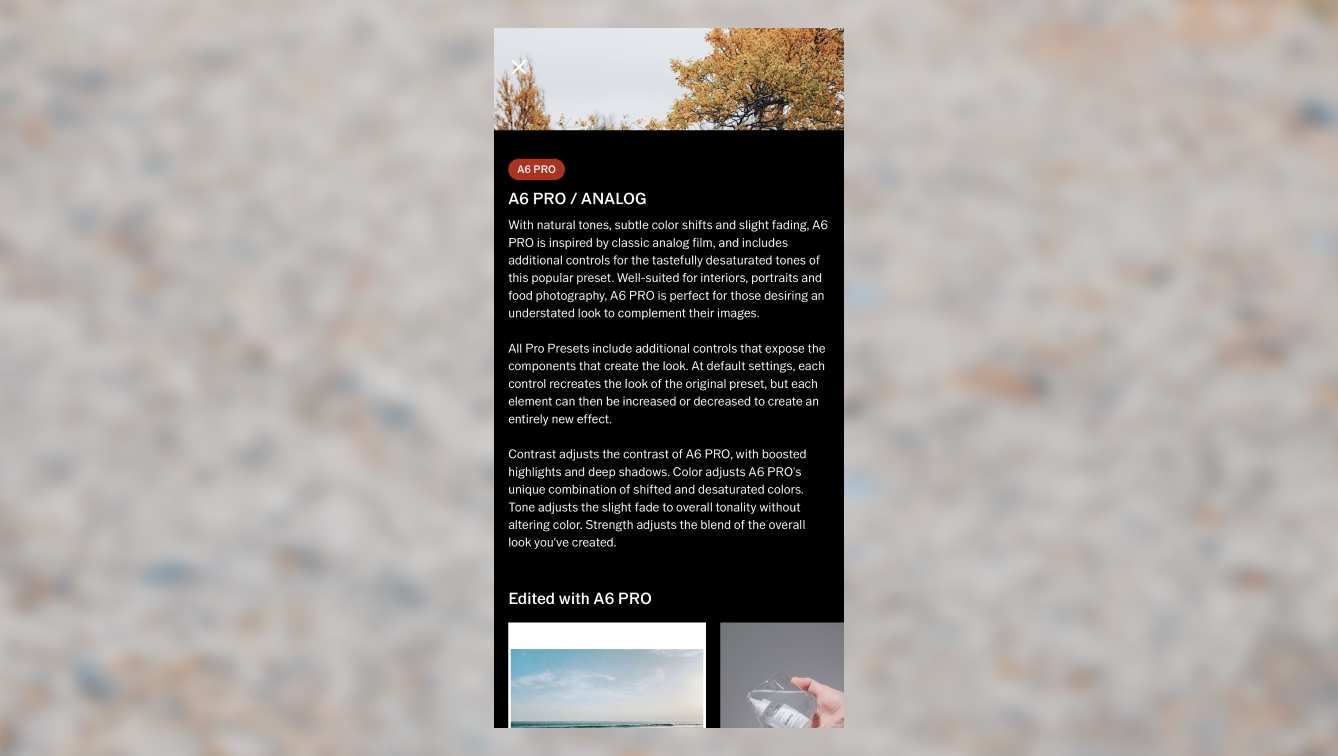
You don’t have to remember all of this—if you just tap on the name of a preset while you’re in this view, you’ll get a nice little page with a description about this preset and examples from the community of how others have used it so definitely explore that if you’d like.
Once you have a preset that you like applied, head over to the tools tab to make further adjustments. There are a lot of tools here, starting with Adjust for things like crop and straighten, all the way to HSL to adjust specific colors.
These photo editing tools are great to correct problems in your image, but also to make artistic enhancements as well. Here are the photo editing tools available in the VSCO photo editor:
- Adjust: Crop with free-hand or set aspect ratios, rotate, skew, and straighten images to fine-tune composition.
- Exposure: brighten or darken photos, helping you recover detail and correct over or underexposed moments with a more natural, editorial finish.
- Contrast: dial contrast up or down with intention — shaping light, depth, and mood whether you’re refining a subtle scene or pushing a bold, high-contrast look.
- Tone: balance highlights and shadows to pull back harsh contrast while preserving the details that actually matter in the frame.
- Dodge and Burn: selectively brighten and darken specific areas of a photo with exposure brush tools so the viewer’s eye goes exactly where you want it to.
- Saturation: change color intensity for high or low saturation looks.
- White Balance: correct color cast and set the mood by adjusting temperature and tint so images feel true—not too warm, cool, or off-tone.
- HSL: fine-tune individual colors—shifting hue, saturation, and lightness so specific tones stand out while the rest of the image stays balanced and intentional.
- Sharpen: bring back texture and clarity—subtly refining detail in photos without sacrificing the natural feel of the image.
- Clarity: cut through softness to enhance texture and depth while keeping the image clean and natural.
- Bloom: softly blur highlights to add a hazy, dreamlike glow that gives images a more atmospheric, cinematic feel.
- Halation: get that warm, cinematic glow with a subtle halo that echoes the character of vintage film without feeling overdone.
- Grain: introduce film-like texture with just enough grit to give digital images the character and depth of classic analog photography.
- Vignette: apply a vignette to quietly draw the eye inward, adding a classic, cinematic focus to the center of the frame.
- Fade: for a softer, time-worn feel, you can fade images to lower contrast and create a muted, vintage print aesthetic.
- Skin Tone: subtly balance reds and greens, refining face and body tones without disrupting the rest of the image.
- Split Tone: introduce color into highlights and shadows, shaping mood with subtle tints rather than heavy-handed filters.
- Borders: add borders when a frame needs structure, customizing size and color to give the image a more considered, finished edge.
- Text: when a story needs words, add overlaid text. Adjust scale, color, and orientation so typography feels integrated, not layered on.
- Blur: control focus with intention by softening backgrounds or selective areas to guide attention and add depth.
If you're editing dozens or hundreds of images from the same photoshoot, VSCO Studio Pro is worth downloading. It's a separate, standalone editor from VSCO, built specifically for photographers who need to move through a full set of photos fast without sacrificing consistency.
The headline feature is batch editing: apply a preset or a full set of adjustments across up to 100 photos at once, in a single tap. There's also Style Match, which analyzes one reference image and recreates its color, tone, and mood across your whole selection, useful for matching a client's brief or keeping your own signature look consistent from photoshoot to photoshoot. You can also publish directly to VSCO Galleries, so a finished edit goes straight to a client-ready gallery without exporting and re-uploading anywhere else.
Studio Pro is iOS only right now, with a desktop Mac version expected later this year. It is free to download and try. You’ll need a VSCO One or Pro membership for advanced editing features and workflows. Learn more about the differences between VSCO One and Pro here.
VSCO makes it easy to move seamlessly between editing on your phone and refining your work on web (Mac or PC). When you sync a photo or video to the cloud from the mobile app, it becomes available in the VSCO desktop editor (and vice versa)—so you can continue editing with presets, adjustments, and creative intent intact.
This workflow is ideal when you want to start an edit on the go and finish it on a larger screen, use the Adobe Lightroom integration, or manage multiple projects more efficiently. Any changes you make stay connected through cloud sync, keeping your Studio, edits, and organization consistent across devices without duplicating files or starting over.
AI Lab is a growing suite of high-fidelity, AI-assisted tools built for photographers who care about detail, not shortcuts. It includes:
- Prompt: edit a photo by describing the change you want in plain language: a new sky, a color shift, whatever you can put into words.
- Remove: erase distractions, objects, or people from a scene without disrupting what's around them.
- Upscale: increase resolution and sharpen detail, useful for large prints or a tighter crop.
- Simplify: clear background crowds and visual clutter in a single tap, handy for busy travel or event shots.
- Restore: bring old or damaged photos back to life.
- Denoise: clean up grain and noise from low-light or high-ISO shots.
- Dehaze: cut through atmospheric haze and restore contrast to a washed-out sky or skyline.
- Hairstyle: clean up flyaways and windblown strands while keeping natural texture intact.
Every AI Lab edit creates a new version of your photo, so your original stays untouched. Full access to the toolset comes with a VSCO One or Pro membership.
Next up, there’s also the FX tab, with many overlays that can be added for film and light effects. These also work when editing videos, so be sure to check that out.
- Distressed photo effects: film-inspired textures that introduce burn marks, light leaks, and the imperfections of expired or damaged film, giving photos and videos a lived-in, analog edge.
- Film frame overlays: give digital work the character of scanned analog—whether you’re mimicking the imperfect charm of a 35mm point-and-shoot, the nostalgic texture of 16mm, or adding cinematic grit with an 8mm overlay on video.
- Light effects: introduce realistic lens flares and light leaks into any scene—using a library of customizable overlays to add natural-looking rays of light that bring depth, atmosphere, and movement to photos and videos.
- Texture: add grain, dust, and scratches pulled from real film scans—layering in the kind of texture and imperfections that give vintage photography its unmistakable grit.
VSCO is also a video editing app. Think of it the same way you approach photo editing—start simple, trust your eye, and build from there, using familiar tools like exposure, color grading, grain, and film effects to shape mood and motion without overcomplicating the process.
Upload a video from your Camera Roll and select ‘Edit Video’ to access the video editing tools. From there you can apply filters and adjust light and color with standard tools. You’ll also see additional tools available for video, including:
- Trim: cut video clips to tighten the start and end so the video feels focused and deliberate.
- Speed: adjust playback to speed up or create slow motion videos ranging from 0.1x to 16x.
- Reverse: reverse and mirror playback by flipping clips, or creating seamless loops that feel intentional rather than gimmicky.
- Volume: lower or remove video audio altogether when a video works better as a quiet, visual moment.
- Video effects: lean into retro and creative looks with a VHS filter, digital glitch distortion, kaleidoscope mirroring, and chroma split effects.
In the VSCO Studio, you’ll see an option to create a photo collage.
You can start quickly with designer templates or build from a blank canvas, then scale, rotate, flip, and overlay images with intuitive drag-and-drop controls to refine your composition. Add solid color backgrounds or geometric shapes like circles and squares to give your layout personality, and even introduce text that you can size, color, and align to complement your imagery.
With built-in opacity controls you can blend layers for double-exposure effects, and you can apply filters or film effects directly to individual elements to unify your collage’s aesthetic before exporting it for social or portfolio use.
If you select a photo or video in your VSCO Studio and click ‘More’ you’ll see an option to create a Montage. From there you can layer photos, videos, shapes, and color onto a blank canvas and sequence them into scenes that feel more like visual stories than edits.
The core VSCO app includes a built-in, legacy camera with effects like a prism lens, double exposure, and recording gifs.
If you want more control over how you shoot, VSCO Capture is our newer, standalone camera app—designed for photographers who want more precision with their iPhone shots, with manual controls for shutter speed, ISO, white balance, and more. You can take photos and videos with VSCO presets applied, or use effects like Bloom and Halation.
You can shoot with either, then bring your photos into VSCO to edit and share.

The Recipes tab enables you to save a set of edits for easy recall, which can really help speed things up. The organize tab also allows you to make the editor space your own by favoriting and arranging things how you’d like.
When you're ready to share your photos, tap the top right share icon.
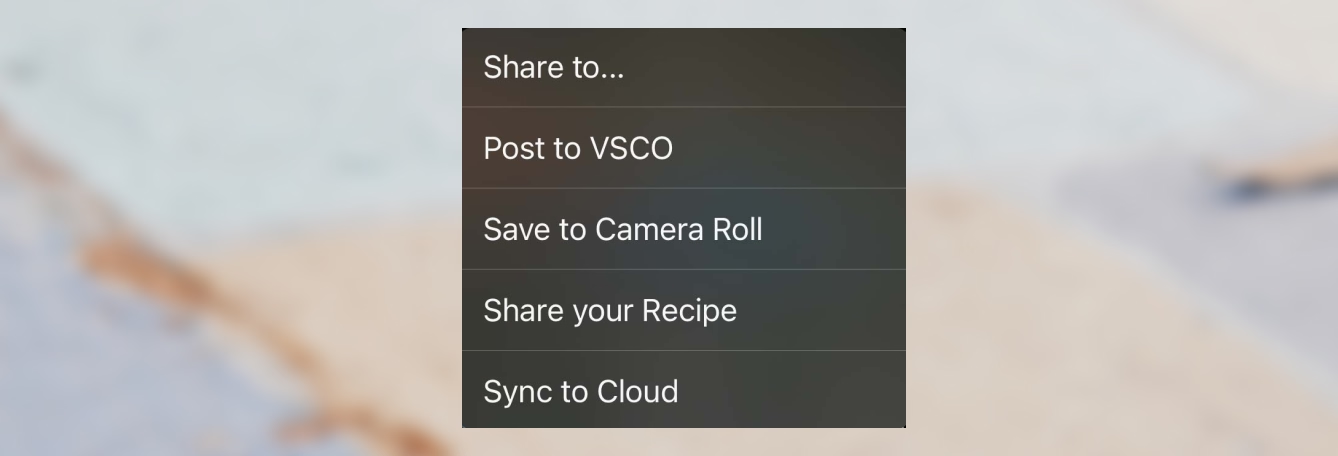
- ‘Share to…’ will let you share to other apps you have installed on your phone.
- ‘Post to VSCO’ shares this image with the VSCO community.
- ‘Save to Camera Roll’ is pretty straightforward.
- ‘Share your recipe’ will give you a way to share your favorite edits with your community.
- ‘Sync to Cloud’ gives Pro Members a way to send this image to the web editor to keep editing on the desktop.
Let’s post this image to VSCO — which will also save to camera roll at the same time. This is where you can publish something for others on VSCO to see publicly. You can enter a brief description and allow discussions if you’d like to hear from your followers on this image.
Just a quick callout here— only members can engage in discussions, but anyone can see them. And you can enable and disable discussions at any time if you change your mind about whether you want to have that, so you are in complete control with that feature.
On the VSCO Feed you can see the image you just posted. To get to the feed, if you exit the editor you’ll be asked if you want to save your changes to this draft. Tap on save changes and now you’re back to the Studio.
Deselect that image and tap on the home icon on the far left to get to your VSCO Feed. There you can see the image you just published at the top of the feed since this is a chronological feed. This is also where you’ll see images from people you follow.
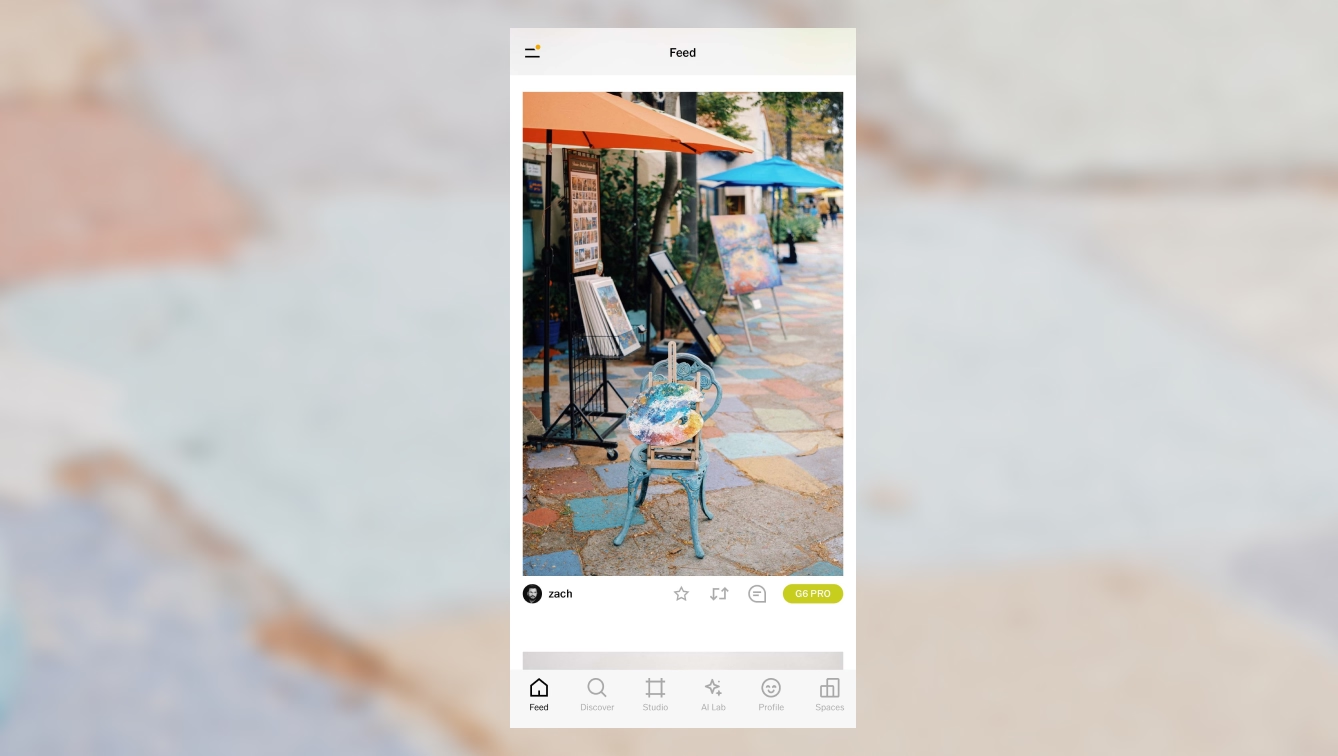
In the VSCO Feed, you’ll see a few icons under each image which will allow you to take several different actions to engage with your community.
The star will favorite that image, and this will give that creator a private notification that you’ve done this. It’s a great way to tell someone you liked their work.
The chasing arrows will repost that image to all of your followers, and add it to the Reposts tab of your Profile. This is great for an image you love so much that you think everyone ought to see it, and the creator will be notified of that as well.
The chat bubble is available if you enable discussions, and you can start or join a discussion with the creator from here if you are a Plus or Pro Member.
A great feed needs great creators, and there’s a lot to find here. The suggested carousel will have some new recommendations for you every session, and you can tap on them to see their profile. Here, you can see their work, the images they’ve reposted, and anything else they’ve shared about themselves. If you want to see their work in your feed, go ahead and follow them.
Let’s talk about your VSCO Profile. This is where all the images you have published will be visible, as well as your Reposts and the About information you provide about yourself. To see your profile, click the Profile tab with the face icon.
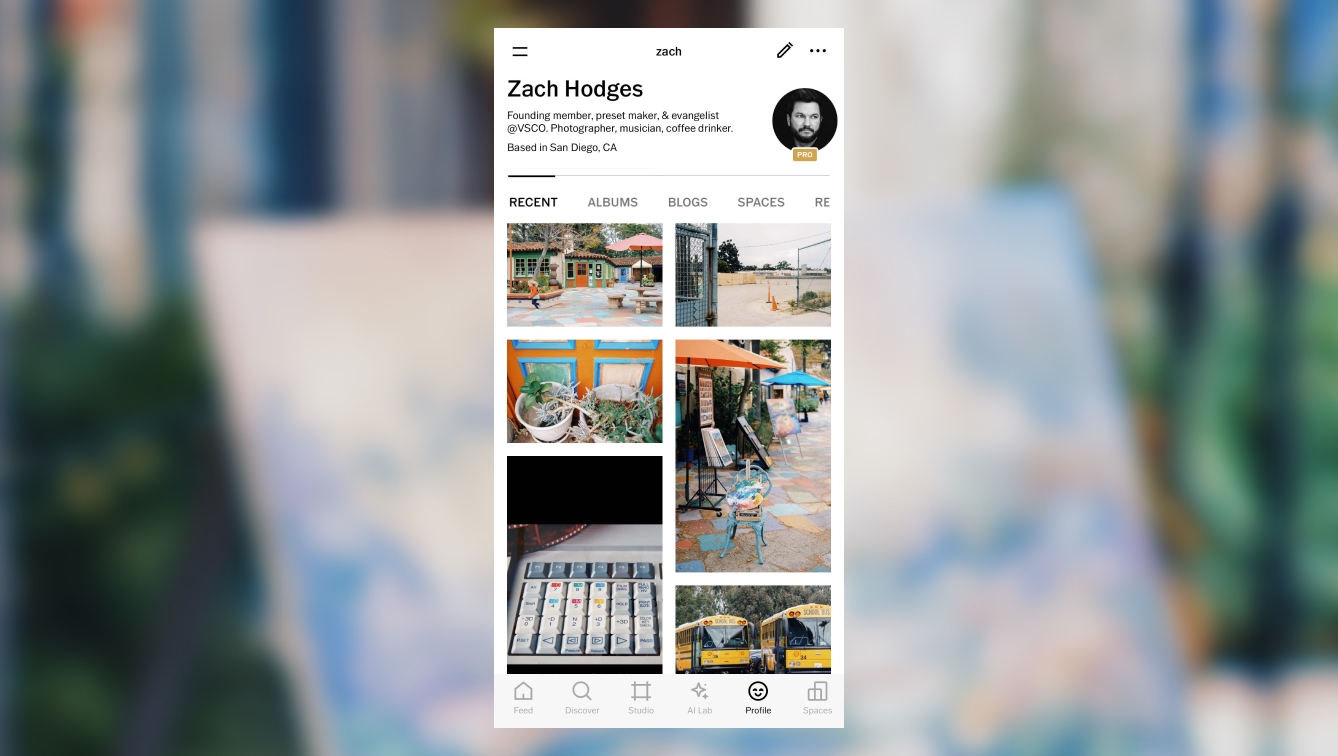
Pro members can create albums to showcase their work here as well, and any public Spaces you are a part of will also be here (more on Spaces below).
The About section is especially important for Pro members because this is where you can let the community know what kinds of activities you’re available for, like mentoring or giving feedback, as well as making yourself available for professional photography jobs, and letting potential clients know the kind of work you do.
To build your profile, tap on the pencil icon up top. You can fill in as much as you’d like to share about yourself, including your photography experience and availability.
As you scroll down you can see the additional options Pro members have to set up their profile. Much of this becomes visible in VSCO Hub, where potential businesses can see this information to learn more about you.
Check out our Photography Profile Guide for more tips on filling out your VSCO Profile.
Your Profile Insights help you understand how people are interacting with your work on VSCO. You can see views, favorites, reposts, discussions, and follows over time—giving you a clearer picture of what resonates with your audience.
To see your Profile Insights, you can find them in the sidebar menu within the Activity tab or from your profile you can click on the 3 dots and ‘View Insights’.
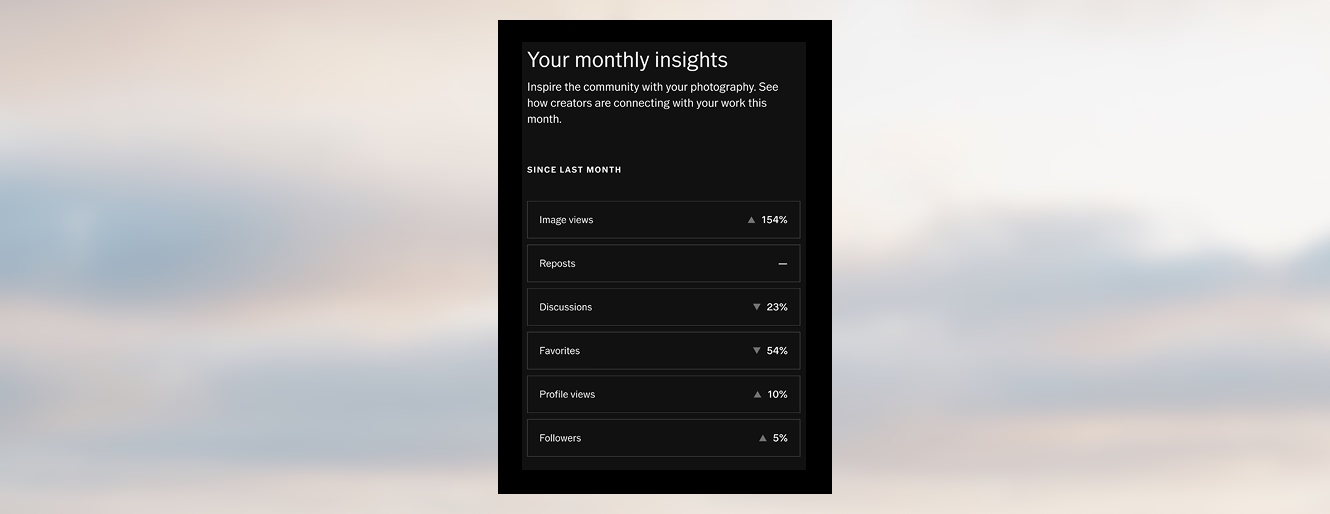
Rather than chasing metrics, insights are meant to help you notice patterns: which images spark conversation, which styles get saved or shared, and how your posting habits affect discovery.
For Pro members, these insights are especially useful when refining a portfolio, testing new directions, or understanding what potential clients are responding to most.
Photo albums let you organize your published work into focused collections that tell a more intentional story. Instead of presenting everything chronologically, you can group images by theme, project, location, or style—making it easier for viewers to understand your creative point of view at a glance.
Albums live directly on your Profile, and Pro members can reorder them to control what visitors see first. This is especially useful if you’re showcasing client work, building a cohesive series, or curating a tighter edit from a larger body of images.
Blogging on VSCO gives you space to expand beyond single images and share the thinking behind your work. You can combine photos, videos, and text into long-form posts—whether that’s a project breakdown, a travel story, or a deeper exploration of your creative process.
Blog posts show up on your Profile and can also be discovered through search and sharing, making them a powerful way to add context to your imagery. If you’re building an audience or presenting yourself professionally, blogs help turn your visual work into a narrative people can connect with.
You can turn the work you post on your Profile into a clean, distraction-free portfolio website in seconds with VSCO's website builder.
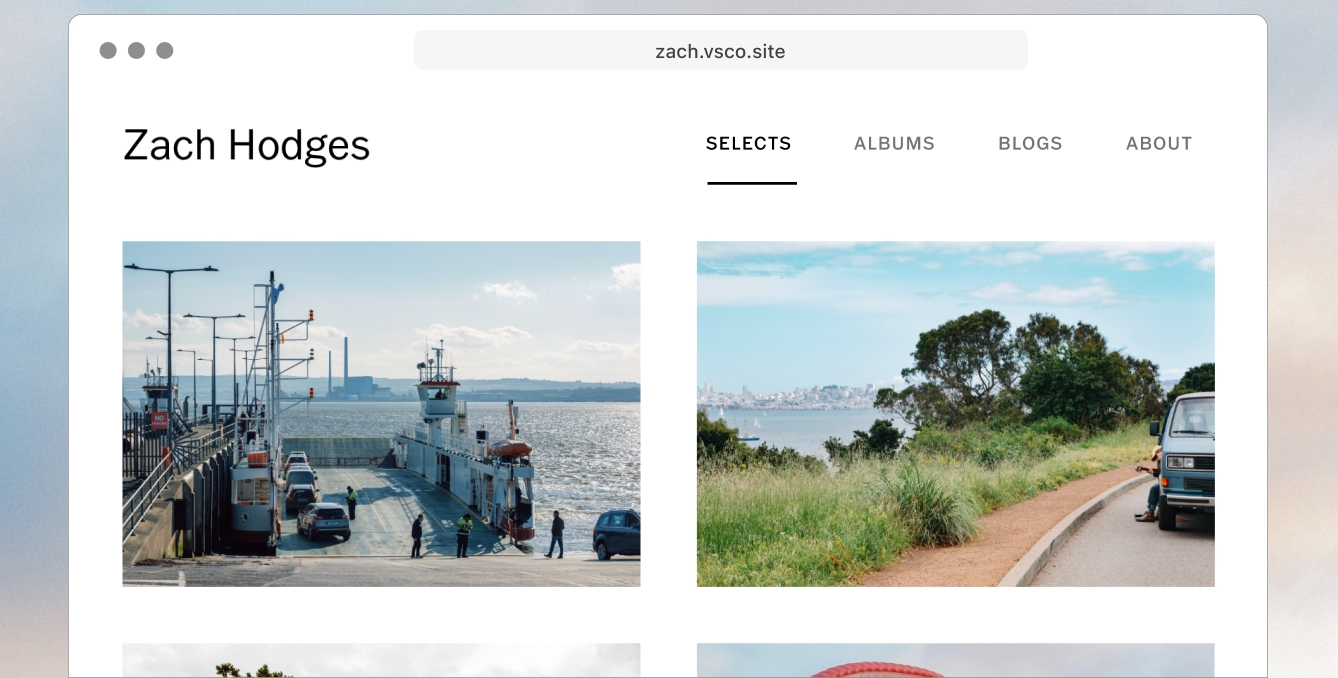
Your site pulls directly from your VSCO Profile, so updating images, albums, or blog posts stays simple and in sync. You can customize layouts and present your work in a way that feels intentional and professional—without needing to design or code from scratch.
For photographers and creatives looking to share their work beyond the app, a VSCO portfolio website makes it easy to show up consistently across platforms.
On VSCO you can find creators that you love to have a feed full of new inspiring work every day.
In the Discover section with the magnifying glass icon, you can find curated selects by VSCO. These are some of the best images that our curators are seeing each day, and this is a great place to start.
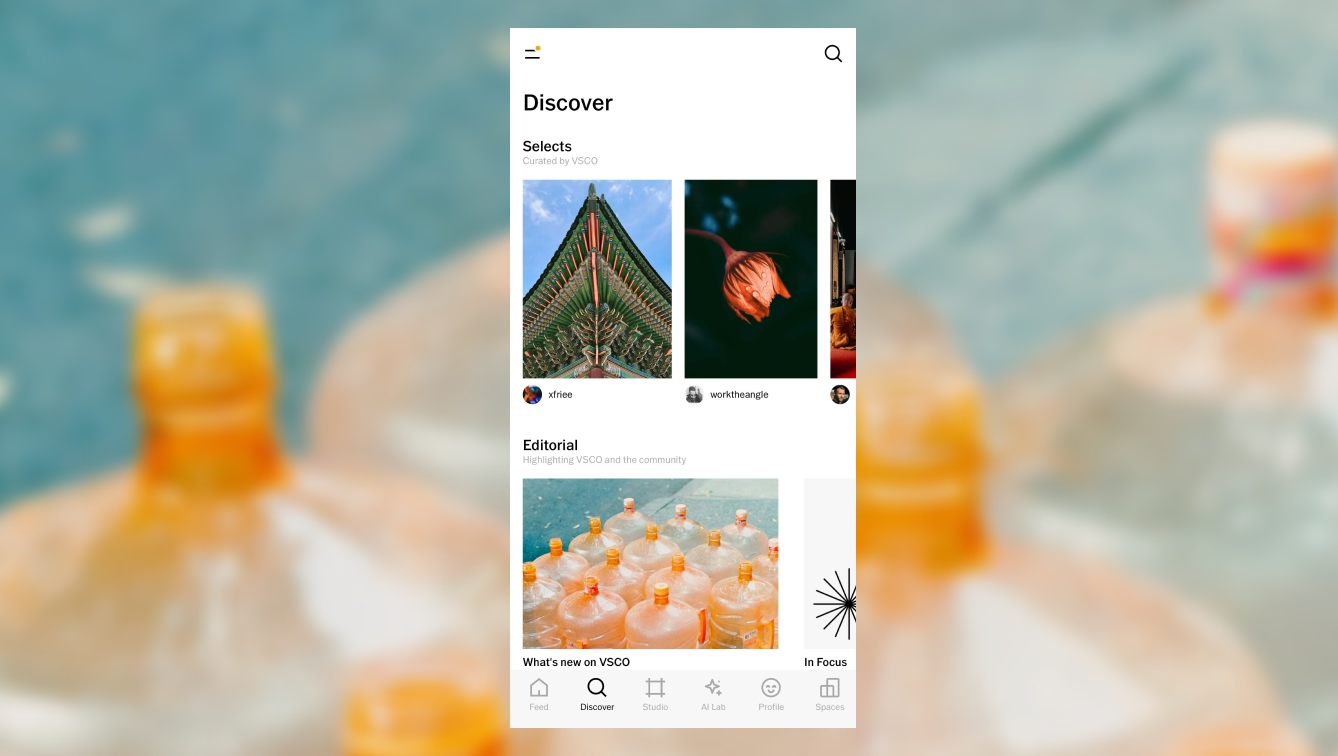
You can open these creator’s profiles from here and follow them if you like their work. If you open an image here or in the feed and scroll down, you can also see related images. This is another great AI feature that helps you find more work that is similar to this image. You can use this to follow an endless trail of images and find many more photographers to follow.
The Discover section also has editorials, collections, and more suggested images based on the things you have favorited. Creative prompts are here too, for example our leading lines prompt. This is a great way to learn, but it’s also a way to use this hashtag for a chance to be featured in the VSCO Discover page.
Learn more about prompts and what’s new with VSCO here.
At the top right of the Discover tab is the search feature. With VSCO Search, you can look for people and images on VSCO. There’s lots to explore here in the Discover section, and the more people you follow, the more you’ll get out of your feed and the community.
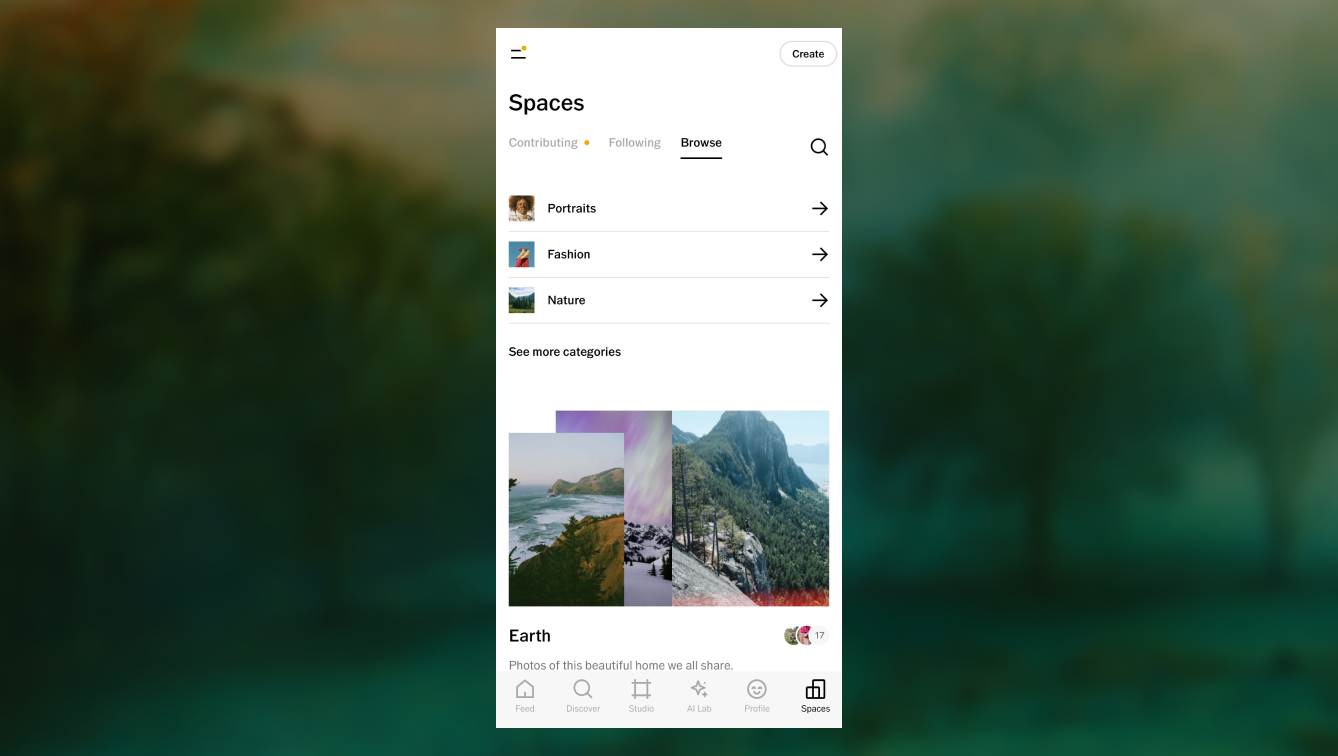
The final tab in the VSCO app is Spaces.
VSCO Spaces are small communities that you can either join or create, and they can be about anything. They can be public with up to 150 people, or private with whoever you’d like.
These photography groups can be a great place to connect and have discussions with other like-minded creatives around a topic that you all share an interest in. So you could start by browsing spaces to find one you’re interested in and get connected with others that way.
What is the VSCO app?
VSCO is a mobile photography and video editing app that lets you capture, edit, and share visual content using high-quality tools and creative presets. It combines a powerful editor with a visual community focused on artistic expression rather than likes or public engagement.
Does VSCO have a desktop editor?
Yes. VSCO Web Studio is a browser-based editor for Mac or PC at studio.vsco.co, no download required. It carries the same presets and core tools as the mobile app. If you need to batch edit a full photoshoot at once, VSCO Studio Pro is a separate app built for that specifically, available on iOS now, with a desktop Mac version coming later this year.
What are VSCO presets and how do I use them?
Presets are curated filters that instantly apply a look or mood to your images. In the photo editor, select the Presets tab—choose one and then adjust the strength slider to fine-tune the effect. There are standard presets, film presets inspired by analog film looks, and VSCO Pro presets with deeper controls.
How do I import photos or videos into VSCO Studio?
To start editing, open the Studio tab and tap the + import icon to choose photos or videos from your camera roll. These files become private drafts in your Studio until you edit or publish them.
What image editing tools does VSCO offer and when should I use them?
Beyond presets, VSCO’s editing tools include Exposure, Contrast, Saturation, Crop, Straighten, HSL (Hue/Saturation/Lightness), Grain, Vignette, and more tools—letting you refine edits with precision. Explore the full photo editor suite and photo effects.
How to post on VSCO?
After editing, tap the Share button and select ‘Post to VSCO’. You can add an optional caption or hashtags, allow discussion comments, and save to your camera roll. Public posts appear on your profile and can be seen by visitors and other VSCO users.
Can I share my VSCO edits to Instagram, TikTok, or other platforms?
Yes. When you’re ready to export, tap Share to… and choose where you’d like to share (Instagram, TikTok, Messages, etc). You can also save your edit to your camera roll first, then upload it wherever you like.
What's the difference between VSCO Web Studio and the mobile app?
The VSCO mobile app is built for full creative editing and community engagement: presets, tools, feed exploration, and publishing to Spaces. VSCO Web Studio is the same core editing experience in your browser on Mac or PC, useful for working on a bigger screen or picking up where you left off on mobile. Web Studio isn't built for batch editing a whole shoot at once, that's what VSCO Studio Pro is for, a separate app built specifically for high-volume professional workflows.
How do I find inspiration and explore content on VSCO?
The Discover tab lets you browse curated collections, blogs, search, and find photos or creators that align with your style. Using VSCO search effectively can help you grow your aesthetic and find visual inspiration from other creators, images, and blogs. You can also use Canvas to search VSCO, collect inspiration, and create moodboards.
Does VSCO offer other tools besides the mobile app?
Yes. VSCO is a creative platform that goes well beyond its mobile photo editor. In addition to editing on iOS and Android, VSCO offers a suite of tools and features designed for photographers and visual creators at every stage of their process:
- Desktop Editing (VSCO Web Studio): A browser-based photo editor for Mac and Windows, no download required. Upload, edit, and finish photos with VSCO's presets and core tools, right where you left off from mobile.
- Creative Planning (VSCO Canvas): Canvas is a moodboard and creative project tool where you can gather inspiration, import images, generate visuals with AI prompts, add notes, and collaborate on ideas—all inside a flexible visual workspace.
- Client Galleries (VSCO Galleries):
VSCO Galleries is a professional photo delivery tool that lets photographers share high-quality, branded client galleries in a clean, distraction-free viewing experience. You can upload full-resolution images, organize collections, enable collaborative uploads, and share private links for proofing or final delivery—all with unlimited storage included in VSCO Pro. - Batch Editing (VSCO Studio Pro): A separate, standalone app built for editing full photoshoots at once: up to 100 photos in a single batch, with Style Match to recreate a reference look across your whole set. You can publish directly to VSCO Galleries, so a finished edit is client-ready in minutes. Currently available on iOS, with a desktop Mac version coming later this year.
- Business & Studio Management (VSCO Workspace): Workspace is a CRM and studio management platform built for professional photographers and creative studios. It includes client tracking, workflows, scheduling, contracts, invoicing, and reporting so you can run your business without juggling multiple apps.
- Community & Business tools: VSCO also includes features for connecting with other creators, attending live events, building a profile and albums, sharing work, and finding opportunities in the photographer network.
- Portfolio Websites: With VSCO Sites, you can build a portfolio website that syncs with your VSCO Profile so your work looks great online with minimal setup.
- Educational resources: Educational resources like The Freelance Photographer offer practical guidance on pricing, contracts, and building a sustainable career.
Here's what these tools look like working together on an actual job. Say you've just finished photographing a wedding. Back at your laptop, or still in the venue parking lot, you batch-edit the selects in Studio Pro, applying your signature look across the whole set and using Style Match if the couple asked for a specific look. Once you're happy with the set, publish straight to VSCO Galleries from inside Studio Pro, no export, no re-upload. The gallery goes live, and you send the delivery link.
If you're on VSCO One, that gallery link and the client record can live right inside Workspace too, alongside the contract and the invoice, so all the booking details stay in one place.
Every tool in this guide is useful on its own, but they're built to hand off to each other.
VSCO for Editing, Community, & Business
Alright, and there you have it, that’s everything you need to get started with the VSCO app. There’s a lot I didn’t cover, so be sure to check out our educational articles and support pages to learn more.
VSCO is more than a photo editor—it's a connected creative ecosystem. Whether you're editing on mobile, batch processing in Studio Pro, planning projects in Canvas, delivering client galleries, building a portfolio website, or managing your photography business, every product is designed to support the same creative workflow.
For photographers who are running a business or making the professional leap, VSCO One brings together everything a photographer needs from photoshoot to payment: Galleries, Workspace, Sites, Canvas, Capture, AI Lab, and business education.

Thank you, and I’ll see you on VSCO.