Remove Stray Hair From Your Photos
Remove flyaway hairs from photos instantly with VSCO’s AI-powered editing tools for clean, natural-looking portraits.

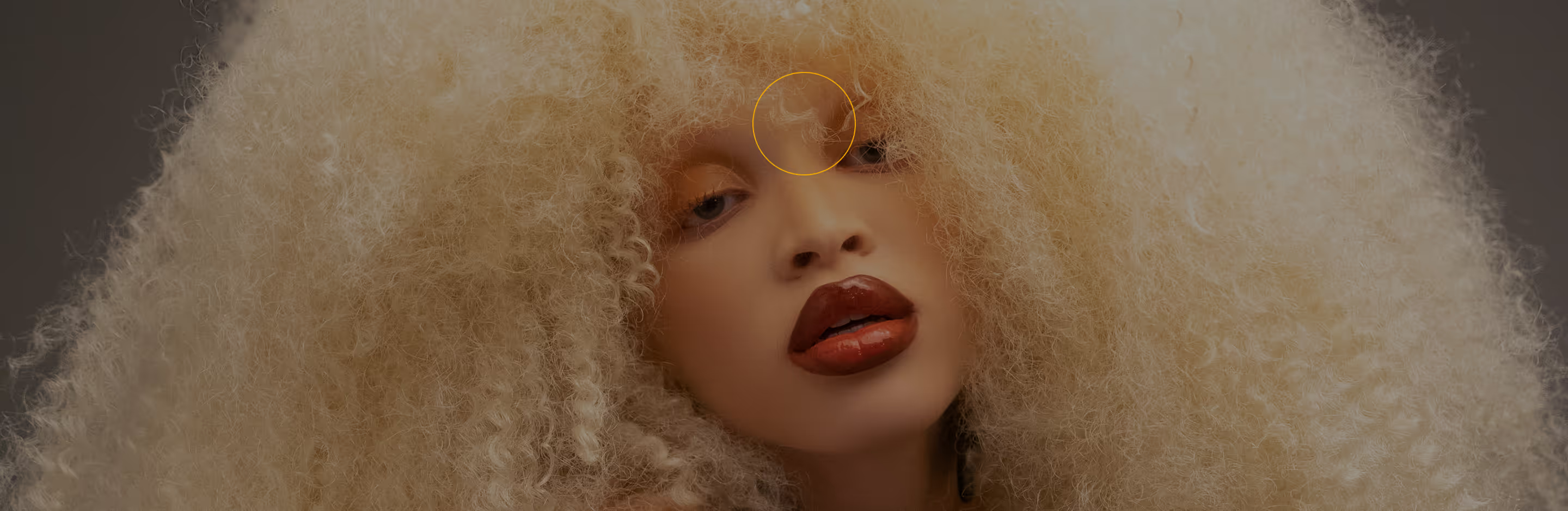
Make your portraits look polished
Clean up flyaways and stray hair in seconds using AI that blends seamlessly into your photo. No complicated editing required.
Import your photo
Use AI to remove stray hairs
Fine-tune and save
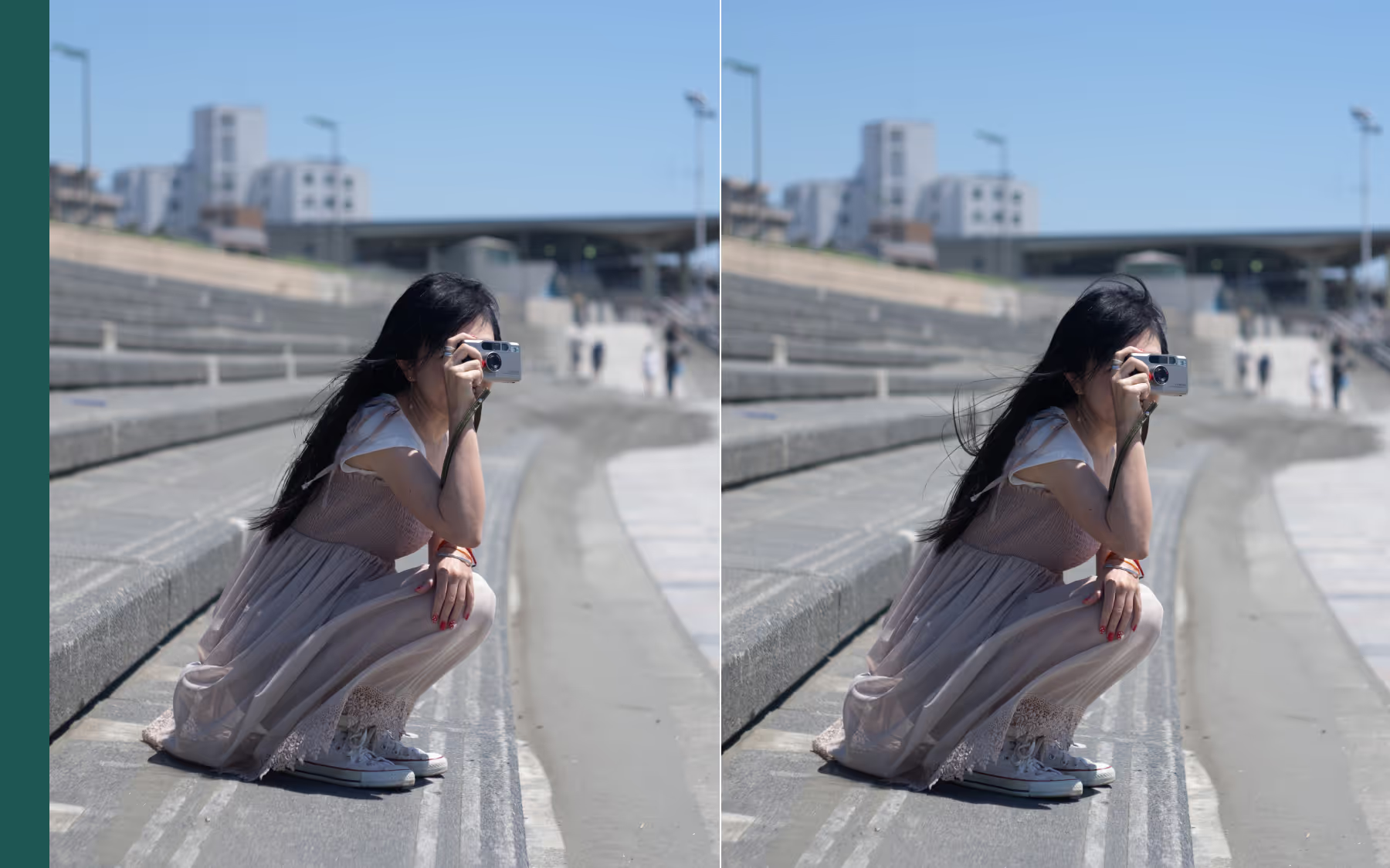
Remove Flyaways and Stray Hairs in Seconds
VSCO's AI editor makes it easy to remove stray hairs from portraits, editorial work, and lifestyle imagery where every detail matters—from wind-swept outdoor shoots to weddings and studio portrait sessions.
The Remove tool lets you brush away flyaways with precision, keeping texture, light, and atmosphere intact. Prefer to work in words? Prompt lets you describe edits in your own words, just type "remove flyaway hairs” and AI Lab takes it from there. Two tools, one seamless result.
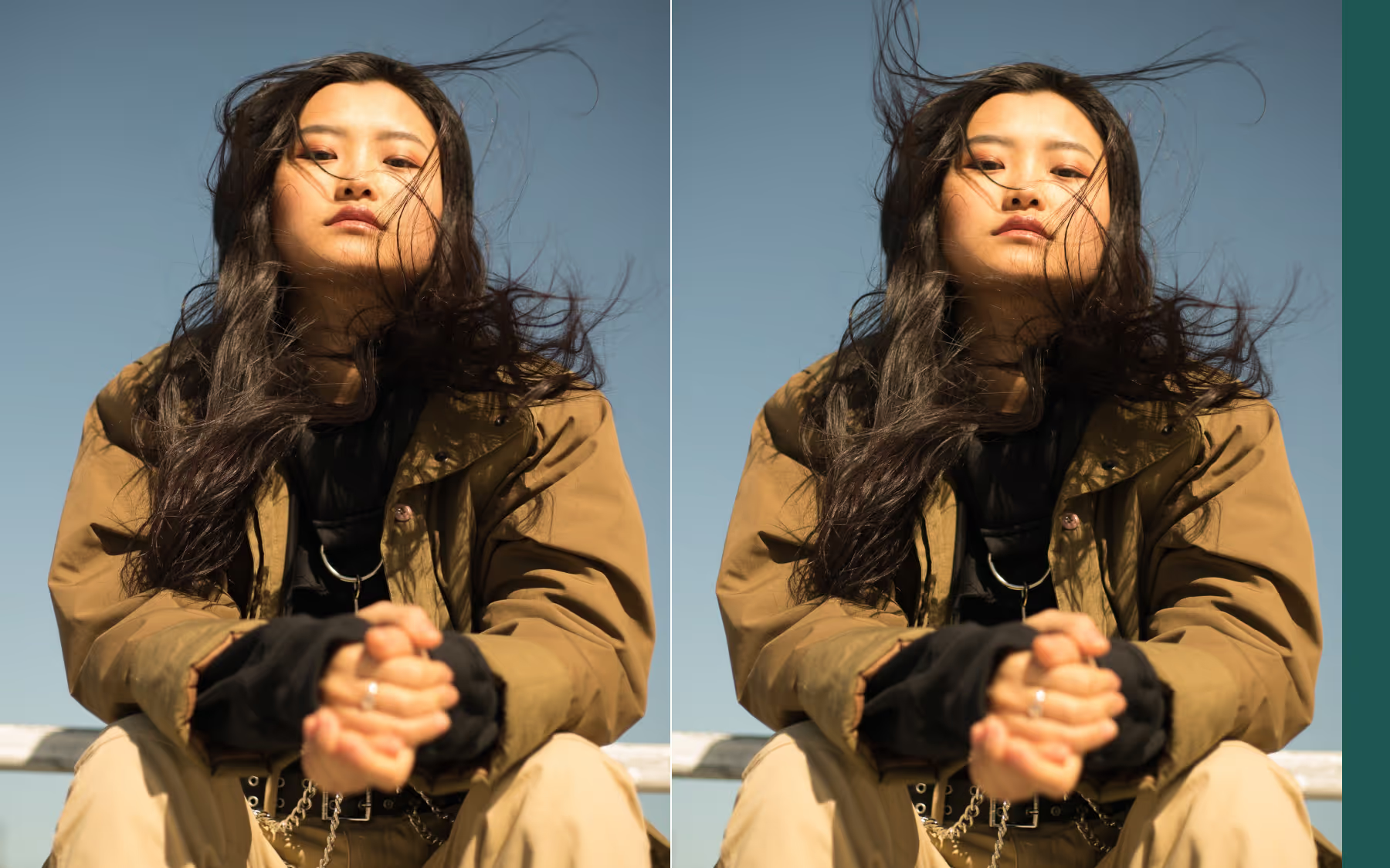
How To Remove Stray Hair
Upload your photo in the VSCO mobile app for iOS.
Tap AI Lab in the menu to access AI photo editing tools.
With Remove, brush over stray hairs you want to remove.
Alternatively, you can edit the whole image using a text prompt to “remove stray hairs”.
Export, save, or share your clean, polished photo instantly.
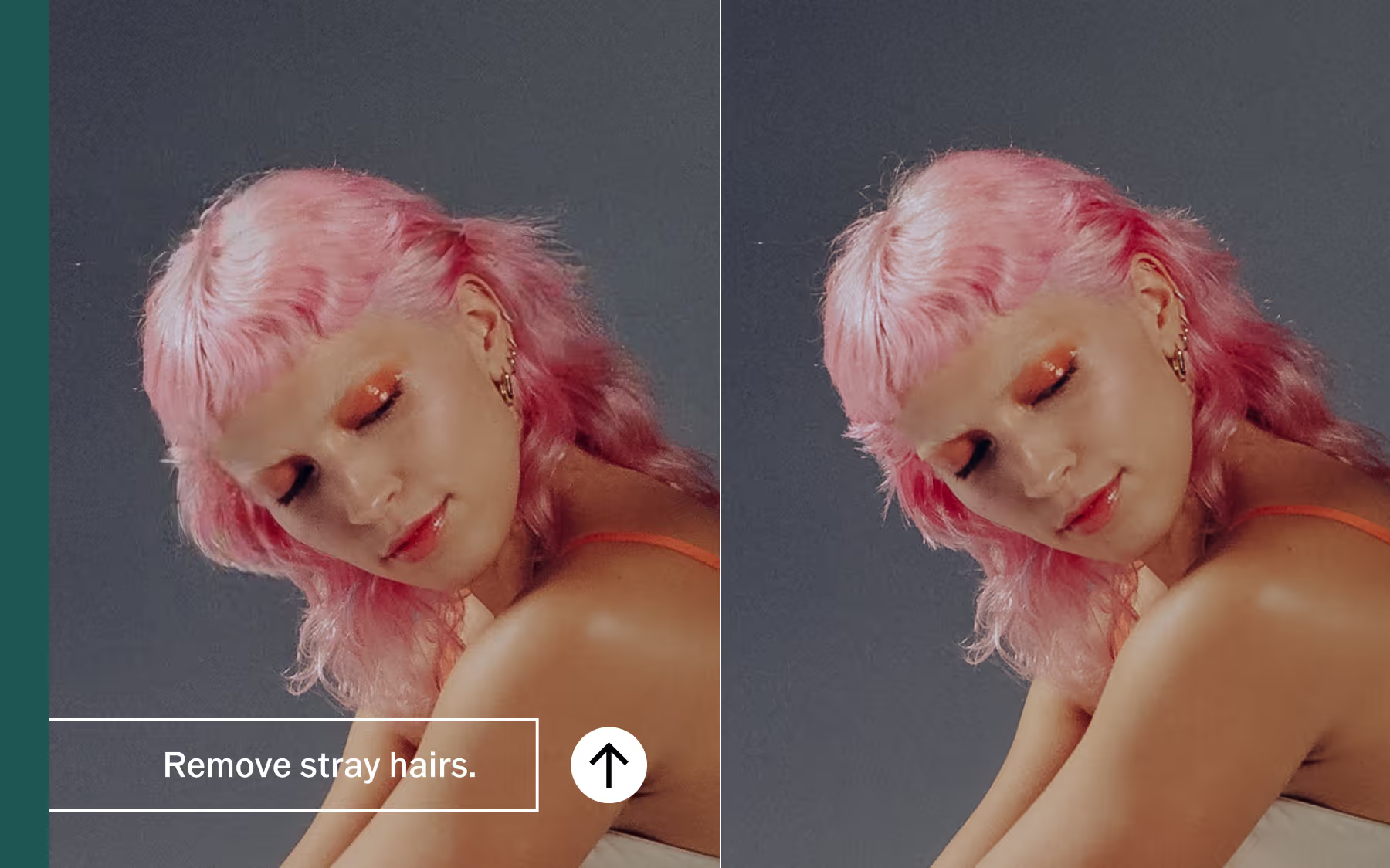
AI Editing That Preserves what Matters Most
VSCO's AI photo editor removes stray hairs without sacrificing what makes your image feel real. By intelligently blending textures, light, and background detail, AI Lab cleans up distractions while keeping the integrity of your shot intact.
No harsh retouching. No plastic results. Just high-fidelity edits that enhance your subject the way you intended.



Frequently asked questions
Can VSCO remove stray hairs automatically?
Will removing stray hair affect image quality?
No. VSCO's AI Lab preserves full resolution and fine detail throughout every edit, so your image stays sharp, realistic, and exactly as you intended.
Can I remove very fine hairs and flyaways?
Yes. For precision, use the Remove tool with a smaller brush size and a gentle tapping motion. This allows for accurate removal of fine strands without affecting surrounding details.
MORE PHOTO EDITING TOOLS
Pair stray hair removal with VSCO’s AI photo editor, Skin Tone tool, and Film Filters to create a seamless editing workflow. Clean flyaways, refine tones, and shape mood in one fluid process, giving you precision control without sacrificing creative expression.
AI Photo Editor
Enhance images instantly with intelligent, high-fidelity AI editing tools.
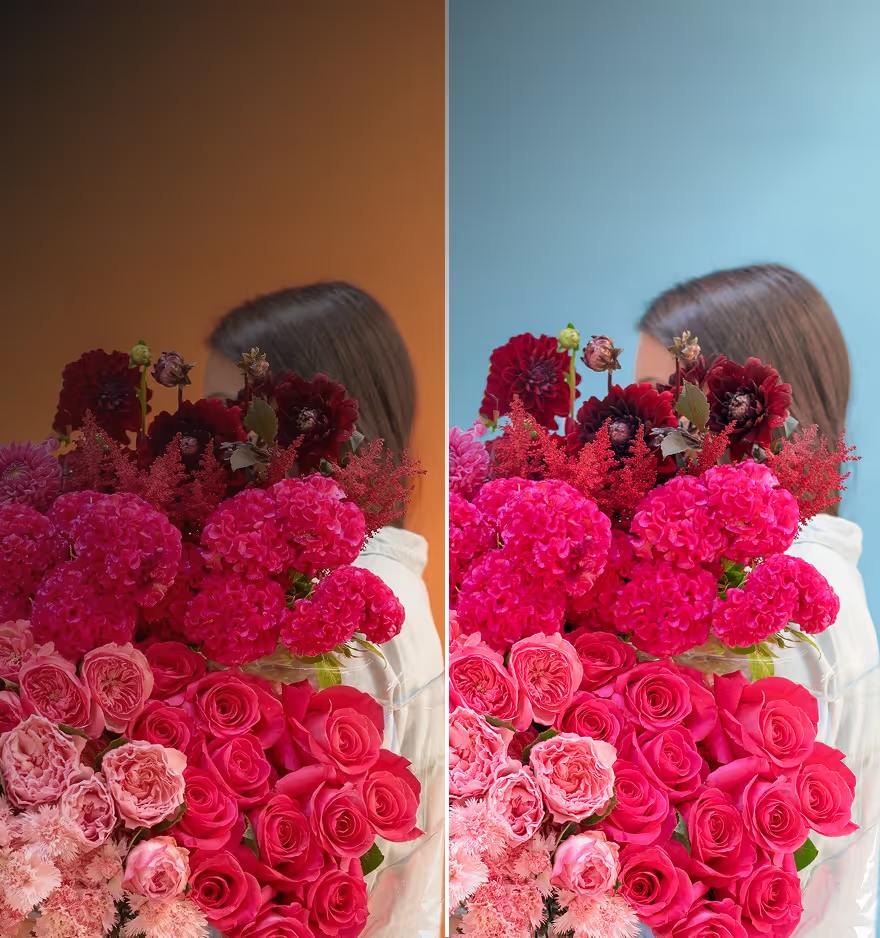
Skin Tone EDITOR
Refine skin tones naturally while preserving texture and realism.
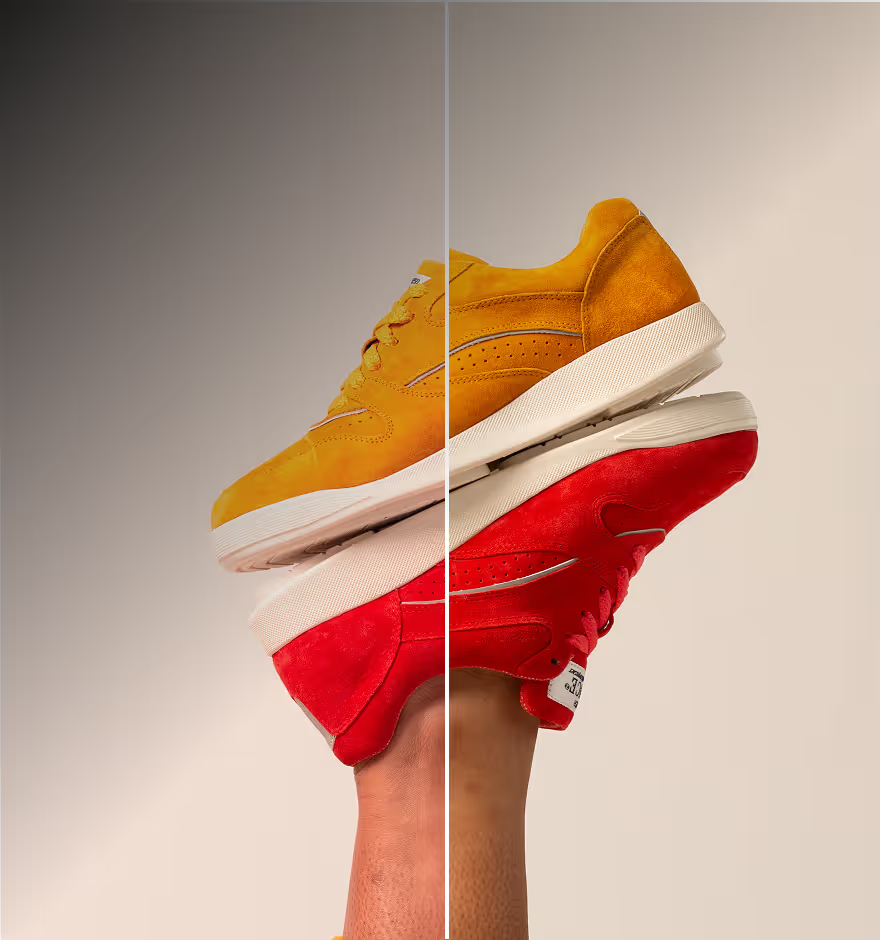
Film Filters
Apply cinematic, film-inspired styles for rich, timeless visual storytelling.